


Most newsletter designs stall not because of bad ideas, but because the tools get in the way.
Canva changes that. Its drag-and-drop editor, email newsletter templates, and built-in Brand Kit make professional newsletter design accessible without a graphic design background.
This guide covers exactly how to make a newsletter in Canva, from picking the right layout and customizing fonts and colors, to adding clickable links and exporting your design to Mailchimp or Klaviyo.
By the end, you will have a complete picture of the full Canva newsletter workflow, including where the platform excels and where you will need a dedicated email marketing platform to handle the rest.
What Is a Canva Newsletter?

A Canva newsletter is a designed email or printable document built inside Canva’s drag-and-drop editor. It covers everything from a single-page company update to a multi-section email marketing layout, all created without writing a line of code.
The distinction matters before you start: Canva produces the visual design layer, not the full email marketing stack. Sending, list management, and analytics happen elsewhere (or through Canva’s limited direct-send feature).
Canva currently serves over 220 million monthly active users, with more than 38.5 million designs created per day across all formats (Canva, 2025). Newsletter design is one of the platform’s most searched template categories.
| Output Type | Format | Best For |
|---|---|---|
| Email newsletter | PNG, PDF, direct send | Digital distribution via email platforms |
| Print newsletter | PDF (print quality) | Physical distribution, community boards |
| Shareable link | Canva hosted page | Internal teams, quick sharing without export |
Canva does not generate responsive HTML output. That means image-based newsletters exported as PNG or standard PDF depend on a single static image block rather than an adaptive coded layout.
If you need automated sends, subscriber segmentation, or click tracking, tools like Canva works as the design layer inside a broader workflow with Mailchimp or Klaviyo sitting on top.
What Are the Canva Newsletter Templates Available?

Canva’s template library for email newsletters covers business, education, nonprofit, real estate, retail, and personal use cases. Templates are filterable by style (Vintage, Minimal, Corporate) and theme (Travel, Event, Health, Food).
Template types at a glance:
- Email newsletter templates (600px width, digital-first)
- Print newsletter templates (A4 or US Letter, multi-column)
- Marketing email templates (product-focused, promotional)
- Company update templates (internal comms, announcements)
Newsletters with 40.08% average open rates outperform most other email types (GetResponse, 2024). A strong visual template is one reason design-first newsletters hold reader attention longer.
Email Newsletter Templates vs. Print Newsletter Templates
Email templates default to 600px width, matching the standard rendering width across Gmail, Outlook, and Apple Mail. They are built for digital export and direct email send.
Print templates use A4 or US Letter dimensions with higher-resolution layout grids. They output best as PDF for physical printing or digital distribution as a downloadable document.
Mixing the two is a common mistake. Using a print template and exporting it as a PNG for email results in an oversized image that breaks on mobile screens. Pick the right category before you start customizing.
How Do You Set Up a Canva Account to Start a Newsletter?

A free Canva account gives access to hundreds of newsletter templates, a stock photo library from Pexels and Pixabay, and the core drag-and-drop editor. No payment details needed to get started.
Canva Pro costs $15/month (billed monthly) or $120/year and adds 3 features that directly affect newsletter quality:
- Brand Kit: saves logos, hex color codes, and font combinations for one-click application
- Background Remover: removes image backgrounds without exporting to a separate tool
- Premium templates: unlocks the full template library, including Pro-only newsletter designs
Canva for Teams adds shared Brand Kits and shared folder access, useful when multiple people work on the same newsletter series. Setup takes under 3 minutes: sign up at canva.com, navigate to “Create a design,” and search “Email Newsletter.”
For an extended look at what the free plan covers versus Canva Pro, the differences go beyond newsletter templates into broader design capabilities.
How Do You Choose the Right Newsletter Layout in Canva?

55% of email opens happen on mobile devices (Litmus, 2024). That single stat should drive every layout decision you make in Canva before touching a template.
Single-column layouts render predictably across Gmail on Android, Apple Mail on iPhone, and Outlook on desktop. Multi-column designs risk collapsing or overlapping when a PNG image renders at reduced mobile widths.
Single-Column vs. Multi-Column Newsletter Layouts
Single-column works for most use cases. Text stays readable at mobile widths, images scale without breaking, and the visual flow guides readers straight down the page. Best for text-heavy content, company updates, and educational newsletters.
Multi-column suits product roundups, event listings, or content-heavy issues where side-by-side comparison adds value. The tradeoff: the exported PNG must be wide enough that text remains readable when scaled down on a phone screen.
| Layout | Mobile Rendering | Best Content Type | Export Risk |
|---|---|---|---|
| Single-column | Reliable | Updates, essays, announcements | Low |
| Multi-column (2) | Moderate | Product grids, event listings | Medium |
| Multi-column (3+) | Poor | Print newsletters only | High |
Switching layouts mid-design without losing content is straightforward: duplicate the current page, restructure the elements on the copy, then delete the original once the new layout is confirmed.
Good visual hierarchy depends heavily on layout choice. A single-column design naturally pushes readers from headline to body to CTA without distraction.
How Do You Customize a Newsletter Design in Canva?

Customization in Canva works across 5 core design elements: text, images, colors, spacing, and graphic elements. Each has its own panel in the left sidebar or the top toolbar depending on what’s selected.
How to Edit Text and Typography in Canva Newsletters
Select any text block to open the text toolbar. From there, you control font family, size, weight, line spacing, letter spacing, and alignment in a single bar.
Minimum readable sizes for email:
- Body text: 14px
- Subheadings: 18px
- Headlines: 22px or larger
Canva’s font library includes over 6,000 typefaces. For newsletters, pairing a serif font for headlines with a sans-serif font for body text is the most readable combination across screens. Understanding typography basics helps here: leading (line spacing) and tracking (letter spacing) both affect how comfortably a newsletter reads at small sizes.
Check out this guide on the best fonts for newsletters for specific typeface picks that hold up well in email design.
How to Add and Replace Images in Canva Newsletters
Click any image placeholder in a template to replace it. Canva opens a panel with 3 source options: the built-in library (Pexels and Pixabay integration), uploaded files, or generated images via Magic Studio (Pro).
Image-based emails get a 4.84% click-through rate vs. 1.64% for text-only emails (GetResponse, 2024). Relevant, high-contrast images placed near CTAs drive the most engagement.
Keep exported PNG file sizes under 1MB. Larger files load slowly on mobile connections and increase the chance of the email being clipped by Gmail’s 102KB message size limit.
How to Apply a Consistent Color Scheme
Canva’s color picker accepts hex codes directly. Type your brand’s hex value into the hex field to match colors exactly without guessing from a swatch.
A solid newsletter color palette for email typically uses 3 colors: one primary (background or header), one accent (CTA buttons, links), and one neutral (body text). Understanding color theory helps when picking accent colors. Analogous colors create cohesive, calm layouts, while complementary color schemes add contrast and draw attention to key sections.
The “Apply to all pages” option in Canva’s color panel updates every instance of a color across all newsletter pages at once, useful for multi-page issues.
How Do You Add Clickable Links to a Canva Newsletter?

Adding a link in Canva takes 3 steps: select the text or element, click the link icon in the top toolbar, paste the URL. The link saves to that element automatically.
Where links work vs. where they don’t:
- Canva direct email send: links are functional
- Interactive PDF export: links are functional
- PNG or JPG export: links are non-functional (static image)
- Standard PDF export: links may or may not be clickable depending on the recipient’s PDF reader
Canva does not generate or append UTM parameters. If you need campaign tracking, build your UTM-tagged URLs in Google’s Campaign URL Builder first, then paste the complete URL into Canva’s link field.
One real-world workaround used by small business newsletter senders: export the full newsletter design as a PNG, host it on a landing page, and link to that page from a plain-text email. This keeps the design intact while allowing click tracking at the landing page level rather than the email level.
For anyone building a broader Canva design workflow, understanding how to save a Canva design as a PDF with interactive elements preserved is worth knowing before exporting.
How Do You Use Canva’s Brand Kit for Newsletter Consistency?

Brand Kit is a Canva Pro feature that stores logos, color palettes, and font combinations in one place. It eliminates manual color and font matching every time a new newsletter issue is created.
What Brand Kit saves:
- Up to 100 brand colors (hex codes)
- Up to 5 font combinations (heading + subheading + body)
- Logo files in multiple formats
Apply Brand Kit to any newsletter template with one click using the “Apply brand” button that appears after opening a design. Canva replaces the template’s default colors and fonts with your saved brand values across every element simultaneously.
For teams, Canva for Teams accounts allow shared Brand Kits that all team members access. This means a marketing manager, a content writer, and a designer can all open the same newsletter template and work with identical brand assets without emailing font files or color reference sheets back and forth.
Building a Brand Kit properly starts with documented brand guidelines. If those don’t exist yet, a brand style guide covering color, typography, and logo usage is the right foundation to build first before setting up Brand Kit. Getting those font choices locked in early saves a lot of redesign time across newsletter issues.
Canva’s Brand Kit 2.0, launched at Canva Create 2024, added enterprise-level controls for enforcing brand guidelines across global teams, including role-based permissions for who can edit the Brand Kit itself.
How Do You Send a Newsletter Directly from Canva?

Canva does not send emails directly. After designing, you send through either an email service provider (ESP) like Mailchimp or Klaviyo, or via Canva’s direct integration with Gmail (Canva Help Center, 2024).
The Gmail integration pushes your design into a Gmail draft with layout and images preserved. You add recipients and send from there. Best suited for one-off sends or small internal distributions, not bulk campaigns.
What the Gmail integration supports vs. what it doesn’t:
- Preserves layout, text, and images as designed
- Allows subject line and recipient customization before sending
- Does not support embedded media like videos or polls
- No subscriber list management, segmentation, or unsubscribe handling
Gmail is not an ESP. Mass-sending via Gmail triggers rate limits and spam filters, and has no SPF/DKIM/DMARC infrastructure behind it (Canva Help Center, 2024).
For any send larger than a small internal team, Canva’s role ends at design. The actual sending, list management, and compliance layer lives inside Mailchimp, Klaviyo, Constant Contact, or Flodesk.
Want to explore what else Canva can output? The same workflow applies when you need to make an email signature in Canva for consistent branding across all sends.
How Do You Export a Canva Newsletter for Use in Email Marketing Platforms?

Canva supports 3 export paths for newsletter distribution: HTML (via the Share menu), PNG/JPG (flat image), and PDF. Each behaves differently inside an ESP.
| Export Format | Links Work? | Best Platform Use |
|---|---|---|
| HTML (zip) | Yes | Mailchimp, Klaviyo, Brevo, Flodesk |
| PNG / JPG | No | Single image block inside any ESP |
| PDF (interactive) | Yes | Download-based distribution, Constant Contact |
| Gmail push | Yes | Small one-off sends only |
Exporting Canva Newsletters to Mailchimp
Canva’s direct Mailchimp integration (updated 2024-2025) uses a publish intent API. Finish your design, click Share, select Mailchimp, and the design lands in Mailchimp as a full HTML email ready to send (Mailchimp, 2025).
Key steps for the HTML export path:
- Click Share in the Canva editor
- Select Mailchimp from the Messaging options
- Sign in to Mailchimp if prompted
- Choose the page to publish (one email page per export)
- Click Publish now
Once imported, drag-and-drop editing inside Mailchimp is not available. All design changes must be made in Canva before exporting (Canva Help Center, 2024).
Exporting Canva Newsletters as PDF
PDF export works well for print newsletters and downloadable content. For email use, it suits campaigns where the newsletter lives as a linked document rather than an inline email body.
A workflow used by several small business newsletter teams: design in Canva, export as PDF, link the PDF from a plain-text or minimal HTML email with a clear CTA button. This sidesteps image-delivery issues and keeps the full design intact.
PDF export path: click Download, select PDF Standard (for digital use) or PDF Print (for physical printing). The “Flatten PDF” option removes editable layers, useful before sharing final files externally.
For detailed steps on output options, this guide on how to print from Canva covers both digital PDF and physical print workflows side by side.
How Do You Optimize a Canva Newsletter for Mobile Screens?
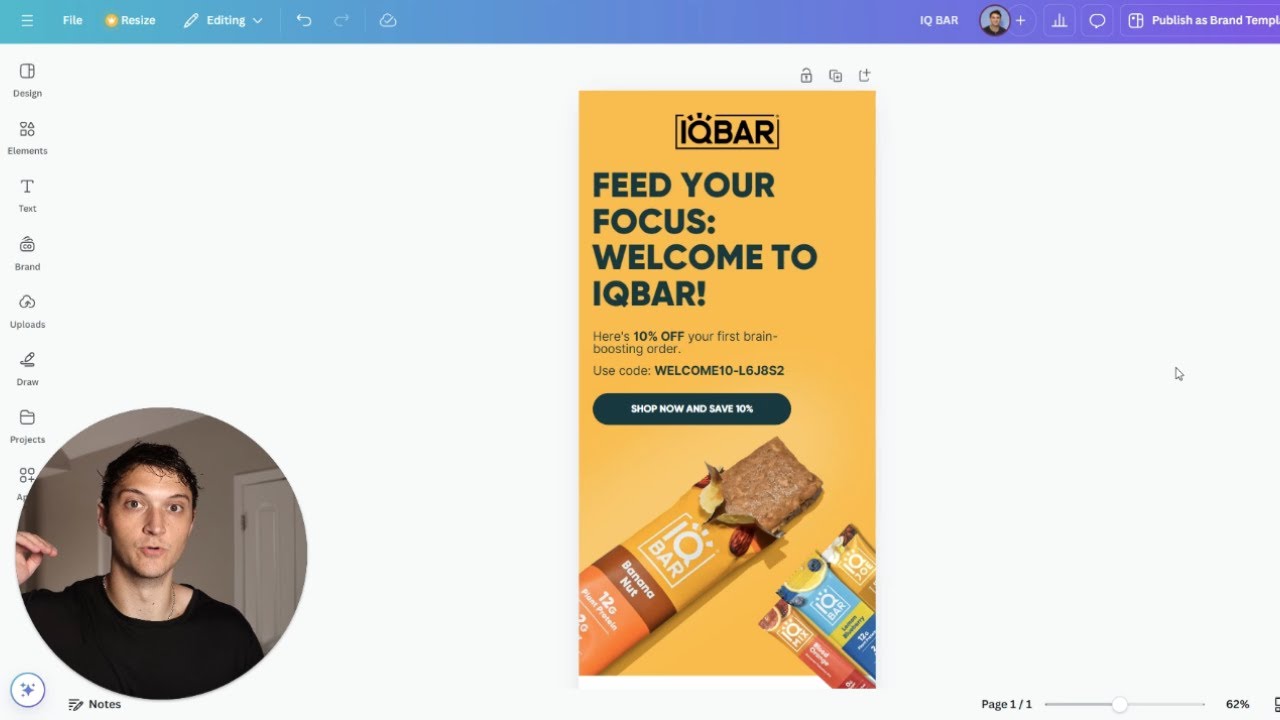
62% of email opens happen on mobile (Porch Group Media, 2024). A newsletter that renders poorly on a phone loses more than half its potential audience before a single word is read.
Canva has no built-in email preview tool. Mobile rendering must be tested externally using Litmus or Email on Acid before any send.
Font Sizes and Layout for Mobile Email
Minimum readable font sizes for mobile email rendering, based on Apple and Google guidelines:
- Body text: 16px minimum (Apple recommends 17px)
- Subheadings: 18-22px
- Headlines: 22px or larger
Standard email newsletter width is 600px. This renders cleanly across Gmail on Android, Apple Mail on iPhone, and Outlook desktop without horizontal scrolling (beehiiv, 2025).
Emails over 102KB get clipped by Gmail. Keep exported PNG files under 1MB and total HTML files under that threshold to avoid truncated campaigns.
Image-to-Text Ratio and Deliverability
Spam filters cannot read images. Image-heavy emails with minimal accompanying text are regularly flagged as suspicious by Gmail, Yahoo, and Outlook (Mailforge, 2025).
Recommended ratio for newsletters: 70% text, 30% images.
This matters for Canva users specifically. A full-design newsletter exported as a single PNG is, from the spam filter’s perspective, an image-only email with no readable text content at all.
The fix: use Canva’s HTML export rather than PNG where possible, so text content is live and scannable by ESPs. If PNG export is the only option, keep the email body text-heavy and use the PNG as a header image rather than the entire email.
Proper alignment in your Canva layout also affects mobile rendering. Centered and left-aligned elements scale more predictably than right-aligned or offset blocks when a 600px layout renders at 320px on a phone screen.
What Are the Limitations of Using Canva to Make a Newsletter?

Canva is a design tool. It handles the visual layer of newsletter creation well. It does not handle the email marketing layer at all.
Understanding where it falls short prevents workflow failures after a newsletter is already designed and ready to send.
Core limitations:
- No subscriber list management: contact lists, segmentation, and suppressions all live inside an ESP
- No analytics: open rates, click rates, and deliverability data are not available in Canva
- No A/B testing: subject line and content testing require an ESP
- No merge tags: personalization (first name, location, purchase history) must be applied after HTML export inside the ESP
- No automation: welcome sequences, drip campaigns, and trigger-based sends are outside Canva’s scope entirely
Image-only PNG newsletters also carry deliverability risk. Emails composed entirely of images are flagged as suspicious by spam filters, since spammers use images to hide content from text-based scanning (Mailgenius, 2025).
Canva’s HTML email export (launched 2024-2025) addresses several of these gaps by producing live-text, structured HTML rather than a flat image. But once that HTML is in Mailchimp or Klaviyo, design changes must go back through Canva, as the imported HTML is not drag-and-drop editable inside those platforms.
For teams comparing tools, Canva vs InDesign covers where each platform is the stronger choice for publication-grade design work.
And if you are already using Canva for other content types, it is worth knowing that the same export and branding logic applies whether you are making a newsletter, building a flyer in Canva, or producing a full presentation in Canva. The Brand Kit, export workflow, and platform limitations are consistent across all design types.
FAQ on How To Make A Newsletter In Canva
Is Canva free to use for newsletter design?
Yes. A free Canva account gives access to hundreds of email newsletter templates, the core drag-and-drop editor, and the Pexels and Pixabay photo libraries. Canva Pro unlocks Brand Kit, premium templates, and background removal.
What size should a Canva newsletter be?
Use 600px width for email newsletters. This is the industry standard that renders correctly across Gmail, Outlook, and Apple Mail on both desktop and mobile. Canva’s email newsletter templates default to this dimension.
Can you send a newsletter directly from Canva?
Canva does not send emails directly. You can push a design to a Gmail draft for small one-off sends, or export HTML to platforms like Mailchimp, Klaviyo, or Constant Contact for proper campaign distribution.
Does Canva have newsletter templates?
Yes. Canva offers hundreds of fully customizable newsletter templates across categories including business, education, nonprofit, and retail. Templates are filterable by style and theme directly inside the Canva template library.
How do you export a Canva newsletter to Mailchimp?
Click Share in the Canva editor, select Mailchimp from the messaging options, sign in when prompted, and click Publish now. The design transfers as a full HTML email. All design changes must be made in Canva before exporting.
Can you add clickable links to a Canva newsletter?
Yes. Select any text or element, click the link icon in the top toolbar, and paste your URL. Links work in HTML exports and interactive PDFs. They are non-functional in PNG or JPG exports.
What fonts work best for Canva email newsletters?
Pair a serif headline font with a sans-serif body font for the most readable combination across devices. Keep body text at minimum 16px. Canva’s email editor flags non-email-safe fonts, which helps avoid rendering issues in major email clients.
What is Canva’s Brand Kit and do you need it for newsletters?
Brand Kit is a Canva Pro feature that stores logos, hex color codes, and font combinations. It applies your brand to any newsletter template in one click, eliminating manual color and font matching across every new issue.
Will a Canva newsletter land in spam?
It can. Newsletters exported as a single PNG image contain no readable text, which spam filters flag as suspicious. Use Canva’s HTML export to produce live-text emails with a proper text-to-image ratio for better deliverability.
What are the limitations of making a newsletter in Canva?
Canva handles design only. It has no subscriber list management, open rate analytics, A/B testing, merge tags, or automation. All email marketing functions require a dedicated platform like Mailchimp, Klaviyo, or ConvertKit alongside Canva.
Conclusion
This conclusion is for an article presenting how to make a newsletter in Canva, a process that starts with the right template and ends with a clean export to your email marketing platform of choice.
Canva handles the design layer well. Newsletter customization, font pairing, color palette application, and Brand Kit setup are all straightforward inside the drag-and-drop editor.
The gaps are predictable. Subscriber list management, open rate tracking, and email automation belong inside Mailchimp, Klaviyo, or ConvertKit, not Canva.
Use Canva for what it does well: producing consistent, on-brand newsletter designs fast.
Pair it with a proper ESP for distribution, and the full digital newsletter workflow covers everything from visual hierarchy to inbox delivery.

Renowned for his expertise in logo design and visual branding, Bogdan has developed a multitude of logos for various clients.
His skills extend to creating posters, vector illustrations, business cards, and brochures. Additionally, Bogdan's UI kits were featured on marketplaces like Visual Hierarchy and UI8.
He also wrote in the past years on sites like Design Your Way, WebDesignerDepot, WPDean, Designmodo, Speckyboy, Slider Revolution, and more.
- Minecraft Font Generator - 8 October 2026
- How photo recovery software works and when to use it - 7 October 2026
- Top Source Sans Pro Font Pairing for Clean UIs - 6 October 2026

Bogdan Sandu is a seasoned designer who has been designing websites since 2008. Renowned for his expertise in logo design and visual branding, Bogdan has developed a multitude of logos for various clients. His skills extend to creating posters, vector illustrations, business cards, and brochures. Additionally, Bogdan's UI kits were featured on marketplaces like Visual Hierarchy and UI8. He also wrote in the past years on sites like Design Your Way, WebDesignerDepot, WPDean, Designmodo, Speckyboy, Slider Revolution, and more.
You Might Also Like


