Need backwards text for a t-shirt transfer or window decal? Learning how to mirror text in Canva takes less than a minute.
The flip feature reverses your text horizontally or vertically with two clicks. No design experience required.
This text transformation works on the web app, desktop app, and Canva mobile app. Free accounts have full access.
You will learn how to:
- Add and select text elements on your canvas
- Access the Flip tool in the top toolbar
- Apply horizontal and vertical flip options
- Troubleshoot common mirroring issues
Follow the steps below to create mirrored text for your next design project.
How to Mirror Text in Canva
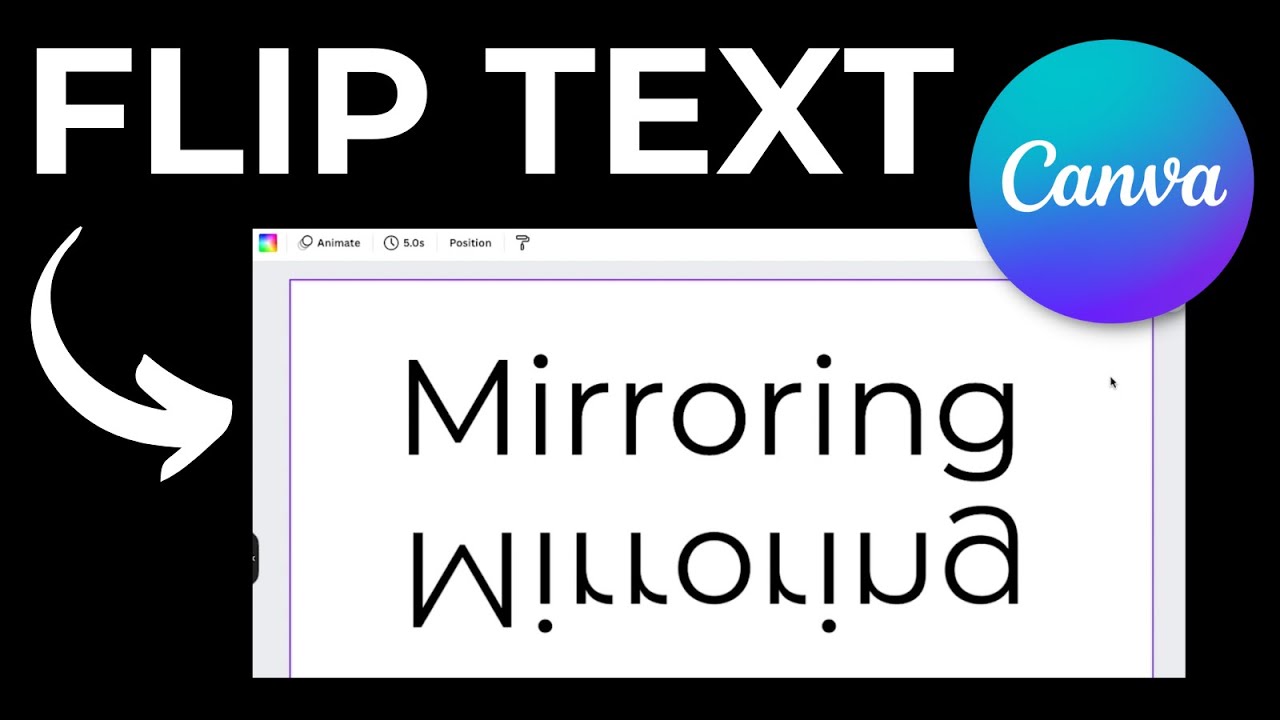
Mirroring text in Canva is the process of flipping text horizontally or vertically to create a reversed text effect on your design canvas.
Users need this when creating reflection effects, designing for transfer prints, or building symmetrical layouts.
This guide covers 4 steps requiring 2-3 minutes and a free or Pro Canva account.
Prerequisites
- Canva account (free or Canva Pro)
- Web browser, desktop app, or Canva mobile app
- Time estimate: 2-3 minutes
- Skill level: Beginner
Step 1: How Do You Add Text to Your Canva Design?
Select Text from the left sidebar, choose a text style (heading, subheading, or body), then click or drag to place your text box on the canvas.
The text element appears with default placeholder content ready for editing.
Action
- Left sidebar > Text: Click the T icon to open text options
- Text style selection: Choose Add a heading, Add a subheading, or Add a little bit of body text
- Canvas placement: Click your chosen style to add it to the design workspace
Purpose
You need a text element on canvas before accessing flip and transformation options.
The text box placement determines where your mirrored text will appear in the final design.
Step 2: How Do You Access the Flip Option in Canva?
Click directly on your text element to select it, then locate the Flip button in the top toolbar above the canvas.
A dropdown menu appears with horizontal and vertical flip options.
Action
- Element selection: Single-click the text on your canvas (selection handles appear around it)
- Top toolbar > Flip: Find and click the Flip button (two arrows icon)
- Dropdown menu: View Flip horizontal and Flip vertical options
Purpose
Selecting the text element activates the contextual toolbar with text-specific editing tools.
Without selection, the flip option remains hidden or grayed out.
Step 3: How Do You Flip Text Horizontally in Canva?
Click Flip horizontal from the dropdown to reverse your text direction from left to right, creating a mirror image effect.
The text transforms instantly while staying in its original position on the canvas.
Action
- Flip dropdown: Click the Flip button with text selected
- Flip horizontal: Select this option from the dropdown menu
- Result: Text displays reversed (mirror reflection of original)
Purpose
Horizontal flip creates the classic mirrored text look used in transfer printing, window decals, and symmetrical design compositions.
This reversal affects all characters, making text readable only when viewed in a reflection or printed face-down.
Step 4: How Do You Flip Text Vertically in Canva?
Click Flip vertical from the dropdown to turn your text upside down while keeping the left-to-right orientation intact.
The text inverts on its horizontal axis, appearing upside down on the design canvas.
Action
- Flip dropdown: Click the Flip button with your text element selected
- Flip vertical: Choose this option from the dropdown menu
- Result: Text displays inverted (top becomes bottom)
Purpose
Vertical flip works for creative typography effects, reflection shadows beneath text, or artistic compositions requiring inverted lettering.
Combine with horizontal flip for a complete 180-degree text rotation.
Alternative Method: How Do You Mirror Text Using the Position Menu?
Access the same flip controls through Position in the top toolbar, then scroll to the Flip section within that panel.
Same result, different path.
Action
- Select text element: Click your text on the canvas
- Top toolbar > Position: Click the Position button
- Flip section: Scroll down and choose Flip horizontal or Flip vertical
Comparison
- Toolbar Flip button: 2 clicks, direct access to flip options
- Position menu method: 3 clicks, grouped with alignment and layering controls
Pick whichever matches your workflow. The Position menu helps when you need multiple adjustments at once.
Verification
Your mirrored text should display reversed characters that read backwards when viewed normally.
Test by holding your design up to a mirror or flipping your phone screen. The text should appear normal in the reflection.
Check that the text position stayed consistent on your canvas after the flip transformation.
Troubleshooting
Issue: Flip Option Not Appearing in Toolbar
Solution: Click directly on the text element to select it. The Flip button only appears when a flippable element is active.
If using the Canva mobile app, tap the text, then look for Flip in the bottom editing menu.
Issue: Text Reverts After Saving
Solution: Wait for the auto-save indicator (checkmark) before closing your project. Manual save by clicking File > Save or use keyboard shortcut Ctrl+S (Windows) or Cmd+S (Mac).
Check your internet connection if saves fail repeatedly.
Issue: Grouped Elements Not Flipping Correctly
Solution: Ungroup elements first by right-clicking and selecting Ungroup, or use Ctrl+Shift+G. Flip individual text elements, then regroup in Canva afterward.
Grouped flips affect all elements together, which may produce unexpected results.
Related Processes
Master more text transformation techniques in Canva:
- Curving text in Canva for circular or wavy text effects
- Flipping text in Canva for additional flip techniques
- Flipping images in Canva to mirror graphics and photos
- Highlighting text in Canva for text emphasis effects
- Wrapping text in Canva for text around shapes
Explore what Canva offers for your graphic design projects, from simple text edits to complex visual compositions.
FAQ on How To Mirror Text In Canva
Can You Mirror Text in Canva for Free?
Yes. The Flip tool is available on free Canva accounts. Select your text element, click Flip in the top toolbar, and choose horizontal or vertical. No Canva Pro subscription required for basic text mirroring.
What Is the Difference Between Flip Horizontal and Flip Vertical?
Flip horizontal reverses text left to right, creating a mirror image effect. Flip vertical turns text upside down. Use horizontal for transfer prints and window decals. Use vertical for reflection shadows.
Does Mirroring Text Work on the Canva Mobile App?
Yes. Tap your text element on the canvas. Look for the Flip option in the bottom editing menu. The mobile app offers identical horizontal flip and vertical flip controls as the web and desktop versions.
Can You Mirror Multiple Text Elements at Once?
Yes. Select multiple text boxes by holding Shift and clicking each one. Or drag to select all. Click Flip to mirror everything together. The transformation applies to all selected elements simultaneously.
Why Is My Flip Option Grayed Out?
Your text element is not selected. Click directly on the text box until selection handles appear around it. The Flip button activates only when a flippable element is active on your design canvas.
How Do You Undo a Text Mirror in Canva?
Click Flip horizontal or Flip vertical again to reverse the transformation. Or press Ctrl+Z (Windows) or Cmd+Z (Mac) to undo. Each flip action toggles the text between normal and mirrored states.
Can You Mirror Text Inside a Grouped Element?
Flipping a group mirrors all elements together. For individual text mirroring, ungroup first using right-click > Ungroup or Ctrl+Shift+G. Flip your text separately, then regroup the elements afterward.
Does Mirrored Text Export Correctly?
Yes. Download your design as JPEG, PNG, or PDF. The mirrored text stays flipped in all export formats. Check your file after downloading to confirm the text direction before printing.
What Is Mirrored Text Used For?
Iron-on transfers for t-shirts, window graphics viewed from inside, artistic reflection effects, and symmetrical design compositions. The reversed text reads correctly when transferred or viewed through glass.
Can You Rotate and Mirror Text Together?
Yes. Apply both transformations separately. Use the rotate handle to angle your text, then click Flip for mirroring. Combine these text transformation tools for creative typography layouts and unique design effects.
Conclusion
You now know how to mirror text in Canva using the Flip tool in the top toolbar. The process takes seconds.
Reverse text direction with horizontal flip for transfer prints and window graphics. Use vertical flip for reflection effects and inverted typography.
Both Canva Free and Canva Pro accounts include these text manipulation features. The web app, desktop app, and mobile app all work the same way.
Save your design as PNG or PDF to preserve the mirrored text in your final export.
Experiment with flipped typography alongside other text effects like curves and rotations. These element transformations open up creative possibilities for your graphic design projects.
Start with a simple text box and flip it. See what works for your design.

Renowned for his expertise in logo design and visual branding, Bogdan has developed a multitude of logos for various clients.
His skills extend to creating posters, vector illustrations, business cards, and brochures. Additionally, Bogdan's UI kits were featured on marketplaces like Visual Hierarchy and UI8.
He also wrote in the past years on sites like Design Your Way, WebDesignerDepot, WPDean, Designmodo, Speckyboy, Slider Revolution, and more.
- The Cursor Logo History, Colors, Font, And Meaning - 24 September 2026
- Top 7 Web Design Subscription Services That Replace Full-Time Hires - 24 September 2026
- Canva vs PowerPoint: Which Is Better for Presentations? - 22 September 2026

Bogdan Sandu is a seasoned designer who has been designing websites since 2008. Renowned for his expertise in logo design and visual branding, Bogdan has developed a multitude of logos for various clients. His skills extend to creating posters, vector illustrations, business cards, and brochures. Additionally, Bogdan's UI kits were featured on marketplaces like Visual Hierarchy and UI8. He also wrote in the past years on sites like Design Your Way, WebDesignerDepot, WPDean, Designmodo, Speckyboy, Slider Revolution, and more.
You Might Also Like