Every photo you’ve taken on your phone, every image loading on a website right now, almost certainly uses the same file format from 1992. So what is JPEG, and why does a three-decade-old compression standard still run the internet?
JPEG is a lossy image compression method developed by the Joint Photographic Experts Group. It trades a controlled amount of image data for dramatically smaller file sizes, which is why it became the default format for digital photography and web publishing.
This article covers how JPEG compression actually works, where the format falls short, how it compares to PNG and WebP, and what JPEG XL could mean for the future. Whether you’re optimizing images for a site or just curious about the tech behind every photo you share, this breaks it all down.
What Is JPEG

JPEG is a lossy image compression method and file format created by the Joint Photographic Experts Group in 1992. It remains one of the most widely used image formats on the internet.
The name refers to both the compression standard (ISO/IEC 10918) and the file you save with a .jpg or .jpeg extension. That distinction matters. JPEG is the compression algorithm. The file extension is just a container.
What makes it “lossy” is straightforward. Every time you save a JPEG, the encoder permanently discards some image data to shrink the file size. You can’t get that data back. The tradeoff is that a 12-megapixel photo from your phone can drop from 25 MB to under 3 MB, and most people can’t tell the difference.
As of early 2025, JPEG is still present on over 74% of all websites according to W3Techs. That number has dropped slightly from 77.9% in 2023, but the format isn’t going anywhere soon.
Digital cameras, smartphones, social media platforms, email clients. Pretty much every device and service that handles photos defaults to JPEG. Instagram and Facebook automatically convert uploaded images to JPEG. Your phone shoots in JPEG unless you specifically switch to RAW.
The format stores each pixel‘s color information using 8 bits per channel across three channels. That gives you 16.7 million possible colors per pixel, which is more than enough for photographic content.
JPEG also stores EXIF metadata inside the file. Camera settings, GPS coordinates, timestamps, thumbnail previews. All embedded directly in the image file itself.
How JPEG Compression Works

JPEG compression breaks down into five steps. Color space conversion, chroma subsampling, discrete cosine transform, quantization, and entropy coding. Each step does something specific, and understanding them explains why JPEGs look the way they do.
Color Space Conversion
The first thing that happens is your image gets converted from RGB to a color model called YCbCr.
Y is the brightness (luminance). Cb and Cr handle the blue and red color difference relative to green. Human eyes are far more sensitive to brightness changes than color changes. JPEG uses this biological fact to its advantage.
The encoder then downsamples the color channels. A common ratio is 4:2:0, which cuts the color resolution in half both horizontally and vertically. You lose 75% of the chroma data right there, and most people never notice. Your brain fills in the gaps.
Discrete Cosine Transform and Quantization
This is where the actual compression happens.
The image gets split into 8×8 blocks of pixels. Each block is processed independently through a mathematical operation called the Discrete Cosine Transform (DCT). The DCT converts spatial pixel data into frequency data. Low-frequency components represent smooth areas of the image. High-frequency components represent sharp edges and fine details.
Here’s the thing. The DCT step itself is completely lossless. No information is lost during the transform. It just changes how the data is represented.
Quantization is where data actually disappears. Each DCT coefficient gets divided by a value from a quantization table, then rounded to the nearest integer. High-frequency coefficients (the ones your eyes are least sensitive to) get divided by larger numbers, which rounds them down to zero. Gone forever.
The quality slider you see in Photoshop or any image editor controls this quantization table. Higher quality means smaller divisors, which preserves more detail. Lower quality means larger divisors, which throws away more data but produces a smaller file.
What Are JPEG Artifacts
Blocking is the most recognizable artifact. Those visible 8×8 grid patterns that show up in heavily compressed images? That’s from each block being processed independently.
Mosquito noise appears as fuzzy halos around sharp edges, especially where dark meets light. Text on a solid background is the classic example.
Color banding shows up in smooth gradients where the limited color precision creates visible steps instead of smooth transitions.
The real problem kicks in with generation loss. Every time you open a JPEG, edit it, and save it again, you’re running the compression process all over. The artifacts compound. Save a JPEG ten times and it starts looking like abstract art. Took me way too long to learn that one the hard way back when I was doing production work.
Quality settings below 60 produce noticeably bad results on most photos. Below 30 and you’re in territory where faces start looking like they’re melting.
JPEG vs PNG vs WebP

Picking the right image format depends entirely on what you’re trying to do. Each format solves a different problem.
| Feature | JPEG | PNG | WebP |
|---|---|---|---|
| Compression type | Lossy | Lossless | Both lossy and lossless |
| Transparency | No | Yes (alpha channel) | Yes |
| Best for | Photographs | Graphics, text, screenshots | Web performance |
| File size (photo) | Medium | Large | Small |
| Browser support | Universal | Universal | ~96–98% globally |
When PNG Wins
PNG uses lossless compression. Nothing gets thrown away. Every pixel stays exactly where you put it.
That makes it the right choice for screenshots, text-heavy images, line art, and anything with sharp edges between colors. A logo saved as JPEG will have fuzzy edges around the text. Save it as PNG and the edges stay clean.
PNG also supports full alpha transparency. JPEG doesn’t. If you need a cutout image on a transparent background, JPEG isn’t even an option.
Where WebP Fits
Google developed WebP specifically to replace both JPEG and PNG on the web. It supports lossy and lossless compression, transparency, and animation.
Google’s own compression study found that WebP achieves 25-34% smaller file sizes than JPEG at the same visual quality measured by the SSIM index. Independent testing by Mozilla found the gap narrows significantly when comparing WebP against optimized JPEG encoders like MozJPEG.
WebP is now used on roughly 19% of websites according to W3Techs (February 2026), up from 9.1% in 2023. Browser support sits at around 96-98% globally, which means the compatibility excuse doesn’t hold up anymore.
AVIF and the Next Generation
AVIF pushes compression even further. Independent benchmarks consistently show it producing files 30% smaller than JPEG at equivalent visual quality. It supports both lossy and lossless modes, HDR, and transparency.
Browser support for AVIF has reached roughly 94-97% as of early 2026. But encoding is slower, tooling is less mature, and not every CMS handles it well yet.
For most sites right now, the practical approach is serving AVIF to browsers that support it, WebP as fallback, and JPEG as the final safety net. The HTML <picture> element makes this straightforward.
Common JPEG File Extensions and MIME Types
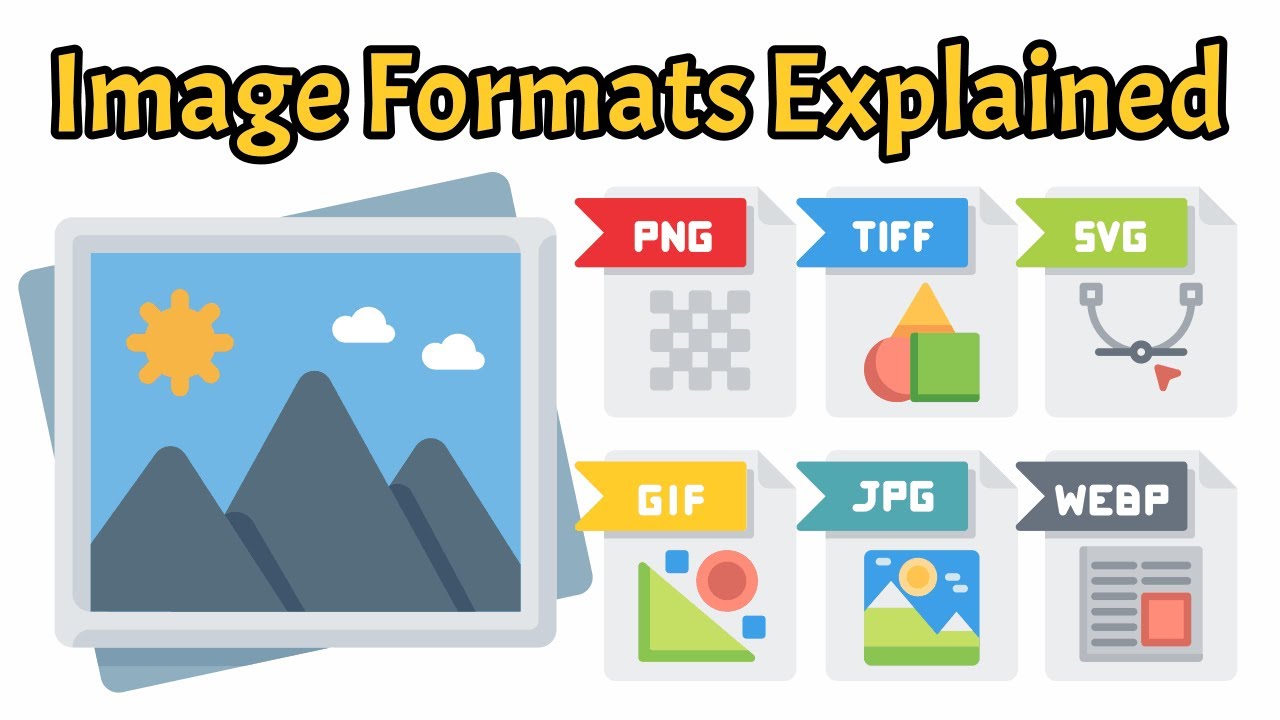
.jpg and .jpeg are the same format. There is zero technical difference between them.
The shorter .jpg extension exists because older Windows operating systems (95, 98, ME) only allowed three-character file extensions. Mac and Linux never had that limitation, so .jpeg was standard there. These days either extension works everywhere, but .jpg remains more common out of habit.
Less Common Extensions
.jfif stands for JPEG File Interchange Format. It’s a specific way of wrapping JPEG data that was common in the early web days. You’ll still see it occasionally.
.jpe is another valid extension that shows up sometimes in legacy systems.
Regardless of which extension you use, the MIME type is always image/jpeg. Web servers and browsers identify the format by this MIME type, not by the file extension.
EXIF Data Inside JPEG Files
JPEG files can carry a substantial amount of metadata through the EXIF (Exchangeable Image File Format) standard.
Camera model, shutter speed, aperture, ISO, focal length, GPS coordinates, date and time. All of this gets embedded in the file when your camera or phone takes the photo.
Worth knowing: this metadata includes your location by default on most smartphones. If you’re uploading photos publicly, you might want to strip the EXIF data first. Most social platforms do this automatically, but not all of them.
JPEG Quality Settings and File Size
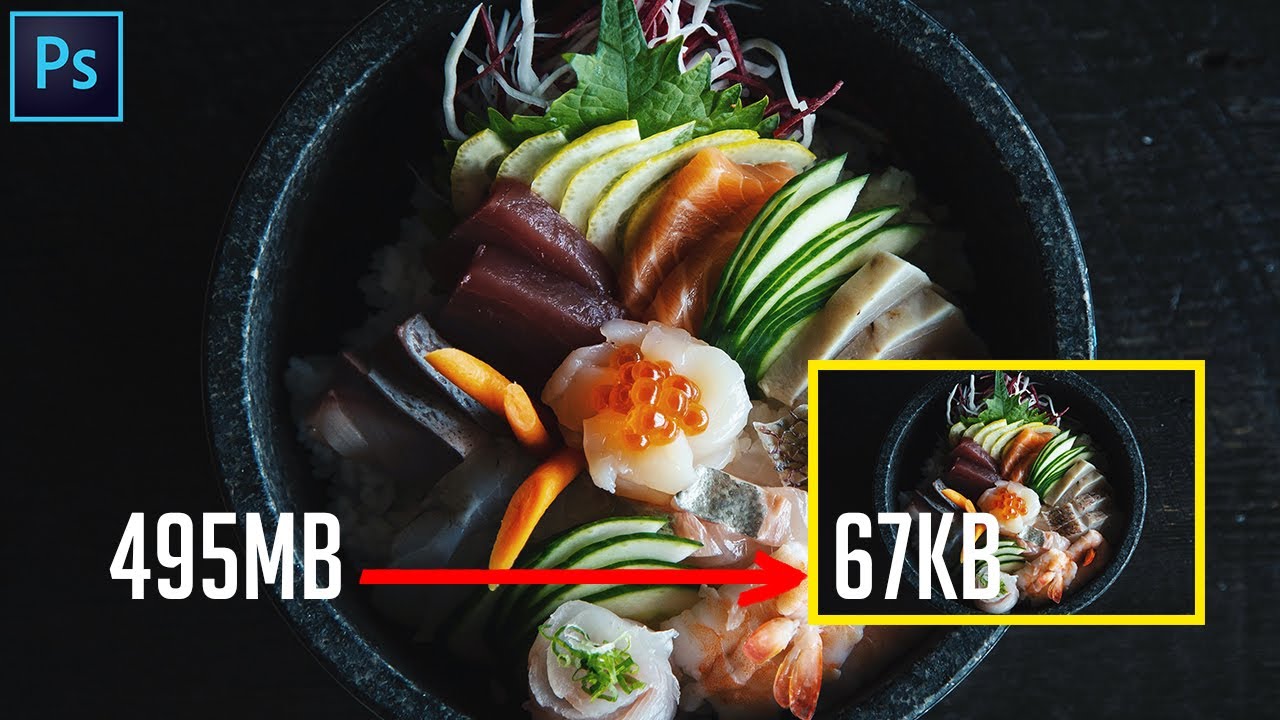
The quality setting is a number from 1 to 100, but it doesn’t work the way most people assume.
Quality 100 is not lossless. The DCT and quantization process still runs. You’re just telling the encoder to use the gentlest possible quantization. The file will be significantly larger than quality 85, and almost nobody can tell the difference visually.
The Sweet Spot
Quality 80-90 is where most professionals land for web images. At this range, the visual difference from the original is negligible while the file size drops dramatically.
Here’s a rough breakdown for a typical 12-megapixel photograph:
| Quality | Approximate File Size | Visual Difference |
|---|---|---|
| 100 | 8–12 MB | None visible |
| 90 | 2–4 MB | Barely detectable |
| 80 | 1–2 MB | Minimal |
| 60 | 400–800 KB | Noticeable on close inspection |
| 30 | 150–300 KB | Obviously degraded |
Google’s Jpegli coding library, released in April 2024, achieves up to 35% better compression than traditional JPEG codecs like libjpeg-turbo at high quality settings. It does this while maintaining full backward compatibility with existing JPEG viewers.
Progressive vs Baseline Encoding
Baseline JPEG loads from top to bottom. The image appears line by line as data arrives. Simple and predictable.
Progressive JPEG loads in multiple passes. First a blurry version of the entire image appears, then it sharpens with each subsequent pass. Better perceived performance on slower connections because users see the full composition immediately.
Progressive JPEGs are about 5% larger on average according to Photutorial’s compression analysis. But they feel faster to load because the user isn’t staring at a half-loaded image.
Optimization Tools
Several tools push JPEG compression further than default encoders.
MozJPEG: Mozilla’s encoder produces roughly 9-11% smaller files than standard libjpeg at the same quality. Slower to encode, but the output is worth it for web delivery.
Squoosh: Google’s browser-based tool lets you compare encoders side by side with real-time quality previews. Good for one-off optimizations.
ImageMagick: The command-line workhorse for batch processing. If you need to convert or optimize thousands of images, this is what you reach for.
Where JPEG Is Used

JPEG’s presence cuts across almost every context where photographs exist digitally.
Digital Cameras and Smartphones
Every digital camera and smartphone produces JPEG files. It’s the universal default shooting format.
Professional and enthusiast cameras offer RAW alongside JPEG. RAW preserves all sensor data for maximum editing flexibility, but the files are 5-10x larger. Most photographers shoot RAW+JPEG, using the JPEG for quick previews and the RAW for final edits.
Apple’s iPhone defaults to HEIF (HEIC) for storage efficiency, but converts to JPEG automatically when sharing to ensure compatibility.
Web Publishing and Social Media
A research study published through Springer (PROFES 2023) found that JPEG and PNG still dominate web image choices across frequently visited sites, with WebP at just 4% as the most used newer format at the time of the study.
Facebook, Instagram, Twitter, and LinkedIn all convert uploaded images to JPEG for delivery. The originals may arrive in any format, but what users download is almost always JPEG.
For web design projects, JPEG handles photographic hero images, product shots, and editorial photography. Screenshots and interface elements with text go to PNG for sharper contrast and cleaner edges.
Print and Professional Workflows
JPEG works for print design in many cases, but professionals working at the highest quality levels prefer TIFF or RAW formats. The concern isn’t just the lossy compression. It’s the 8-bit color depth limitation.
8 bits per channel gives you 16.7 million colors. Sounds like a lot, and it is for screen viewing. But for high-end retouching and color-critical work where you need to push shadows and highlights, 16-bit TIFF files give you dramatically more headroom.
Medical imaging through DICOM supports JPEG compression for storage and transmission, though lossless formats are preferred for diagnostic images where every detail matters.
Limitations of the JPEG Format
JPEG does a lot of things well. But it has real constraints that show up fast once you move beyond basic photo sharing.
No Transparency Support
Every single pixel in a JPEG is opaque. There’s no alpha channel, period.
If you need a cutout image sitting on a transparent background (common for logos, product shots, or UI elements), JPEG won’t work. PNG or WebP handles that. This single limitation is why bitmap formats like PNG remain necessary alongside JPEG for any serious web design project.
8-Bit Color Depth Ceiling
Standard JPEG is locked to 8 bits per channel, which gives you 256 levels of brightness per color channel and roughly 16.7 million total colors.
That sounds generous. And for final delivery, it usually is. But try pushing exposure or shadows in an 8-bit JPEG during post-processing, and you’ll hit visible banding in smooth gradients almost immediately. RAW files from a typical DSLR provide 12 or 14 bits per channel, giving thousands of luminance levels instead of 256.
This also means JPEG cannot store HDR (high dynamic range) content natively. With HDR displays now standard on most flagship phones and monitors, the 8-bit ceiling is becoming a practical bottleneck.
Cumulative Quality Loss
Every save degrades the image. Open a JPEG, crop it, save it. Quality drops. Do it again, and it drops further.
This generation loss makes JPEG a poor choice for working files that will be edited multiple times. Professionals keep originals in RAW or TIFF, then export a final JPEG only at the end of their workflow.
Poor Handling of Text and Sharp Edges
JPEG’s compression algorithm is built for photographs with smooth tonal transitions. Put sharp text or line art through JPEG encoding and you get fuzzy edges, mosquito noise, and ringing artifacts around high-contrast boundaries.
Screenshots, infographics, and anything with type layered over solid backgrounds should go to PNG. No exceptions.
No Animation
JPEG doesn’t support animated frames. GIF handles simple animations (badly, with its 256-color limit). WebP and AVIF both support animation with full-color depth and better compression.
What Is JPEG 2000 and JPEG XL
The Joint Photographic Experts Group has published several successor formats over the years. Two are worth knowing: JPEG 2000 for its specialized use, and JPEG XL for its potential to finally replace the original.
JPEG 2000
Released in 2000, JPEG 2000 replaced the DCT compression of original JPEG with wavelet-based compression. The result is better image quality at low bitrates and no blocky artifacts, even under heavy compression.
| Feature | JPEG | JPEG 2000 |
|---|---|---|
| Compression | DCT (block-based) | Wavelet (multi-resolution) |
| Bit depth | 8-bit | Up to 38-bit |
| Transparency | No | Yes |
| Lossless mode | Technically yes, rarely supported | Fully supported |
JPEG 2000 found its niche in digital cinema (selected as the standard in 2004), medical imaging through DICOM, and geospatial data. The FBI also adopted wavelet compression for fingerprint storage because standard JPEG’s blocking artifacts destroyed the fine detail needed for forensic work.
But browsers never supported it for web pages. As of 2024, Wikipedia confirms JPEG 2000 is still not supported in web browsers for page-level content. You’ll encounter it inside PDFs, but not on websites. That killed any chance of widespread consumer adoption.
JPEG XL

JPEG XL is the format that was actually designed to be a complete JPEG replacement. Standardized in 2022 as ISO/IEC 18181, it was developed jointly by the JPEG committee, Google, and Cloudinary.
The numbers are hard to argue with. According to the JPEG committee’s own whitepaper, JPEG XL achieves visually lossless quality at roughly half the bitrate that standard JPEG requires. Cloudinary’s compression analysis found that at medium quality, JPEG XL files are about 20% smaller than AVIF and 2.5 times faster to encode.
Its most unique capability is lossless JPEG recompression. Take any existing JPEG file, convert it to JPEG XL, and get a roughly 20% smaller file with zero quality loss. The original JPEG can be perfectly reconstructed from the JPEG XL file. No other image format can do this.
Other features that put JPEG XL ahead:
- Up to 32 bits per channel (HDR support built in)
- Progressive decoding (blurry preview first, then full detail)
- Alpha transparency
- Animation support
- CMYK and spot color for print workflows
The Browser Support Problem
Chrome removed experimental JPEG XL support in late 2022, citing a lack of ecosystem interest. That decision was controversial. Over 1,000 developers upvoted the Chromium bug tracker in protest.
Things shifted in late 2025. Google reversed course and welcomed a Rust-based JPEG XL decoder back into Chromium. Chrome 145 (February 2026) shipped with the decoder behind a flag, not enabled by default.
Safari has supported JPEG XL since version 17 (2023), though without animation or progressive decoding. Firefox is actively integrating the same Rust decoder but hasn’t shipped it in a stable build yet.
As of early 2026, JPEG XL’s effective global browser support sits at roughly 12% according to Core Web Vitals analysis, almost entirely from Safari users. That makes it unusable as a primary web format right now, despite being technically superior to every alternative.
How to Open, Edit, and Convert JPEG Files
JPEG is the most universally supported image format in existence. If your device has a screen, it can almost certainly display a JPEG.
Opening JPEG Files
Every modern operating system opens JPEG natively. Windows Photos, macOS Preview, and any Linux image viewer handle it without plugins or additional software.
All web browsers render JPEG. Chrome, Firefox, Safari, Edge. JPEG support has been in browsers since version 1.0 across the board. There’s nothing to configure.
Editing JPEG Files

The tool you pick depends on what you need to do.
Professional editing: Adobe Photoshop and Adobe Lightroom are the industry standards for JPEG editing and color correction. Lightroom is particularly strong for batch processing large photo libraries.
Free alternatives: GIMP handles everything Photoshop does for JPEG work, just with a steeper learning curve. Photopea runs entirely in a browser and supports full PSD-compatible editing of JPEG files.
Quick adjustments: The built-in Photos apps on Windows, macOS, iOS, and Android all support cropping, rotation, exposure, and basic color adjustments directly on JPEG files.
One workflow tip: never edit the original JPEG repeatedly. Each save introduces more compression artifacts. Work on a copy, or better yet, edit in a lossless format and export to JPEG as the final step.
Converting JPEG Files
| Task | Tool | Notes |
|---|---|---|
| JPEG to PNG | XnConvert, GIMP, Photoshop | Best for adding transparency |
| JPEG to WebP | Squoosh, ImageMagick, cwebp | 25–34% smaller files (Google) |
| RAW to JPEG | Lightroom, Darktable, RawTherapee | Camera file conversion |
| Batch conversion | ImageMagick, XnConvert, FFmpeg | Command-line for large volumes |
| JPEG to AVIF | Squoosh, libavif, Cloudinary | Best compression ratio |
For batch workflows with thousands of images, ImageMagick through the command line is still the go-to. A single command can resize, recompress, and convert an entire directory.
Squoosh (built by Google) is the best option for one-off conversions where you want to compare encoders and quality settings visually before committing. Dropbox used their own tool called Lepton to recompress JPEG files, achieving 22% file size reduction while maintaining the ability to reconstruct the original JPEG bit-for-bit.
If you’re building a site and want automated conversion, most CDNs now offer on-the-fly format negotiation. Upload a JPEG, and the CDN serves WebP or AVIF to browsers that support them, falling back to the original JPEG for everything else.
FAQ on What Is JPEG
What does JPEG stand for?
JPEG stands for Joint Photographic Experts Group, the committee that created the standard in 1992. The name refers to both the compression method and the image file format itself. The formal standard is ISO/IEC 10918.
Is JPG the same as JPEG?
Yes. They’re identical formats. The shorter .jpg extension exists because early Windows versions only allowed three-character file extensions. The MIME type for both is image/jpeg.
Why is JPEG lossy?
JPEG permanently discards image data during compression to reduce file size. The encoder removes high-frequency details that human eyes are least sensitive to. This lossy compression is what makes JPEG files so much smaller than lossless alternatives like PNG or TIFF.
What is JPEG used for?
JPEG is the default format for digital photography, web publishing, social media, and email attachments. Cameras and smartphones shoot in JPEG by default. It handles photographic content with smooth color transitions better than any other widely supported format.
Does JPEG support transparency?
No. JPEG has no alpha channel. Every pixel is fully opaque. If you need transparent backgrounds for logos or graphics, use PNG, WebP, or AVIF instead.
What quality setting should I use for JPEG?
Quality 80-90 works best for most uses. This range produces files that are visually indistinguishable from the original at a fraction of the size. Quality 100 is not truly lossless and creates unnecessarily large files.
What is the difference between JPEG and PNG?
JPEG uses lossy compression and is best for photographs. PNG uses lossless compression and is better for screenshots, text-heavy images, and graphics requiring transparency. PNG files are typically much larger for photographic content.
Can you convert JPEG to PNG without losing quality?
Converting preserves the current state of the JPEG, but it won’t restore data already lost during JPEG compression. The PNG version will be larger with no quality improvement. It simply stops further degradation from additional saves.
What is JPEG XL?
JPEG XL is a next-generation image format standardized in 2022 (ISO/IEC 18181). It offers roughly 60% better compression than standard JPEG, supports HDR, transparency, and can losslessly recompress existing JPEG files to save about 20%.
Is JPEG still relevant in 2026?
Absolutely. JPEG remains on over 74% of websites according to W3Techs. Universal compatibility across every browser, device, and operating system keeps it the most practical choice for photographic content, even as WebP and AVIF gain ground.
Conclusion
Understanding what is JPEG comes down to one thing: it’s a lossy image compression format that trades a small amount of visual data for massive file size reduction. That tradeoff made it the backbone of digital photography and web images for over three decades.
The format has clear limits. No transparency, no HDR, no animation, and quality degrades with every re-save. Formats like WebP and AVIF already offer better compression ratios, and JPEG XL promises lossless recompression of existing JPEG files with full backward compatibility.
But universal browser support, device compatibility, and sheer ecosystem momentum keep JPEG firmly in place. For photographic content delivered across screens of all kinds, it’s still the most reliable choice available.
Pick the right quality settings (80-90 for web), avoid repeated editing of the same file, and use newer formats where your audience’s browsers support them. JPEG isn’t going away. It’s just getting company.

Renowned for his expertise in logo design and visual branding, Bogdan has developed a multitude of logos for various clients.
His skills extend to creating posters, vector illustrations, business cards, and brochures. Additionally, Bogdan's UI kits were featured on marketplaces like Visual Hierarchy and UI8.
He also wrote in the past years on sites like Design Your Way, WebDesignerDepot, WPDean, Designmodo, Speckyboy, Slider Revolution, and more.
- The Substack Logo History, Colors, Font, And Meaning - 2 October 2026
- How UX Design Impacts SaaS User Retention and Churn - 1 October 2026
- How to Embed Fonts in PDF for Reliable Printing - 30 September 2026

Bogdan Sandu is a seasoned designer who has been designing websites since 2008. Renowned for his expertise in logo design and visual branding, Bogdan has developed a multitude of logos for various clients. His skills extend to creating posters, vector illustrations, business cards, and brochures. Additionally, Bogdan's UI kits were featured on marketplaces like Visual Hierarchy and UI8. He also wrote in the past years on sites like Design Your Way, WebDesignerDepot, WPDean, Designmodo, Speckyboy, Slider Revolution, and more.
You Might Also Like