


Need to create mirror text for an iron-on transfer? Or maybe a reflection effect for your social media graphic?
Learning how to flip text in Canva takes less than a minute once you know where to look.
The flip tool hides in plain sight. Most users miss it completely.
This guide walks you through the exact steps to flip text horizontally, flip text vertically, and troubleshoot common issues in the Canva editor.
Works on desktop, mobile app, and browser versions.
Free accounts included.
How to Flip Text in Canva
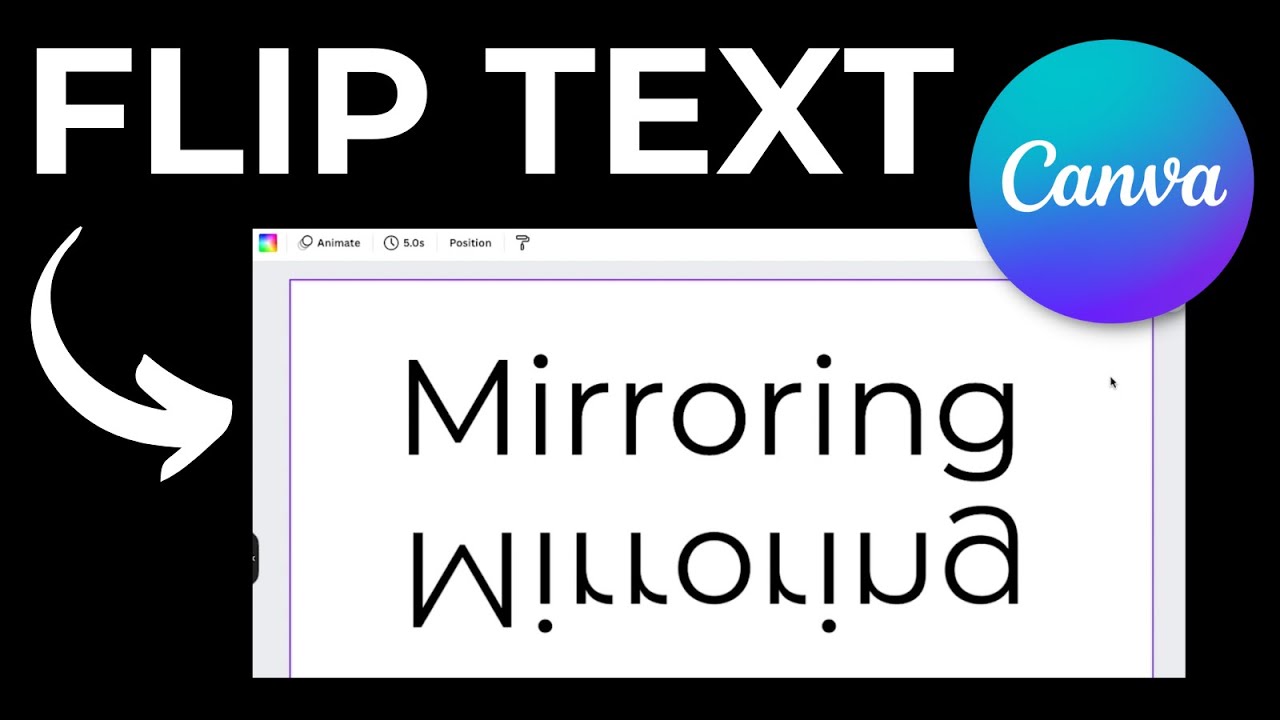
Flipping text in Canva is the process of mirroring or reversing text elements horizontally or vertically within your design canvas.
Users need this when creating mirror effects, designing for iron-on transfers, or adding creative typography effects to social media graphics and marketing materials.
This guide covers 5 steps requiring 1-2 minutes and a free or Pro Canva account.
What You Need Before Starting
- Canva account (Free or Canva Pro)
- Web browser (Chrome, Safari, Firefox) or Canva mobile app
- Skill level: Beginner
- Time required: 1-2 minutes
No design experience necessary.
The flip function works identically on desktop and mobile versions.
Step 1: How Do You Access the Canva Editor?
Open canva.com in your browser or launch the Canva app, click the “Create a design” button in the top right corner, and select your design type to load a blank workspace.
Action
- Navigate to: canva.com or open Canva desktop/mobile app
- Click: “Create a design” button (purple, top right)
- Select: Any template size or enter custom dimensions
- Result: Blank design canvas loads in the editor
Purpose
The Canva editor is where all text transformation and design editing happens.
You cannot flip text without first entering the workspace. If you’re new to what Canva is, it’s a browser-based graphic design tool.
Step 2: How Do You Add Text to Your Canvas?
Click “Text” in the left sidebar, select a text option (heading, subheading, or body text), then type your content directly into the text box that appears on your canvas.
Action
- Click: “Text” tab in left sidebar panel
- Select: “Add a heading,” “Add a subheading,” or “Add a little bit of body text”
- Type: Enter your desired text content
- Result: Text element appears on canvas, ready for editing
Purpose
You need a text element on the canvas before you can apply any flip or mirror effect.
For more control over text placement, learn how to add a text box in Canva with custom positioning.
Step 3: Where Do You Find the Flip Option in Canva?
Select your text element by clicking on it, then locate the “Flip” button in the top toolbar, or right-click the text and choose “Flip” from the context menu.
Action
- Click: Directly on the text element to select it
- Look for: “Flip” button in top toolbar (appears after selection)
- Alternative: Right-click text > select “Flip” from dropdown
- Result: Flip options menu displays with horizontal and vertical choices
Purpose
The flip tool only appears when a design element is selected.
This same toolbar contains other text manipulation options like rotate, position, and alignment controls.
The process mirrors how to flip an image in Canva, just applied to text instead.
Step 4: How Do You Flip Text Horizontally in Canva?
Click your text element, select “Flip” from the toolbar, then choose “Flip horizontal” to mirror the text left-to-right, creating a reversed mirror effect.
Action
- Select: Click on text element
- Click: “Flip” button in top toolbar
- Choose: “Flip horizontal”
- Result: Text mirrors along the vertical axis (left becomes right)
Purpose
Horizontal flip creates backwards text perfect for iron-on transfer designs, window decals, and reflection effects.
The mirrored text reads correctly when viewed in a mirror or printed on transfer paper.
Step 5: How Do You Flip Text Vertically in Canva?
Select your text, click “Flip” in the toolbar, then choose “Flip vertical” to invert the text top-to-bottom.
Action
- Select: Click on text element
- Click: “Flip” button in top toolbar
- Choose: “Flip vertical”
- Result: Text flips upside down along the horizontal axis
Purpose
Vertical flip creates inverted text for water reflection effects, creative design elements, and artistic compositions.
Combine with duplicate layers for symmetry effects.
Alternative Method: How Do You Flip Text Using Rotation?
Manual rotation offers more control but requires additional steps compared to the flip tool.
Method Comparison
| Method | Steps | Best For | | — | — | — | | Flip Tool | 3 clicks | Quick mirror effects, transfers | | Rotation | 5+ adjustments | Precise angle control, partial flips |
Use the Flip tool when you need exact horizontal or vertical mirroring.
Use rotation when you need text at specific angles like 45 or 90 degrees. Learn more about how to rotate page in Canva for full canvas adjustments.
Verification
Confirm your flip worked correctly before exporting.
Check These Items
- Visual check: Text appears mirrored/inverted as expected
- Undo test: Press Ctrl+Z (Cmd+Z on Mac) to compare before/after
- Preview mode: Click “Present” or zoom to 100% for accurate view
- Download preview: Check the thumbnail before final export
For print projects, verify the DPI settings match your output requirements.
Troubleshooting
Issue: Flip Option Not Appearing in Toolbar
Solution: Click directly on the text element to select it. The flip button only appears when an element is actively selected. If using grouped elements, ungroup first (Ctrl+Shift+G).
Issue: Text Appears Distorted After Flipping
Solution: Check if text was converted to an image or rasterized. Flipping works best on editable text elements. Re-add text using the Text tool if distortion persists.
Issue: Cannot Select Text Element
Solution: The text may be locked or layered behind other elements. Right-click > “Unlock” or use Position > “Bring to front.” Check if you’re editing inside a frame.
Issue: Flip Affects Wrong Element
Solution: Multiple elements may be grouped. Click away to deselect, then click only on the specific text you want to flip. Use how to group in Canva controls to manage element selection.
Related Processes
Expand your Canva text editing skills with these related tutorials:
- How to mirror text in Canva for reflection effects
- How to curve text in Canva for circular designs
- How to highlight text in Canva for emphasis
- How to wrap text in Canva for shaped layouts
For complete text styling control, explore typography elements and font spacing techniques.
FAQ on How To Flip Text In Canva
Can You Flip Text in Canva?
Yes. Canva includes a built-in flip tool that works on text elements, images, and shapes.
Select any text box, click “Flip” in the top toolbar, then choose horizontal or vertical. Takes about 3 seconds.
Where Is the Flip Button in Canva?
The flip button appears in the top toolbar after selecting an element.
Look for “Flip” next to Position and Animate options. Right-click any element for the same menu in the dropdown.
How Do I Flip Text Horizontally in Canva?
Click your text element. Select “Flip” from the toolbar. Choose “Flip horizontal.”
The text mirrors left-to-right instantly. Perfect for creating backwards text for iron-on transfers and window decals.
How Do I Flip Text Vertically in Canva?
Select the text, click “Flip,” then choose “Flip vertical.”
This inverts text top-to-bottom. Useful for water reflection effects and creative contrast in poster layouts.
Can I Flip Text on Canva Mobile App?
Yes. The mobile app includes identical flip functionality.
Tap your text element, tap the three-dot menu or “Edit” option, then select Flip. Works on both iOS and Android versions.
Why Can’t I See the Flip Option in Canva?
The flip option only appears when an element is selected.
Click directly on your text element. If grouped with other objects, ungroup first using Ctrl+Shift+G or right-click > Ungroup.
Can I Flip Text in Canva Free?
Yes. The flip function is available in Canva Free and Canva Pro.
No subscription required. All text transformation tools including flip, rotate, and position work on free accounts.
How Do I Undo a Flip in Canva?
Press Ctrl+Z (Windows) or Cmd+Z (Mac) immediately after flipping.
Or click Flip again and select the same option. Flipping twice returns text to original orientation.
Can I Flip Grouped Text in Canva?
Yes. Select the grouped elements and use Flip normally.
The entire group mirrors together. To flip individual items within a group, ungroup first, flip the specific text, then regroup.
Does Flipping Text Affect Font Quality?
No. Flipped text remains fully editable and retains original font quality.
Unlike rasterized images, text elements stay as vector graphics in Canva. Scale or edit freely after flipping.
Conclusion
You now know how to flip text in Canva using both horizontal and vertical options.
The entire process takes under a minute. Three clicks and done.
Whether you need reverse text for transfer projects or creative text effects for social media, the Canva design tools handle it without any learning curve.
The text transformation features work identically across the web browser, desktop app, and mobile versions.
No Pro subscription needed.
Experiment with combining flipped text alongside rotation, positioning, and layering for more complex designs.
The Canva workspace gives you room to play.
Save your project, export in your preferred format, and your mirrored text is ready to use.

Renowned for his expertise in logo design and visual branding, Bogdan has developed a multitude of logos for various clients.
His skills extend to creating posters, vector illustrations, business cards, and brochures. Additionally, Bogdan's UI kits were featured on marketplaces like Visual Hierarchy and UI8.
He also wrote in the past years on sites like Design Your Way, WebDesignerDepot, WPDean, Designmodo, Speckyboy, Slider Revolution, and more.
- The Clickup Logo History, Colors, Font, And Meaning - 28 October 2026
- Best Image-to-Video AI Model for Creative Teams: 5 Selection Criteria - 28 October 2026
- cPanel Hosting Explained: What Website Owners Can Manage in One Place - 27 October 2026

Bogdan Sandu is a seasoned designer who has been designing websites since 2008. Renowned for his expertise in logo design and visual branding, Bogdan has developed a multitude of logos for various clients. His skills extend to creating posters, vector illustrations, business cards, and brochures. Additionally, Bogdan's UI kits were featured on marketplaces like Visual Hierarchy and UI8. He also wrote in the past years on sites like Design Your Way, WebDesignerDepot, WPDean, Designmodo, Speckyboy, Slider Revolution, and more.
You Might Also Like


