Static PDFs get ignored. Flipbooks get clicked.
Learning how to make a flipbook in Canva turns flat documents into interactive digital publications with realistic page-turning effects that keep readers engaged.
Whether you’re building a product catalog, digital magazine, or marketing brochure, this process takes under 15 minutes with zero design experience required.
This guide walks through every step: creating your multi-page design, customizing layouts, connecting to flipbook apps like FlippingBook or Issuu, and sharing your finished publication.
You’ll also find troubleshooting fixes and an alternative PDF export method if the direct integration doesn’t work for your setup.
How to Make a Flipbook in Canva
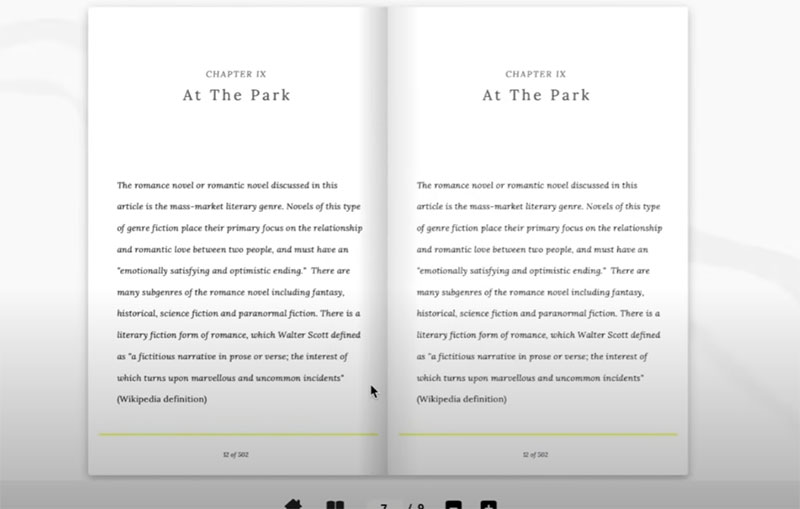
Making a flipbook in Canva is the process of creating a multi-page design and converting it into an interactive digital publication with page-turning animation.
Users need this when building product catalogs, digital magazines, online brochures, or marketing materials that require reader engagement beyond static PDFs.
This guide covers 7 steps requiring 10-15 minutes and a free Canva account.
Prerequisites
- Canva account (Free or Canva Pro)
- Desktop computer or laptop (flipbook apps unavailable on mobile)
- Third-party flipbook app account: FlippingBook, Issuu, or Flipsnack
- Multi-page design with minimum 2 pages
- Skill level: Beginner
- Time estimate: 10-15 minutes
Step One: How Do You Create a Multi-Page Design in Canva?
Open Canva and start a new project by clicking Create a design, then select Custom size or choose a document template like A4, Letter, or Presentation to begin your flipbook pages.
Action
- Canva.com > Create a design: Click the purple button in the top-right corner
- Custom size or template: Enter dimensions (standard: 1920 x 1080 px for digital, 8.5 x 11 in for print) or select Document type
- Result: Blank canvas opens in the Canva editor with one page ready
Purpose
Flipbook converters require multi-page documents. Starting with correct dimensions prevents quality loss during export.
Step Two: Where Do You Find Flipbook Templates in Canva?
Access the template library by typing “flipbook,” “booklet,” or “magazine” in the search bar, then browse pre-designed layouts that match your publication type and customize them with your content.
Action
- Left panel > Templates tab: Click Templates icon (grid symbol)
- Search bar: Type “flipbook,” “magazine,” “catalog,” or “brochure”
- Template selection: Click any design to apply it; multi-page templates load all pages automatically
- Result: Pre-designed pages populate your project with placeholder content
Purpose
Templates provide professional grid systems and layout structures. They save hours compared to building from scratch.
Step Three: How Do You Add and Customize Pages for Your Flipbook?
Build your flipbook by adding new pages through the Pages panel, duplicating existing layouts for repetition and consistency, then customizing each page with your specific content and branding elements.
Action
- Bottom panel > + Add page: Click to insert blank page after current selection
- Right-click page > Duplicate: Copy existing page to maintain layout consistency
- Drag pages: Reorder by dragging thumbnails in the bottom panel
- Result: Multi-page document ready for content customization
Purpose
Page order determines flipbook flow. Consistent layouts create visual rhythm that guides readers through your publication.
Step Four: How Do You Add Images and Graphics to Your Flipbook Pages?
Insert visual elements by uploading your own images or selecting from Canva’s library, then position and resize them using the drag-and-drop editor to create engaging page layouts.
Action
- Left panel > Uploads: Click Upload files to add your images (supports JPEG, PNG, SVG)
- Left panel > Elements: Search graphics, shapes, lines, or stickers
- Drag onto canvas: Position element, then drag corners to resize
- Result: Visual elements placed on page with adjustable sizing
Purpose
Images create focal points that capture attention. High-quality visuals increase reader engagement with your digital publication.
Step Five: How Do You Format Text for Your Flipbook?
Add and style text by inserting text boxes, selecting fonts from Canva’s library, and adjusting size, color, and spacing to establish clear typographic hierarchy across all pages.
Action
- Left panel > Text > Add a text box: Or press T on keyboard
- Top toolbar > Font dropdown: Select typeface; pair serif fonts with sans-serif fonts for contrast
- Font size: Headlines 24-48pt, body text 12-16pt, captions 10-12pt
- Result: Styled text with consistent formatting across pages
Purpose
Readable typography keeps readers engaged. Proper visual hierarchy directs attention from headlines to body content naturally.
Step Six: How Do You Access Flipbook Apps in Canva?
Connect to third-party flipbook software by opening the Apps panel, searching for FlippingBook, Issuu, or Flipsnack, then authorizing the integration with your existing account or creating a new one.
Action
- Left panel > Apps: Click the Apps icon (four squares)
- Search bar: Type “FlippingBook,” “Issuu,” or “Flipsnack”
- Click app icon > Open: Authorization popup appears
- Sign in or create account: Connect your flipbook platform credentials
- Result: App integrated into your Canva workspace, ready for export
Purpose
Canva alone cannot create the page flip effect. Third-party apps add HTML5 animation and interactive features.
Step Seven: How Do You Export Your Canva Design to a Flipbook?
Send your completed design directly to the flipbook platform by selecting export options within the connected app, choosing which pages to include, then publishing to generate your interactive digital publication.
Action
- Apps panel > FlippingBook (or chosen app): Click to open export window
- Select pages: Choose All pages or specific page range
- Export to [App Name]: Click the export button
- Wait for processing: Conversion takes 30-60 seconds depending on page count
- Result: Flipbook created with page-turning animation in your app account
Purpose
Direct export preserves image quality and DPI settings. No manual file downloads required.
Step Eight: How Do You Share Your Completed Flipbook?
Distribute your interactive document by copying the shareable link, embedding the flipbook on your website, or sending directly through email campaigns and social media platforms.
Action
- Flipbook dashboard > Share: Access sharing options in FlippingBook, Issuu, or Flipsnack
- Copy link: Generate unique URL for direct sharing
- Embed code: Copy HTML snippet for website integration
- Download options: Some platforms allow offline PDF or HTML5 package download
- Result: Flipbook accessible via link, embed, or direct distribution
Purpose
Multiple sharing methods reach different audiences. Links work for email; embeds keep visitors on your site.
Verification
Confirm your flipbook works correctly before distributing to your audience.
- Page-turn animation: Click corners or swipe to test flip effect
- Page order: Verify all pages appear in correct sequence
- Image quality: Check that graphics render sharply without pixel blur
- Mobile responsiveness: Test on smartphone and tablet browsers
- Link functionality: Click any embedded links to verify destinations
Troubleshooting
Issue: Flipbook App Not Appearing in Canva Apps
Solution: Clear browser cache, disable ad blockers, try Chrome or Firefox. Some apps require Canva Pro subscription.
Issue: Pages Not Exporting in Correct Order
Solution: Return to Canva editor, drag page thumbnails into correct sequence in the bottom panel, then re-export.
Issue: Images Appearing Blurry After Conversion
Solution: Use source images with minimum 150 DPI for digital, 300 DPI for print. Export from Canva at highest quality setting. Avoid bitmap graphics smaller than 1000 pixels; use vector graphics when possible.
Issue: Flipbook Loading Slowly
Solution: Reduce file size by compressing images before upload. Limit total pages to under 50 for optimal performance.
Alternative Method: Manual PDF Export
Skip third-party apps by saving your Canva design as PDF, then uploading directly to a flipbook converter website.
When to Use This Method
- Flipbook apps unavailable in your region
- Need offline PDF backup before conversion
- Using a flipbook platform without Canva integration
Steps
- Share > Download > PDF Standard or PDF Print: Choose based on final use
- Visit flipbook platform: Go to FlippingBook.com, Issuu.com, or Flipsnack.com
- Upload PDF: Drag file or click upload button
- Customize and publish: Add branding, then generate flipbook
Comparison
Direct Canva export: 3 steps, stays in one platform, automatic sync for updates.
Manual PDF method: 5 steps, works with any flipbook converter, requires re-upload for changes.
Related Processes
- How to make a booklet in Canva
- How to make an eBook in Canva
- How to make a presentation in Canva
- How to make a newsletter in Canva
FAQ on How To Make A Flipbook In Canva
Can You Make a Flipbook Directly in Canva?
Not entirely. Canva creates the multi-page design, but you need a third-party app like FlippingBook, Issuu, or Flipsnack for the page flip effect.
These apps integrate directly into Canva’s Apps panel for one-click export.
Is Making a Flipbook in Canva Free?
Creating designs in Canva Free costs nothing. Most flipbook converters offer free tiers with limitations: watermarks, page caps, or restricted analytics.
Paid plans remove these restrictions and add features like password protection.
What Size Should a Canva Flipbook Be?
Standard digital flipbooks use 1920 x 1080 pixels (landscape) or 1080 x 1920 pixels (portrait).
For print-ready flipbooks, use 8.5 x 11 inches at 300 DPI. Match dimensions to your final distribution method.
How Many Pages Can a Canva Flipbook Have?
Canva supports up to 200 pages per design. Flipbook platforms vary: FlippingBook allows unlimited pages on paid plans, while free tiers typically cap at 15-30 pages.
Keep under 50 pages for faster loading.
Can You Add Videos to a Canva Flipbook?
Yes. Insert YouTube videos into your Canva design, then export to a flipbook platform that supports embedded media.
Issuu and FlippingBook both render video content within the interactive publication.
How Do You Share a Flipbook Made in Canva?
After export, your flipbook platform generates a shareable link and embed code.
Copy the link for email or social media. Use the embed code to display the flipbook directly on your website or landing page.
Can You Edit a Flipbook After Publishing?
Yes. Make changes in Canva, then re-export using the same flipbook app.
Select “Reupload” or “Update” to replace the existing publication. Your original share link stays active with the new content.
What File Format Does Canva Export for Flipbooks?
Direct app integration exports your design automatically. Manual export uses PDF format (Standard for digital, Print for high-quality output).
The flipbook platform converts the PDF into HTML5 with page-turning animation.
Why Is My Canva Flipbook Blurry?
Low-resolution source images cause blur after conversion. Use images minimum 1500 pixels wide.
Export from Canva at highest quality. Avoid enlarging small graphics beyond their original scale and proportion.
Can You Track Who Views Your Canva Flipbook?
Canva doesn’t offer analytics. Flipbook platforms like Issuu and FlippingBook provide reader statistics: views, time spent, pages read, and click-through rates.
Analytics require paid subscriptions on most platforms.
Conclusion
Now you know how to make a flipbook in Canva from start to finish.
The process combines Canva’s drag-and-drop editor with third-party publishing platforms to transform static designs into interactive digital publications.
FlippingBook, Issuu, and Flipsnack each handle the HTML5 conversion and page-turning animation that Canva alone cannot produce.
Your flipbook works for product catalogs, online brochures, digital magazines, or any content that benefits from an engaging reader experience.
Start with a template or build from scratch. Add your images, format your text, connect the app, and export.
The entire workflow takes under 15 minutes. Test on mobile before sharing, and use platform analytics to track engagement with your published content.

Renowned for his expertise in logo design and visual branding, Bogdan has developed a multitude of logos for various clients.
His skills extend to creating posters, vector illustrations, business cards, and brochures. Additionally, Bogdan's UI kits were featured on marketplaces like Visual Hierarchy and UI8.
He also wrote in the past years on sites like Design Your Way, WebDesignerDepot, WPDean, Designmodo, Speckyboy, Slider Revolution, and more.
- Minecraft Font Generator - 8 October 2026
- How photo recovery software works and when to use it - 7 October 2026
- Top Source Sans Pro Font Pairing for Clean UIs - 6 October 2026

Bogdan Sandu is a seasoned designer who has been designing websites since 2008. Renowned for his expertise in logo design and visual branding, Bogdan has developed a multitude of logos for various clients. His skills extend to creating posters, vector illustrations, business cards, and brochures. Additionally, Bogdan's UI kits were featured on marketplaces like Visual Hierarchy and UI8. He also wrote in the past years on sites like Design Your Way, WebDesignerDepot, WPDean, Designmodo, Speckyboy, Slider Revolution, and more.
You Might Also Like