


Your email signature is on every single message you send. It’s either working for your brand or quietly undermining it.
Knowing how to make an email signature in Canva gives you a fast, no-code way to build something that looks professional, stays on-brand, and works across Gmail, Outlook, and Apple Mail.
In this guide, you’ll learn how to find the right email signature template, customize it with your logo, brand colors, and contact details, export it correctly, and install it in your email client without the design falling apart.
No design experience needed. Just a free Canva account and about 20 minutes.
What Is a Canva Email Signature?
A Canva email signature is a professionally designed sign-off block built inside Canva’s drag-and-drop editor. It typically includes your name, job title, phone number, website URL, logo, and social media icons, all arranged inside a visual layout you export as a PNG image.
It sits at the bottom of every email you send. For freelancers, consultants, and small business owners, it’s one of the easiest ways to make outbound emails look polished without touching a line of HTML.
Canva handles the design side completely. You don’t need a graphic designer or any coding knowledge to produce something that looks like it came from a branding agency.
Key difference from other signature types:
- Plain-text signatures: Name and phone number only, no visual formatting
- HTML-coded signatures: Built with code, fully clickable, but require technical setup
- Canva image signatures: Visually designed, exported as PNG or JPG, inserted into your email client as an image
One thing to know upfront: Canva exports static image files. That means the design looks great, but the links inside the image itself won’t be clickable unless you add them separately inside your email client. More on that in Section 5.
Canva has over 220 million monthly active users as of 2025, with 95% of Fortune 500 companies using the platform (Backlinko, 2025). Email signature creation is one of the most popular use cases for business professionals on the free plan.
Both the free and Pro tiers support email signature creation. The main difference comes at export time: transparent background downloads require Canva Pro. If you’re on the free plan, your signature exports with a white background, which works fine in most cases.
What Are the Requirements Before You Start?
Before you open Canva, get your assets in order. Skipping this step means you’ll be hunting for files mid-design, which wastes time and usually leads to a messier result.
What you need ready:
- A Canva account at canva.com (free or Pro)
- Your logo file (PNG with transparent background preferred)
- Your brand’s hex color codes
- A headshot or profile photo, at least 200x200px, PNG format
- Your contact details: phone, website URL, LinkedIn profile link
Your choice of email client matters too. Gmail, Outlook, and Apple Mail each handle signature images differently. Knowing which one you use before you start lets you size the design correctly from the beginning.
Recommended dimensions: Keep the width at 600px maximum. Height typically falls between 150px and 200px. Litmus 2024 data shows 43% of emails are opened on mobile, so a wide, tall signature can push important content below the fold on smaller screens.
If you’re on Canva Free and your logo has a transparent background, plan for this: the transparent PNG export is locked behind Canva Pro. You can either work around it by using a colored or white background in your design, or use the remove background tool in Canva if you have Pro access.
One more thing. Decide your font situation now. Canva has over 3,000 fonts in its library. If your brand uses a specific typeface not available in Canva’s library, you can upload fonts to Canva directly, but only on Pro accounts.
How Do You Find the Email Signature Template in Canva?
The fastest path: log in to canva.com, click “Create a design” in the top right corner, and type “email signature” into the search bar. Canva’s pre-built templates load immediately, pre-sized at 800 x 200px by default.
You’ll see hundreds of template options. Filter by style using the category tabs at the top of the results page.
| Template Style | Best For |
|---|---|
| Minimal | Consultants, lawyers, finance professionals |
| Corporate | Mid-size to enterprise teams |
| Creative | Designers, agencies, marketing roles |
| Real estate | Agents needing photo-forward layouts |
Templates marked with a crown icon require Canva Pro. If you’re on the free plan, filter results to show free templates only. There are still dozens of solid options that don’t require an upgrade.
Starting from a blank canvas vs. using a template:
- Template: faster, pre-spaced, works well if you just need to swap in your details
- Blank canvas: more control, better for strict brand alignment, takes longer
If this is your first time building a signature in Canva, start with a template. You can always strip it back to almost nothing and rebuild it around your brand. It’s easier than starting from zero when you’re still learning how the editor handles spacing and alignment.
How Do You Customize the Canva Email Signature Design?

Customization is where most people spend the bulk of their time, and it’s also where signatures start to look off-brand if you’re not careful. The goal here is replacing every placeholder element with your own content without breaking the layout.
How to Replace Text and Apply Brand Fonts
Click any text element to select it, then type your name, title, phone number, and website URL directly. Double-click to edit. Canva replaces placeholder text inline.
Font consistency matters. Pick 1 to 2 fonts that match your brand identity and apply them to every text element in the design. Mixing 3 or more font styles in a small signature looks cluttered. Typography choices in email signatures directly affect how professional the design reads at a glance.
If you’re not sure which fonts pair well together, running your choices through a font pairing generator takes about 30 seconds and saves a lot of second-guessing. For email signatures specifically, fonts built for email signatures tend to prioritize readability at small sizes over decorative style.
Font size reference:
- Name: 14-16px, bold
- Job title: 12-13px, regular weight
- Contact details: 11-12px, regular weight
How to Apply Brand Colors
Select any element, click the color swatch in the top toolbar, and enter your hex code directly. Canva accepts 6-digit hex values with or without the # symbol.
Limit the design to 2 to 3 brand colors maximum. Using every color from your brand guidelines in a 600x200px space creates visual noise. Pick a dominant color for accents or dividers, a text color, and a background if needed.
If your brand color palette uses warm tones and you want your signature to feel cohesive with your broader materials, reference your color palette before making changes. Consistent hue and saturation across all brand touchpoints is what makes signatures feel like part of a system rather than a standalone graphic.
How to Add a Profile Photo or Logo
Click “Uploads” in the left sidebar, then drag and drop your image files into the panel. Canva accepts PNG, JPG, SVG, and most common image formats.
For logos, PNG is the right choice. Bitmap formats like JPEG compress fine details and introduce artifacts around sharp logo edges. PNG keeps those edges clean. If your logo uses transparent areas, make sure the source file has a transparent background before uploading.
Placement tip: most email signature templates put the logo on the left or right edge. Profile photos usually sit on the left with contact details to the right. Swapping this without adjusting spacing often breaks the layout balance. Adjust element sizing proportionally rather than stretching or squishing.
How to Add Social Media Icons
Canva has a built-in icon library. Search “LinkedIn icon” or “Instagram icon” in the Elements panel on the left sidebar. Flat, single-color icons render better at small sizes than detailed illustrated ones.
Keep icon size between 20px and 24px. Anything smaller becomes hard to identify on mobile. Anything larger overwhelms the contact text next to it.
WiseStamp data shows Instagram (69.3%) and Facebook (62.1%) are the most commonly added social networks in email signatures, with LinkedIn in third place at 42.3% (WiseStamp, 2024). If your business is B2B, LinkedIn is the one that actually drives clicks. The others depend heavily on your audience.
How Do You Add Clickable Links to a Canva Email Signature?

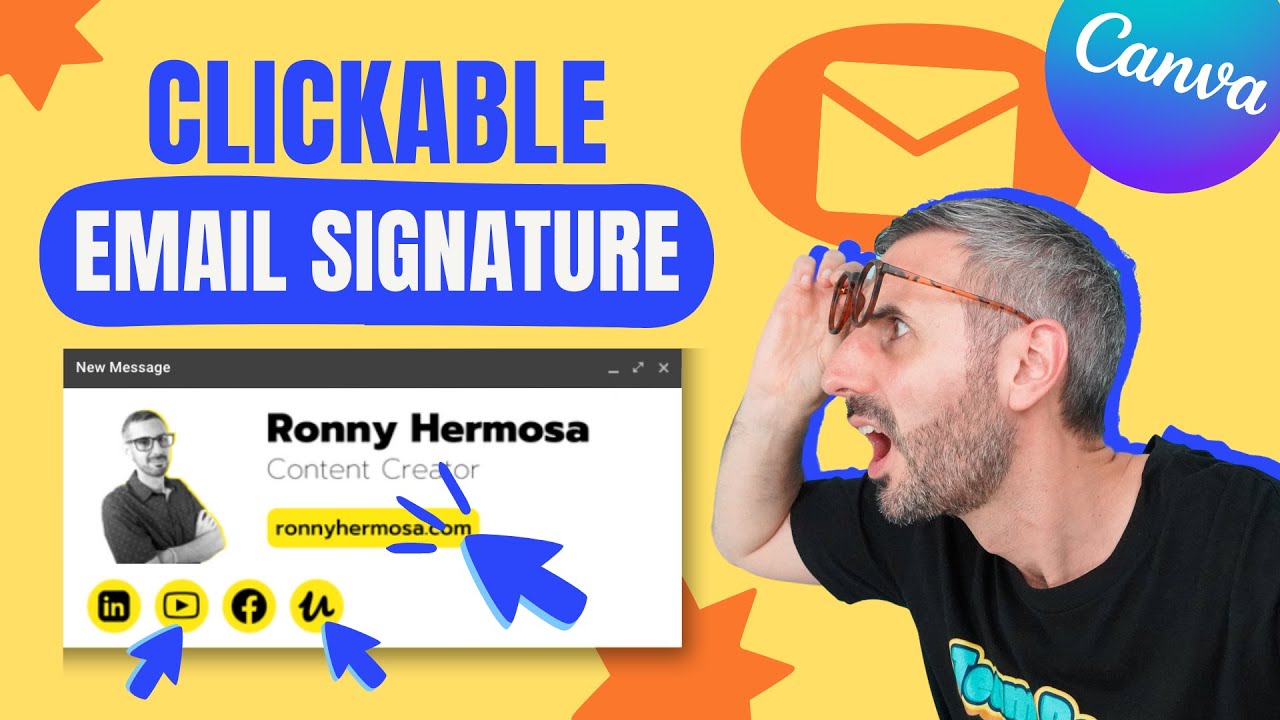
Canva PNG and JPG exports are static image files. They do not support embedded clickable links. This is the most common point of confusion for people building Canva signatures for the first time.
When someone receives your email and sees the signature image, clicking anywhere on it does nothing by default. The workarounds depend on which email client you use.
Workaround 1 (Gmail): Insert the Canva image into Gmail’s signature editor, select the image, and use the hyperlink button to attach a URL. The entire image becomes one clickable link pointing to your website or LinkedIn.
Workaround 2 (HTML builder): Use Canva as a visual template only. Rebuild the design in an HTML email signature tool like HubSpot’s free Email Signature Generator, which outputs actual clickable code rather than an image. This approach takes more time but works across all email clients without rendering issues.
Workaround 3 (multiple image sections): Export different parts of the signature as separate images in Canva, then arrange them in your email client’s editor and link each one individually. Tricky to get right, but doable.
For most freelancers and small business owners, Workaround 1 is enough. For sales teams or anyone sending high volumes of outbound email where link tracking matters, Workaround 2 is the better long-term setup.
30.4% of professionals using email signatures do so specifically to improve business visibility, and 18.8% use them primarily for lead generation (Newoldstamp, 2024). Clickable links are what make either goal measurable. A static image can look good, but it can’t be tracked.
How Do You Export Your Canva Email Signature?

Once the design is done, go to Share in the top right corner, click Download, and choose your file type. For email signatures, PNG is the standard choice.
PNG vs. JPG for email signatures:
| Format | Best For | Limitation |
|---|---|---|
| PNG (Canva Pro) | Logos, text-heavy designs, transparent backgrounds | Slightly larger file size than JPG |
| PNG (Canva Free) | Same as above, white background | No transparency |
| JPG | Profile photos, complex banner images | Compression artifacts on text and logos |
File size is the real constraint here. Gmail truncates the full email body at 102KB total, and a heavy signature pushes threaded replies into truncation faster (Litmus, 2024). Keep the total exported image size under 100KB. For most clean Canva signature designs, this isn’t an issue.
If the exported PNG comes out larger than expected, tools like TinyPNG compress PNG files without visible quality loss. This is worth doing before uploading the image to your email client.
Create the signature image at 2x resolution if you want sharp rendering on Retina displays. For example, if you want the signature to display at 600px wide, export at 1200px wide and scale it down inside your email client. Most modern email clients handle this correctly.
Name the file clearly before saving it. Something like “firstname-lastname-email-signature-2025.png” makes it easy to find and replace when you need to update the design later. Sounds trivial, but after six months of file accumulation, unnamed exports become a real problem.
How Do You Add a Canva Email Signature in Gmail?

Gmail is the most common destination for Canva-designed signatures, and the setup takes under five minutes once your PNG is ready.
Step-by-Step Gmail Setup
Open Gmail, click the gear icon in the top right, and select “See all settings.” Navigate to the General tab and scroll down to the Signature section.
Click “Create new,” name the signature (useful if you plan to have more than one), and the editor opens. Click the image icon in the toolbar to insert your Canva PNG. Upload it from your local drive.
Once inserted, click the image inside the editor and set the display size. Gmail offers Small, Medium, Large, and Original size options. “Medium” works for most designs without any additional resizing.
To add a clickable hyperlink to the image:
- Click the image in the editor to select it
- Click the link icon in the toolbar (or press Ctrl+K / Cmd+K)
- Paste your website URL or LinkedIn profile URL
- Click OK
At the bottom of the signature section, set it as the default for new emails and for replies separately. Gmail treats these as two different settings. A lot of people set the default for new emails and then wonder why their signature doesn’t appear in replies.
Send a test email to a second account before calling it done. Check how it renders on both desktop and mobile. 77.8% of professionals check their email more than five times per day (MySignature, 2025), and a significant portion of those opens happen on mobile where rendering differences are most visible.
Common Gmail Signature Issues
Image too large: resize inside Gmail’s editor using the Small/Medium/Large controls rather than scaling the image itself.
White box around the image: this happens when the PNG was exported with a white background on a design that assumed transparency. Either upgrade to Canva Pro for transparent background export, or design the signature with an intentional colored background that matches your email’s default background color.
Signature not appearing in replies: this is a separate setting from new email signatures. Check both dropdowns at the bottom of the signature configuration section in Gmail settings.
How Do You Add a Canva Email Signature in Outlook?
Outlook handles image-based signatures differently from Gmail. The setup path changes depending on whether you’re using Outlook desktop (Classic), New Outlook for Windows, or Outlook Web App (OWA). Knowing which version you’re on saves a lot of frustration.
Outlook renders images at 96 DPI by default (Exclaimer, 2024). If your Canva PNG was exported at 72 DPI, Outlook will rescale it during send, which softens edges and makes logos and text appear blurry on the recipient’s end.
How to Add a Signature in Outlook Desktop (Classic)
Path: File > Options > Mail > Signatures > New.
Name the signature, then click the image icon inside the editor to insert your Canva PNG from your local drive. Do not link to a Google Drive or Dropbox-hosted image. Outlook’s security settings block externally hosted images by default, so recipients in corporate environments often see a blank box instead of your design (CodeTwo, 2024).
After inserting, set the signature as default for both new messages and replies. Classic Outlook treats these as separate settings, and missing one means half your emails go out unsigned.
How to Add a Signature in Outlook Web App (OWA)
OWA path: Settings gear icon > View all Outlook settings > Mail > Compose and reply.
Insert the Canva image using the image icon in the signature editor. OWA handles image rendering more cleanly than Classic Outlook because it uses a modern browser-based engine rather than Microsoft’s older Word-based rendering system.
New Outlook for Windows uses the same rendering engine as OWA. If you’ve already had issues with Classic Outlook, try setting up the signature in New Outlook instead. Many rendering problems that affect Classic Outlook do not appear in the newer version (Microsoft Community Hub, 2024).
Outlook-Specific Issues to Know
Image blocked by recipient: embed the PNG directly into the signature rather than hosting it externally. Embedded images appear even when external image loading is disabled.
Image appears oversized: export your Canva PNG at the exact pixel dimensions you want it displayed. Do not rely on Outlook’s editor to scale it down. Resizing after insertion causes inconsistent rendering across screen resolutions (Microsoft Q&A, 2024).
Blurry logo on recipient’s end: export the image at 2x the display size in Canva, then set the width attribute manually inside the signature HTML if you’re using OWA’s advanced editor. This keeps logos sharp on high-DPI screens.
Companies using Exclaimer for centralized signature management reported that cleaning up image format inconsistencies (PNG vs JPG, correct DPI, embedded vs hosted) resolved the majority of Outlook rendering complaints across their user base (Exclaimer, 2024).
How Do You Add a Canva Email Signature in Apple Mail?

Apple Mail on macOS has its own signature editor with a slightly different workflow from both Gmail and Outlook. The path is: Mail > Settings > Signatures.
Select your email account in the left column, click the “+” button to add a new signature, and rename it. The editor panel on the right is where you build or paste the signature content.
Installing a Canva Signature in Apple Mail
Drag-and-drop method: export your Canva PNG to your desktop, then drag it directly into the Apple Mail signature editor panel. Apple Mail accepts images dropped into the editor without needing to use an insert menu.
Copy-paste method: open your Canva design in the browser, select all elements (Cmd+A), copy (Cmd+C), and paste directly into the Apple Mail signature editor. This sometimes preserves layout and font formatting, but results are inconsistent depending on your macOS version.
For reliable results, the drag-and-drop method with a properly sized PNG works more consistently than copy-paste across macOS Ventura, Sonoma, and later versions.
iOS Mail vs. macOS Mail Rendering
A signature configured in macOS Mail does not automatically appear in iOS Mail on your iPhone. These are separate apps with separate signature settings.
| Platform | Signature Setup Path | Image Handling |
|---|---|---|
| macOS Mail | Mail > Settings > Signatures | Drag-and-drop PNG |
| iOS Mail | Settings > Mail > Signature | Plain text or paste |
| OWA (Safari, Mac) | Settings > Mail > Compose and reply | Insert image via editor |
iOS Mail’s built-in signature editor is plain-text only. To get a designed image signature on iPhone, the most reliable approach is to configure it through OWA in Safari on your iPhone, or use a third-party signature app.
After setup, send test emails to both a Gmail address and an Outlook address. Check how the signature renders on mobile too. Apple Mail on macOS renders images well, but the same email viewed in Outlook on a Windows machine may look different due to the DPI scaling differences noted earlier.
How Do You Test and Troubleshoot a Canva Email Signature?

Most people send one test email, it looks fine on their screen, and they call it done. That’s not enough. The signature needs to hold up across Gmail, Outlook, Apple Mail, and at least one mobile device before you commit to using it.
Litmus 2024 data shows 43% of all emails are opened on mobile, so testing only on desktop catches less than half the rendering scenarios your recipients will actually experience.
How to Run a Cross-Client Render Test
Send a test email from your configured account to at least 3 separate inboxes: a Gmail address, an Outlook address, and an Apple Mail address. Open each one on both desktop and mobile.
Check for these 4 issues in each client:
- Image not loading (blank space or broken icon)
- Signature too large or stretched on mobile
- White background visible on dark mode
- Text from the signature appearing as an attachment instead of inline
For teams sending high volumes of email, Litmus and Email on Acid both offer multi-client render previews that show how a signature looks across 90+ email clients simultaneously. Useful if you’re rolling out a signature across a whole company rather than testing one personal account.
How to Fix the Most Common Canva Signature Issues
Image not displaying: the PNG is likely hosted externally and being blocked. Re-insert the image from a local file rather than a URL.
White box in dark mode: your PNG has a white background. Fix this with a Canva Pro transparent background export, or redesign the signature with a dark or colored background that intentionally matches the visual. Mail-Signatures.com notes that white backgrounds in PNG files always appear as visible blocks when dark mode is active, regardless of how the rest of the email renders (Mail-Signatures.com, 2023).
Signature too large on mobile: resize inside the email client’s editor. Set the display width to 400-500px maximum rather than leaving it at the exported width.
Signature missing from replies: check the reply signature setting separately from the new-message setting. Gmail, Outlook, and Apple Mail all allow independent control over these two states.
When to Use Litmus or Email on Acid
Email on Acid pricing starts at around $74/month as of 2024. Litmus plans start at $99/month.
Both tools are worth it for design agencies or marketing teams managing signatures for 10+ users. For a solo freelancer testing one personal signature, they’re overkill. Send manual test emails across 3 clients and you’ll catch 95% of the issues that matter.
What Are the Best Practices for a Professional Canva Email Signature?
A well-designed email signature does two things: it looks consistent every time it’s received, and it makes contacting you as easy as possible. Everything else is secondary.
MySignature data shows 75.9% of professionals report that an email signature played a part in moving toward or closing a sale (MySignature, 2025). The signatures doing that work aren’t the ones stuffed with animated GIFs and six social icons. They’re clean, fast-loading, and include exactly one clear action.
Design Constraints That Actually Matter
Stick to these limits and the design almost can’t go wrong:
- Width: 400-600px maximum
- Height: 150-200px for most layouts
- Colors: 2-3 brand colors, no more
- Fonts: 2 typefaces maximum (one for name/title, one for contact details)
- File size: keep the exported PNG under 100KB
Standardizing signatures across an entire company is a priority for 25.1% of organizations (MySignature, 2025). If you’re setting this up for a team, document the hex codes, font choices, and pixel dimensions you used in Canva so the design can be replicated consistently. A brand style guide that includes email signature specs takes about 20 minutes to put together and saves hours of back-and-forth when onboarding new employees.
What to Include and What to Cut
Keep: full name, job title, company name, one phone number, website URL, LinkedIn profile, and one optional CTA link (booking page, portfolio, or current campaign).
Cut: your email address (the person already has it), full mailing address (unless legally required), fax numbers, more than 2 social media icons, and promotional banners over 50KB.
Animated GIFs are worth a specific mention. They render fine in Gmail and Apple Mail but fail completely in most versions of Outlook desktop. If any of your contacts use Outlook, skip GIFs entirely and use a static design instead.
Keeping the Signature Current
Nearly 44.4% of users update their email signatures every six months or less (WiseStamp, 2024). That’s a reasonable cadence. Set a reminder to review the signature when you change roles, update branding, launch a new product, or change a phone number.
Canva makes updates fast. The original design file stays in your Canva account. Open it, make the edit, re-export the PNG, and replace the file in your email client. The whole process takes under five minutes if you kept the original file organized.
The visual hierarchy inside the signature should always point the reader’s eye to the most important element first, which in most cases is your name and title, followed by the contact action you most want them to take. If the design makes the LinkedIn icon more prominent than your name, the hierarchy is wrong and the signature is doing the opposite of what it should.
Teams at companies like HubSpot standardize this across all employees by using centralized signature management tools that pull from a single Canva-designed template. That way, every person in the company carries the same visual brand guidelines in every email they send, without each employee needing to manually configure anything.
FAQ on How To Make An Email Signature In Canva
Can you make an email signature in Canva for free?
Yes. Canva’s free plan gives you access to hundreds of email signature templates and full design customization. The only feature locked behind Canva Pro is the transparent background export. A white background export works fine for most professional use cases.
What size should a Canva email signature be?
Keep the width at 600px maximum and height between 150px and 200px. Canva’s default email signature canvas is 800 x 200px. Resize it before you start designing if your email client has tighter display constraints.
How do you make a Canva email signature clickable?
Canva exports static image files, so links inside the image itself won’t work. Add clickable links directly inside your email client’s signature editor by selecting the inserted image and attaching a hyperlink to it manually.
What file format should you export a Canva email signature as?
Export as PNG. It preserves sharp text and logo edges without compression artifacts. Use Canva Pro for a transparent background. Keep the file size under 100KB to avoid rendering and email truncation issues across Gmail and Outlook.
Does a Canva email signature work in Outlook?
Yes, but with caveats. Insert the PNG from your local drive rather than an external URL. Outlook blocks externally hosted images by default in many corporate environments. Export at 96 DPI to match Outlook’s rendering standard and avoid blurry logos.
Can you add social media icons to a Canva email signature?
Yes. Search for icons directly in Canva’s Elements panel. Use flat, single-color icons sized between 20px and 24px. Keep them small. Instagram and LinkedIn are the most commonly added platforms in professional email signature design, according to WiseStamp 2024 data.
How do you add a Canva email signature to Gmail?
Go to Gmail Settings > See all settings > General > Signature. Insert your exported PNG using the image icon, resize it to Medium, then hyperlink the image to your website URL. Set it as default for both new emails and replies separately.
Can you add a logo to a Canva email signature?
Yes. Upload your logo file via Canva’s Uploads panel and drag it into the design. Use a PNG with a transparent background for clean rendering. Keep the logo under 200px wide and below 20KB to avoid adding unnecessary file weight to every email you send.
Why does my Canva email signature look blurry in Outlook?
Blurry signatures in Outlook are almost always a DPI mismatch. Outlook renders at 96 DPI. If your Canva export was at 72 DPI, Outlook rescales it and softens the edges. Export at the exact pixel dimensions you want displayed without relying on Outlook to resize.
How often should you update your email signature?
Review it every six months or when your contact details, job title, or brand guidelines change. WiseStamp data shows 44.4% of professionals update their signature at least twice a year. Canva stores your original file, so edits and re-exports take under five minutes.
Conclusion
This conclusion is for an article presenting the full process of building a custom email signature in Canva, from picking a template to installing it across Gmail, Outlook, and Apple Mail.
The process is straightforward once you understand the PNG export limitations and how each email client handles image-based signatures differently.
Get the dimensions right, keep the file size under 100KB, and limit the design to 2-3 brand colors. Those three constraints alone will prevent most rendering issues before they happen.
A well-built professional email signature shows up in every conversation you have. It’s low effort to set up in Canva and high return over time.
Set a reminder to revisit it every six months. Your title, contact details, or branding will change eventually, and the signature should keep up.

Renowned for his expertise in logo design and visual branding, Bogdan has developed a multitude of logos for various clients.
His skills extend to creating posters, vector illustrations, business cards, and brochures. Additionally, Bogdan's UI kits were featured on marketplaces like Visual Hierarchy and UI8.
He also wrote in the past years on sites like Design Your Way, WebDesignerDepot, WPDean, Designmodo, Speckyboy, Slider Revolution, and more.
- Canva vs PowerPoint: Which Is Better for Presentations? - 22 September 2026
- How to Install Fonts on Mac (Step-by-Step Guide) - 20 September 2026
- From Mockup to Code: How AI-Augmented Development Speeds Up the Design Handoff - 19 September 2026

Bogdan Sandu is a seasoned designer who has been designing websites since 2008. Renowned for his expertise in logo design and visual branding, Bogdan has developed a multitude of logos for various clients. His skills extend to creating posters, vector illustrations, business cards, and brochures. Additionally, Bogdan's UI kits were featured on marketplaces like Visual Hierarchy and UI8. He also wrote in the past years on sites like Design Your Way, WebDesignerDepot, WPDean, Designmodo, Speckyboy, Slider Revolution, and more.
You Might Also Like


