Most people sign up for Canva Free and hit a wall within a week.
The Canva Free vs Pro decision is one of the most common questions among creators, freelancers, and small business owners using the platform today. With 260 million monthly active users and only 21 million on paid plans, the majority are still figuring out whether the upgrade is worth it.
This guide covers what each plan actually includes, where the free plan runs out, and which Pro features justify the subscription cost for different use cases.
By the end, you will know exactly which plan fits your workflow.
What Is the Difference Between Canva Free and Canva Pro?

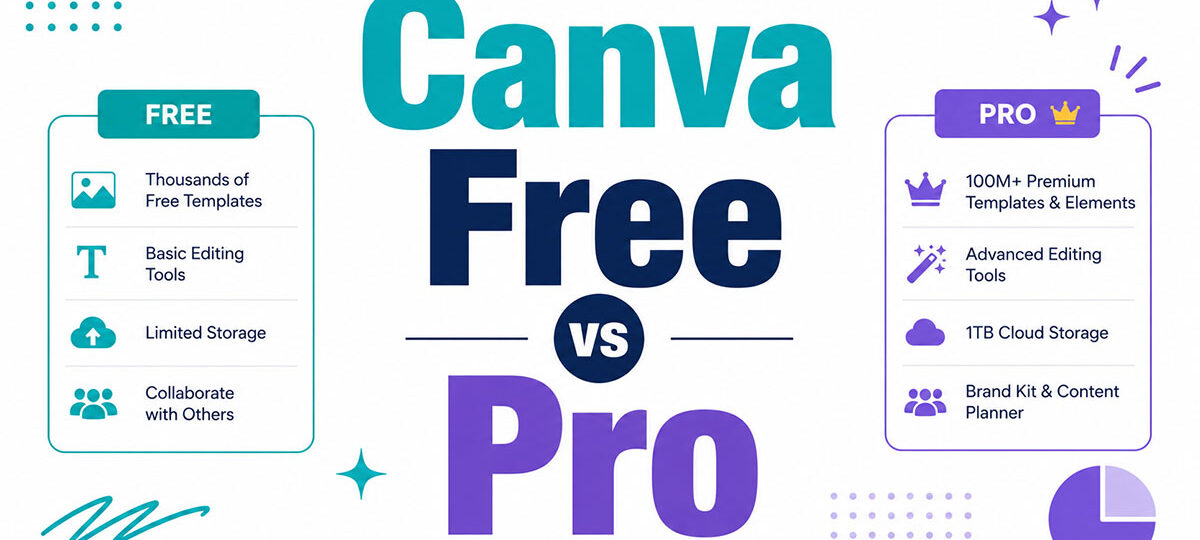
Canva Free and Canva Pro are the 2 main subscription tiers of the Canva online design platform. The free plan gives you access to over 2 million templates, basic photo editing tools, and 5GB of cloud storage at no cost. Canva Pro costs $15/month (or $120/year) and unlocks premium templates, Brand Kit, Background Remover, Magic Resize, and 100GB of storage.
The practical gap between the 2 plans comes down to 3 things: brand consistency tools, AI-powered automation, and asset volume. Free is functional for occasional use. Pro is built for anyone producing branded visual content on a regular schedule.
| Feature | Canva Free | Canva Pro |
|---|---|---|
| Templates | 2M+ free templates | 2M+ free templates plus 610,000+ premium templates |
| Storage | 5GB | 100GB |
| Brand Kit | 1 kit with up to 3 brand colors | Up to 100 Brand Kits with custom fonts |
| Background Remover | Not included | Included with one-click removal |
| Magic Resize | Not included | Included |
| AI credits (Magic Write) | 50 total uses | 500 uses per month |
| Price | Free | About $120/year or $15/month |
As of September 2024, Canva had 21 million paid subscribers out of 190 million total users (Backlinko, 2024). Paid users account for roughly 11% of the total active user base, meaning most people still run on the free plan.
Worth noting: if you are in K-12 education or run a verified nonprofit, Canva Pro is available at no cost through Canva for Education and Canva for Nonprofits. Over 700,000 nonprofit organizations use the platform through this program (TechRT, 2025).
What Does Canva Free Include?

Canva Free is a permanent, no-cost plan. It is not a trial. You can use it indefinitely without a time limit or credit card.
The free plan covers a wide range of visual content creation tasks. It gives you access to:
- Over 2 million free templates across social media, poster design, presentations, and documents
- 4.7 million+ free stock photos and graphic elements
- 5GB cloud storage for uploaded assets
- Basic photo editing tools: crop, flip, brightness, contrast adjustments
- 1 Brand Kit with a limit of 3 colors
- Real-time collaboration with other users
- 50 total AI credits for Magic Write (text generation) and AI image generation
- Export to PNG, JPG, and PDF formats
The free plan does not include transparent PNG export, SVG downloads, or Background Remover. Those require a Pro subscription. Free users also cannot upload custom fonts, which matters a lot if you are working with brand guidelines that specify a particular typeface.
One thing that trips people up: the Canva editor shows all templates and assets, including premium ones. You will see the Pro-locked items during your search, but you cannot export them without upgrading. For users who run into that wall regularly, it becomes the main reason to consider the paid plan.
For casual design tasks, personal projects, students, or anyone creating fewer than 10 designs per month, the free plan covers most needs without limitation.
What Does Canva Pro Include?

Canva Pro is the full-featured individual subscription. It removes the friction points of the free plan and adds a toolkit built for regular content production.
Core Pro features:
- 610,000+ premium templates on top of the 2M+ free ones
- 100 million+ premium stock photos, videos, audio tracks, and graphic elements
- 100GB cloud storage per user (20x more than Free)
- Up to 100 Brand Kits with custom fonts, color palettes, and logo uploads
- Background Remover (one-click, no third-party tool needed)
- Magic Resize (convert one design into multiple formats simultaneously)
- 500 AI credits per month for Magic Write, Magic Media, and AI image generation
- Transparent PNG export
- Content Planner for direct social media scheduling
- 1 custom domain for Canva-built websites
- Priority customer support via live chat
Canva Pro AI Tools
Magic Studio is Canva’s suite of AI-powered tools, launched in 2024. The most-used features are available exclusively on Pro.
Magic Write generates text directly inside a design canvas. Captions, headlines, product descriptions. Free users get 50 total lifetime uses. Pro users get 500 per month, which resets on a rolling basis.
Magic Edit lets you replace or add objects in a photo using a text prompt. You brush over the area, type what you want, and the AI fills it. Results are inconsistent on complex scenes but reliable for product images and simple backgrounds.
Magic Eraser removes unwanted elements from photos without manual masking. Decent on clean backgrounds, less accurate on detailed textures.
Grab Text extracts and imports text from any uploaded image. Useful for digitizing printed materials or imported screenshots.
Canva reports its AI tools are now used hundreds of millions of times per month across the platform (TechRT, 2025). Magic Studio adoption was a cited driver behind the 15% global rise in Pro subscriptions in 2024 (SQ Magazine, 2024).
How Do Canva Free and Pro Compare on Templates?
Template volume is not the real issue. Both plans give you access to millions of starting points. The gap is in quality, exclusivity, and what happens when you try to export.
| Template Type | Canva Free Plan | Canva Pro Plan |
|---|---|---|
| Free templates | 2M+ accessible templates | 2M+ accessible templates |
| Premium templates | Visible but locked | 610,000+ fully unlocked premium templates |
| Custom brand templates | Not available | Available with Brand Kit support |
| Educational templates | 100,000+ available | 100,000+ available |
Premium templates are tagged with a crown icon in the editor. Free users can open them, edit them, and preview the full design. But the export button triggers an upgrade prompt. This behavior frustrates a lot of new users who discover it mid-project.
For social media graphics, basic presentations, and general print design work, the free template library is genuinely good. The premium tier mainly adds more niche formats: media kits, brand guidelines documents, pitch decks, and high-end editorial layouts.
Practically speaking, template quality alone rarely justifies the Pro upgrade. The stronger case for Pro comes from Brand Kit, Background Remover, and Magic Resize.
How Do Canva Free and Pro Compare on Storage?
Canva Free gives you 5GB of storage. Canva Pro gives you 100GB. That is a 20x difference, and it matters more than most people expect when they first sign up.
GB fills fast. A single high-resolution video file can run 500MB to 2GB. Upload 10 branded photo assets, a few videos, and a logo pack, and you can hit the ceiling within a week of active use.
Who hits the storage wall first:
- Social media managers uploading client photos weekly
- Freelancers managing assets for 3+ different brands
- Anyone using Canva for video editing or short-form video content
For occasional designers creating mostly text-based graphics or simple social posts, 5GB is enough. The 100GB Pro limit covers 12+ months of weekly design output for most solo creators (Creator Stack Club, 2025).
One important detail: storage is a hard cap, not a soft limit. When you hit 5GB on the free plan, uploads stop entirely. There is no overage option. The only path forward is to delete existing assets or upgrade to Pro (CheckThat, 2025).
What Is the Canva Pro Brand Kit and Who Needs It?

Brand Kit is one of the clearest reasons to upgrade. It solves a real workflow problem.
Without Brand Kit (or with the limited free version), you manually re-enter your brand colors, hunt down your font files, and re-upload logos at the start of every project. Over a month of regular design work, that adds up to a lot of wasted time.
What Brand Kit stores:
- Custom color palettes (up to 100 palettes per kit on Pro)
- Uploaded brand fonts, including custom typefaces not in Canva’s library
- Logos, icons, and brand imagery
- Brand templates locked to prevent unauthorized edits
The free plan allows 1 Brand Kit with a maximum of 3 colors. No custom font uploads. No brand template locking. Canva Pro unlocks up to 100 Brand Kits, which is practical for freelancers managing multiple clients or agencies running campaigns for several brands simultaneously.
A brand style guide is only useful if designers can actually apply it consistently at speed. That is what Brand Kit does inside Canva. For anyone serious about logo placement, typography consistency, and color palette accuracy across dozens of designs per month, this feature alone justifies the subscription cost.
Around 70% of business users say Canva improves their workflow (Susdey, 2025). Brand Kit is the main driver of that productivity gain for teams managing consistent visual identities.
Is the Background Remover Worth Upgrading to Pro?
Background Remover is the single most-cited reason people upgrade from Canva Free to Pro. And it is genuinely good, though not flawless.
What it does: One click isolates the subject of any photo by removing the background. No masking, no layer work, no external app. The result is a transparent PNG ready to drop into any design.
Canva’s Background Remover has improved significantly since its 2024 AI update. It handles product photos, headshots, and simple environmental backgrounds cleanly. Complex scenes with fine hair, fur, or transparent objects still trip it up occasionally, and a bit of manual cleanup in those cases is realistic.
For context, the free alternatives are:
- Remove.bg: Comparable quality, standalone web tool, free tier limited to low-resolution output
- Adobe Express (free tier): Includes background removal, unlike Canva Free
- PhotoRoom: Strong for product photography, mobile-focused
If you need background removal once or twice a month, Remove.bg handles it without a Canva Pro subscription. But if you are removing backgrounds as part of a regular design workflow inside Canva, switching between apps costs more time than the Pro subscription costs money.
The upgrade math is straightforward: Canva Pro at $120/year costs less per month than a single hour of freelance retouching work in most markets (Creator Stack Club, 2025). For anyone producing product visuals, social media graphics with cutout subjects, or client deliverables weekly, Background Remover alone clears that bar.
One limitation worth knowing: Canva’s remover still underperforms on very detailed edges (dense hair, complex foliage) compared to Photoshop’s Select Subject tool. For production-level image editing where precision matters, Canva vs Photoshop is a comparison worth reading before committing to a workflow.
How Does Magic Resize Work and Is It a Pro Differentiator?

Magic Resize converts one design into multiple formats simultaneously. One Instagram post becomes a Story, a Facebook cover, a LinkedIn banner, and a Pinterest pin, all in a few clicks.
This is Pro-exclusive. Free users have no version of this tool. Every format requires a separate manual redesign from scratch.
The Expedia Group used Magic Resize across its family of brands, including Hotels.com and Vrbo, as part of a Canva Enterprise rollout. The result: 7,800 design hours saved per year and a 30% increase in content production (Sprout Social, 2025).
A few things to know before you rely on it heavily:
- Each use counts against your monthly AI credit allowance
- Text and element positioning often needs manual cleanup after resizing
- Works across all standard social media format presets (Instagram, TikTok, LinkedIn, Pinterest, Facebook)
- Does not yet work inside Canva Docs
For social media managers publishing across 3 or more platforms weekly, Magic Resize removes what is otherwise a repetitive and time-consuming part of the workflow. Sprout Social’s 2024 Content Benchmarks Report found 81% of consumers want more short-form video from brands. Creating those videos in multiple formats manually is not a realistic option at scale.
If you are publishing to a single platform or only design a few times per month, Magic Resize will not move the needle for you. The case for it is strictly about volume.
What Are the Canva Pro Pricing Options?
Canva Pro costs $15/month billed monthly, or $120/year billed annually (roughly $10/month). Annual billing saves $60 compared to paying month to month, a 33% discount (Ampifire, 2025).
| Plan | Price | Users | Best For |
|---|---|---|---|
| Canva Free | $0 | 1 user | Casual and occasional design work |
| Canva Pro | About $120/year or $15/month | 1 user | Freelancers, solo creators, independent businesses |
| Canva for Teams | About $10/seat/month billed annually | Minimum 3 users | Small teams, agencies, collaborative workflows |
| Canva for Education | Free | Verified K–12 educators and students | Classroom learning and educational content |
| Canva for Nonprofits | Free for eligible organizations | Up to 50 users | Registered nonprofit organizations and charities |
One important change: in September 2024, Canva moved the Teams plan from a flat $119.99/year to per-seat pricing. A 5-person team went from $120/year to $500/year, a 300%+ price increase (Canva Pricing, 2025). Existing customers received a 40% first-year discount as a transition offer.
A 30-day free trial is available for Pro. Use it to confirm that Background Remover, Brand Kit, and Magic Resize fit your actual workflow before committing to the annual plan. If you do not use those features within 30 days of full access, the free plan is likely enough.
If you are already paying for Adobe Creative Cloud ($59.99/month), Adobe Express Premium may be included at no additional cost. Worth checking your Creative Cloud entitlements before purchasing Canva Pro.
Who Should Use Canva Free vs Who Should Upgrade to Pro?
The decision comes down to frequency, brand complexity, and whether the Pro-exclusive tools would actually change how you work.
Stay on Free if you:
- Design fewer than 10 times per month
- Work with a single brand or no brand requirements at all
- Do not need background removal or multi-format resizing
- Are a student or hobbyist without commercial design needs
Upgrade to Pro if you:
- Publish branded content weekly across social media platforms
- Manage 2 or more client brands as a freelancer
- Hit storage limits regularly or work with video assets
- Need consistent typographic hierarchy and brand controls across all output
Around 70% of business users report that Canva improves their workflow, and paid business subscriptions grew 30% in 2024 (Susdey, 2025). That growth is driven primarily by solo marketers and small business owners who cross the usage threshold where Free becomes a daily blocker.
Teams of 3 or more should run the numbers before buying individual Pro plans. At $10/seat/month (annual), Canva for Teams is cheaper per person than Pro and adds shared workspaces, approval workflows, and team-level Brand Kit controls.
The 30-day free trial is the most practical decision tool here. Use it. Do not commit to annual billing without confirming that your actual workflow uses at least 3 Pro features regularly.
What Are the Limitations of Canva Pro?

Canva Pro is strong for digital content creation. It has real gaps when the work requires precision, print-readiness, or professional-level image editing.
Print and File Quality
No CMYK support. Canva works in RGB color mode, which is standard for screens but not for professional print production.
Print shops and commercial printers require CMYK files. Canva exports in RGB or converts to print PDF, but color accuracy can shift between screen preview and final printed output. For anything requiring precise Pantone color matching, this is a genuine limitation (Capterra reviews, 2025).
Vector Editing
Canva is primarily raster-based. It handles vector graphics at the display level, but does not offer node-level vector editing.
You cannot modify vector paths, adjust anchor points, or edit SVG structure the way you would in Adobe Illustrator or Affinity Designer. For logo creation that requires precise shape control or scalable illustrations, this is a hard ceiling (GoProof, 2025).
AI Tool Consistency
Magic Edit and the AI image generator produce inconsistent results on complex prompts.
Results on clean product photos are good. Results on detailed scenes, text generation inside images, and fine hair or edge detection are unreliable enough to require external retouching. The AI image resolution is sometimes too low for use beyond social media posts (Capterra reviews, 2025).
Offline Access
Canva runs in the browser. No offline desktop app exists.
A lost internet connection mid-project means lost access. Some mobile features have limited offline capability, but the full Pro toolset requires a live connection. For anyone working on flights or in areas with unreliable connectivity, this is a real workflow constraint.
How Does Canva Pro Compare to Adobe Express and Other Alternatives?

Canva Pro ($120/year) is not the only option in this space. The right choice depends on what you already use, what features matter most, and whether you need Adobe ecosystem integration.
| Tool | Price (Annual) | Background Removal | Best For |
|---|---|---|---|
| Canva Free | $0 | No | Casual and occasional design use |
| Canva Pro | About $120/year | Yes, one-click removal | Solo creators, freelancers, small businesses |
| Adobe Express Free | $0 | Yes, included in free tier | Users already in the Adobe ecosystem |
| Adobe Express Premium | About $120/year | Yes | Adobe Creative Cloud subscribers and advanced creators |
| Visme Pro | About $147/year | Limited | Presentation-focused workflows and business visuals |
The clearest difference between Canva Pro and Canva vs Adobe Express: Adobe Express free tier includes background removal, which Canva Free does not. If background removal is your only reason to upgrade Canva, Adobe Express is worth testing first.
Canva Pro wins on template volume (2M+ free, 610,000+ premium) versus Adobe Express (100,000+ premium). It also wins on social media scheduling, which is built into Canva Pro through the Content Planner. Adobe Express does not include native social scheduling (AI Tool Scouts, 2025).
For users already paying for Adobe Creative Cloud, Adobe Express Premium is often bundled at no extra cost. That makes Canva Pro an unnecessary additional expense for straightforward social graphic work. Check your Creative Cloud plan entitlements before purchasing.
Visme and Piktochart serve presentation-focused use cases with stronger data visual hierarchy and chart tools, but lack Canva’s template breadth and brand management depth. Neither offers Magic Resize.
The honest answer: for most non-Adobe users producing social media content and branded materials, Canva Pro has the best feature-to-price ratio in this category. For Adobe ecosystem users, check your existing subscription before paying for a second platform.
FAQ on Canva Free vs Pro
Is Canva Free actually free forever?
Yes. Canva Free is a permanent plan with no time limit or credit card required. You get 2 million+ templates, 5GB cloud storage, and basic design tools at no cost. It is not a trial.
What does Canva Pro add that Free does not have?
Brand Kit, Background Remover, Magic Resize, 100GB storage, and 610,000+ premium templates are the core additions. Pro also unlocks 500 monthly AI credits versus 50 total on the free plan.
How much does Canva Pro cost?
Canva Pro costs $15/month billed monthly, or $120/year billed annually. Annual billing saves $60 compared to monthly. A 30-day free trial is available before committing to either option.
Can you remove backgrounds on Canva Free?
No. Background Remover is a Pro-exclusive feature. Free alternatives like Remove.bg work for occasional use, but removing backgrounds inside a Canva workflow requires a Pro subscription.
Is Canva Pro worth it for small businesses?
For businesses producing regular branded content, yes. Brand Kit, Magic Resize, and premium templates compress design time significantly. At $120/year, it costs less per month than a single hour of freelance design work.
What is the Canva Pro Brand Kit?
Brand Kit stores your custom fonts, color palettes, and logos in one place. Pro users get up to 100 Brand Kits. The free plan allows only 1 kit with a maximum of 3 colors and no custom font uploads.
Can Canva Free users access premium templates?
They can open and edit premium templates, but cannot export them. Canva locks the download behind an upgrade prompt. Free users only get clean exports from templates without a Pro badge.
What is Magic Resize in Canva Pro?
Magic Resize converts one design into multiple formats simultaneously. An Instagram post becomes a Story, Facebook cover, and LinkedIn banner in a few clicks. Free users must manually recreate each format.
How does Canva Free compare to Adobe Express?
Adobe Express free tier includes background removal, which Canva Free does not. Canva Free has a larger template library. For social media scheduling and Brand Kit features, Canva Pro is the stronger option.
Who should stay on Canva Free?
Students, hobbyists, and anyone designing fewer than 10 times per month. If you work with a single brand, do not need background removal, and stay within 5GB storage, the free plan covers most needs without upgrading.
Conclusion
This conclusion is for an article presenting the core difference between the two subscription tiers: one is built for casual use, the other for consistent, branded content production at scale.
The Canva Pro upgrade makes sense when Background Remover, Magic Resize, and Brand Kit become part of your daily workflow. Without those needs, the free plan holds up well.
Freelancers managing multiple clients, social media managers publishing across platforms, and small business owners who care about visual consistency will get clear value from Pro.
Students, hobbyists, and low-volume creators do not need to spend a dollar.
Use the 30-day free trial before committing. If you do not reach for the Pro tools within a month of full access, the free plan is your answer.

Renowned for his expertise in logo design and visual branding, Bogdan has developed a multitude of logos for various clients.
His skills extend to creating posters, vector illustrations, business cards, and brochures. Additionally, Bogdan's UI kits were featured on marketplaces like Visual Hierarchy and UI8.
He also wrote in the past years on sites like Design Your Way, WebDesignerDepot, WPDean, Designmodo, Speckyboy, Slider Revolution, and more.
- The Lovable Logo History, Colors, Font, And Meaning - 6 November 2026
- Headless WordPress: What Marketing Teams Gain and Lose - 6 November 2026
- PicCollage Logo: How Colour, Shape and Simplicity Express Creativity - 5 November 2026

Bogdan Sandu is a seasoned designer who has been designing websites since 2008. Renowned for his expertise in logo design and visual branding, Bogdan has developed a multitude of logos for various clients. His skills extend to creating posters, vector illustrations, business cards, and brochures. Additionally, Bogdan's UI kits were featured on marketplaces like Visual Hierarchy and UI8. He also wrote in the past years on sites like Design Your Way, WebDesignerDepot, WPDean, Designmodo, Speckyboy, Slider Revolution, and more.
You Might Also Like