Two font platforms dominate web typography, and they couldn’t be more different. The Google Fonts vs Adobe Fonts decision affects everything from page load speed to licensing flexibility to how distinctive your brand actually looks online.
One is free and open-source. The other is bundled into a paid Creative Cloud subscription with access to over 30,000 premium typefaces. Picking the wrong one can mean performance problems, unexpected costs, or typography that blends into the background.
This guide breaks down both platforms across performance, font quality, licensing, pricing, design tool integration, branding, and multilingual support. By the end, you’ll know exactly which service fits your project.
What Is Google Fonts
Google Fonts is a free, open-source font library hosted and maintained by Google. It gives anyone access to over 1,800 font families without paying a dime or signing up for anything.
Every typeface in the library ships under an open-source license, most commonly the SIL Open Font License. That means you can use them in personal projects, client work, commercial products, print, web, apps. No restrictions, no royalty fees, no expiration dates.
According to Photutorial, the library reached 1,826 font families as of May 2025, up from 1,790 at the end of 2024. Roughly 468 of those families support variable font technology.
How Google Fonts Actually Works
There are two ways to load Google Fonts on a website. The first (and most common) is linking to Google’s CDN through a simple CSS stylesheet reference or an HTML link tag. The second is downloading the WOFF2 files and self-hosting them on your own server.
The HTTP Archive’s 2025 Web Almanac found Google Fonts on about 54% of desktop sites and 47% of mobile sites. That’s down a few percentage points from 2022, when desktop usage sat around 60%. The reason? More developers are switching to self-hosted setups for better performance control.
Toner Buzz reports that Google Fonts are used across nearly 12 million websites globally. The United States leads with over 2.1 million of those sites, followed by Japan, the UK, Russia, and France.
Most Popular Google Fonts
Roboto sits at the top by a huge margin, with over 28 trillion all-time views according to Photutorial. It’s the default sans-serif font for Android and most Google services, which inflates those numbers. But it’s a solid workhorse for UI and body text.
After Roboto, the usual lineup shows up: Open Sans, Montserrat, Lato, Noto Sans, Poppins, and Source Sans Pro. Open Sans alone has been tracked on over 14,000 lawyer websites, making up about 24.5% of legal site usage (Toner Buzz data).
Most of these are geometric or humanist sans-serif designs. Serif fonts like Merriweather and Playfair Display rank lower but still pull billions of views.
What Is Adobe Fonts
Adobe Fonts is a subscription-based font service bundled with Adobe Creative Cloud. It started life as Typekit back in 2009 before Adobe acquired it in 2011 and rebranded it in October 2018.
The library now includes over 30,000 fonts from more than 150 type foundries, according to Adobe’s own documentation. That number jumped significantly in April 2025 when Adobe added 1,500+ new typefaces, including heavy hitters like Helvetica, Gotham, and Avenir from Monotype’s catalog.
How Adobe Fonts Integrates with Creative Cloud

If you have any paid Creative Cloud subscription, you get access to the full Adobe Fonts library. Single app plans, the Photography plan (around $10/month), All Apps. They all include it.
Font activation happens through the Creative Cloud desktop app. You browse fonts on the Adobe Fonts website, click “Add Family,” and they sync to your machine within seconds. From there, they show up in Photoshop, Illustrator, InDesign, and every other Adobe tool automatically.
For web projects, Adobe provides embed codes (either CSS link tags or @import statements) that pull fonts from their CDN at use.typekit.net. There are no pageview limits on web font usage.
The Foundry Advantage
This is where Adobe Fonts separates itself from Google Fonts the most. The library includes typefaces from premium foundries like Monotype, Morisawa, and Adobe Originals.
You get access to professional-grade families that would cost hundreds (sometimes thousands) of dollars if you licensed them individually. Think Proxima Nova, Futura PT, Garamond Premier Pro, and now Gotham. These aren’t the kinds of typefaces you’ll find on Google Fonts.
The HTTP Archive’s 2024 Fonts chapter found Adobe Fonts on roughly 4.1% of websites, up slightly from 3.7% in 2022. That’s a fraction of Google’s reach, but the audience is different. Adobe Fonts users tend to be design professionals working inside the Adobe ecosystem rather than developers dropping a quick font link into a template.
Google Fonts vs Adobe Fonts for Web Performance
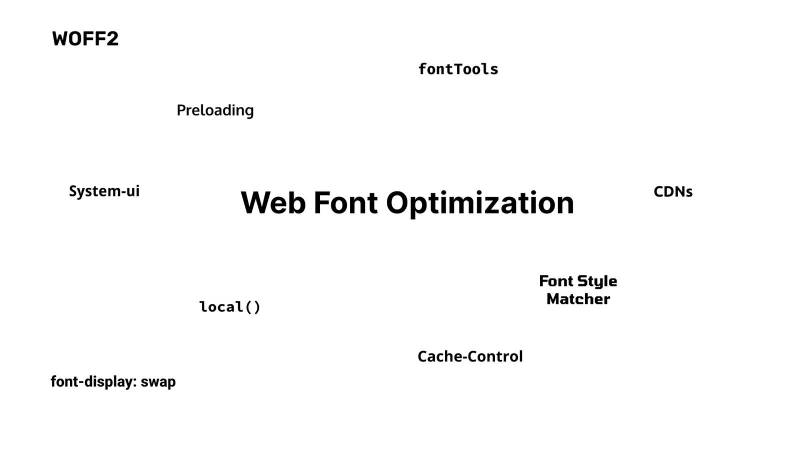
Web font loading directly affects Core Web Vitals. It hits Largest Contentful Paint because text rendering waits on font delivery. It hits Cumulative Layout Shift because swapping from a fallback font to a custom font causes visible page jumps.
Google’s own research found that pages meeting all Core Web Vitals thresholds see users 24% less likely to abandon the page mid-load. Fonts play a real part in that equation.
Google Fonts CDN Performance
The caching story changed. Before Chrome 86 (released in late 2020), browsers shared font caches across websites. If one site loaded Roboto from Google’s CDN, the next site using Roboto could skip the download entirely. That’s gone now. Browsers partition caches by top-level domain for privacy reasons.
The practical result: Google’s CDN no longer gives you a free speed boost from other sites’ font usage. Every visitor downloads your fonts fresh, regardless of what other sites they’ve visited.
Self-hosting Google Fonts in WOFF2 format eliminates the extra DNS lookup and TLS handshake to fonts.googleapis.com and fonts.gstatic.com. The 2025 Web Almanac notes that roughly one-third of all sites now rely solely on self-hosted fonts, up from about 30% the prior year.
Adobe Fonts Loading Behavior
Adobe Fonts serves web fonts through external CSS loaded from use.typekit.net. The default embed code is a render-blocking stylesheet link. For East Asian fonts, Adobe still requires a JavaScript-based loading method with dynamic subsetting.
Here’s the tricky part. Adobe does not allow self-hosting of their web fonts. Their licensing terms require fonts to load through Adobe’s embed code and CDN. You can’t download the WOFF2 files and serve them from your own domain.
This created a well-documented frustration in the web performance community. A thread on Adobe’s own support forum titled “Is there ANY way to achieve good Core Web Vitals scores while using Adobe Fonts?” ended with users concluding that the answer is basically no, at least not to the same degree possible with self-hosted fonts.
Font Loading Strategies That Actually Work
font-display values matter more than most people realize.
| Strategy | What it does | Best for |
|---|---|---|
font-display: swap |
Shows fallback immediately, swaps to web font when loaded | Body text Fast first paint |
font-display: optional |
Only uses web font if available instantly (cached) | Best CLS score Repeat visitors |
font-display: block |
Hides text briefly while font loads | Icon fonts Brand-critical headings |
Preload + swap |
Tells browser to fetch font early, then swaps | Critical above-fold text |
With Google Fonts, you control all of this. Self-host your WOFF2 files, set your own font-display value per weight, and preload whichever files you need.
With Adobe Fonts, your options are more limited. Adobe added font-display settings to their web project editor, but you can’t preload their font files directly since the URLs aren’t guaranteed to stay stable.
Swappie, a refurbished phone company, achieved a 55% improvement in LCP and 91% improvement in CLS after optimizing their font loading strategy, which contributed to a 42% increase in mobile revenue (Search Engine Land, 2024). Font optimization isn’t academic. It’s money.
Font Library and Typeface Quality Comparison
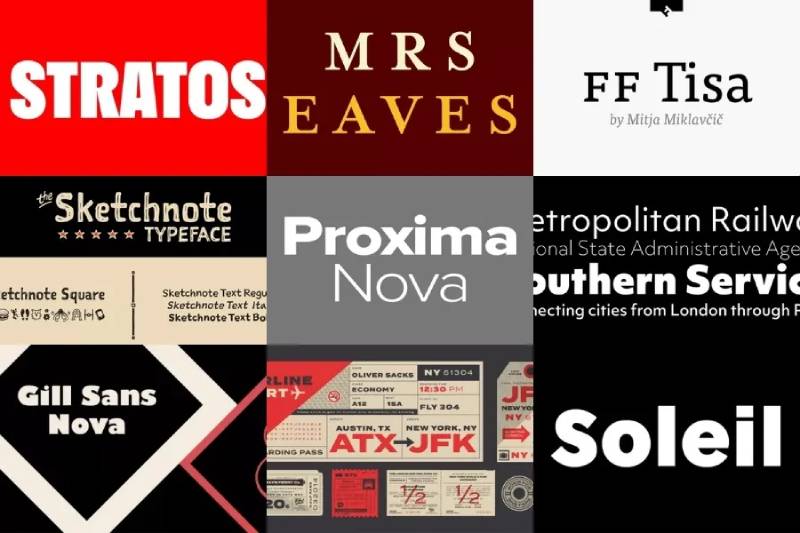
Size and quality are different things. Google Fonts has 1,826 families. Adobe Fonts has over 30,000. But counting families alone doesn’t tell you much about what you’re actually working with.
What Google Fonts Gives You
The bulk of Google’s library leans toward functional body text and UI fonts. You’ll find a strong selection of grotesque and geometric sans-serifs, a growing number of display fonts, and decent coverage of handwriting and decorative styles.
The quality gap shows up more in editorial and branding contexts. Took me forever to realize that half the “unique” headers I was setting on client sites were Montserrat or Playfair Display. You see them everywhere. That’s the tax you pay for free.
Linearity research indicates around 70% of Fortune 500 companies use sans-serif fonts in their logos. A good chunk of those are custom or premium typefaces, not Google Fonts picks. But for startups and smaller teams, free Google Fonts get the job done without touching the budget.
What Adobe Fonts Gives You
Premium foundry access: Monotype, Type Network, Adobe Originals, and (as of April 2025) Hoefler&Co typefaces like Gotham.
Depth per family: Many Adobe Fonts families ship with 12+ weights, optical sizes, and italic variants. Google Fonts families often top out at 6-8 styles.
Less overuse: Proxima Nova appears on about 1% of all websites (HTTP Archive 2024). That’s popular for a commercial font, but nothing close to Roboto’s saturation. Your designs stand out more.
Typewolf’s assessment is blunt: if you have the budget, Adobe Fonts generally produces more distinctive results than Google Fonts, which “can tend to feel generic and overused.”
Overlap Between the Two Libraries
Some typefaces exist on both platforms. Google maintains a foundry on Adobe Fonts with 408 font families, all under open-source licenses. So fonts like Source Sans Pro, Noto Sans, and Roboto are technically available in both places.
The DebugBear font performance guide confirms that these shared fonts can be self-hosted freely since they carry the same SIL Open Font License regardless of where you find them. If you spot something on Adobe Fonts that’s also on Google, check the license first. You might not need the subscription to use it.
Licensing and Usage Rights
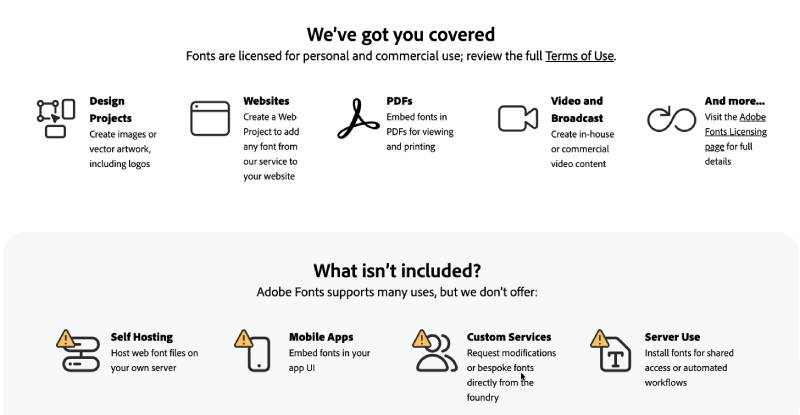
This is where the two platforms couldn’t be more different. One gives you permanent freedom. The other ties everything to a monthly payment.
Google Fonts Licensing
Every font in the Google Fonts library uses an open-source license. The majority fall under the SIL Open Font License, which allows:
- Commercial and personal use with zero fees
- Modification and redistribution (you can even fork the font files)
- Embedding in apps, ebooks, and digital products
- Use across unlimited projects and clients
No subscription to cancel. No terms that expire. If you download Roboto today, it’s yours forever. Period.
Client handoffs are simple too. You send the font files along with the project, and the client uses them without needing any account or license.
Adobe Fonts Licensing
Usage rights are tied to an active Creative Cloud subscription. That single detail changes everything.
While your subscription is active, you can use any Adobe font for personal work, commercial projects, client deliverables, logos, merchandise, web, and print. There are no pageview limits for web fonts and no restrictions on the number of printed items.
But cancel Creative Cloud, and your web fonts stop loading. Adobe’s own help documentation states plainly that websites will revert to fallback fonts once the subscription lapses.
Desktop projects are a different story. Any file you created while subscribed (PDFs, rasterized images, outlined text) still works fine. The fonts just won’t be editable or available in your font menus anymore.
Adobe also prohibits self-hosting web font files. You must serve them through Adobe’s embed code and CDN. You cannot upload the WOFF2 files to your own server or a third-party hosting platform.
Client and Team Complications
| Scenario | Google Fonts | Adobe Fonts |
|---|---|---|
| Client edits design files | Send font files freely | Client needs own CC subscription |
| Printer needs font access | Include in package | Printer needs own license |
| Website after subscription ends | Fonts work forever | Falls back to system fonts |
| Embedding in mobile app | Allowed under SIL OFL | Separate license needed |
I’ve seen freelancers build entire client websites on Adobe Fonts, only to have the typography break when the client’s subscription status changes. It’s a real problem that catches people off guard.
Pricing and Cost Structure
Linearity data shows subscription-based font services have seen a 30% user growth in the last two years. But “subscription” doesn’t mean the same thing when one platform charges nothing and the other bundles fonts inside a larger software package.
Google Fonts Pricing
Free. Completely, unconditionally free.
No account required to browse or use the API. No sign-up to download files. No credit card. The fonts are served from Google’s CDN at zero cost, and you can self-host them with no licensing fees at all.
The only cost you might run into is bandwidth if you self-host on your own server. But a WOFF2 file for a single weight of Roboto is around 11-15 KB. Even with multiple weights, you’re looking at well under 100 KB total. It’s negligible.
Adobe Fonts Pricing
There is no standalone Adobe Fonts subscription. After the Typekit-to-Adobe Fonts rebrand in 2018, all standalone plans were retired. You need a Creative Cloud subscription.
The cheapest way in: the Creative Cloud Photography Plan at roughly $10/month. That includes Lightroom, Photoshop, and the full Adobe Fonts library. For someone who only needs font access, it’s a reasonable workaround.
The All Apps plan runs about $55-60/month for individuals. Teams and enterprise plans vary by seat count and contract terms. For agencies with 10+ designers, the annual cost adds up fast.
The global font and typeface market was valued at $965.4 million in 2021 and is projected to reach $1.33 billion by 2031, according to Toner Buzz data. Small businesses reportedly spend an average of $300 annually on font licensing alone.
Hidden Costs to Consider
Adobe’s lock-in risk: If you build your brand typography entirely around Adobe Fonts and later switch away from Creative Cloud, you’re looking at either re-licensing those fonts individually from foundries (expensive) or redesigning with different typefaces (time-consuming).
Google’s “free” trade-off: When you use Google’s CDN, every page load sends a request to Google’s servers, including visitor IP addresses. In some jurisdictions, particularly under GDPR in Europe, this has raised compliance concerns. Self-hosting eliminates that issue but adds a small amount of maintenance work.
Look, the pricing comparison is lopsided. Google Fonts costs nothing. Adobe Fonts costs at minimum $120/year. The real question isn’t which is cheaper. It’s whether Adobe’s premium library and Creative Cloud integration justify that cost for your workflow.
Integration with Design and Development Tools
Your font platform needs to work where you work. And the tools you use every day determine which service fits better into your actual process.
WordPress holds 61.3% of the CMS market as of 2025, according to Themeisle. Shopify sits at 6.7%, Webflow at 1.2%. Each handles font integration differently, and that matters when you’re picking between Google Fonts and Adobe Fonts for a project.
Adobe Fonts Inside the Adobe Ecosystem
This is where Adobe Fonts shines brightest. You activate a font once, and it appears instantly in Photoshop, Illustrator, InDesign, and every other Adobe app on your machine. Zero file management. No manual installs.
For print design workflows, that tight connection between font activation and desktop apps removes a lot of friction. Designers working on packaging, posters, or book covers in InDesign don’t need to think about font files at all.
The weak spot? Using Adobe Fonts outside of Adobe tools. Getting them into Figma requires the Creative Cloud desktop app to be running, the font installed for non-Adobe apps, and (in the browser version) Figma’s Font Installer. Figma forum threads are full of sync issues, with users reporting hours lost to troubleshooting.
Google Fonts in Figma, Canva, and Non-Adobe Tools
Figma ships with native Google Fonts access. No plugins, no installs. Just open the font picker and browse the full library.
- Canva includes Google Fonts by default in its editor
- Webflow lets you add Google Fonts directly from site settings
- Sketch supports them through system installation or plugins
Figma commanded 77% of the UI design market in 2021 according to Design Domination research, and that share has only grown. Since Figma’s user base skews toward product design and web work, the native Google Fonts integration matters a lot more than it might seem on paper.
CMS Integration Comparison
| Platform | Google Fonts | Adobe Fonts |
|---|---|---|
| WordPress | Built-in or plugin Self-host option |
Plugin required External CSS load |
| Shopify | Theme settings Custom CSS |
Custom code in theme.liquid |
| Webflow | Native in site settings | API token integration |
| Squarespace | Limited built-in selection | Custom code injection only |
Google Fonts wins on CMS ease. Every major platform supports it natively or with minimal configuration. Adobe Fonts always requires an extra step, whether that’s pasting an embed code, configuring an API token, or adding fonts manually to your template files.
Which Fonts Work Better for Branding Projects
Branding lives and dies on type selection. The wrong font makes a logo forgettable. The right one makes it stick.
Linearity data shows consistent use of a specific font can increase brand recognition by up to 80%. That stat puts real pressure on the font source you choose.
The Overuse Problem with Popular Google Fonts
Here’s something nobody talks about enough. When you pick Montserrat for a client’s headings, you’re using the same font as millions of other sites. Open Sans, Roboto, Poppins, Lato. They’re everywhere.
Roboto alone has accumulated over 28 trillion all-time views according to Photutorial. That’s not a typo. The font is baked into Android, Google products, and a massive chunk of the web.
For a startup landing page or a personal blog, this doesn’t matter much. For a brand that needs to stand apart from competitors? It’s a problem. Your visual identity starts blending into the background.
Adobe Fonts for Distinctive Brand Work
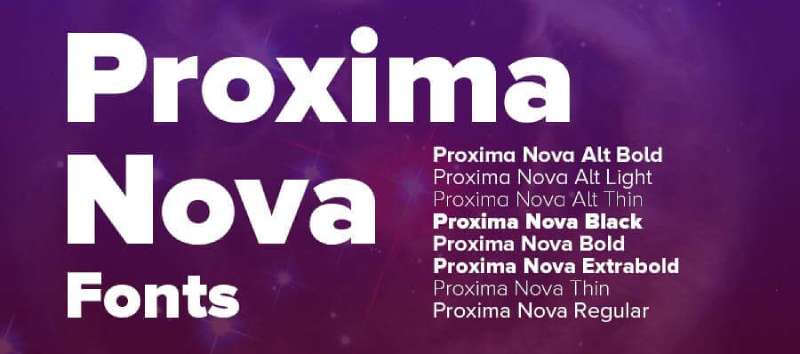
Premium foundries change the equation. Typefaces like Proxima Nova, Freight Text, and the newly added Gotham give branding projects a different character than what’s available for free.
The HTTP Archive’s 2024 Fonts chapter noted Proxima Nova on about 1% of all websites. That’s high for a commercial font, but 50x less common than the top Google Fonts picks. Your clients get something that feels more custom without commissioning a bespoke typeface.
Companies building brand guidelines around Adobe Fonts should document the exact font families and weights used. If anyone on the team cancels their Creative Cloud subscription, those fonts disappear from their machine.
When Neither Platform Is Enough
Some branding projects need custom or commercially licensed fonts from independent foundries. Neither Google Fonts nor Adobe Fonts covers everything.
- High-end fashion brands often commission proprietary typefaces (think Burberry’s custom Peter Saville design)
- Tech companies like Apple, Netflix, and Airbnb have invested in custom fonts that exist nowhere in public libraries
Linearity reports over 70% of global brands have invested in custom font creation for unique branding. If your project is at that level, both Google and Adobe are starting points, not destinations.
Google Fonts vs Adobe Fonts for Multilingual and Non-Latin Projects
Multilingual support is where font libraries get tested hard. Latin characters are easy. Supporting CJK scripts, Arabic, Devanagari, and dozens of other writing systems is where things get complicated.
Google Fonts and the Noto Project
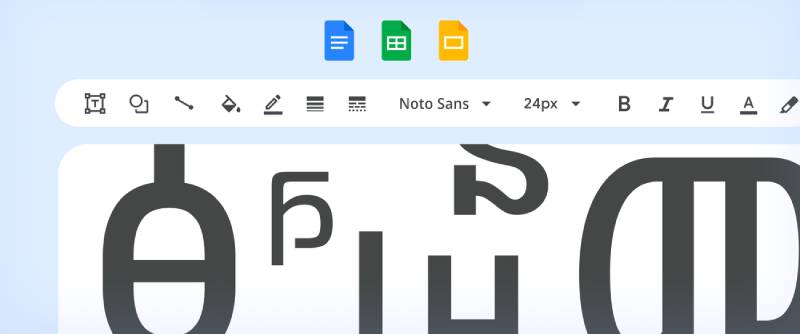
Google’s Noto font family is the most ambitious multilingual font project ever attempted. As of November 2024, Noto covers around 1,000 languages and 162 writing systems, according to Wikipedia’s documentation of the project.
The name “Noto” stands for “no tofu,” referring to the blank rectangles (tofu blocks) that appear when a browser can’t render a character. Google’s goal was to eliminate that across every script in Unicode.
Key coverage highlights:
- Full CJK support (Simplified Chinese, Traditional Chinese, Japanese, Korean) developed jointly with Adobe
- Arabic, Hebrew, Thai, Hindi, and other right-to-left and complex scripts
- Both sans-serif and serif variants for major scripts
- Over 77,000 characters covered, roughly half of Unicode 15.0
For projects targeting Southeast Asian, Middle Eastern, or African audiences, Noto on Google Fonts is often the only practical free option with decent glyph coverage.
Adobe Fonts Multilingual Coverage
Adobe approaches multilingual support through foundry partnerships rather than a single unified project. Adobe’s April 2025 update expanded the library with fonts supporting Arabic, Chinese, Japanese, Korean, Thai, and Hindi.
The CJK fonts on Adobe Fonts are technically the same Source Han families that power Google’s Noto CJK. Google and Adobe co-developed them. So for East Asian languages specifically, the underlying font technology is identical.
Where Adobe pulls ahead: premium foundries like Morisawa bring high-quality Japanese typefaces that go beyond the Noto defaults. For editorial or publication design in Japanese, those extra options matter.
Script Coverage Comparison
| Script category | Google Fonts | Adobe Fonts |
|---|---|---|
| Latin / Cyrillic / Greek | Extensive (1,800+ families) | Extensive (30,000+ fonts) |
| CJK (Chinese, Japanese, Korean) | Noto CJK Free & comprehensive |
Source Han Premium foundry options |
| Arabic / Hebrew (RTL) | Growing Noto coverage | Expanded in April 2025 |
| Indic scripts (Hindi, Tamil, etc.) | Strong Noto coverage | Limited but expanding |
| African scripts | Noto covers many | Minimal coverage |
For sheer breadth of script support, Google Fonts wins. The Noto project was built specifically to cover everything. Adobe’s strength is depth within the scripts it does support, especially CJK and Latin.
When to Use Google Fonts, Adobe Fonts, or Both
Picking between these two isn’t always an either/or decision. Your project type, team setup, budget, and performance needs all push toward different answers.
Best Fit Scenarios for Google Fonts
Budget-conscious projects: Zero cost, zero licensing headaches. If a client can’t afford Creative Cloud or doesn’t need it, Google Fonts is the obvious choice.
Performance-first sites: Self-hosting WOFF2 files from Google Fonts gives you full control over font loading behavior, preloading, and Core Web Vitals optimization. The 2025 Web Almanac shows roughly one-third of all sites now self-host exclusively.
Open-source and developer-focused projects: The SIL Open Font License lets you bundle fonts in apps, redistribute them, even modify them. No subscription strings attached.
Best Fit Scenarios for Adobe Fonts
Design agencies running Adobe tools: If your team lives in Photoshop, Illustrator, and InDesign, font activation is seamless. The workflow friction is almost zero.
Branding projects needing premium type: Access to foundries like Monotype and Hoefler&Co means typefaces that cost hundreds individually come bundled with a $10/month Photography plan.
Print-heavy workflows: Adobe Fonts were built for desktop publishing first. Editorial, brochure, and magazine work benefit from the deeper weight and style options per family.
Using Both in the Same Project
This is more common than people think. Plenty of teams use Adobe Fonts for font pairing in design mockups, then switch to a Google Fonts equivalent (or a close match) for the live site to avoid performance penalties.
A real example: you might design with Proxima Nova in Figma via Adobe Fonts, then implement with Inter or Source Sans Pro on the production site. The visual difference is small, and the performance gain is real.
Decision Framework
| Factor | Choose Google Fonts | Choose Adobe Fonts |
|---|---|---|
| Budget | $0 | $10–60/month (CC subscription) |
| Web performance priority | Self-host WOFF2 for full control | External CSS Limited optimization |
| Design tool stack | Figma Canva Webflow |
Photoshop Illustrator InDesign |
| Typeface exclusivity | Lower (widely used) | Higher (premium foundries) |
| Client handoff | Simple, no license needed | Client needs CC subscription |
The honest answer for most web projects in 2025: start with Google Fonts. The library is big enough, the performance is better, and the licensing is bulletproof.
If you’re doing serious branding or graphic design work where typeface quality and uniqueness matter more than page speed, Adobe Fonts earns its keep. Especially if you’re already paying for Creative Cloud anyway.
And if your project crosses both worlds (design in Adobe, ship on the web) don’t be afraid to use both. Just plan your typographic hierarchy accordingly and keep the font stack lean.
FAQ on Google Fonts Vs Adobe Fonts
Is Google Fonts completely free to use?
Yes. Every font in the Google Fonts library ships under an open-source license, typically the SIL Open Font License. You can use them for personal, commercial, and client projects with zero cost and no account required.
Do I need a subscription to use Adobe Fonts?
You need an active Adobe Creative Cloud subscription. There’s no standalone Adobe Fonts plan. The cheapest option is the Photography Plan at around $10/month, which includes full library access.
Which platform has more fonts?
Adobe Fonts offers over 30,000 fonts from 150+ foundries. Google Fonts has around 1,826 font families. Adobe wins on quantity, though many Google Fonts are higher quality than their count suggests.
Which is better for web performance?
Google Fonts. You can self-host WOFF2 files and control font-display settings for better Core Web Vitals scores. Adobe Fonts requires loading from their external CDN, which limits performance optimization options.
Can I self-host Adobe Fonts?
No. Adobe’s licensing terms require fonts to load through their embed code and CDN. You cannot download the web font files and serve them from your own server, unlike Google Fonts.
What happens to my website if I cancel Creative Cloud?
Your site reverts to fallback fonts. Adobe Fonts stop loading once your subscription ends. Any static files like PDFs or rasterized images created while subscribed still work, but live web font rendering stops.
Which platform works better with Figma?
Google Fonts integrates natively into Figma with no setup. Adobe Fonts requires the Creative Cloud desktop app running, font installation for non-Adobe apps, and sometimes the Figma Font Installer for browser use.
Are Google Fonts good enough for branding?
For startups and small businesses, absolutely. For brands needing distinctive typography, popular picks like Montserrat and Roboto appear on millions of sites. Premium Adobe Fonts typefaces offer more uniqueness for brand identity work.
Which platform supports more languages?
Google Fonts, thanks to the Noto font family covering around 1,000 languages and 162 writing systems. Adobe Fonts expanded multilingual support in 2025 but doesn’t match Noto’s breadth across non-Latin scripts.
Can I use Google Fonts and Adobe Fonts together?
Yes. Many teams design with Adobe Fonts in mockups, then switch to a similar Google Fonts option for production. This approach balances design quality in the creative phase with better web performance at launch.
Conclusion
The Google Fonts vs Adobe Fonts comparison comes down to what you’re building and how you’re building it. Neither platform is universally better. They solve different problems for different workflows.
Google Fonts delivers on web font performance, open-source licensing, and CMS compatibility. Self-hosting WOFF2 files gives you full control over page load optimization and Core Web Vitals.
Adobe Fonts earns its place through premium foundry access, seamless Creative Cloud integration, and typeface quality that stands apart from what’s freely available. For logo projects and branding work, that depth matters.
Most teams don’t need to pick just one. Use Google Fonts where speed and simplicity win. Reach for Adobe Fonts when the project demands typographic character that free libraries can’t match. Build your style guide around whichever fits, and document the decision so your team stays consistent.

Renowned for his expertise in logo design and visual branding, Bogdan has developed a multitude of logos for various clients.
His skills extend to creating posters, vector illustrations, business cards, and brochures. Additionally, Bogdan's UI kits were featured on marketplaces like Visual Hierarchy and UI8.
He also wrote in the past years on sites like Design Your Way, WebDesignerDepot, WPDean, Designmodo, Speckyboy, Slider Revolution, and more.
- Beautiful Fonts Similar to Poppins You Should Try - 22 October 2026
- Website Redesign: How to Improve Your Website without Losing SEO Rankings - 22 October 2026
- The Coda Logo History, Colors, Font, And Meaning - 20 October 2026

Bogdan Sandu is a seasoned designer who has been designing websites since 2008. Renowned for his expertise in logo design and visual branding, Bogdan has developed a multitude of logos for various clients. His skills extend to creating posters, vector illustrations, business cards, and brochures. Additionally, Bogdan's UI kits were featured on marketplaces like Visual Hierarchy and UI8. He also wrote in the past years on sites like Design Your Way, WebDesignerDepot, WPDean, Designmodo, Speckyboy, Slider Revolution, and more.
You Might Also Like