Illustrator doesn’t install fonts. Your operating system does, or Adobe Fonts does, and until one of those two marks a typeface active, the file sitting in your project folder is just a file.
That distinction matters more than it sounds. A system level install makes the font available everywhere, in Word, in Figma, in whatever else you have open. Adobe Fonts activation only lasts as long as the subscription stays active. Cancel Creative Cloud and those fonts vanish from the Character panel the same week.
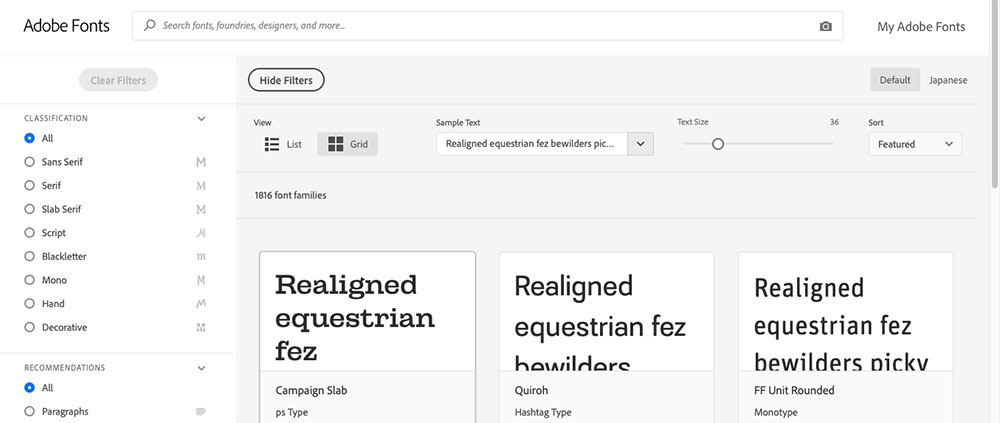
Adobe Fonts alone supplies more than 30,000 fonts from over 150 type foundries directly into that same panel once a family is activated (Creative Bloq, 2026).
What Does Adding a Font to Adobe Illustrator Actually Mean
Registering the typeface with your operating system is the real step. Or flipping it on through Adobe Fonts. Dropping the file next to your .ai project does nothing.
Illustrator has no built in font installer of its own.
It only reads whatever fonts your Mac, your Windows machine, or your Creative Cloud desktop app has already made active.
- Manual installation through Font Book on Mac, or the Fonts settings page on Windows
- Automatic activation through Adobe Fonts, synced via the Creative Cloud desktop app
A font only becomes usable inside Illustrator once the system or Adobe Fonts marks it active, regardless of where the actual file sits on your drive.
The same install-then-restart logic carries over to other Creative Cloud apps. If you have ever gone through adding fonts to Photoshop, Illustrator’s process will feel familiar, since both applications read from the same system font layer.
What Font File Formats Does Illustrator Support
OpenType (.otf) and TrueType (.ttf) do almost all the work. Illustrator also reads TrueType Collection (.ttc) files, which bundle several fonts into a single file, and it will still open legacy PostScript Type 1 files for viewing and printing.
| Format | Extension | Illustrator Support | Typical Source |
|---|---|---|---|
| OpenType | .otf | Full, including advanced glyphs | Adobe Fonts, foundries |
| TrueType | .ttf | Full | Google Fonts, Windows system |
| TrueType Collection | .ttc | Full, installs multiple fonts at once | System font bundles |
| PostScript Type 1 | .pfb / .pfm | View and print only, since January 2023 | Legacy in-house libraries |
OpenType was jointly developed by Adobe and Microsoft, with the 1.0 specification released in 1997 (Microsoft Learn documentation). Nearly thirty years on, it is still the format most foundries ship first.
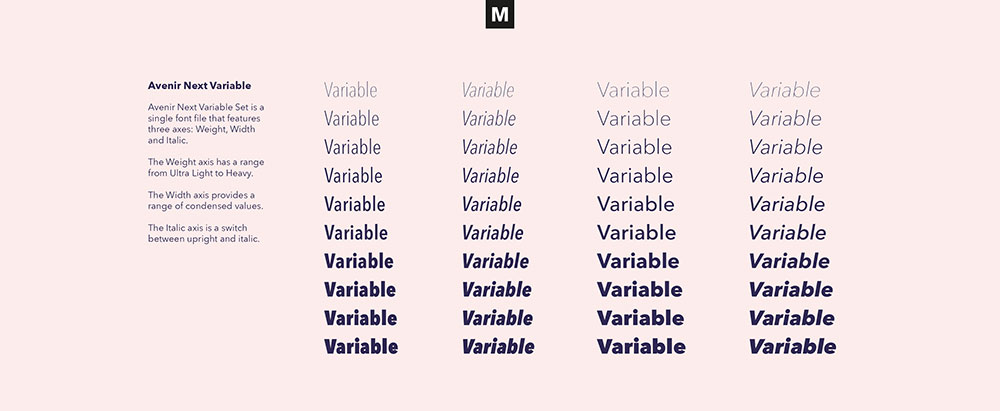
Many OpenType files also carry variable font technology, packing multiple weights and widths into a single file instead of a separate file per style.
Type 1 is the format that trips people up, because it half works. Adobe ended active support for authoring with PostScript Type 1 fonts in Illustrator starting with versions released in January 2023 (Adobe, 2023). Type 1 files placed as graphics inside a PDF still display and print fine. Used as live, editable text, they trigger a missing fonts error in current releases.
WOFF files, built for web delivery, are not installable as desktop fonts and never reach Illustrator’s font list at all.
Installing Fonts at the System Level vs Syncing Through Adobe Fonts
Install a font at the system level and every application on the machine can see it. Sync one through Adobe Fonts and only Adobe apps can, for exactly as long as you keep paying.
The system route puts the file in the OS font folder, Font Book on Mac or the Windows Fonts folder. It works in every app you have, not just Adobe ones, and it survives a lapsed or cancelled Creative Cloud subscription without you doing anything.
Adobe Fonts sync behaves differently:
- Font activates through the Creative Cloud desktop app, tied to your Adobe ID
- Limited to Adobe apps such as Illustrator, Photoshop, and InDesign
- Deactivates automatically the moment your subscription lapses
Creative Cloud Libraries add a third layer on top of both methods, letting a font reference travel between machines signed into the same Adobe account. That reference still depends on the font being active locally, either through system installation or Adobe Fonts, so libraries do not replace either method.
Which Font Source Should You Use for Illustrator Projects
Adobe Fonts is the fastest option if you already pay for Creative Cloud, since licensing is handled for you and activation takes one click. The catch is that access disappears the moment the subscription ends, which is a real problem for archived client work you might need to reopen in three years.
Google Fonts costs nothing and covers commercial use, but there is no in-app sync. Every family gets downloaded and installed by hand.
Marketplace fonts from Fontspring or MyFonts give you perpetual licenses you own outright. You pay per font, which is the real cost the other two avoid.
Client supplied files come with whatever license the client already purchased. The terms are only as good as their paperwork, and in my experience that paperwork is missing about half the time.
The Google Fonts vs Adobe Fonts decision usually comes down to budget, and whether the project needs Adobe’s curated foundry list or Google’s open catalog.
Google Fonts lists roughly 1,940 font families in its own directory as of mid-2026, all released under open source terms (SIL Open Font License or Apache License).
Whichever source you pick, check the font licensing terms before shipping client work, since commercial use restrictions vary even within a single foundry’s catalog.
Adobe’s own catalog shifts over time too. Monotype’s acquisitions of Hoefler&Co and Berthold brought classics like Gotham and Akzidenz-Grotesk into Adobe Fonts, while a handful of smaller foundries have exited the service entirely.
How to Install a Font on Mac or Windows for Illustrator
On Mac it runs through Font Book. On Windows you either right click the file or drop it into the Fonts settings page. A system wide install on either platform wants full administrator permissions.
Illustrator needs to be closed and reopened afterward, since it builds its font list once at launch and will not pick up a new install while it is already running.
Installing a Font on Mac
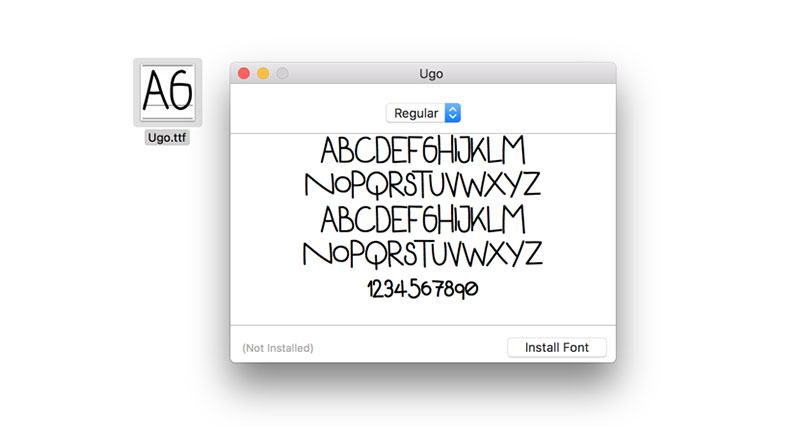
- Download the font file (.otf or .ttf) and unzip it if needed
- Double click the file to open it in Font Book
- Select Install Font in the preview window
- Confirm the font now appears in Font Book’s font list
- Quit and relaunch Illustrator, then check the Character panel
Font Book handles the heavy lifting here, and the same Font Book steps for installing fonts on Mac apply whether you are prepping a font for Illustrator, Photoshop, or any other app that reads system fonts.
Installing a Font on Windows
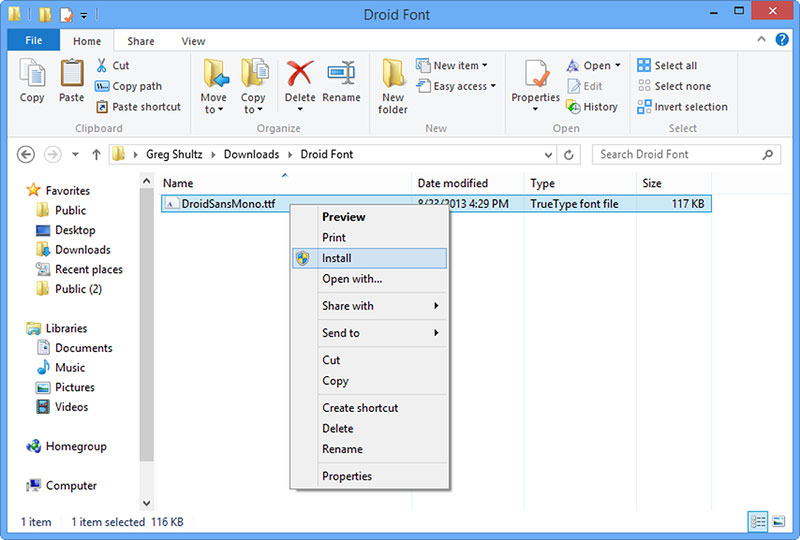
Right clicking the font file and choosing Install is the quick way. Dragging it into the Fonts settings page under Personalization does the same thing if you prefer that.
- Right click the .ttf or .otf file in File Explorer
- Select Install, or Install for all users if you have admin rights
- Wait for Windows to add the font to its Fonts folder
- Relaunch Illustrator so it rebuilds its font list
Install for all users writes to the system Fonts folder and needs administrator rights. A plain Install without that option only affects your own user profile, which is enough for most freelance work.
How to Sync Adobe Fonts So They Appear in Illustrator

Activation happens on the Adobe Fonts website or in the Creative Cloud desktop app, and the font shows up across every Adobe app on that machine within moments.
Worth knowing before you start hunting: activation is per font family, not one account wide switch. Each typeface you want has to be turned on individually.
In the Creative Cloud desktop app, open the Fonts icon and select Browse more fonts. Add Family activates the whole thing. If you only want one weight, open the family and pick Add font instead.
A notification appears in the Creative Cloud desktop app once the font finishes activating, and Illustrator picks it up in the Character panel without needing a restart in most cases.
Unlike syncing, using Google Fonts in Illustrator still means downloading and installing each file manually, since Google’s library has no built in activation panel inside Creative Cloud apps.
The scale of the library is worth putting numbers on:
- Over 30,000 fonts and more than 150 contributing type foundries in the library (Creative Bloq, 2026)
- Over 1,500 new typefaces added in a single April 2025 update, including Helvetica, Gotham, and Avenir (Adobe, 2025)
That scale is why a catalog search can take a moment to load on a slow connection, even though individual font activation itself is close to instant.
Why Illustrator Isn’t Showing a Font (and How to Fix It)
Two very different things cause this. Either the app has not refreshed its font list since you installed, or an open document references a font that is not active on your machine, which throws a missing font warning instead.
The fixes have nothing in common, and confusing the two wastes an afternoon.
Font Installed But Not Appearing in the Character Panel
Illustrator builds its font list once at launch. Install something while the app is open and it will not show until you restart.
Quit Illustrator completely, not just the document window. Check that the font actually shows as installed in Font Book or the Windows Fonts settings page before you blame the app. Then relaunch and look at the Character panel again.
If the font still does not appear, sign out and back into the Creative Cloud desktop app, then clear Illustrator’s font cache and relaunch once more.
Missing Font Warning in an Existing Document
Opening a file that references a font not currently active on your machine brings up the Missing Fonts dialog automatically (Adobe, 2025).
- A selected checkbox means Adobe Fonts can supply that font directly
- A greyed out Preview only checkbox means the font can only be previewed, not added
Selecting Add Fonts activates any available fonts from Adobe Fonts on the spot, while Replace Fonts lets you swap in something already on your system.
Illustrator 29.3 added the ability to preview certain missing fonts directly inside that dialog, though not every font is compatible with the preview, and some still fall back to automatic substitution (Adobe, 2025).
Illustrator highlights the affected text so you can edit it even before resolving the missing font, substituting a default typeface in the meantime.
InDesign’s version of this same dialog surfaces more detail about each missing font than Illustrator’s does, which is worth knowing if you regularly move text between the two, especially once you already know your way around adding fonts to InDesign.
Third-Party Font Managers and Illustrator Compatibility
Suitcase Fusion and FontBase activate and deactivate fonts on demand rather than leaving a whole library installed permanently. Illustrator cannot tell the difference. A manager-activated font arrives through the same OS font layer as anything you installed by hand.
| Tool | Cost | Illustrator Integration |
|---|---|---|
| Font Book | Built into macOS, free | System level only, no auto-activation |
| Suitcase Fusion | Paid subscription | Auto-activation plug-in plus in-panel access |
| FontBase | Free, paid tier for extras | Auto-activation plug-in for Illustrator, Photoshop, InDesign |
Suitcase Fusion ships auto-activation plug-ins for six applications, Photoshop, InDesign, Illustrator, InCopy, After Effects, and QuarkXPress (Extensis). The plug-in watches which fonts a document actually uses and activates only those, rather than switching on your whole library at once.
FontBase works the same way for Illustrator, Photoshop, and InDesign, and its Discover feature partners with more than 60 type foundries to surface new releases daily (FontBase).
Todd Vogt, who manages fonts across more than 30 Macs at Rooms To Go, calls FontBase “simply the best font management tool on the market” in a testimonial featured on FontBase’s own site.
Neither tool escapes the restriction covered earlier. Illustrator will not display a newly activated font until it restarts, whether that activation came from Adobe Fonts or from a manager.
The same auto-activation logic extends past Illustrator too, including adding fonts to After Effects for motion projects that share assets with a print file.
One practical limit is worth flagging. Suitcase Fusion shows a warning before activating more than 100 fonts in a single action, since large libraries can tie up the app if a whole collection switches on by accident (Extensis release notes).
When Font Installation Does Not Work in Illustrator
Most installation failures trace back to a short list of causes, and none of them mean the font is broken beyond use.
A system wide install needs admin rights on both Mac and Windows. Without them the font installs for your own user account only, assuming it installs at all.
Corrupted files are sneakier. A partial or damaged font can install cleanly at the OS level and still fail to render inside Illustrator, showing garbled characters or quietly substituting something else.
A lapsed Creative Cloud subscription pulls every Adobe Fonts activation at once. Your system installed fonts stay exactly where they were.
Then there are font family name conflicts. Two fonts sharing the same internal PostScript name, sometimes shortened to PSName, confuse the operating system, and Illustrator ends up loading only one of them (Monotype Fonts Help Center).
Last, a font built around newer OpenType behavior can render with missing or wrong glyphs in an Illustrator version that predates that feature.
The naming conflict is the one nobody diagnoses correctly, because Windows and macOS identify a font by its internal PostScript name rather than by file name or display name. Nothing in Finder or File Explorer hints at the problem.
A widely discussed case involved a font family delivered directly by Chevrolet: installing one bold italic style caused a separate bold style to stop showing up entirely, a symptom traced to both styles sharing a conflicting internal name rather than a bad download.
Fixing a corrupted font takes a different path on each platform.
- On Mac, open Font Book, select all fonts, then run Validate Selection to isolate the damaged file (Adobe, 2026)
- On Windows, close all Adobe apps and delete the FNTCACHE.DAT file so the system rebuilds its font cache from scratch (Adobe, 2026)
Unsupported OpenType features cause a narrower failure, but a real one. Illustrator’s own feature tracker still lists an open issue where the ccmp and rlig ligature features do not render correctly on variable fonts, unresolved as of Illustrator 2024.
None of this makes a font unusable. It just means Illustrator needs a specific fix before the file behaves the way it should.
FAQ on How To Add Fonts To Adobe Illustrator
Do you need to restart Illustrator after installing a font?
Yes. Illustrator builds its font list once at launch and does not scan for new installs while running. Quit the app completely after installing a font, then relaunch before checking the Character panel or Type menu.
Is it legal to use a downloaded font in commercial Illustrator work?
Only if the font license allows commercial use. Adobe Fonts and most Google Fonts licenses cover it automatically, but a free download from an unknown source can restrict commercial projects entirely. Check the license file before shipping client work.
Can you remove or uninstall a font so it stops appearing in Illustrator?
Delete it from Font Book on Mac or the Windows Fonts folder on Windows, then restart Illustrator. Adobe Fonts works differently, since there is no file to delete. Deactivate the family from the Creative Cloud desktop app instead.
Can you install a font while Illustrator is open, or does it need to be closed?
Installation itself works fine with Illustrator open, since the operating system handles the file copy. Illustrator just will not display that font until it restarts, so closing it first saves a step rather than a requirement.
What Should You Check First If Fonts Are Not Working?
Start with activation status, not with the file. The typeface is usually already on the machine and just needs the operating system or Adobe Fonts to mark it active.
Work through these in order, because each one rules out the next:
- Confirm the font is active in Font Book or the Creative Cloud desktop app
- Quit and relaunch Illustrator completely
- Clear the font cache if the panel does not update
Activation determines visibility, restart determines detection, and cache health only matters once you have ruled out the first two.
Choosing a font manager over plain system installation buys you control and costs you simplicity. It is one more application to keep current alongside Illustrator, which some people find worth it and some really don’t.
Once a font is active inside Illustrator, the next concern is whether it survives output, which is where embedding fonts in a PDF matters.

Renowned for his expertise in logo design and visual branding, Bogdan has developed a multitude of logos for various clients.
His skills extend to creating posters, vector illustrations, business cards, and brochures. Additionally, Bogdan's UI kits were featured on marketplaces like Visual Hierarchy and UI8.
He also wrote in the past years on sites like Design Your Way, WebDesignerDepot, WPDean, Designmodo, Speckyboy, Slider Revolution, and more.
- The Windsurf Logo History, Colors, Font, And Meaning - 10 October 2026
- How to Remove Background From Product Photos (No Photoshop) - 10 October 2026
- How Designers can Build a Stronger Online Creative Identity - 9 October 2026

Bogdan Sandu is a seasoned designer who has been designing websites since 2008. Renowned for his expertise in logo design and visual branding, Bogdan has developed a multitude of logos for various clients. His skills extend to creating posters, vector illustrations, business cards, and brochures. Additionally, Bogdan's UI kits were featured on marketplaces like Visual Hierarchy and UI8. He also wrote in the past years on sites like Design Your Way, WebDesignerDepot, WPDean, Designmodo, Speckyboy, Slider Revolution, and more.
You Might Also Like