Google Fonts gives you free access to over 1,800 font families, and learning how to use Google Fonts correctly can make or break your site’s typography and loading speed.
But most developers stop at copying the embed code. They skip optimization, load too many weights, and never think about self-hosting or font licensing implications.
This guide covers everything from basic HTML and CSS integration to advanced API parameters, font performance tuning, WordPress setup, and using Google Fonts in design tools like Figma and Photoshop.
You’ll also learn how to pick the right font combinations, fix common loading issues, and avoid GDPR problems with the Google Fonts CDN.
What Is Google Fonts
Google Fonts is a free, open-source library of web fonts hosted on Google’s CDN. It gives developers and designers access to over 1,826 font families as of 2025, according to Photutorial, covering everything from serif and sans-serif to display, handwriting, and script fonts.
The Google Fonts API delivers font files directly to the browser through a stylesheet reference. You pick your fonts from fonts.google.com, grab the embed code, and the API handles the rest, serving optimized WOFF2 files based on the visitor’s browser and operating system.
Toner Buzz data shows Google Fonts is present on over 50 million websites across more than 8 million unique domains. The United States leads in usage, followed by Japan, the UK, Russia, and France.
HTTP Archive’s 2025 Web Almanac found Google Fonts on roughly 54% of desktop sites and 47% of mobile sites. That number has been declining slightly (down from about 60% in 2022) as more developers shift toward self-hosting their font files. But Google Fonts remains the single largest third-party font provider on the web by a wide margin.
The difference between Google Fonts and something like Adobe Fonts comes down to cost and licensing. Google Fonts are completely free under open-source licenses, while Adobe Fonts requires a Creative Cloud subscription. Services like Fontshare sit somewhere in between, offering a smaller curated collection for free. Google Fonts covers the widest range of languages and scripts, which makes it the go-to for multilingual projects.
How Google Fonts Compares to Other Font Services
| Service | Cost | Library Size | Self-Hosting Option |
|---|---|---|---|
| Google Fonts | Free, open-source | 1,826+ families | Yes, downloadable |
| Adobe Fonts | Creative Cloud subscription | 25,000+ families | Limited (sync only) |
| Fontshare | Free for personal/commercial | 100+ families | Yes |
| Font Awesome | Free tier + paid plans | Icon fonts only | Yes |
HTTP Archive’s 2025 data also shows Adobe Fonts at roughly 3.8% of sites, while Font Awesome sits at about 3-4%. Every other hosted font service registers well under 1%. If a website is pulling fonts from a third-party service today, it’s almost certainly Google Fonts.
How to Add Google Fonts to a Website Using HTML
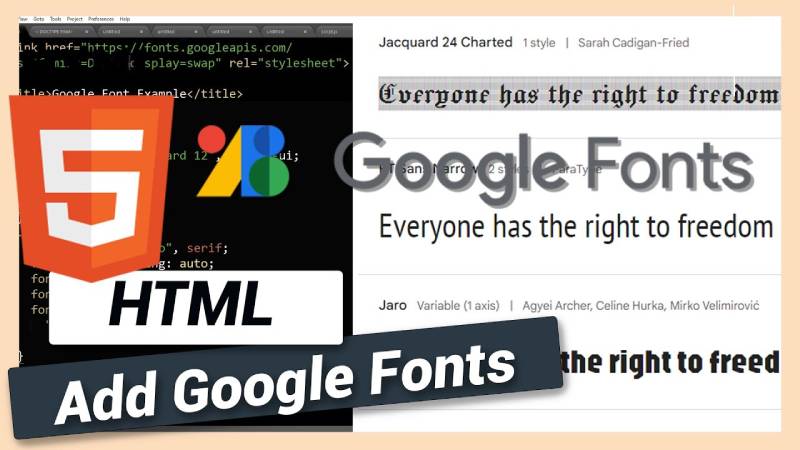
The most common way to load Google Fonts is through a <link> tag in your HTML <head>. This is the method Google recommends and what most developers start with.
Go to fonts.google.com, search for the font you want, select the styles and weights you need, and copy the generated code. It looks like this:
<link rel="preconnect" href="https://fonts.googleapis.com">
<link rel="preconnect" href="https://fonts.gstatic.com" crossorigin>
<link href="https://fonts.googleapis.com/css2?family=Inter:wght@400;600;700&display=swap" rel="stylesheet">
Then apply the font family in your CSS with a proper fallback stack:
body {
font-family: 'Inter', sans-serif;
}
The display=swap parameter tells the browser to show a fallback typeface immediately while the custom font loads. This avoids invisible text during loading.
You can request multiple font weights in a single URL. Just separate them with semicolons in the API v2 syntax. Loading Inter at 400, 600, and 700 weight in one request is better for performance than making three separate requests.
One thing I see developers mess up constantly: loading too many weights. If you only need regular and bold, don’t pull in 300, 400, 500, 600, 700, and 800. Every additional weight increases file size and slows things down.
How to Preconnect to Google Fonts for Faster Loading
Notice those two preconnect lines in the embed code above? Google now includes them by default, and they matter more than most people realize.
fonts.googleapis.com serves the CSS stylesheet that tells the browser which font files to download. fonts.gstatic.com is where the actual WOFF2 font files live.
The rel="preconnect" attribute tells the browser to start DNS lookup, TCP handshake, and TLS negotiation early, before it actually needs the resources. This saves 100-300ms depending on the visitor’s connection. Place these preconnect hints before the font stylesheet link in your <head> element, as high up as possible.
How to Use Google Fonts with CSS @import
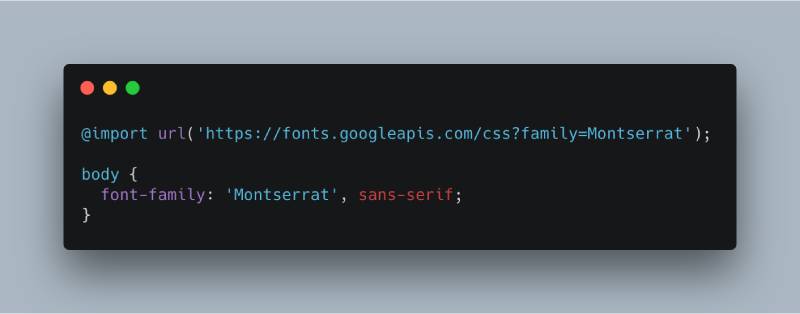
The CSS @import method loads Google Fonts directly inside a stylesheet or <style> block, without touching the HTML <head>.
@import url('https://fonts.googleapis.com/css2?family=Poppins:wght@400;600&display=swap');
The tradeoff: @import is render-blocking in a different way than <link>. The browser has to download and parse the stylesheet before it even discovers the @import rule, creating a chain of requests. The <link> tag in HTML gets discovered during initial HTML parsing, which is faster.
So when is @import actually the right call? A few situations:
- Quick prototypes on CodePen or JSFiddle where you only have a CSS panel
- CMS platforms that restrict
<head>access but allow custom CSS - Embedded widgets where you control CSS but not the host page HTML
For production websites where performance matters, the HTML <link> method wins. If you’re using @import on a live site, consider switching. The difference is small, but it adds up when you care about your Lighthouse scores.
How to Self-Host Google Fonts
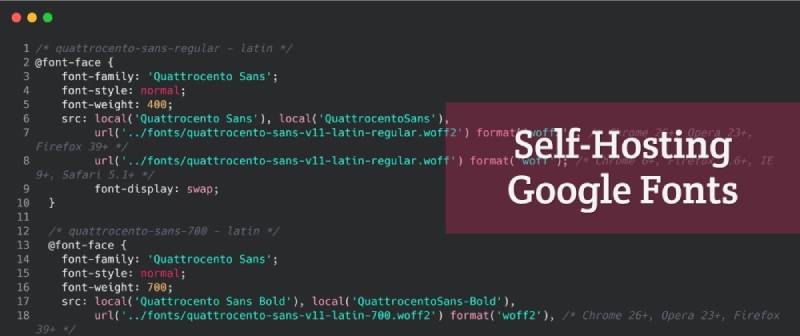
Self-hosting means downloading the font files and serving them from your own server instead of pulling them from Google’s CDN. This used to be a niche approach. Now it’s becoming the default for performance-focused teams.
HTTP Archive’s 2025 Web Almanac reports that roughly one-third of all websites rely solely on self-hosted fonts, up from about 30% the year before. The trend is clear: more sites are cutting out third-party font requests entirely.
How to Download and Set Up Self-Hosted Fonts
Option 1: Download directly from Google. Go to fonts.google.com, select a font family, click the download button, and you get a ZIP with TTF files. You’ll need to convert these to WOFF2 format yourself using a tool like woff2_compress.
Option 2: Use google-webfonts-helper. This tool generates the WOFF2 and WOFF files along with ready-to-use @font-face CSS. It’s the faster path.
Option 3: Use Fontsource. This npm package lets you install Google Fonts as dependencies in JavaScript projects. Run npm install @fontsource/inter and import it in your code.
Once you have the files, write your @font-face declarations:
@font-face {
font-family: 'Inter';
font-style: normal;
font-weight: 400;
font-display: swap;
src: url('/fonts/inter-regular.woff2') format('woff2'),
url('/fonts/inter-regular.woff') format('woff');
}
WOFF2 should be your primary format. It uses Brotli compression and produces files about 30% smaller than WOFF 1.0. According to Can I Use data, WOFF2 has over 97% global browser support. The only browsers that still need the WOFF fallback are IE11 (retired in 2022) and some very old mobile browsers.
Self-Hosted vs. CDN-Hosted: Which Is Better Now?
The old argument for Google’s CDN was cross-site caching. If a visitor loaded Roboto on Site A, it would already be cached when they hit Site B. That argument is dead.
Chrome implemented cache partitioning in v86 (October 2020). Safari has done this since 2013. Firefox followed in v85. Fonts cached by one website are no longer available to another. Every site downloads them fresh.
Google’s own data shows cache partitioning increased overall network usage by about 4% and First Contentful Paint by around 0.3%.
| Factor | Google CDN | Self-Hosted |
|---|---|---|
| Cross-site caching | No longer works | Not applicable |
| DNS lookups | Extra third-party request | Same domain, no extra lookup |
| GDPR compliance | Requires consent in EU | No third-party data transfer |
| Loading control | Limited to API parameters | Full control over caching and delivery |
Then there’s the privacy angle. A German court in Munich ruled in January 2022 that embedding Google Fonts from Google’s servers violates GDPR, because it transmits the visitor’s IP address to Google without consent. The site operator was fined 100 euros, with a threat of 250,000 euros for continued violations. That ruling triggered a wave of warning letters across Germany and pushed many European sites to self-host.
If your audience includes EU visitors, self-hosting is the safer path. At minimum, you avoid the legal headache.
How to Use Google Fonts in WordPress
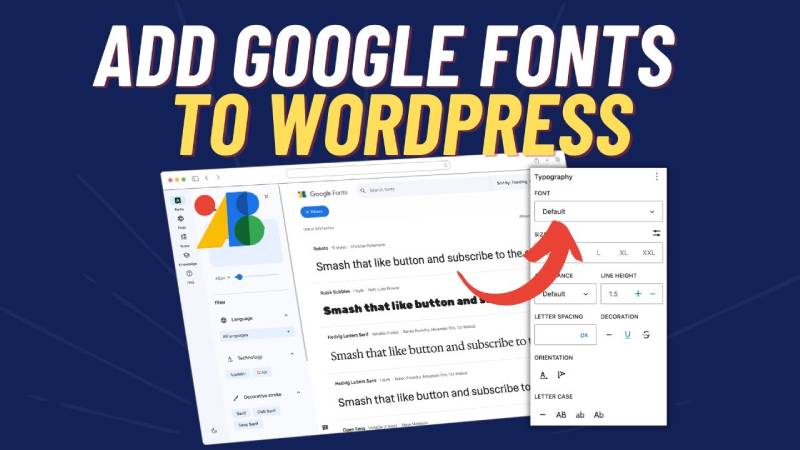
WordPress handles Google Fonts differently depending on your theme, your technical comfort level, and whether you care about GDPR compliance.
Theme-Level Font Options
Most modern WordPress themes include Google Fonts integration out of the box. Themes like Astra, GeneratePress, and Flavor let you pick fonts directly from the theme customizer. No code needed.
Block themes (the newer Full Site Editing approach) use theme.json to register font families. You define your Google Fonts in the JSON configuration file, and WordPress loads them accordingly. This is where WordPress font management is heading.
Loading Google Fonts with Code
If you need manual control, enqueue the fonts properly in your theme’s functions.php:
function load_google_fonts() {
wp_enqueue_style('google-fonts',
'https://fonts.googleapis.com/css2?family=Inter:wght@400;600&display=swap',
array(), null
);
}
add_action('wp_enqueue_scripts', 'load_google_fonts');
Never paste the Google Fonts link tag directly into your header template. Using wp_enqueue_style lets WordPress manage dependencies, avoid duplicate requests, and allows child themes or plugins to dequeue if needed.
WordPress Plugins for Google Fonts
For self-hosting Google Fonts on WordPress without writing code, the OMGF plugin (Optimize My Google Fonts) is the most popular option. It automatically downloads fonts from Google, stores them locally, and rewrites the stylesheet. This solves both performance and GDPR concerns in one step.
The Fonts Plugin offers a visual way to browse and apply Google Fonts through the customizer. It also supports local hosting.
How to Use Google Fonts in Figma, Photoshop, and Design Tools
Google Fonts isn’t just for code. Designers use it constantly in their tools, and the setup varies by application.
Figma
Figma’s browser version has native access to the full Google Fonts library. No installation, no configuration. Just open the font picker and start typing. This is one of the reasons Figma became so popular for web design workflows.
The desktop version of Figma is different. It reads fonts from your local system. So if you want Google Fonts in Figma’s desktop app, you need to install them on your machine first. Learn more about how to add fonts to Figma for the full setup process.
Adobe Photoshop and Illustrator
Photoshop and Illustrator don’t connect to Google Fonts directly. Both apps read from your system’s installed fonts.
Download the font families from fonts.google.com, unzip the files, and install them:
- macOS: Double-click the .ttf file and hit “Install Font”
- Windows: Right-click the .ttf file and select “Install” or “Install for all users”
Once installed, the fonts appear in Photoshop’s font menu. If you need step-by-step help, here’s a guide on how to add fonts to Photoshop and another for how to add fonts to Adobe Illustrator.
Syncing Fonts Across Devices
If you’re managing fonts across multiple machines, SkyFonts can sync Google Fonts to your desktop automatically. It connects to fonts.google.com and installs selected fonts system-wide. Took me forever to find this tool when I was juggling fonts between a work laptop and home setup.
For teams working on shared projects, defining your font choices in brand guidelines keeps everyone consistent. A quick reference in your brand style guide specifying which Google Font families, weights, and sizes to use prevents the typical “why does this look different” conversation.
How to Optimize Google Fonts for Page Speed
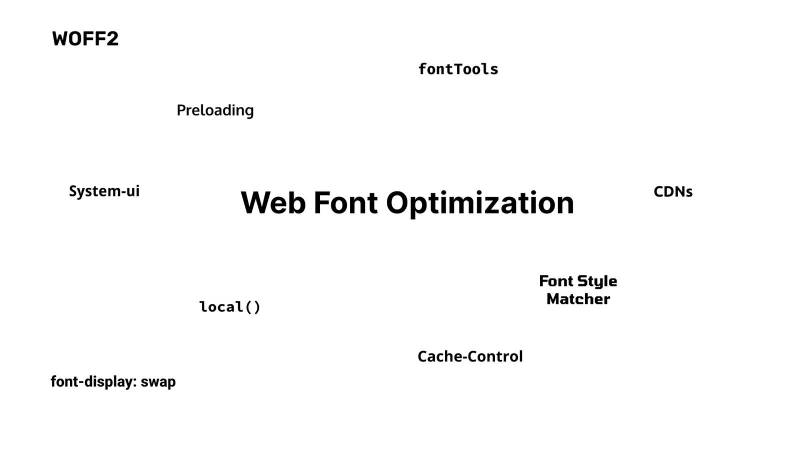
Fonts are one of the most common causes of layout shifts and slow rendering. A few targeted fixes can cut font-related performance problems significantly.
Google’s Core Web Vitals treat Cumulative Layout Shift (CLS) as a direct ranking signal. Web.dev data confirms that web fonts are among the most frequent sources of unexpected layout shifts, alongside images and dynamic content.
Key Optimization Techniques
Use font-display: swap. This tells the browser to show fallback text immediately and swap in the custom font once it loads. Google Fonts API v2 includes this by default when you add &display=swap to the URL.
Limit font weights and families. Every additional weight is another file download. Most sites need two weights (regular and bold), maybe three. Loading six weights of Roboto because “we might need them” is a performance hit with no payoff.
Subset with the &text= parameter. If you’re using a Google Font only for a logo or heading, pass the exact characters you need. Google’s documentation shows this can reduce font file size by up to 90%.
HTTP Archive’s 2025 Web Almanac reports that roughly 18% of sites now use preconnect hints for fonts, up from lower values in prior years. Preloading critical WOFF2 files with <link rel="preload"> sits at about 12% adoption on desktop.
How Variable Fonts Work on Google Fonts
A variable font packs multiple weights and styles into a single file. Instead of downloading separate files for regular, medium, semibold, and bold, one file covers the full range.
HTTP Archive’s 2024 data shows 33% of websites now use variable fonts, up from 29% the year before. Google Fonts served 92% of all variable fonts on the web in 2024.
The API v2 syntax for requesting a variable weight range looks like this:
https://fonts.googleapis.com/css2?family=Inter:wght@100..900&display=swap
Popular Google Fonts available as variable fonts include Inter, Roboto Flex, Open Sans, and Montserrat. Photutorial data counts approximately 468 variable font families on Google Fonts as of 2025, out of the total 1,826.
How to Pick the Right Google Font for Your Project
Choosing a font is more than scrolling through the Google Fonts directory and picking whatever looks nice at 48px. The font has to work at body text sizes, across devices, and within your overall design system.
Font Pairing Basics
The standard approach: one font for headings, another for body text. Mixing a serif with a sans-serif usually creates enough contrast to establish clear typographic hierarchy.
Some pairings that work well together on Google Fonts:
| Heading Font | Body Font | Style |
|---|---|---|
| Playfair Display | Source Sans 3 | Classic editorial |
| Montserrat | Lora | Modern with warmth |
| Oswald | Lato | Bold and clean |
| Raleway | Merriweather | Elegant, readable |
A 2024 study published in Scientific Reports analyzed font pairing data across different mediums and found that pairing choices follow distinct patterns based on medium type, not just aesthetic preference. Knowing the context (web, print, app) should drive your pairing decisions. For more detailed guidance, check out how to pair fonts and explore Google Font pairing combinations.
Readability and Body Text Selection
Not every Google Font works for long-form reading. Display typefaces look great at large sizes but fall apart at 16px body copy.
A 2024 study in the journal Education Sciences tested eight fonts with children. Roboto and Arial produced the fastest reading speeds on screen. X-height, letter width, and spacing between characters mattered more than the serif vs. sans-serif distinction.
Monotype’s 2024 Font Use Survey found that 76% of designers prioritize readability and accessibility when selecting fonts. That checks out. If your audience can’t comfortably read the text, the font choice has already failed.
Using the Google Fonts Filter UI
Category filter: Narrow results by serif, sans-serif, monospace, handwriting, or display.
Language filter: Check glyph coverage for your target languages before committing to a font. Not every font supports Cyrillic, Greek, or Vietnamese characters.
Variable axes: Filter for variable fonts specifically if you want weight range flexibility without loading multiple files.
Google Fonts API Parameters and Advanced Usage
The Google Fonts API has two versions. The older v1 (using /css?) still works but lacks variable font support. The v2 API (using /css2?) is what you should be using for any new project.
API v2 Syntax Differences
V1 and v2 look similar at first glance but handle font specifications differently.
In v2, you specify individual weights with the @ symbol. Requesting Inter at 400 and 700 looks like: family=Inter:wght@400;700. For a continuous range (variable fonts), use two dots: family=Inter:wght@400..700.
Unicode Range and Subsetting
The v2 API automatically serves subset font files with unicode-range declarations. This means the browser only downloads the character sets it actually needs for the page content.
According to web.dev, this automatic subsetting through unicode-range can reduce font file transfers by about 90%. It’s especially useful for CJK (Chinese, Japanese, Korean) fonts, which can be massive. Noto Sans JP, for example, gets split into dozens of small subsets that load on demand.
The &display= Parameter
swap: Text shows immediately in a fallback font, then swaps. Best for body text where visibility matters.
optional: Browser gives a very short block period, then uses the fallback permanently if the font hasn’t loaded. Best for non-critical decorative text, zero CLS.
fallback: Middle ground between swap and optional, with a short swap period.
The Developer API (JSON Endpoint)
Google also provides a separate REST API at webfonts/v1 that returns JSON metadata for the entire font library. This is useful for building font pickers, generating dynamic font lists, or checking available weights and subsets programmatically. You’ll need an API key from Google Cloud Console.
Common Problems with Google Fonts and How to Fix Them
Google Fonts work smoothly most of the time. But when they break, the symptoms can be tricky to diagnose because font loading involves multiple stages and network requests.
FOUT and FOIT
FOUT (Flash of Unstyled Text) shows a fallback font briefly, then swaps to the custom font. FOIT (Flash of Invisible Text) shows nothing at all until the font loads, which is worse. Blank text for even a second costs you readers.
The fix is the font-display property. Set it to swap for FOUT (acceptable tradeoff) or optional for zero flash at the cost of sometimes not showing the custom font at all. With Google Fonts, add &display=swap to the URL.
Cumulative Layout Shift from Font Loading
When a fallback font swaps to a custom font, text reflows. Lines wrap differently. Paragraphs change height. That shift is what CLS measures, and a score above 0.1 is flagged as needing improvement by Google.
Reducing this takes two steps. First, pick a fallback font with similar metrics to your Google Font (matching x-height, width, and line height). Second, use CSS size-adjust, ascent-override, and descent-override to fine-tune the fallback to minimize the difference.
Next.js does this automatically with its next/font module, generating fallback font metrics for zero-CLS font loading.
Fonts Not Loading on Localhost
If you’re working offline or behind a corporate firewall, Google Fonts won’t load because the browser can’t reach fonts.googleapis.com. The text falls back to your CSS font stack.
The quick fix: self-host the fonts locally during development. Or use a web-safe font stack as your fallback so the site is still usable without the custom font.
Wrong Font Weights Rendering
Requesting font-weight: 600 in your CSS but only loading weights 400 and 700 from Google Fonts means the browser will fake the bold. Browsers synthesize missing weights by thickening the strokes algorithmically, and the result looks terrible.
Always check that the weights you use in CSS match the weights you loaded from the Google Fonts API. If your stylesheet references 300, 400, and 600, your API request needs all three.
Mixed Content and HTTPS Issues
Google Fonts serves everything over HTTPS. But if your site somehow references the old HTTP URL scheme, or you’re embedding fonts in an email template that forces HTTP, modern browsers may block the request entirely.
Make sure all Google Fonts URLs start with https://. If you’re using protocol-relative URLs (starting with //), switch them to explicit HTTPS. Protocol-relative URLs are a relic from the early 2010s and create problems in several contexts now.
FAQ on How To Use Google Fonts
Is Google Fonts free to use?
Yes. Every font in the Google Fonts library is free and open-source. You can use them on commercial websites, in apps, and in print projects without paying licensing fees. No attribution required either.
How do I add Google Fonts to my HTML?
Copy the <link> tag from fonts.google.com and paste it into your <head> element. Then reference the font family in your CSS. Include preconnect hints before the stylesheet link for faster loading.
What is the difference between @import and the link tag method?
The <link> tag gets discovered during HTML parsing, so it loads faster. The CSS @import method creates a chained request, which delays font rendering. Use @import only when you can’t access the HTML head.
Can I self-host Google Fonts instead of using the CDN?
Yes, and many developers do. Download the font files from fonts.google.com or use tools like Fontsource. Write your own @font-face declarations pointing to local WOFF2 files. This also solves GDPR compliance issues in the EU.
How do I use Google Fonts in WordPress?
Most themes include built-in Google Fonts options. For manual control, enqueue fonts with wp_enqueue_style in functions.php. Plugins like OMGF can download and host the fonts locally with no code required.
How many font weights should I load?
Load only what you actually use. Two to three weights (regular, bold, maybe medium) is enough for most sites. Each extra weight increases download size and slows page rendering. Check your CSS before adding weights to the API request.
What is font-display swap and should I use it?
The font-display: swap property shows fallback text immediately while the custom font loads in the background. It prevents invisible text. Google Fonts includes it by default when you add &display=swap to the embed URL.
How do I use Google Fonts in Figma?
Figma’s browser version has full access to Google Fonts with no setup. The desktop app reads from your local system fonts, so you’ll need to install Google Fonts on your machine first. Check out fonts for graphic design for curated picks.
Do Google Fonts slow down my website?
They can, if you load too many families or weights. Each font file adds a network request. Use preconnect hints, limit your selections, consider fonts optimized for websites, and self-host when possible to reduce third-party requests.
Are Google Fonts GDPR compliant?
Using Google’s CDN sends visitor IP addresses to Google, which a German court ruled violates GDPR in 2022. Self-hosting the font files on your own server avoids this problem entirely. EU-facing sites should treat this seriously.
Conclusion
Knowing how to use Google Fonts goes beyond pasting an embed code. It means choosing the right fonts for your web design, loading them efficiently, and understanding when self-hosting makes more sense than the CDN.
Start with as few font weights as possible. Use the v2 API with font-display: swap and preconnect hints. If your audience includes EU visitors, host the files locally to stay on the right side of GDPR.
Test your choices at body text sizes, not just in headings. Run your pages through PageSpeed Insights to catch font-related performance issues early.
Good brand typography isn’t about picking the trendiest typeface. It’s about readability, speed of reading, and consistency across every page and device your audience touches.

Renowned for his expertise in logo design and visual branding, Bogdan has developed a multitude of logos for various clients.
His skills extend to creating posters, vector illustrations, business cards, and brochures. Additionally, Bogdan's UI kits were featured on marketplaces like Visual Hierarchy and UI8.
He also wrote in the past years on sites like Design Your Way, WebDesignerDepot, WPDean, Designmodo, Speckyboy, Slider Revolution, and more.
- How to Unlock Canva Page and Locked Elements - 4 November 2026
- How to Design a Google Docs Template That Looks Professionally Designed: Fonts, Grid and Color - 4 November 2026
- Black Metal Font Generator - 2 November 2026

Bogdan Sandu is a seasoned designer who has been designing websites since 2008. Renowned for his expertise in logo design and visual branding, Bogdan has developed a multitude of logos for various clients. His skills extend to creating posters, vector illustrations, business cards, and brochures. Additionally, Bogdan's UI kits were featured on marketplaces like Visual Hierarchy and UI8. He also wrote in the past years on sites like Design Your Way, WebDesignerDepot, WPDean, Designmodo, Speckyboy, Slider Revolution, and more.
You Might Also Like