Two things have to happen here, and only one of them is obvious.
You install the typeface on your computer. That’s the part everybody does. Then you embed it inside the PDF, which is the part that decides whether your file still looks right when it lands on somebody else’s screen.
Both stages run through Acrobat’s paid editions. Free Acrobat Reader will display an embedded font perfectly well. It just can’t add or embed one.
Direct OpenType font embedding became possible starting with Acrobat 7.0 in 2005, when Adobe introduced the PDF 1.6 specification alongside AES encryption and embedded 3D support (Mapsoft, 2026).
What Does It Mean to Add a Font to Adobe Acrobat?
People say “add a font” and mean one of two jobs, sometimes both, usually without noticing there’s a difference.
The first job is installation at the operating system level. The second happens inside Acrobat, through its save or preflight tools, and it’s the one that actually travels.
A font is the character set and design data your computer reads to render letters on screen. Installing it makes it selectable in Acrobat’s menus, on your machine, and nowhere else.
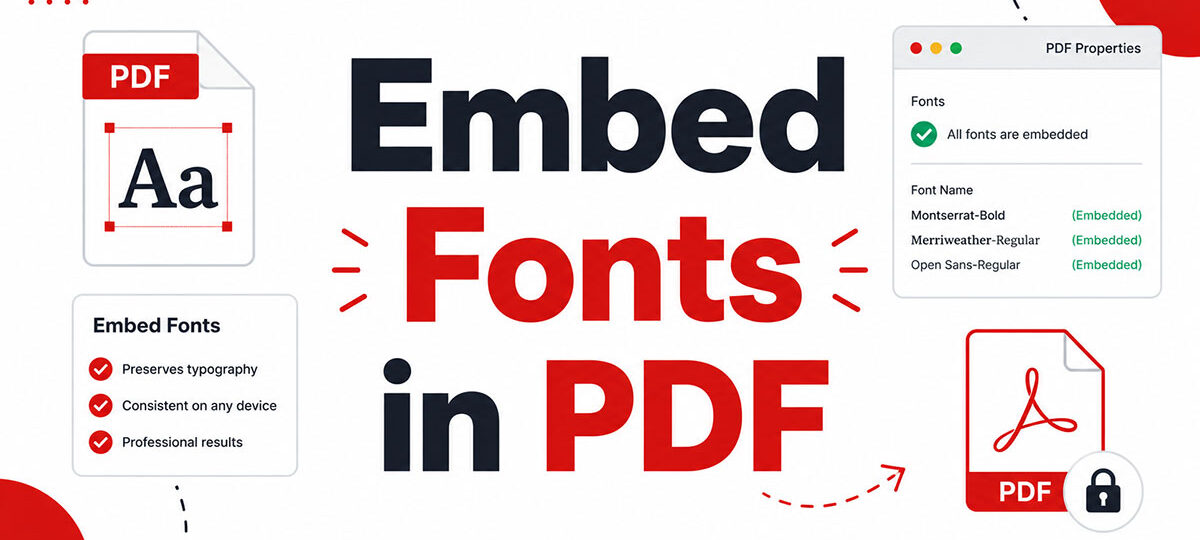
Embedding bakes the font’s outline data into the PDF file. Anyone opening that file sees the same text shape without owning the font.
An installed-only font works fine while you’re editing. Hand that file to someone else and it can throw a missing font warning. An embedded font doesn’t care what’s installed on the reader’s device, because it’s carrying its own outlines along for the ride.
Acrobat treats these as two stages of the same workflow, not one click.
What Font Formats Does Acrobat Accept?
TrueType (.ttf) and OpenType (.otf) cover almost everything you’ll download today, and both embed without drama. PostScript Type 1 (.pfb/.pfm) still goes in as well, though it’s the odd one out at this point.
Format choice affects how cleanly the font embeds and how future-proof the resulting PDF is.
| Format | File extension | Embeddable in Acrobat | Subsetting support |
|---|---|---|---|
| TrueType | .ttf | Yes, standard | Yes |
| OpenType | .otf | Yes, since PDF 1.6 | Yes |
| PostScript Type 1 | .pfb / .pfm | Yes, legacy support only | Yes |
Adobe announced in 2021 that Type 1 fonts would lose support for content creation and editing in its design applications, effective January 2023.
Acrobat and Acrobat Reader were named exceptions. They continue to display, print, and edit PDFs built on embedded Type 1 fonts, since Type 1 support is built into the underlying PostScript and PDF specifications that Acrobat’s font policy is not changing (Adobe, 2021).
So if you’re buying or downloading something new, go TrueType or OpenType. The Type 1 files sitting in your archive are safe to keep using inside existing PDFs.
Worth knowing before you get attached to a typeface: foundries sometimes restrict embedding rights on particular families regardless of format, and that restriction shows up later as a licensing flag stored inside the font file.
OpenType fonts built on TrueType outlines also behave differently from OpenType fonts built on PostScript (CFF) outlines during embedding. Same .otf extension, noticeably different file size, depending on what’s inside.
How Do You Install a Font on Windows or Mac Before Using It in Acrobat?
Acrobat reads its font list from the operating system. There’s no font manager inside the app.
Installation happens outside Acrobat entirely, before you open the program.
Fonts usually arrive from a foundry site, a marketplace, or a library like Google Fonts, downloaded as a .ttf, .otf, or .pfb file.
Installing a Font on Windows

- Right-click the downloaded font file and select Install
- Windows copies it into the system Fonts folder automatically
- Confirm it landed there by opening Control Panel > Fonts
Windows 11 also lets you drag font files straight into the Fonts settings page, which does the same job without the right-click menu. Some fonts install themselves through Microsoft Store font packs and end up in that same folder with no manual step at all.
The Character Map utility is a fast way to confirm a font actually installed, and you get a look at its full glyph set before you go near Acrobat.
Installing a Font on Mac

macOS routes this through Font Book, its built-in font manager, rather than a folder you drag files into.
- Double-click the downloaded font file
- Click Install Font in the preview window that opens
- Font Book adds it to the system font library automatically
The full walkthrough for installing fonts on a Mac covers edge cases like font conflicts and disabled fonts that this quick version skips.
Either platform, same last step: Acrobat needs to be closed and reopened, or its font cache refreshed, before a newly installed font shows up in the dropdown. This trips people up constantly.
Which Acrobat Version Can Add and Embed Fonts?
Embedding requires a paid edition. Acrobat Reader, the free version, cannot embed or edit fonts at all.
Acrobat Standard costs $179.88 a year and Acrobat Pro costs $239.88 a year, both on prepaid annual plans (PCWorld, 2026).
Acrobat Standard was Windows-only for years, but that has changed: both Acrobat Standard and Acrobat Pro currently run on Windows and macOS (Adobe, 2026). If you’re comparing older documentation, guides written before this change may still say Standard is Windows-only, so it’s worth checking Adobe’s current system requirements if your team is mixed.
Acrobat Pro DC gives you the whole toolkit, font embedding and Preflight fixups included, on Windows and macOS alike. It’s also the priciest tier of the lot.
Acrobat Reader is free and genuinely fine for reading PDFs and filling out forms. Beyond that it’s a dead end here. No embedding, no text editing, no Preflight.
Acrobat Pro 2024 is the option people reach for when they’d rather not pay monthly. One payment, a 3-year term license, Windows and macOS. The catches are real though:
- It isn’t a true perpetual license, since access ends when the term does
- The feature set is frozen apart from security updates
- No Preflight cloud services, and none of the AI features Adobe keeps adding to the subscription version
(Note: Acrobat 2020, the previous perpetual-license option, reached end of sale in May 2025 and end of support in November 2025. Acrobat Pro 2024 is Adobe’s current non-subscription desktop alternative.)
How Do You Apply an Installed Font Inside Acrobat’s Editing Tools?
Once the font is installed and Acrobat has been restarted, it appears in the font dropdown. Where you find that dropdown depends on what you’re editing, and each spot behaves a little differently.
Editing Text with the Edit PDF Tool
Edit PDF is where most font changes happen day to day.
- Select the text box or run you want to change
- Open the font dropdown in the right-hand panel
- Pick the newly installed font from the list
Changes only apply to new text or to text you’ve actively selected. Existing paragraphs keep their original font until you touch them.
Assigning Fonts to Form Fields
Form fields work differently from body text, because the font choice lives in the field’s own properties rather than in the page content.
- Open Prepare Form and right-click the field you want to change
- Select its properties dialog
- Choose the font under the appearance or format tab
Nothing looks quite as sloppy as a filled-in form where the typed answers are in a different face than the printed labels around them. A mismatch here is usually why.
Fonts in Signature Appearances
Signature blocks pull from a separate setting entirely, tied to Acrobat’s signature appearance options rather than the page’s body text.
Acrobat Sign and the desktop signing tool both let you set a specific font for the typed name next to a signature, independent from whatever the rest of the document uses.
A signature font doesn’t need to be embedded for the signature to be valid, since Acrobat renders most signature appearances using its own built-in type rather than a locally installed one.
How Do You Embed the Font Into the PDF File?

Embedding is a deliberate, separate step. Installing a font and applying it inside Acrobat’s tools gets you nowhere near it.
You can go through the Save As Other menu, or you can use the Preflight tool’s dedicated fixup. Which one depends on whether you built the file or inherited it.
For a wider look at how embedding works across editors beyond Acrobat, the guide on embedding fonts in a PDF covers mechanics that carry over to InDesign, Word exports, and other tools.
Embedding Through Save As Other
- Go to File > Save As Other > Optimized PDF
- Open the Fonts panel in the dialog that appears
- Confirm the fonts you need are listed under “Embed,” not “Do Not Embed”
- Save, creating a new file with those fonts baked in
This is the route most people reach for on a one-off document that needs to travel outside their own machine.
Embedding Through Preflight
Preflight works from the other direction. Rather than a save-time setting, it runs a fixup against a PDF that already exists.
- Open Tools > Print Production > Preflight
- Search the fixup list for “Embed fonts”
- Run it against the current document
Preflight is the better call when someone hands you a PDF with missing embedding and you’d rather patch it than rebuild the whole file.
By default, Acrobat subsets fonts during either method, embedding only the characters actually used in the document rather than the entire character set.
How Much Does Font Embedding Increase File Size?
Embedding adds weight, but usually less than people brace for.
Adobe’s own PDF fonts documentation notes that embedding increases file size only slightly, unless the document uses CID fonts common to Chinese, Japanese, and Korean text.
Some numbers to anchor that. A typical business document using one or two fonts grows by 50 to 200 KB after embedding (PDFDeal, 2026). A 12-page brochure using three font families grew from 1.8 MB to 9.6 MB with full font embedding, but only to about 2.3 MB with subset embedding (Webfactory, 2026).
That gap between 9.6 MB and 2.3 MB is the whole argument for subsetting. Same visual result, a fraction of the weight.
Files carrying several embedded families add up faster than you’d guess, especially when bold and italic variants come in as separate font files.
CID fonts break the pattern completely. They hold glyphs for thousands of characters instead of a few hundred, so embedding one can add several megabytes even after subsetting.
Do You Need a License to Embed a Font in a PDF?
Embedding rights come from the font’s license, not from Acrobat.
Acrobat checks a permission flag stored inside the font file before it ever looks at your subscription tier. That flag is called fsType, and it lives in the font’s OS/2 table.
| fsType level | Meaning | Embeds in a PDF |
|---|---|---|
| Editable | Full embed, document can be edited | Yes |
| Preview and print | View and print only | Yes, read-only |
| Restricted license | No embedding allowed | No |
The specification treats an unset fsType as the least restrictive option available, technically called installable.
Adobe’s own font embedding guidelines note that Adobe applications don’t actually support installable embedding, so an unset flag gets treated as editable instead (Adobe).
A restricted font simply won’t embed. Acrobat either throws an error during Save As Other or skips the font quietly, leaving it marked “Not Embedded” in the finished file. The silent version is the annoying one, since you don’t find out until you check.
Subset-only fonts sit between those extremes. They embed fine as long as Acrobat only needs the characters already in the document, but they block a full character set from being added later.
For the fuller picture beyond PDFs, font licensing covers webfonts, print rights, and app bundling too, not just the fsType flag Acrobat happens to read.
Several free font-inspection tools display the fsType value without you having to import anything into Acrobat first. Checking there saves a wasted embedding attempt.
How Do You Verify That a Font Is Embedded?
Acrobat labels every font it uses with a status, and there’s one place to read it.
Checking Document Properties
- Open File > Properties
- Click the Fonts tab
- Read the status listed next to each font
Embedded means the full character set travels with the file.
Embedded Subset means only the characters used in the document are included. That’s the normal outcome of Acrobat’s default subsetting, and it’s nothing to worry about.
Not Embedded means the file depends on that font already sitting on whatever device opens it next.
Running Preflight against the document gives you a second confirmation, and it flags anything unembedded that you might otherwise have to scroll to find.
Checking PDF/A Compliance
PDF/A layers a stricter rule on top of ordinary embedding.
The ISO 19005-1:2005 standard states that only fonts legally embeddable for unlimited, universal rendering may be used in a conforming file (ISO, 2005).
One font marked “Not Embedded” anywhere in the document fails validation outright. Doesn’t matter how clean the rest of the file is.
Running Preflight against a PDF/A profile catches this before the file reaches an archive, a regulator, or a court filing system that requires the standard.
Why Does Acrobat Show a Missing or Substituted Font?
The PDF references a font that isn’t embedded and isn’t installed on your system either.
Acrobat can’t draw the original glyph shapes, so it reaches for a replacement. It pulls first from fonts that shipped with Acrobat itself or with your operating system, then works through its own substitution table to find the closest visual match available locally.
Adobe’s stated policy is that Acrobat keeps displaying, printing, and editing PDFs built on embedded fonts exactly as intended, while substitution only kicks in for fonts a file never embedded in the first place (Ironmark, 2022).
You will notice when it happens. A stand-in font rarely matches the original’s spacing, so line breaks move, paragraphs end in different places, and page counts occasionally shift.
Two different problems produce the same warning, and they need different fixes.
| Cause | Where it lives | Fix |
|---|---|---|
| Font missing locally | Your system, not the file | Install the font yourself |
| Font never embedded | The file itself | Only the file’s creator can re-embed it |
Document Properties settles which one you’re looking at. The Fonts tab separates the fonts a document uses from the fonts it actually carries inside itself.
When Does Font Embedding Fail or Not Apply?
Failures here aren’t random. They cluster around a few specific situations.
A font with a Restricted License Embedding flag will not embed, in any edition of Acrobat.
There’s no workaround. The foundry wrote that restriction into the font file and Acrobat honors it.
Acrobat Reader’s inability to embed anything, covered earlier, isn’t a setting hidden somewhere in a menu. The feature isn’t in that edition.
Then there’s the assumption that Windows system fonts like Calibri or Segoe UI can’t be embedded because they belong to the operating system. Not quite right. Microsoft’s own font licensing guidance confirms these fonts carry editable or preview-and-print embedding rights, so they embed into business documents without violating the license (Microsoft, 2026).
What’s restricted is pulling the raw font file out and redistributing it on its own. Embedding it inside a document somebody else will open is a different thing.
PDF/A workflows fail on their own terms. One font without embedding rights makes the whole document non-conforming, and no setting inside Acrobat can push a restricted font past that check. Swap it for a font that carries embeddable rights and rebuild the file. That’s the only route.
Embedding also doesn’t apply at all in a few cases:
- The PDF is a flattened scan or image-only file with no live text, so there’s no font in play to begin with
- Every reader already has the font, which is realistic for internal documents on company-managed machines with a locked font set
- The font’s fsType flag is set to Restricted License Embedding, which blocks embedding no matter which edition of Acrobat you’re running
FAQ on How To Add A Font To Adobe Acrobat
Can a font be embeddable but restricted from subsetting?
Yes. A font’s fsType field carries a separate flag that blocks subsetting even when embedding is allowed, forcing Acrobat to include the full character set instead of a subset. That flag sits apart from the main embedding permission level.
Does embedding a font affect accessibility or screen readers?
Not directly. Screen readers rely on the PDF’s tagged structure and ToUnicode mapping to read text aloud, not on whether the font’s outlines are embedded. A poorly subsetted font missing its ToUnicode table can still break accessibility.
What do you do if the font still does not appear after installing it?
Confirm the font shows in Character Map or Font Book first, since Acrobat won’t display a font that never finished installing. Fully quit and relaunch Acrobat, not just the document. A full machine restart clears a stuck font cache more reliably.
Can you remove or unembed a font from a PDF later?
Yes, through Preflight‘s font fixups or by re-saving the file under Save As Other with embedding turned off for that font. Removing an embedded font shrinks the file but reintroduces the same missing-font risk on any device that lacks it locally.
What Should You Check First in How To Add A Font To Adobe Acrobat?
The whole thing succeeds or fails on one check, done before the file leaves your machine: does the embedding status in Document Properties read Embedded or Embedded Subset?
Most failures get caught by running through this order:
- Confirm the embedding status in Document Properties
- Check the font’s fsType flag if the status reads Not Embedded
- Confirm which Acrobat edition performed the save
The status tab takes seconds. The fsType flag explains a licensing block, and the edition check rules out Acrobat Reader, which never had embedding controls in the first place.
Leading with the status check is fast, though a restricted flag only surfaces on the second pass, which turns one save into two.
If the PDF originated in InDesign rather than Acrobat, the font problem often starts upstream, and adding fonts to InDesign is where that fix actually belongs.

Renowned for his expertise in logo design and visual branding, Bogdan has developed a multitude of logos for various clients.
His skills extend to creating posters, vector illustrations, business cards, and brochures. Additionally, Bogdan's UI kits were featured on marketplaces like Visual Hierarchy and UI8.
He also wrote in the past years on sites like Design Your Way, WebDesignerDepot, WPDean, Designmodo, Speckyboy, Slider Revolution, and more.
- Beautiful Fonts Similar to Poppins You Should Try - 22 October 2026
- Website Redesign: How to Improve Your Website without Losing SEO Rankings - 22 October 2026
- The Coda Logo History, Colors, Font, And Meaning - 20 October 2026

Bogdan Sandu is a seasoned designer who has been designing websites since 2008. Renowned for his expertise in logo design and visual branding, Bogdan has developed a multitude of logos for various clients. His skills extend to creating posters, vector illustrations, business cards, and brochures. Additionally, Bogdan's UI kits were featured on marketplaces like Visual Hierarchy and UI8. He also wrote in the past years on sites like Design Your Way, WebDesignerDepot, WPDean, Designmodo, Speckyboy, Slider Revolution, and more.
You Might Also Like