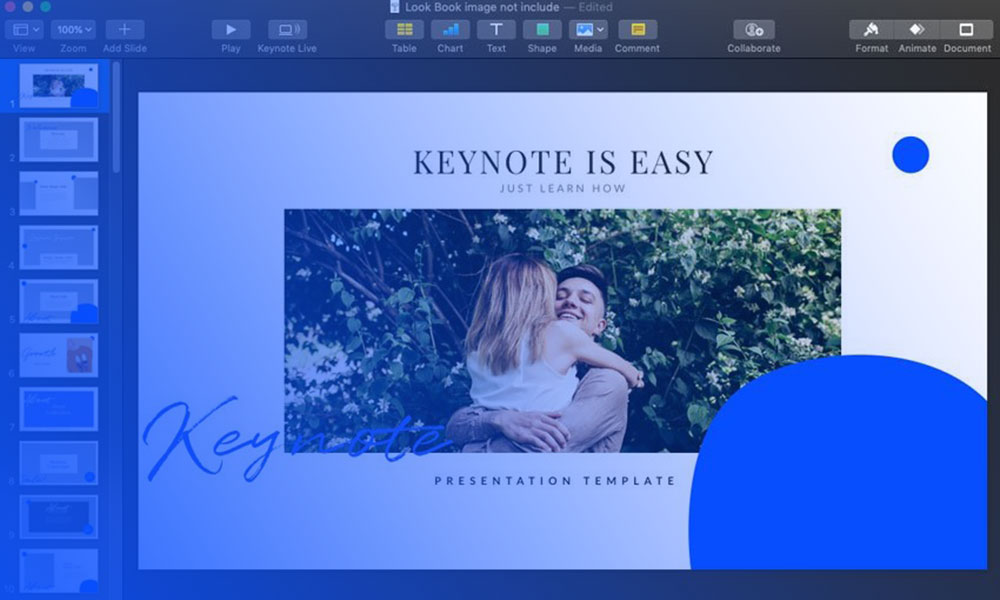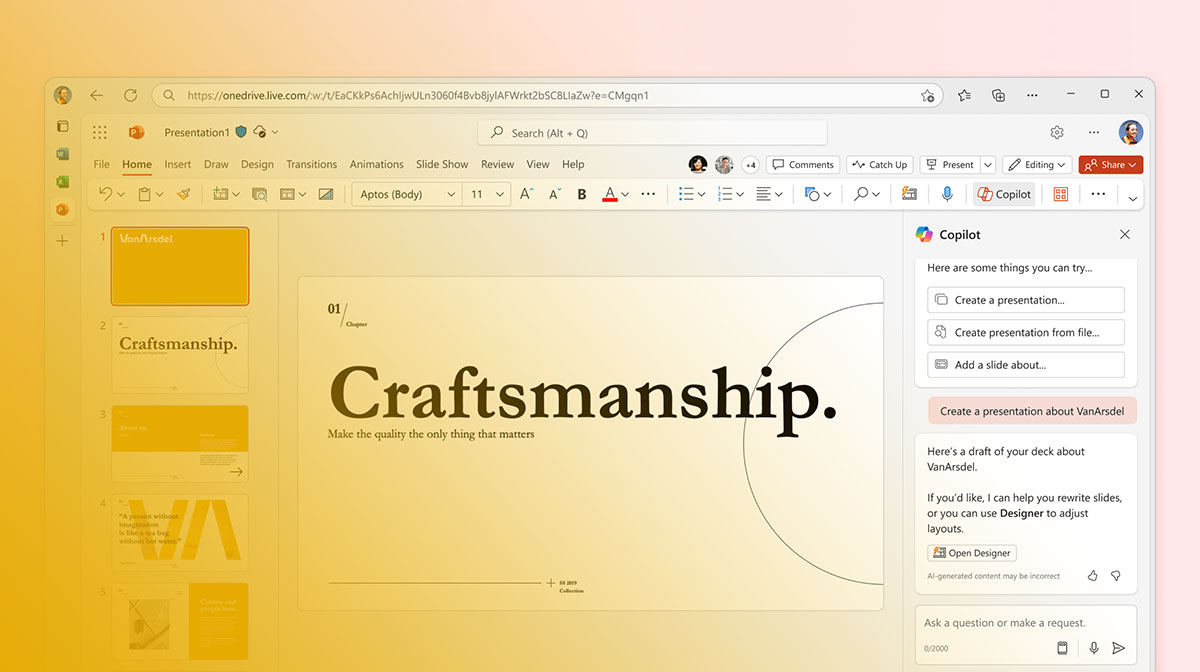
Two things have to happen before a custom font shows up correctly on somebody else’s screen. You install it on your computer, which everyone does. Then you tell PowerPoint to pack a copy of that font into the file itself, which almost nobody does, because the setting sits switched off by default on both Windows and Mac.
Skip the second part and the deck looks right on your laptop and wrong everywhere else.
The file doing the carrying is a pptx, defined by the ISO/IEC 29500 Office Open XML standard that ISO ratified in 2008. Font data rides inside it much like an image does.
What Does Adding a Font to PowerPoint Actually Mean
The phrase gets stretched over two completely different actions, which is where most of the confusion starts.
Installing a font drops the file into Windows or macOS so that PowerPoint, along with every other app on the machine, can list it in the font dropdown. Embedding happens at save time and copies the font into the presentation, so the text still renders on a computer that never had it installed.
Most people only ever do the install. That’s fine, right up until the file leaves their machine.
After that, PowerPoint quietly swaps in a look-alike system font the moment the file opens somewhere else. No prompt, no warning.
It helps to remember that a font is a specific file sitting on a hard drive, not an abstract style setting. That’s exactly why it has to travel with the presentation to survive the trip.
What Font File Formats Does PowerPoint Support
TrueType (.ttf) and OpenType (.otf). Those are the only two file types that embed, a restriction confirmed in Microsoft’s own support documentation.
Older PostScript Type 1 files and Apple’s AAT fonts will not embed regardless of which boxes you tick.
TrueType Fonts
- One of the longest-established desktop font formats and still among the most common. Apple developed it in the late 1980s and licensed it to Microsoft in 1989. Adobe’s rival PostScript Type 1 format actually came first, launching back in 1984
- Shows a “TT” icon in the Windows Fonts control panel and in PowerPoint’s own font menu
- The safest default when you’re not sure what a font actually is
If a font came bundled with Windows, or with an older design suite, there’s a decent chance it’s already TrueType.
OpenType Fonts
OpenType came later and was built as a container that could hold more typographic information than TrueType ever could.
A growing share of it now ships as variable fonts, which pack several weights into a single file instead of a separate download for each one.
- Supports more advanced typographic features than TrueType, including ligatures and alternate glyph sets
- Can hold either TrueType or PostScript-style outline data inside it, which is why some otf files embed fine and others quietly refuse
Airbnb’s in-house Airbnb font, Cereal, is a good example of a brand typeface distributed as OpenType. Part of why the design team there can lean on extra ligatures a plain TrueType file wouldn’t support.
Where to Get Fonts for PowerPoint
Google Fonts covers most situations. Adobe Fonts covers most of the rest if you already pay for Creative Cloud, Microsoft’s own cloud library sits behind any 365 subscription, and free download sites like dafont.com fill the gaps.
Google Fonts alone now lists over 1,900 font families in its own directory, a number that keeps climbing as new typefaces are added. Most of them ship under the SIL Open Font License, which clears them for commercial embedding without asking anyone’s permission.
| Source | Cost | License Type | Safe to Embed Commercially |
|---|---|---|---|
| Google Fonts | Free | SIL Open Font License | Yes |
| Adobe Fonts | Included with Creative Cloud | Subscription license | Only while the subscription stays active |
| Microsoft 365 Cloud Fonts | Included with subscription | Microsoft license | Yes, no embedding needed |
| dafont.com | Free (mixed) | Varies by font | Check each license individually |
How Google Fonts compares with Adobe Fonts matters most for that second row. An Adobe Fonts typeface can stop rendering correctly for someone else the moment your Creative Cloud subscription lapses, since the license is tied to the account rather than to the file.
Free download sites carry the most risk of the four, so it pays to check a font’s licensing terms before you build a client deck around it. Personal-use-only files get flagged the moment someone tries to embed them commercially.
Canva’s font panel pulls heavily from the Google Fonts library, so a typeface that already works there will generally embed fine in PowerPoint too.
How to Install a Font on Windows and Mac
Nothing shows up in PowerPoint’s font list until the font is installed at the operating system level. This is true no matter which app you eventually use it in.
Windows and macOS both ship with a decent set of built-in system fonts already installed, so this step only matters once you go looking for something outside that default lineup.
Installing a Font on Windows
Windows treats font installation as a right-click action, and PowerPoint has to be closed and reopened afterward to notice the change.
- Locate the ttf or otf file you downloaded, usually in the Downloads folder
- Right-click the file and select Install (or Install for all users, on shared machines)
- Close and reopen PowerPoint so the font list refreshes
The same font also installs through Settings, Personalization, Fonts, by dragging the file directly into that window.
Installing a Font on Mac
macOS handles this through Font Book instead of a right-click menu, and it’s arguably the more forgiving of the two systems.
- Double-click the downloaded font file
- Click Install Font in the preview window that opens
- Confirm it appears in Font Book under All Fonts before switching back to PowerPoint
The exact steps for installing a font on a Mac cover a few edge cases too, like duplicate font warnings and fonts that need admin approval on a managed work computer.
How to Turn On Font Embedding in PowerPoint
The embed setting lives under File, Options, Save on Windows, and it ships switched off in every version of PowerPoint.
- Open the presentation you want to save with embedded fonts
- Go to File, then Options, then Save
- Check the box labeled Embed fonts in the file, near the bottom of that Save panel
- Choose Embed only the characters used, or Embed all characters, then click OK and save
Mac users find the same toggle in a different spot: PowerPoint, Preferences, Save, rather than a File menu.
Microsoft’s own documentation currently limits this Mac path to three specific products, which are PowerPoint for Microsoft 365 for Mac, PowerPoint 2024 for Mac, and PowerPoint 2021 for Mac.
Fonts pulled from Microsoft’s cloud library, the ones behind the current default Microsoft Office font, generally don’t need embedding at all, since every Microsoft 365 subscriber already has access to them online.
Embed Only Used Characters or Embed the Entire Font
PowerPoint makes you pick one every time embedding is turned on, and the choice is basically file size against editability.
Embedding only the characters used strips out every glyph that never actually appears on a slide, which keeps the file smaller. The catch is that anyone who tries to type new text in that font later gets a substitute instead.
Embedding all characters sends the whole character set along with the deck. Bigger file, sometimes noticeably so, but the person who opens it can edit freely and type new text in that exact font.
Microsoft’s own guidance for Mac users is blunt about the tradeoff: skip the character-limited option and embed the whole font whenever someone else might need to edit the file later.
A view-only deck heading to a client rarely needs more than the smaller option. A file going back and forth between a design team is a different story.
How to Set Default Fonts for an Entire Presentation With Slide Master

Theme fonts get set once, through Design, Variants, Fonts, Customize Fonts. From that point every slide in the deck pulls its heading and body text from those choices automatically.
This is different from changing a font on a single slide, which only overrides that one slide and leaves the underlying theme untouched.
Setting Heading and Body Fonts
You pick a heading font and a body font, and Slide Master pushes both across the whole deck at once.
- Open the Design tab and click the small arrow next to Variants
- Choose Fonts, then Customize Fonts at the bottom of that menu
- Pick one font for Heading and a second for Body, then click Save
The general rules for pairing fonts still apply here. A heading font with enough personality to carry a title slide, a body font built for long stretches of small text, and not two fonts fighting over the same job.
The distinct look of the Duolingo font is a useful reference point for how far a heading typeface can carry brand personality before it starts fighting with readability at body size.
Saving Theme Fonts as a Template
Setting the fonts once per deck gets old fast if the same brand fonts show up in every presentation a team makes.
- Go to File, Save As, and choose PowerPoint Template (.potx) instead of the regular file type
- The saved template carries the theme fonts, along with colors and layouts, into every new file built from it
- Anyone on the team opening that template starts with the right fonts already assigned, no Customize Fonts detour required
A shared template file beats re-explaining the brand fonts over email every time someone starts a new deck.
Does Font Embedding Work the Same on Windows and Mac
Font embedding behaves differently depending on which version of PowerPoint opens the file, and the gap between Windows and Mac used to be much wider than it is today.
Windows PowerPoint has supported font embedding for decades, through File, Options, Save, a path that predates the pptx file format itself.
Mac PowerPoint only caught up in 2018, according to Office Watch, when Microsoft first added it to PowerPoint for Mac. It arrived through the Office 365 subscription channel first, with the Office 2019 perpetual release following via a December 2018 update, and the feature has carried forward into every current release since. On Mac the toggle sits under PowerPoint, Preferences, Save, and it only works on current Microsoft 365 and recent standalone releases.
One Adobe Connect user described exactly this gap in a support thread.
Uploading a branded PowerPoint deck into a share pod quietly swapped their corporate font for something generic, and Adobe’s own support team pointed them straight back to turning embedding on before uploading.
How Much Bigger Does a PowerPoint File Get After Embedding Fonts
Embedding always adds weight to a pptx, though how much depends on the font’s own complexity and how many characters get included.
Complex character sets make the difference bigger.
A font supporting Chinese, Japanese, or Korean glyphs carries far more data than a basic Latin alphabet font, so it adds noticeably more to the file than something like a simple sans-serif headline font.
Microsoft’s documentation confirms the practical effects. File size goes up once embedding is on. Files with embedded fonts can open more slowly on some computers. And turning the setting off and resaving removes the embedded copy, substitutes a different font automatically, and shrinks the file back down.
Sticking to one or two well-chosen typefaces from a resource like a list of fonts built specifically for PowerPoint presentations keeps both the design and the file size under control.
Why Does PowerPoint Block Embedding for Some Fonts
Some fonts refuse to embed because their creator marked them that way, using a permission flag built into the font file rather than anything PowerPoint controls.
That flag is called fsType, and it lives inside the font’s OS/2 table, defined in the OpenType specification itself.
Font Permission Levels Explained
| Permission Level | Embedding Allowed | Editing After Embedding |
|---|---|---|
| Installable | Yes, permanently | Full editing allowed |
| Editable | Yes, temporarily | Document can be opened read-write; editing is allowed and changes can be saved |
| Preview and Print | Yes, temporarily | Document must be opened read-only; viewing and printing only, no editing |
| Restricted License | No | Not applicable |
The OpenType specification documents four of these permission levels directly in its OS/2 table, according to Microsoft Typography.
Restricted License is the only one that blocks embedding outright, regardless of which box gets checked in PowerPoint.
Fonts pulled from a collection of typefaces cleared for commercial use tend to default to Installable, since that permission level is what makes redistribution and embedding possible in the first place.
Why Fonts Disappear or Get Substituted After You Share a PowerPoint File
Usually the embed setting was off when the file was last saved. Sometimes the font’s own license blocked embedding regardless of that setting.
PowerPoint does not leave a gap where the text used to be.
It substitutes the closest font it can find, usually something like Calibri or Arial, and carries on without asking.
Embedding can even break after a routine software update.
One developer who generates decks programmatically reported that embedded fonts stopped rendering correctly on Windows PowerPoint build 18129.20116, then started working again after Microsoft shipped build 18129.20158 the next day, according to a Microsoft Q&A thread from November 2024.
Re-saving the file with embedding switched back on, after confirming the font’s license actually allows it, fixes most of these cases.
When Font Embedding Does Not Work or Does Not Apply
Embedding stops mattering the moment a file leaves PowerPoint’s own format, and it does not survive every app that claims to open a pptx.
Three situations kill it outright. Fonts carrying a Restricted License permission level, which cannot be embedded no matter which box gets checked. Presentations saved in the older ppt format instead of pptx, which does not carry embedded font data the same way. And linked objects along with certain OLE elements placed on a slide, which sit outside the embedding process entirely.
Google Slides does not read embedded fonts at all.
Google’s own support community confirms it only pulls from the Google Fonts library, so a pptx opened there swaps every custom font for its closest match.
The steps for adding fonts to Google Slides cover the workarounds available inside that app.
Keynote behaves the same way on Mac.
Apple’s own documentation describes a missing font notification that appears the moment a presentation opens with a font that is not installed locally, since Keynote has no native font embedding of its own.
The guide on adding fonts to Keynote walks through the closest available workarounds.
Converting the file to PDF sidesteps all three of these apps at once, since PDF handles font embedding on its own terms and does not depend on PowerPoint, Google Slides, or Keynote agreeing on anything.
FAQ on How To Add Fonts To Powerpoint
Is there a limit to how many fonts can be embedded in one file?
PowerPoint sets no fixed cap on embedded fonts.
Each added font family increases file size, so the practical ceiling comes from storage and email limits rather than any rule PowerPoint enforces. Two or three font families keeps a deck manageable.
Does PowerPoint Online support font embedding the same way as desktop?
PowerPoint for the web does not support embedded or custom fonts, according to Microsoft’s own support team.
Opening a desktop file with embedded fonts online switches it to read only, and organizations must instead upload approved fonts through SharePoint.
Can you legally embed a font bought from a marketplace like Adobe Fonts or Envato?
Both Adobe Fonts and Envato license fonts for commercial embedding, on different terms.
Envato grants permanent commercial rights to any project completed while subscribed, even after cancellation, per its own license terms. Adobe Fonts requires an active subscription to keep rendering.
Do embedded fonts carry over correctly when exporting to PDF?
Yes, provided the fonts were embedded in the pptx first.
Microsoft’s documentation confirms this carries into the online PDF conversion, license permitting. The guide on embedding fonts in a PDF covers the same process in Acrobat.
What Should You Fix First in How To Add Fonts To PowerPoint?
Most of the trouble comes from doing things in the wrong order. People jump straight to the embed checkbox before checking whether the font can legally travel with the file at all. The license check comes first, installation second, embedding last.
That order holds up regardless of project size.
- Confirm the font’s embedding permission before anything else
- Install the font at the operating system level second
- Turn on embedding and choose a character set last
Checking permission before installing takes less time than embedding does. It buys back the time lost rebuilding a template around a typeface that was never going to travel with the file in the first place.
Once the technical steps are settled, the next decision is which typeface actually fits the message, a question explored through font psychology rather than through any PowerPoint menu.

Renowned for his expertise in logo design and visual branding, Bogdan has developed a multitude of logos for various clients.
His skills extend to creating posters, vector illustrations, business cards, and brochures. Additionally, Bogdan's UI kits were featured on marketplaces like Visual Hierarchy and UI8.
He also wrote in the past years on sites like Design Your Way, WebDesignerDepot, WPDean, Designmodo, Speckyboy, Slider Revolution, and more.
- The Cursor Logo History, Colors, Font, And Meaning - 24 September 2026
- Canva vs PowerPoint: Which Is Better for Presentations? - 22 September 2026
- How to Install Fonts on Mac (Step-by-Step Guide) - 20 September 2026

Bogdan Sandu is a seasoned designer who has been designing websites since 2008. Renowned for his expertise in logo design and visual branding, Bogdan has developed a multitude of logos for various clients. His skills extend to creating posters, vector illustrations, business cards, and brochures. Additionally, Bogdan's UI kits were featured on marketplaces like Visual Hierarchy and UI8. He also wrote in the past years on sites like Design Your Way, WebDesignerDepot, WPDean, Designmodo, Speckyboy, Slider Revolution, and more.
You Might Also Like