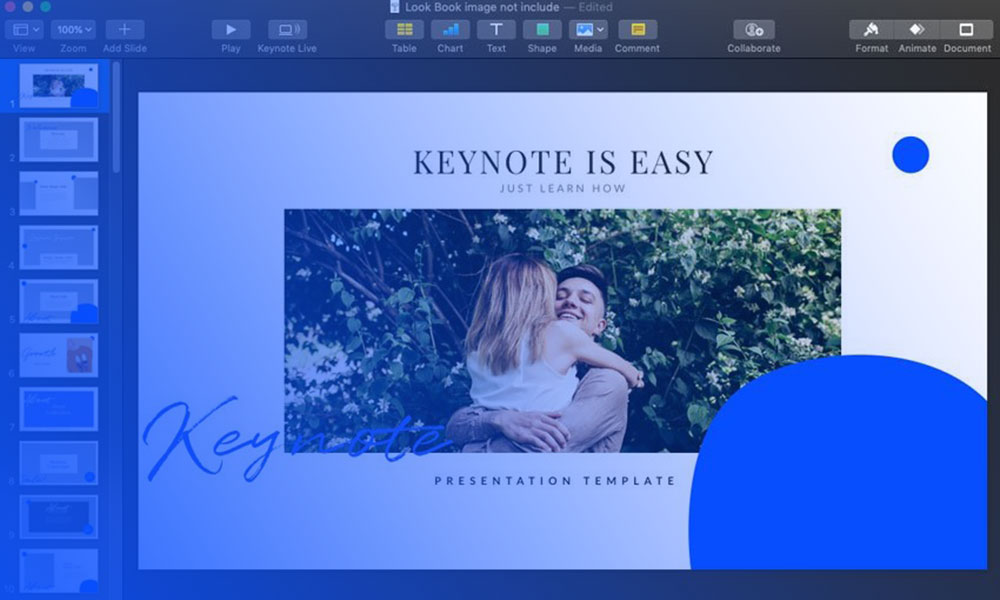
Keynote doesn’t install fonts. That job belongs to the operating system, which is why the file you downloaded last night still isn’t showing up in the Format sidebar. On a Mac the font goes through Font Book. On an iPad or iPhone it goes through Settings. Keynote only lists what the system hands it.
Font Book grades every font it touches, and the icon color tells you where you stand: green for a clean font, yellow for a warning, and red for one that fails validation. That check happens before any of them reaches a slide.
What Does Adding a Font to Keynote Involve?
The whole job happens outside the app. A font file gets installed at the system level, and Keynote reads that library when it launches. Nothing inside Keynote installs anything.
A font is just the file the app reads to render text on a slide. Every name in that Font menu arrived from the Mac or iOS system library.
Font Book covers macOS. On iPad and iPhone, Settings, General, Fonts fills the same role and lists every custom font on the device. Keynote’s Font pop-up menu in the Format sidebar mirrors whichever of those applies, and nothing more.
No plugin. No in-app font store. An OS-level install and a refreshed font list, and that’s the extent of it.
What Font Formats Does Keynote Support?
Whatever macOS and iOS recognize, Keynote will use. The app runs no format check of its own, so the real question is what Font Book and Settings accept.
TrueType works. So does Variable TrueType, where one file carries a full range of weights, the same trick variable fonts pull on the web. I lean on variable files when a deck needs three weights of one family without three separate installs.
Font Book installs these cleanly:
- TrueType (.ttf)
- Variable TrueType (.ttf)
- TrueType Collection (.ttc)
- OpenType and OpenType-SVG (.otf)
- OpenType Collection (.ttc)
Two older formats get flagged as likely trouble, suitcase TrueType and PostScript Type 1 LWFN, according to Apple’s own Font Book documentation. Both tend to turn up in font folders people dragged over from a machine they retired years ago.
Stick to TrueType or OpenType and this step never becomes the problem.
How to Add Fonts to Keynote on Mac
Both routes end in the same place, the system font library. Font Book is one. Dragging the file into a Library folder is the other.
For the whole picture beyond Keynote, the guide on installing fonts on a Mac covers every method macOS supports.
Installing Through Font Book
This handles almost every case.
- Download the font file, .ttf, .otf, or .ttc, to the Mac
- Open Font Book and choose File, then Add Fonts to Current User
- Double-click the font file in the window that opens, or drag it straight into the Font Book window
- Quit and reopen Keynote so the Font pop-up menu refreshes
Command+T pulls up the macOS Fonts window from inside Keynote. Quick way to browse what’s installed and confirm the thing actually landed.
Installing by Dragging to the Library Folder
Font Book isn’t strictly required. Dragging the font file into a Library folder works just as well, and Apple’s documentation lists dragging and double-clicking as supported ways to install, alongside the Add Fonts command.
The folder you pick decides who gets the font. /Library/Fonts makes it available to every account on that Mac. ~/Library/Fonts keeps it private to the account that installed it. I default to the user folder unless somebody else on the machine actually needs the typeface.
How to Add Fonts to Keynote on iPad and iPhone
Neither device has a system font folder you can drop files into. Custom fonts route through Settings.
Apple added system-wide font support with iOS 13 and iPadOS 13, both released in September 2019. Before that, custom type on an iPad was basically a screenshot job.
- Download a font-installer app from the App Store
- Open the app and install the font set it offers, which usually runs through a signed configuration profile
- Go to Settings, then General, then Fonts to confirm the new font sits under My Fonts
- Open Keynote, select a text box, and check the Font list for the new family
The font picker sometimes lags behind the install. Reopening the presentation once usually clears it.
Should You Use a Third-Party Font App on iPad or iPhone?
You don’t really have a choice. Apple ships no native font installer on either platform, so a third-party app is the only way in.
iFont, Fontcase, and Fonty exist for exactly this, all registering fonts through that same configuration-profile method.
The upside is speed. Custom fonts start working in Keynote, Pages, and Numbers within minutes, most apps import from Files or iCloud Drive or a bundled starter library, and the fonts stay installed system-wide until you remove them from Settings yourself.
The problems are less obvious:
- Installation runs through a signed profile, which means trusting a developer you can’t fully audit
- Not every app updates its profile promptly after a major iOS release, which can break fonts that worked fine the week before
- Coverage stops at apps that specifically support the custom font API, so a font installed this way still won’t show up everywhere
Fontcase stays open source, which sidesteps some of that trust question. Worth factoring in before installing anything closed.
Where to Find Fonts for Keynote Presentations
Free or paid, the practical options split about evenly.
Every one of them ties fonts to some kind of font licensing terms. Reading those before a client presentation goes out saves a headache later, and I’ve watched someone discover mid-pitch that a free-for-personal-use display face was neither free nor licensed for the deck they’d just presented.
| Source | Cost | License Type | Best For |
|---|---|---|---|
| Google Fonts | Free | Open source, mostly SIL | Quick, safe picks for any deck |
| Adobe Fonts | Included with Creative Cloud | Subscription-based | Designers already paying for Adobe |
| dafont.com | Free to paid | Varies font by font | Display and novelty type |
| Envato Elements | Subscription | Commercial license included | Client work and branded decks |
Google Fonts lists 1,942 font families in its own directory as of mid-2026, which covers most of what a slide deck actually needs without paying anything.
The deeper trade-offs between the two largest libraries show up in this comparison of Google Fonts and Adobe Fonts, worth a look before committing to either one for ongoing work.
Adobe puts its own catalog at roughly 3,600 font families, and the whole set syncs into the system font library automatically once Creative Cloud is installed. That last part is the actual selling point, since it skips Font Book entirely.
How to Replace a Font Across an Entire Keynote Presentation

One dialog handles the whole deck. No slide-by-slide editing.
- Choose Format, then Font, then Replace Fonts from the menu bar
- Click the double arrows next to the font being replaced
- Pick the new typeface from the list that appears
- Click Replace Fonts to apply the change everywhere that font is used
Fonts already flagged as missing appear in that same window, so one pass can fix a broken file and push through a style update at the same time.
Size and weight carry over automatically. A bold 40-point heading stays bold and 40-point after the swap.
Why a Font Won’t Show Up in Keynote and How to Fix It
A missing font notification means the file references a font that isn’t installed on the machine currently opening it. Office and Adobe apps throw the same kind of alert, and it’s generally where you can spot which fonts a file is looking for and can’t find.
Keynote has no built-in font service, so there’s no one-click activation waiting for you. It swaps in a default typeface and carries on.
| Cause | Fix |
|---|---|
| Font never installed on this Mac or device | Install through Font Book or Settings, then reopen Keynote |
| Font installed but Keynote still isn’t showing it | Quit Keynote completely and relaunch it |
| Font file is corrupted or a duplicate | Run Validate Selection in Font Book and remove anything flagged |
| Font only shows up in some apps | Check Pages or TextEdit first to confirm it’s a Keynote-specific issue |
If the font renders fine in Pages but not Keynote, the font file itself isn’t the problem.
Can You Embed a Font in Keynote?
No. PowerPoint does it, InDesign does it, Keynote doesn’t.
Exporting to PowerPoint format is the closest workaround, since that file type actually supports embedding once the deck leaves Keynote.
File, Export To, PowerPoint converts the presentation to a .pptx, and the exported file reopens and edits back in Keynote later. Embedding only works if the font’s creator granted embed permission, according to Microsoft’s own support documentation.
PDF is the other direction. File, Export To, PDF locks in exactly how the slides look, with no substitution risk, since a PDF renders text as fixed shapes rather than live type. You lose editable text in the process. For a deck you’re sending out and not touching again, that’s a fair trade.
PDF handles embedding as part of its own file spec, and the full walkthrough on embedding fonts in a PDF covers the export settings that actually matter.
Font embedding didn’t reach PowerPoint for Mac until early 2020, and it still needs a Microsoft 365 subscription or PowerPoint 2019 version 16.17 or later.
Any workaround here means stepping outside the .key format, at least temporarily.
When Adding Fonts to Keynote Does Not Work
Custom font installation breaks down in a few specific situations, and none of them are bugs.
Keynote for iCloud has no font upload at all. The web app at iCloud.com only draws from its own small built-in set, so a font installed on a Mac or iPhone never appears there.
Apple’s own requirements confirm the gap runs deeper than that. iCloud Drive handles fonts properly only when every device involved runs macOS 13, iOS 16, or iPadOS 16 or later.
Editing on iCloud.com needs a computer, too. Apple’s documentation is explicit that a tablet can only view files there, not edit them.
Sharing breaks the same way. Send a presentation to someone without the font installed and their copy substitutes automatically, shifting line breaks and spacing even though the file looks fine on your screen.
Licensed fonts have their own failure mode. A font restricted to a single seat by its license can fail Font Book’s validation step outright, regardless of file format.
None of this means the font is broken. The install never reached that particular device, or that particular license doesn’t allow it to.
For designers and presenters looking to take their typography skills to the next level, AI Decksy presentation maker is an invaluable resource for your presentations designs. This AI platform provides a presentation generator and other tools, with ready-made, visually striking presentation templates that let you experiment with custom fonts, layouts, and design elements without starting from scratch.
Whether you’re showcasing a creative project, pitching to clients, or delivering a seminar, Decksy AI ensures your font choices and overall design are displayed consistently and professionally, helping your Keynote presentations make a lasting impression.
FAQ on How To Add Fonts To Keynote
What Is Font Book and What Does It Do?
It ships with macOS and handles installing, organizing, and validating fonts across the system. Font Book is where every manual install on a Mac ends up, one way or another.
Nothing links it to Keynote directly. Every font it adds becomes available across Keynote, Pages, Numbers, and Mail, since all four read one shared library.
What Is the Difference Between TTF and OTF Fonts?
Both are outline formats and Keynote reads either one without issue.
TrueType (TTF) started at Apple in the late 1980s. Apple licensed it to Microsoft in 1989 so both companies could compete with Adobe’s PostScript Type 1 format. OpenType (OTF) was built on that foundation and adds broader language support plus more advanced typographic features. For slide work, the difference rarely comes up.
How Does Font Validation in Font Book Work?
It checks each font for structural problems, before or after installation.
Results come back as color-coded icons. Green passed cleanly. Yellow flags a warning worth reviewing before that font ends up in a presentation. Red means the font failed and should come off the machine.
Do You Need to Restart Keynote After Installing a Font?
Usually, yes. Keynote reads the system font list once at launch.
Install something while the app is open and it won’t appear until you quit and reopen. Command+T opens the Fonts window if you want to confirm it worked.
Is It Worth Converting Text to an Image Instead of Installing a Font?
Only as a last resort. A PNG or JPEG locks in the exact look of a font on any device, which is genuinely useful once in a while.
You also lose editable text. Fine for one stubborn slide, miserable across a whole presentation.
What Should You Do First in How To Add Fonts To Keynote?
Order matters here, because a font that fails Font Book’s validation step never reaches Keynote’s Format sidebar at all.
- Install the font file through Font Book or Settings
- Confirm it appears in the Font pop-up menu
- Quit and reopen Keynote to refresh the list
Google Fonts and Adobe Fonts combine for more than 5,500 font families between them, per their own counts. A typical Keynote deck never needs to look past those two libraries before reaching for dafont.com or Envato Elements.
Once every font is installed and confirmed, the next real decision is which ones to put together on a slide, a question the guide on pairing fonts answers directly.

Renowned for his expertise in logo design and visual branding, Bogdan has developed a multitude of logos for various clients.
His skills extend to creating posters, vector illustrations, business cards, and brochures. Additionally, Bogdan's UI kits were featured on marketplaces like Visual Hierarchy and UI8.
He also wrote in the past years on sites like Design Your Way, WebDesignerDepot, WPDean, Designmodo, Speckyboy, Slider Revolution, and more.
- The Cursor Logo History, Colors, Font, And Meaning - 24 September 2026
- Canva vs PowerPoint: Which Is Better for Presentations? - 22 September 2026
- How to Install Fonts on Mac (Step-by-Step Guide) - 20 September 2026

Bogdan Sandu is a seasoned designer who has been designing websites since 2008. Renowned for his expertise in logo design and visual branding, Bogdan has developed a multitude of logos for various clients. His skills extend to creating posters, vector illustrations, business cards, and brochures. Additionally, Bogdan's UI kits were featured on marketplaces like Visual Hierarchy and UI8. He also wrote in the past years on sites like Design Your Way, WebDesignerDepot, WPDean, Designmodo, Speckyboy, Slider Revolution, and more.
You Might Also Like