Slides never touches the fonts on your computer. Everything in that dropdown loads from Google Fonts in the browser, which explains both why the list runs long and why the .otf file you downloaded last night is useless here.
The library is shared across Slides, Docs, and Sheets. Save a font in one app and it turns up in the others under the same account.
Google Sans is in there now, the typeface Google uses across its own products, after the company opened it up inside Google Fonts during 2025 (Google Design, 2025). People had been asking for that one for years.
What Fonts Does Google Slides Support?
The toolbar dropdown opens with a short starter list. More Fonts, at the bottom, is where the real catalog sits.
A font is a digital file describing how each letterform gets drawn on screen, and the copies sitting in your operating system’s font folder are invisible to Slides. Doesn’t matter if every other app on the machine can see them.
Inside the dialog, families group by style. Traditional serif font options, clean sans-serifs, script, display.
The catalog is larger than most people assume.
- Google Fonts lists 1,942 font families as of July 2026, per its own directory (Google Fonts, 2026)
- Noto by itself accounts for 210 families covering 162 writing systems (Google Design)
- Over 17 open-source families came out of brand commissions, including work done for Reddit and IBM (Google Design)
None of it lives on your hard drive. A TrueType font (.ttf) or OpenType font (.otf) in your Downloads folder has nowhere to go inside the Slides interface, and nobody has found an upload button, on the web or anywhere else. That’s the one hard limit worth knowing before you start.
How To Add Fonts From the Google Fonts Menu
Under a minute, once you know the path. Open the font dropdown in the toolbar and click More Fonts at the bottom of that list.
- Highlight a text box, or leave nothing selected to browse freely
- Click the font dropdown, then choose More Fonts
- Use the font search bar or the script and style filters on the left
- Click any tile to move it into My Fonts on the right
- Press OK to save the selection and close the dialog
Fonts added this way attach to your Google Account rather than the open file, so they follow you into other Docs and Slides documents.
The browsing and filtering logic is the same one described in this broader guide to using Google Fonts, since both pull from one catalog.
The list stays alphabetical by default. You can sort by popularity instead. Previews render at a size you can actually read, which sounds obvious until you remember how many font pickers still show eight-point sample text.
How To Add Fonts With the Extensis Fonts Add-on
Extensis Fonts opens a wider panel of typefaces inside the Slides window itself. The add-on provides access to over 1,400 fonts pulled from the Google Fonts collection, sortable in a side panel, and the listing shows more than 9 million installs (Google Workspace Marketplace listing, 2026).
- Open the Extensions menu, then choose Add-ons and Get add-ons
- Search for Extensis Fonts in the Google Workspace Marketplace and click Install
- Grant the account permissions the add-on requests
- Return to Extensions, open Extensis Fonts, and click Start
- Select your text, then click a tile in the side panel to apply it
Reliability has been shaky lately. Reviewers on the add-on’s own Marketplace page describe the panel refusing to load after cache clears and full reinstalls. Treat it as a bonus, not the workflow you build a deadline around.
Native Library vs Add-on vs Image Workaround
Past the default dropdown your options thin out quickly, and each one costs you something.
| Method | Font Source | Text Stays Editable | Setup |
|---|---|---|---|
| Google Fonts menu | Built-in library, 1,942 families | Yes | None |
| Extensis Fonts add-on | Same library, wider panel | Yes | Install once |
| Image workaround | Any font on your computer | No | External design app |
Google Fonts Method
Nothing to set up, because the menu is already in the toolbar.
- Covers most branding and presentation work without much fuss
- Open licenses across the board, so commercial use is unrestricted
- Search and filters find a specific style fast
The tradeoff is narrow but absolute. Whatever isn’t in the catalog isn’t reachable this way.
Extensis Fonts Add-on
Extensis widens the pool and adds a dependency at the same time, since a third-party service has to stay online for the panel to do anything.
Canva handles this differently. Pro subscribers there upload their own font files, which Slides has never allowed through any native menu or add-on.
Something people miss about Extensis: it draws from the same Google Fonts collection. Browsing and sorting by trend or style is just faster.
Image or Screenshot Workaround
Set the type in another program, export it as an image, drop the image onto the slide.
- Works with any typeface installed on the machine doing the design work
- Locks the exact look no matter who opens the file or on what device
You pay for that by giving up the text. Nobody can edit a word of it inside Slides afterward, and screen readers skip straight past it. Accessibility alone makes this a last resort for me.
How To Set One Font For an Entire Presentation
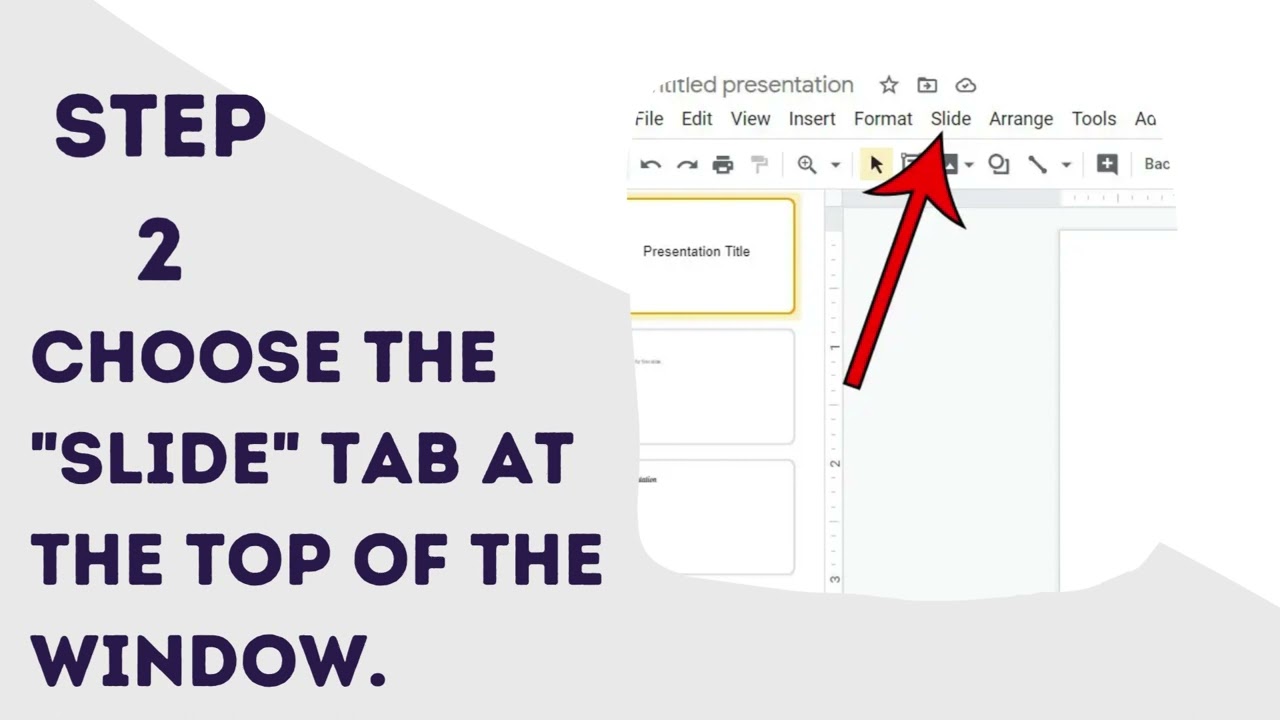
Changing fonts slide by slide gets old around slide twelve. Theme Builder handles the whole deck from one master view.
- Open the Slide menu and choose Edit theme
- Click the top master layout, the one every other layout inherits from
- Select a text box on that master, then pick a new font from the toolbar
- Repeat for any layout that needs different treatment, like section headers
- Close the theme editor with the X in the top right corner
Every slide on that layout updates, including slides you haven’t made yet.
A heading font that contrasts with the body copy does more for a deck than almost any other single change, and this guide to pairing fonts gets into contrast, weight, and rhythm with more room than a Theme Builder walkthrough allows.
Close the master view before you make further edits. Anything changed outside it stays local to that slide, which is the sort of thing you discover after redoing the same layout twice.
Adding Fonts on Mobile vs Desktop
The mobile app gives you a noticeably shorter menu than the browser does.
On desktop you get the full More Fonts dialog, search, filters, and the Extensis panel. The app hands you a fixed list under the text formatting icon, no More Fonts option, no add-on support at all.
Tap the text box, tap the A icon, then tap Font to choose from whatever’s on that shorter list.
Fonts you added earlier on desktop still render fine on a phone or tablet, because the font choice travels with the presentation rather than the device.
The one moment things look wrong is editing on mobile before sync finishes. A refresh usually sorts it.
How Much Do Fonts Cost in Google Slides?
Google Fonts costs nothing. Every family, no license fee, commercial work included.
The Extensis Fonts add-on is listed as free of charge on its Google Workspace Marketplace page, last updated June 2026, so no subscription stands between you and the wider panel.
Adobe Fonts is a different story. You can’t reach it from inside Slides, Creative Cloud subscription or not.
Every Google Fonts family ships under an open font licensing model, usually the SIL Open Font License, covering personal work, client projects, and logos without extra paperwork. That’s a meaningfully different arrangement from what paid libraries ask of you, and this breakdown of Google Fonts vs Adobe Fonts lays out the catalog and licensing gaps in full.
Extensis does sell enterprise font management products for teams tracking hundreds of licenses. The Slides add-on has never carried a price tag of its own.
Why Is a Font Not Showing or Applying?
A font sitting in My Fonts doesn’t apply itself. Adding it to the list and applying it to text are two separate clicks, and that catches people constantly.
- The family shows up in My Fonts but nothing changed, because no text was selected when you clicked it
- The browser tab is holding a stale copy of the font list from before your changes
- Commenter and Viewer roles hide every font control, so only Editor access unlocks them
- The Extensis panel has dropped its connection, which is the same reliability gap covered earlier, and a full page reload rather than another retry click usually brings it back
Refreshing the tab clears most of this immediately, since Slides pulls the current font list from the server the moment the page reopens.
Do Fonts Survive Export to PowerPoint or PDF?
The two formats behave nothing alike once the font stops living in the browser.
| Format | Font Behavior | Risk |
|---|---|---|
| PDF export | Font data embeds inside the file itself | Low, displays correctly everywhere |
| PPTX export | Embeds by default, but PowerPoint may still substitute | Moderate, spacing can shift |
PDF export writes the actual font data into the file, so the reader’s device never needs the typeface installed locally, according to Adobe’s own guide to saving Slides as PDF. The mechanism is the same one described in this walkthrough on how to embed fonts in PDF, which goes deeper than two sentences allow.
PPTX is messier, and the sources genuinely disagree about it.
Google’s own Docs Editors Community has a thread asking how to turn off automatic font embedding on PowerPoint export, which implies embedding happens by default.
Field reports from ChatSlide and Moda, both published in 2026, describe something else entirely. PowerPoint swaps in the closest local font when a Google Fonts family like Lora or Inter isn’t installed on the opening machine, and spacing drifts.
Install the same font locally before the presentation matters. This guide to adding fonts to PowerPoint covers the installation on Windows and Mac.
BrightCarbon, a presentation design agency, has documented this compatibility gap for corporate clients shuttling decks between the two platforms.
When Does Font Customization Not Work in Google Slides?
The failure conditions are predictable, whichever method you’re using.
- View-only or comment-only access disables every font control in the toolbar, however the file was shared
- A script the chosen family doesn’t cover renders as tofu, those blank placeholder boxes that show up when a glyph is missing (Google Design)
- Extensis Fonts going down mid-session leaves you without a fallback, since the panel needs a live connection to a third-party server
- Offline mode blocks new fonts from loading, because More Fonts has to reach Google’s servers for anything not already cached
Google’s support documentation confirms that real-time collaboration and some add-ons don’t function until the connection comes back (Google Docs Editors Help).
None of this is a bug. It’s what you accept in exchange for a font system that lives in the browser instead of on the hard drive.
Font source, account access, and a working connection all have to line up at once. Miss one and the toolbar quietly keeps whatever was already applied.
FAQ on How To Add Fonts To Google Slides
What Are the Best Fonts or Font Pairings for a Presentation?
Readable sans-serif families like Open Sans, Montserrat, and Roboto hold up consistently in Slides.
Use one for headings and something complementary for body text. Two fonts total. Past that, decks start looking cluttered rather than deliberate.
Do Collaborators With View-Only Access See the Same Fonts?
Yes. Slides renders every font from the shared Google Fonts library rather than from software on the viewer’s machine.
Editor, Commenter, and Viewer roles all see the identical typeface. Only the ability to change it depends on access level.
Is There a Limit to How Many Fonts Can Sit in My Fonts?
Google doesn’t publish a hard cap, and the More Fonts dialog will let you add families all day.
The list just gets harder to scroll. Two or three per deck is the practical limit that actually matters.
Can a Font Be Removed From My Fonts Once Added?
Yes. Open the font dropdown, click More Fonts, and find the family under My Fonts on the right.
Click the small X next to its name, then press OK. It disappears from the toolbar list right away, no reload needed.
What Should You Try First in How To Add Fonts To Google Slides?
Start with the More Fonts library. If the typeface you need isn’t there, Extensis Fonts is worth a look, and the image workaround waits at the bottom for the cases where nothing else carries the family a brand insists on.
A locked brand file breaks that order completely. Decks built around one licensed proprietary typeface skip straight to the image route, because neither Google Fonts nor Extensis carries private commercial families, and nothing else preserves the exact look.
Worth noting from the catalog counts already cited: Extensis covers roughly 72 percent of the full Google Fonts library, not the whole collection its listing name suggests.
Once the mechanics are settled, what’s left is deciding which typefaces belong on the page at all. This roundup of the best fonts for Google Slides takes that question on directly.

Renowned for his expertise in logo design and visual branding, Bogdan has developed a multitude of logos for various clients.
His skills extend to creating posters, vector illustrations, business cards, and brochures. Additionally, Bogdan's UI kits were featured on marketplaces like Visual Hierarchy and UI8.
He also wrote in the past years on sites like Design Your Way, WebDesignerDepot, WPDean, Designmodo, Speckyboy, Slider Revolution, and more.
- The Windsurf Logo History, Colors, Font, And Meaning - 10 October 2026
- How to Remove Background From Product Photos (No Photoshop) - 10 October 2026
- How Designers can Build a Stronger Online Creative Identity - 9 October 2026

Bogdan Sandu is a seasoned designer who has been designing websites since 2008. Renowned for his expertise in logo design and visual branding, Bogdan has developed a multitude of logos for various clients. His skills extend to creating posters, vector illustrations, business cards, and brochures. Additionally, Bogdan's UI kits were featured on marketplaces like Visual Hierarchy and UI8. He also wrote in the past years on sites like Design Your Way, WebDesignerDepot, WPDean, Designmodo, Speckyboy, Slider Revolution, and more.
You Might Also Like