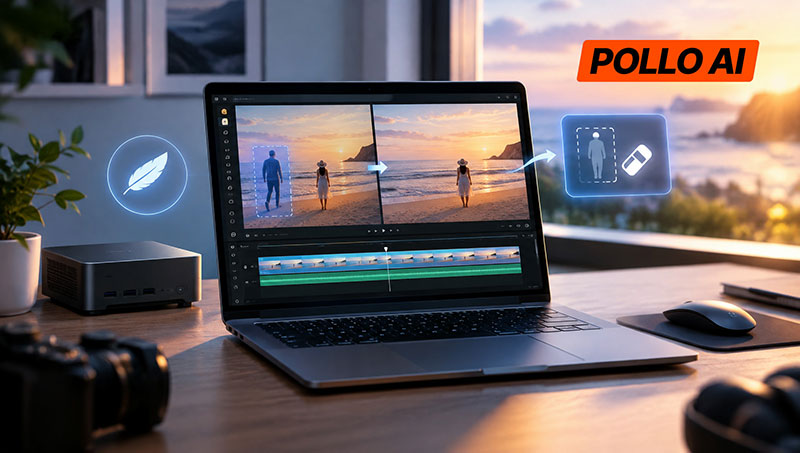
Removing unwanted people, logos, or watermarks shouldn’t require a powerful PC. For those who find DaVinci Resolve too demanding, browser-based tools offer a simpler way to remove objects from videos. After testing 21+ tools, these seven stand out for their removal quality, ease of use, and suitability for low-end PCs.
7 Best Lightweight DaVinci Resolve Alternatives for Object Removal
1. Pollo AI Remove Object from Video – Best Overall for Low-End PCs
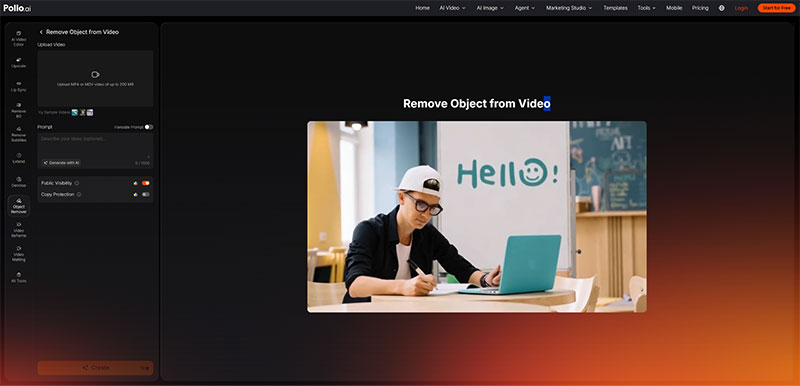
Pollo AI offers a dedicated online video object remover for cleaning up existing footage. It can erase unwanted people, captions, logos, watermarks, stickers, and other visual distractions through automatic object detection, motion tracking, and intelligent background filling.
Users simply upload a clip, select the unwanted element, and let the AI handle the removal. This makes it easier to remove objects from video without setting up a complicated editing timeline or learning professional masking techniques. For example, an online seller can clean up a product demonstration by removing an unwanted object in the background without cropping the original shot. The tool also supports common formats such as MP4, MOV, MKV, FLV, and AVI.
Strengths
- Runs online without a demanding desktop installation.
- Offers automatic detection and manual selection.
- Handles moving objects as well as static distractions.
- Basic removal can be tried without creating an account.
Limitations
- Requires an internet connection and video uploads.
- Complicated backgrounds can still produce visible artifacts.
Best for: People using older laptops who want to remove unwanted objects from everyday footage without running a full video editor.
2. Runway – Best for AI-Assisted Video Cleanup
Runway is an AI video creation and editing platform with a dedicated Remove from Video app. Runway AI uses generative processing to remove unwanted elements from existing footage, giving users another option beyond traditional masking and compositing techniques.
It’s worth considering when a clip is already usable but contains one distracting detail that would otherwise require reshooting or more involved editing. For example, a creator might want to remove an unwanted object from a short promotional clip without rebuilding the entire shot. Its broader AI editing environment also makes it relevant to creators working with generated footage and experimental video projects.
Strengths
- Dedicated AI object-removal application.
- Part of a broader AI video editing platform.
- Useful for cleaning up footage without reshooting.
Limitations
- Access and generation costs depend on the available plan.
- AI-generated repairs may need additional review.
Best for: Creators who already use AI video tools and want to fix unwanted elements without rebuilding an entire shot.
3. Picsart – Best for Online Video Editing and Cleanup
Picsart combines video editing with AI-assisted cleanup tools, including an option to remove unwanted objects and people from videos. Its online video editor also supports trimming, arranging clips, and adding text or audio, so users can continue working on their footage after removing a distraction.
This is a practical choice for social media creators who don’t want to switch between several tools. For example, someone preparing an Instagram Reel can remove an unwanted visual element and make other adjustments within the same editing environment.
Strengths
- Combines object removal with general video editing.
- Offers both web and mobile workflows.
- Useful for preparing social media content.
Limitations
- AI tool availability varies across platforms and versions.
- Some features require credits or a subscription.
Best for: Creators who want to clean up footage and make basic edits in the same platform.
4. Fotor – Best for Quick Brush-Based Removal
Fotor offers an online AI video object remover that works through a straightforward brush-selection process. Users upload a clip, paint over an unwanted element, and let the AI reconstruct the area. It supports people, moving objects, text, logos, watermarks, and emojis.
This approach works well for short clips where the unwanted element is easy to identify. Someone editing travel footage, for instance, can mark a passerby in the background without manually tracking the person across every frame. Fotor supports MP4, MOV, WebM, and M4V uploads, with its page listing support for videos up to 4K.
Strengths
- Simple brush-based selection.
- Supports several common video formats.
- Handles people, text, logos, and moving objects.
Limitations
- Free previews are limited to three seconds.
- Full-length video processing requires credits.
Best for: Users who need to clean up short videos and prefer painting over an object rather than working with masks and keyframes.
5. CapCut – Best for Removal Alongside Social Video Editing
CapCut is a popular video editor with an AI Remove feature in its desktop application. Users can select an unwanted object with Quick Brush or Custom Brush and let the software erase it. For more complicated footage, its masking tools offer additional manual control.
The main appeal is convenience for creators who already use CapCut to edit TikToks, Reels, or YouTube Shorts. They can remove an unwanted person or object and continue adjusting captions, transitions, and other elements without moving the project elsewhere.
Strengths
- AI Remove and manual masking options.
- Familiar editing environment for social media creators.
- Supports removal alongside other video adjustments.
Limitations
- The AI removal workflow requires the desktop application.
- Local processing can be demanding on older computers.
- Moving objects may need additional manual adjustments.
Best for: Users who already edit social videos in CapCut and occasionally need to remove unwanted elements.
6. Dreamina – Best for Fixing AI-Generated Video Clips
Dreamina offers a localized AI video editing workflow powered by Seedance 2.5. Users select an unwanted object or area and guide the edit, allowing the tool to change a specific part of a clip rather than regenerate the entire scene.
This is particularly useful when an AI-generated video is nearly finished but contains an incorrect prop, distracting object, or visual artifact. The workflow is designed to preserve elements such as lighting, composition, camera movement, and audio timing, which matters when the rest of the clip is already working.
Strengths
- Focuses on localized video corrections.
- Uses Seedance 2.5 for targeted editing.
- Designed to maintain scene and timeline continuity.
Limitations
- More suited to AI video editing than routine footage cleanup.
- Results still need to be checked for motion and background inconsistencies.
Best for: AI video creators who want to fix individual visual mistakes without starting the generation process again.
7. Adobe After Effects – Best for Advanced Object Removal
Adobe After Effects is a professional compositing application with a Content-Aware Fill feature for removing unwanted elements from footage. Users mask an object, track its movement, and let the software analyze surrounding frames to generate replacement details.
Unlike dedicated online removers, After Effects gives editors more control over difficult shots. For example, a filmmaker dealing with a microphone visible in an interview or a pole crossing a moving scene can refine the mask and adjust the fill to improve the result.
Strengths
- Content-Aware Fill for reconstructing missing areas.
- Detailed masking and tracking controls.
- Better suited to complex compositing work.
Limitations
- Requires desktop installation and substantial system resources.
- Has a steeper learning curve than dedicated AI removers.
- Processing and manual refinement can take time.
Best for: Editors who need precise control over difficult footage and have a computer capable of running professional compositing software.
Which DaVinci Resolve Alternative Should Low-End PC Users Choose?
For someone using an older PC, the first thing to consider is whether the software actually needs to process the video locally. A professional desktop editor may offer more control, but that doesn’t help much if the computer struggles to run it.
Pollo AI is the strongest overall choice for users whose main goal is straightforward video object removal. Its dedicated online tool handles common cleanup jobs, from removing background passersby to erasing logos and unwanted captions. Automatic detection and motion tracking also reduce the need to manually adjust selections throughout a clip.
Fotor is another good option for short videos where a brush-based workflow is sufficient. Picsart makes more sense when cleanup is just one part of a broader online editing session. Runway and Dreamina are worth considering for AI-generated footage that needs localized corrections.
CapCut offers more editing flexibility, but its desktop-based AI removal feature may not be ideal for particularly weak computers. After Effects is the better fit for difficult compositing jobs, not quick edits on low-end hardware.
For most users who simply want to remove an unwanted object and get back to editing, a dedicated online tool is a more sensible starting point than installing another demanding desktop application.
Conclusion
Removing unwanted objects doesn’t always call for professional editing software. For simple cleanup tasks, a focused AI tool can save time and avoid putting unnecessary strain on an older computer.
Pollo AI Remove Object from Video is a practical starting point for low-end PC users. Its online workflow, automatic detection, and motion tracking make it easier to clean up everyday footage without the complexity of a full editing suite.

Renowned for his expertise in logo design and visual branding, Bogdan has developed a multitude of logos for various clients.
His skills extend to creating posters, vector illustrations, business cards, and brochures. Additionally, Bogdan's UI kits were featured on marketplaces like Visual Hierarchy and UI8.
He also wrote in the past years on sites like Design Your Way, WebDesignerDepot, WPDean, Designmodo, Speckyboy, Slider Revolution, and more.
- What Is the Best Lightweight DaVinci Resolve Alternative for Object Removal on Low-End PCs? - 23 November 2026
- Logo Quiz - 22 November 2026
- The LinkedIn Logo History, Colors, Font, and Meaning - 20 November 2026

Bogdan Sandu is a seasoned designer who has been designing websites since 2008. Renowned for his expertise in logo design and visual branding, Bogdan has developed a multitude of logos for various clients. His skills extend to creating posters, vector illustrations, business cards, and brochures. Additionally, Bogdan's UI kits were featured on marketplaces like Visual Hierarchy and UI8. He also wrote in the past years on sites like Design Your Way, WebDesignerDepot, WPDean, Designmodo, Speckyboy, Slider Revolution, and more.
You Might Also Like