Custom fonts live in one place on the iPad: Files, On My iPad, Procreate, Fonts. Put a TTF, OTF, or TTC file in there and the app picks it up.
Nothing clever happens after that. Procreate scans the folder when it launches, reads whatever fonts are sitting inside, and drops them into the Text tool next to everything iPadOS already carries. An imported font then behaves exactly like one that shipped with the app.
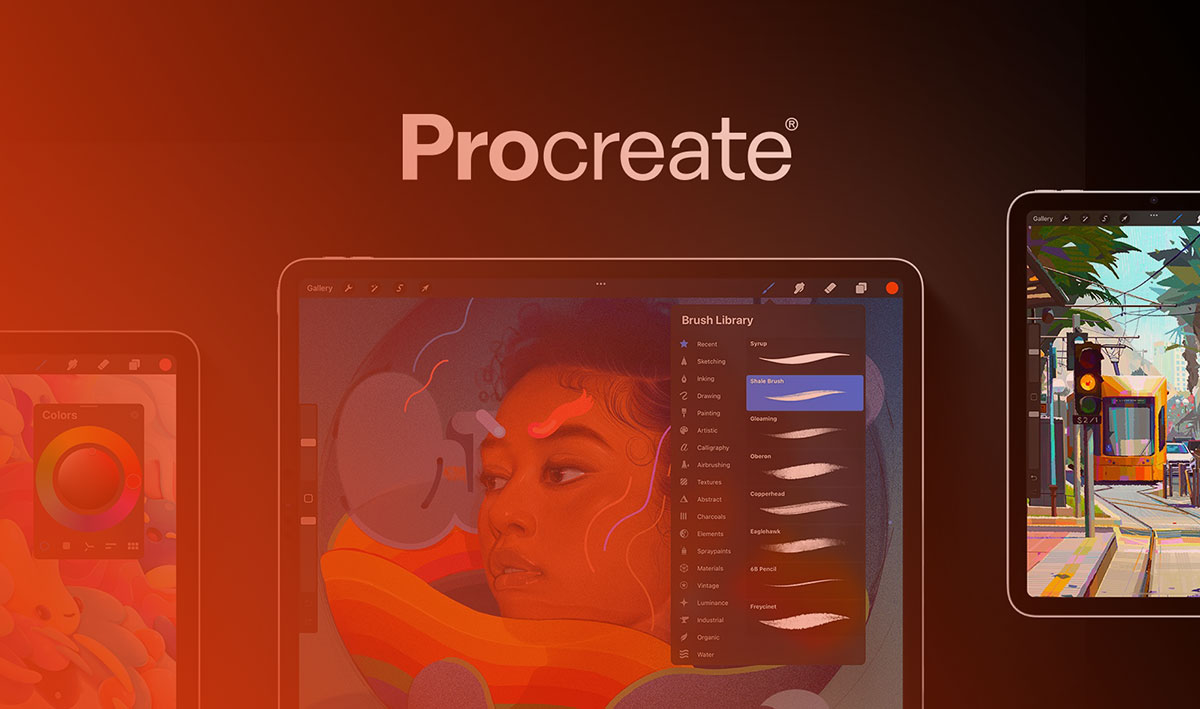
Savage Interactive has been building Procreate for iPad and iPhone since 2011, and the app has passed almost 30 million downloads since launch (Stockhead, 2025). That is a lot of people who eventually want a typeface the app didn’t come with.
What Is Font Import in Procreate?
A font file dropped into Procreate’s own Fonts folder gets read on the next launch and added to the list inside the Edit Text panel. TTF, OTF, and TTC files all behave the same way here.
Where the file came from doesn’t matter at all. A marketplace purchase, a foundry download, a free repository, Procreate treats them identically once the file is in the right folder.
Getting clear on what a font actually is helps explain why some files import cleanly into Procreate and others don’t.
Importing won’t sync a typeface across your other Apple devices, and it can’t rescue a file that’s missing hinting data or broken in some other way. A bad font file stays a bad font file.
Procreate used to ship with three fonts of its own (Eina, Impact, and Jack Armstrong BB). A March 2026 app update retired Eina and Jack Armstrong BB, so Impact is the only survivor of that original set. The same update added 25 new default fonts on top of everything iPadOS already provides (Procreate Help Center, 2026).
Which Font File Formats Does Procreate Support?
TTF, OTF, and TTC. Anything else, WOFF and WOFF2 web fonts especially, never reaches the Font list no matter how you get it onto the device.
TTF is Apple’s original standard and still the format most free fonts arrive in. OTF came later, built jointly by Adobe and Microsoft, and one OTF file can hold up to 65,535 glyphs (Microsoft Typography). TTC bundles related styles into a single file, which saves a lot of tapping when a family download runs to eighteen weights.
Given both options I take the OTF, since it usually carries more of the typeface’s finer typographic detail. On a chunky display face you’d struggle to spot the difference.
Procreate’s own Handbook notes the iPad already carries almost a hundred built-in fonts before a single custom file gets added.
Where Does Procreate Store Imported Fonts?
Open the Files app, tap On My iPad, then Procreate, then Fonts. That folder is the whole system. Procreate reads it on launch and lists what it finds alphabetically.
Move a file out of there, rename it badly, or leave it sitting in Downloads, and the font quietly vanishes from the list. There’s no warning. It just stops being there.
The folder is sandboxed to Procreate itself. It doesn’t double as a system-wide font location the way Font Book does on a Mac, which catches out most people arriving from desktop work.
What Are the Different Ways to Import a Font Into Procreate?
Dragging a file across from the Files app is the route most artists reach for. The share sheet inside the Style panel does the same job in fewer taps, AirDrop handles fonts already organized on a computer, and AnyFont exists for the awkward files that refuse all three.
| Method | Device Needed | Best For | Limitation |
|---|---|---|---|
| Drag and drop | iPad only | Fonts already downloaded into Files | Needs Split View screen space |
| Share sheet import | iPad only | Fonts opened directly from Safari or Files | One file at a time |
| AirDrop | iPad plus Mac or PC | Fonts already organized on a computer | Requires both devices nearby |
| AnyFont app | iPad only | Fonts that fail standard import | Separate App Store download required |
Split View drag and drop needs nothing beyond the Files app already being open, which is why it wins by default.
AirDrop makes more sense when the font already lives on a Mac. Knowing the basics of installing fonts on a Mac first through Font Book makes the file easier to locate once Finder opens the AirDrop share sheet.
AnyFont, and similar apps like FontDrop!, are there for fonts that resist the standard route. Usually the culprit is an odd internal naming structure or a zip file that won’t behave.
Where Can You Find Fonts That Work With Procreate?
Google Fonts, Adobe Fonts, dafont.com, and paid foundries cover most of what artists end up importing.
Google Fonts’ directory listed more than 1,900 free families as of July 2026, all released under open licenses that clear the way for personal and commercial art alike. There’s no direct Procreate integration, so every family needs a manual download and a manual import.
Adobe Fonts brings over 30,000 fonts from more than 150 type foundries with a Creative Cloud plan (Adobe Fonts). Worth knowing before you build a project around one: a font stops working the moment the subscription lapses.
dafont.com has been running forever and is strong on display and script styles. License clarity is the weak spot, so every file needs a manual check before it goes anywhere near paid work. Downloads usually arrive zipped too, which adds a step.
Fonts bought straight from a foundry tend to be the easiest of the lot. Clean OTF file, proper commercial license attached from the start, no guessing.
Anyone weighing the two big libraries can look at the differences between Google Fonts and Adobe Fonts before settling on either workflow.
Can You Use a Downloaded Font for Commercial Work in Procreate?
Only if the license explicitly allows commercial use. Procreate has no licensing logic built into it, so that call sits entirely with the artist.
Plenty of free fonts restrict use to personal projects, and that restriction bites the moment the artwork turns into a print for sale or a client deliverable.
Reading the terms behind a font’s licensing before starting a paid project avoids redoing lettering work later, which is a miserable way to spend an afternoon.
Three things worth checking on any license file: whether commercial use is mentioned at all, whether merchandise counts or only digital display, and whether the whole thing depends on an active subscription staying active.
That last one matters more than it sounds. Adobe Fonts licenses stay tied to the Creative Cloud subscription, so a lapsed plan can pull a font out of a project halfway through.
Does Font Import Work the Same on Procreate Pocket as on iPad?
Same mechanics, different folder name. On the iPad the path runs through Files, On My iPad, Procreate, Fonts. Procreate Pocket keeps its fonts under On My iPhone, Procreate Pocket, Fonts.
Fonts don’t travel between them. The two apps read from separate folders even with both devices signed into the same Apple ID, so anything imported on the iPad needs importing again on the phone.
Split View drag and drop isn’t available on iPhone screens either, which leaves the share sheet or AirDrop as the realistic options there.
How Do You Import a Font Using the Files App?

The import button hides a few taps deep. Actions, then Add, then Add Text, then the Aa style button, and Import Font sits at the bottom of that panel.
Once tapped, Procreate hands control over to the Files app, so the rest is just browsing to wherever the font ended up.
- Download the font to the iPad and confirm it lands in Files
- Open Procreate, tap Actions, then Add, then Add Text
- Tap the Aa style button, then tap Import Font
- Browse to the font in Files and tap it once
- Check the Font list. The new font now sits there alphabetically
Whole thing takes under a minute assuming the file is already somewhere in Files.
Importing With AirDrop From a Mac or PC
AirDrop skips the download step by sending a font straight from a Finder window to the iPad.
- Turn on AirDrop on both the computer and the iPad
- Select the font file in Finder, right-click, and choose Share, then AirDrop
- Pick the iPad from the device list and confirm the transfer
A prompt appears on the iPad asking where to open the file. Choose Procreate and the font goes straight into the Fonts folder, no detour through Files needed.
Unzipping a Compressed Font File First
A font that downloads as a .zip needs extracting before Procreate can read anything inside it. Tap the .zip file once in Files and iPadOS creates a folder holding the TTF, OTF, or TTC files.
After that the extracted font imports like any other file, through Import Font or drag and drop.
How Do You Delete or Manage Fonts Already Imported Into Procreate?
Deletion happens in the same folder that installed it. Files, On My iPad, Procreate, Fonts.
There’s no font manager inside Procreate. The Files app is the only control panel you get, which feels thin for an app this polished.
- Open Files and browse to the Procreate Fonts folder
- Swipe left on the font file, or tap and hold it, then choose delete
- Close and reopen the Text tool to confirm it dropped from the Font list
Rename a font file to something clear before importing rather than after. A Font list forty entries deep full of names like FontFile-Regular-v2-final is its own kind of punishment.
Deleting isn’t reversible from inside the app. Getting a font back means running the original import again from a saved copy of the file, so keep the downloads somewhere sensible.
Why Won’t a Font Show Up in Procreate’s Font List?
Usually the format is wrong, the file is in the wrong place, the font was installed system-wide instead of through Procreate, or the download is too big or broken.
| Cause | Fix |
|---|---|
| Unsupported format (WOFF, WOFF2, DFONT) | Find a TTF, OTF, or TTC version instead |
| File saved outside the Procreate Fonts folder | Move it into Files, On My iPad, Procreate, Fonts |
| Font installed through a system-wide profile | Check Settings, General, Fonts instead of Procreate’s own list |
| Corrupted or partial download | Delete the file and download it again |
Adobe Fonts activated through Creative Cloud will not appear in Procreate at all, since Procreate runs its own font installation system rather than the system-wide custom fonts feature in iPadOS (Adobe Community, 2020). This one catches people out constantly.
A font installed through an app like AnyFont still ends up usable, just through a different door. It lands under Settings, General, Fonts on the iPad rather than in Procreate’s own Fonts folder, and Procreate sees it only because the app already has access to every font installed at system level.
Big multi-weight families run into a ceiling as well. Apps that install fonts through a configuration profile cap each one at 20 MB, which rules out some sprawling variable font families in a single pass (AnyFont app documentation).
For all the extra steps, that system-wide route holds up in practice. AnyFont’s App Store listing shows a 4.6 out of 5 rating across roughly 26,000 reviews.
And when none of that explains it, force-close Procreate and open it again. A fresh scan of the Fonts folder fixes more stubborn imports than it has any right to.
FAQ on How To Add Fonts To Procreate
What Is the Difference Between Procreate’s Built-in Fonts and Imported Fonts?
Built-in fonts arrive with iPadOS and need no setup at all. Imported ones are TTF, OTF, or TTC files you add yourself through the Files app or AirDrop.
After installation Procreate stops distinguishing between them. Both sit in one shared Font list.
Does iPadOS Ever Refuse to Recognize a Valid Font File?
Occasionally, yes. iPadOS checks a font’s internal structure rather than trusting the file extension, so a correctly named TTF, OTF, or TTC file can still fail when its PostScript name duplicates one already installed.
Removing the conflicting font first usually clears it.
Do You Need an Internet Connection or a Specific Procreate Version to Import Fonts?
The connection is only needed for the download itself. Once the file sits in Files, importing works fully offline.
The current release requires iPadOS 16.3 or later, so older iPads can’t install the app.
What Comes After How To Add Fonts To Procreate?
Adding fonts works best as a small routine you repeat rather than a one-off chore. Import through the Files app for anything ordinary, keep AirDrop and AnyFont in reserve for the files that stall, and clear the folder out when a project wraps so the list stays scannable.
Standardizing on the Files app route keeps every custom font inside Procreate’s own sandbox, invisible to any other app on the device.
That privacy comes at a price. Text exported to a client’s system carries only the letter shapes, not the font file, so editable text needs converting to curves before it leaves your iPad.
Once a few imported typefaces are sitting in that folder, the harder question is which ones belong together, and learning how to pair fonts turns a crowded list into something usable.

Renowned for his expertise in logo design and visual branding, Bogdan has developed a multitude of logos for various clients.
His skills extend to creating posters, vector illustrations, business cards, and brochures. Additionally, Bogdan's UI kits were featured on marketplaces like Visual Hierarchy and UI8.
He also wrote in the past years on sites like Design Your Way, WebDesignerDepot, WPDean, Designmodo, Speckyboy, Slider Revolution, and more.
- The Windsurf Logo History, Colors, Font, And Meaning - 10 October 2026
- How to Remove Background From Product Photos (No Photoshop) - 10 October 2026
- How Designers can Build a Stronger Online Creative Identity - 9 October 2026

Bogdan Sandu is a seasoned designer who has been designing websites since 2008. Renowned for his expertise in logo design and visual branding, Bogdan has developed a multitude of logos for various clients. His skills extend to creating posters, vector illustrations, business cards, and brochures. Additionally, Bogdan's UI kits were featured on marketplaces like Visual Hierarchy and UI8. He also wrote in the past years on sites like Design Your Way, WebDesignerDepot, WPDean, Designmodo, Speckyboy, Slider Revolution, and more.
You Might Also Like