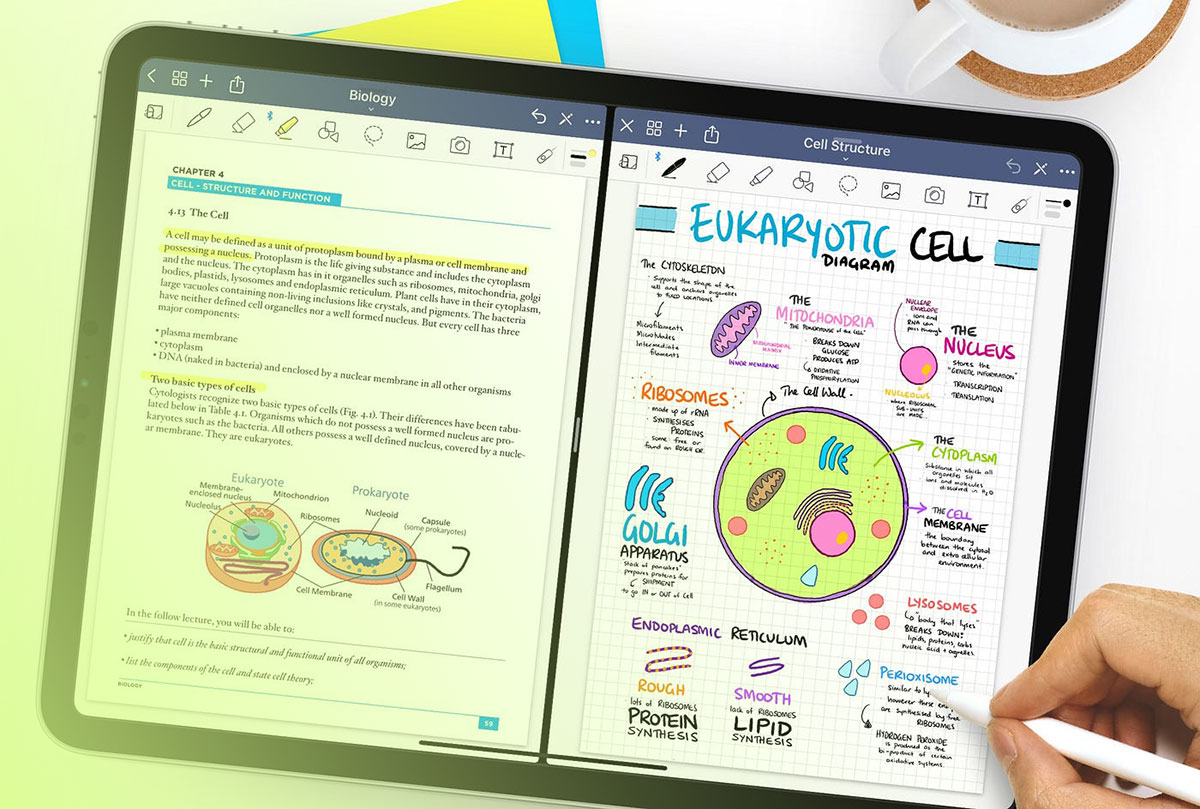
GoodNotes has no font menu of its own. Whatever typefaces show up in the Text Tool are the ones your iPad, Mac, or PC already has installed, which means the real work happens in system settings before the app is even open.
That catches people out constantly. You download a nice handwriting font, open a notebook, tap into a text box, and it simply isn’t in the list.
The company puts its user base at more than 25 million monthly active users, according to its press materials. Big enough that a small cottage industry of third-party font installer apps exists purely to patch over the gap on iOS.
What Are Custom Fonts in GoodNotes
Any .ttf or .otf file sitting in your device’s font library qualifies. GoodNotes reads that library and nothing else, so a “custom font” here is really just a system font the app happens to display.
There is no GoodNotes font store. Never has been.
Knowing what a font actually is makes the limitation obvious: it is a fixed design file, not something an app conjures up on demand.
Two formats work, TrueType (.ttf) and OpenType (.otf). Support covers iPad, iPhone, Mac, and Windows. Android is the odd one out, and I’ll get to why further down (GoodNotes Press Kit).
Why GoodNotes Has No Built-In Font Importer
Typography gets treated the same as everything else on the device. The app reads from the system font library rather than keeping a private one.
Running a font marketplace inside a note app is a completely different product, and GoodNotes has shown no interest in becoming one.
- There is no font browsing screen anywhere inside GoodNotes
- A font has to be installed system-wide before the Text Tool will list it
- Notability, Procreate, and most other iPad note apps work the same way, so this isn’t some GoodNotes quirk
GoodNotes’s own support team confirms the app only reads fonts already on the device, never from a built-in catalog.
Where Can You Find Fonts for GoodNotes
Same places designers get fonts for anything else. Free libraries, paid marketplaces, and installer apps that bundle their own search.
None of them talk to GoodNotes. They drop a file on the device, and GoodNotes reads it later.
- Google Fonts is the safe default, a free open license library that listed more than 1,900 families as of July 2026, including variable versions of Roboto and Open Sans (Google Fonts directory)
- DaFont has been around forever, sorted by style, and absolutely stuffed with handwriting and display faces
- Font Squirrel is smaller but pre-checks every font for commercial use before it goes up, which saves a lot of license reading
- Creative Market and Etsy are where independent type designers sell the script and handwriting fonts built specifically for planners and journals
The source matters less than the file extension.
A .ttf or .otf download installs without drama. Anything packed as a desktop-only format needs converting first, and that’s usually more hassle than finding a different font.
Personal Use vs Commercial Use Font Licenses
Every font arrives with a license attached, and the license decides where it can legally show up.
A font in your own weekly planner sits under different legal rules than the same font on a template you sell to strangers on Etsy. Obvious once stated, ignored constantly.
The general rules around font licensing apply here exactly as they do anywhere else typography gets used.
| License Type | Typical Restriction | Common Source |
|---|---|---|
| Personal use | No resale, no client work, no commercial products | Free sections of DaFont, hobbyist blogs |
| Commercial use | Cleared for sale, branding, and client deliverables | Font Squirrel, licensed Creative Market purchases |
| Open source | Free for personal and commercial use, no attribution required in most cases | Google Fonts |
If you’re planning to sell GoodNotes planners or templates, pick from fonts cleared for commercial use instead of squinting at a download page and hoping.
Which Font Installer App Should You Use for GoodNotes on iPad or iPhone

On iPadOS and iOS you need a middleman app, and the ones worth considering are iFont, AnyFont, and Fonteer.
All three do the same core job, turning a font file into an installable profile. Where they split is price, format support, and whether you’re paying monthly.
| App | Price | Formats | Best For |
|---|---|---|---|
| iFont | Free | .ttf, .otf, .ttc | One-off font installs at no cost |
| AnyFont | $1.99 one-time | .ttf, .otf, .ttc | Frequent installs across Word, Keynote, and PowerPoint |
| Fonteer | Subscription | .ttf, .otf | Syncing font collections across iPhone, iPad, and Mac |
iFont costs nothing and installs straight from the Files app through its Imported Fonts tab. It handles the same three formats as AnyFont (.ttf, .otf, .ttc). The interface feels about five years behind, though that hardly matters for something you open twice a month.
AnyFont asks for a one-time $1.99 and, per its own listing, makes installed fonts available in Word, Excel, Numbers, and Pages. Worth knowing what it can’t do: it won’t change your device’s system-wide font, only add options inside apps that support the picker.
Install a font through AnyFont and it’s waiting for you the next time you open PowerPoint on that device.
Keynote behaves identically, since both read the same system font list AnyFont writes to.
Fonteer builds search across Google Fonts and Font Squirrel right into the app, so you never leave to hunt down a file. The catch is the subscription. Paying every month for something iFont does free is a hard sell unless you’re genuinely syncing collections across three devices.
How to Add Fonts to GoodNotes on iPad or iPhone
The file goes into the Files app first. An installer app then wraps it in a configuration profile, iOS approves that profile, and GoodNotes picks it up on the next launch.
- Download the font file (.ttf or .otf) and save it to the Files app
- Open the installer app (iFont, AnyFont, or Fonteer) and import that file
- Tap Install inside the app to generate a configuration profile
- Go to Settings, then General, then VPN and Device Management, and approve the profile
- Close GoodNotes completely and reopen it so the new system font list loads
Nine times out of ten, when a font doesn’t appear, it’s because that last step got skipped. Backgrounding the app isn’t the same as closing it.
How to Add Fonts to GoodNotes on Mac
macOS ships Font Book, so no third-party installer enters the picture at all. It’s a much cleaner process than the iPad version.
Apple’s own Font Book documentation lists six supported formats: TrueType (.ttf), Variable TrueType, TrueType Collection (.ttc), OpenType (.otf), OpenType-SVG, and OpenType Collection.
- Download the font file, usually delivered as .ttf or .otf
- Open Font Book and choose File, then Add Fonts to Current User
- Double-click the font file if Font Book flags it for review, then confirm the install
- Open GoodNotes, tap into a text box, and check the font name dropdown
A full walkthrough of installing fonts on Mac covers edge cases like the duplicate font warnings Font Book throws whenever you’ve grabbed the same family twice.
How to Add Fonts to GoodNotes on Windows
Windows installs fonts at the OS level with no separate app required.
The Windows build of GoodNotes reads whatever the system already has, same as the Mac version.
No profile to approve, no Files app detour. Right-click and install.
- Extract the font file if it arrives inside a .zip folder
- Right-click the .ttf or .otf file and select Install
- Alternatively, drag the file into Settings, then Personalization, then Fonts
- Restart GoodNotes so the updated system font list loads inside the Text Tool
One snag worth flagging is Mac-only font files, which won’t install on Windows at all. You’ll need a converted .ttf version, or a different font.
How to Select and Apply a Custom Font Inside GoodNotes
Everything happens through the Text Tool. There’s no separate fonts menu to dig for.
Once the OS recognizes a font, GoodNotes lists it automatically, mixed in with the stock typefaces.
- Tap the Text Tool and start a text box
- Tap the font name field, often shown as “Aa,” to open the list
- Scroll or search to find the newly installed font
- Select it to apply the font to that text box going forward
If a font isn’t in that list, the install failed somewhere. GoodNotes isn’t filtering anything out.
Where the Font Menu Moved in GoodNotes 6
GoodNotes 6 separated the default font setting from the ordinary font picker, and plenty of longtime users lost track of it after the update. I did too, for an embarrassingly long stretch.
To lock in the current font, size, and color, open the text box’s three-dot menu and tap Save as Default. There’s also a T icon with a heart in the floating Text Tool menu, which lights up whenever your current settings differ from whatever you saved.
GoodNotes’s own product team confirmed this exact path in a December 2025 update to its public feedback forum, closing out years of requests to make the default font stick.
Why Is a New Font Not Showing Up in GoodNotes
A restart handles most of these, as covered above. When it doesn’t, the cause is almost always the profile, the format, or a bad download.
- The configuration profile installed but never got confirmed under Settings, General, VPN and Device Management
- The file arrived as something other than .ttf or .otf, which GoodNotes can’t read
- The download finished partially, and this usually shows up earlier as the installer app refusing the file outright
There’s a newer cause too, which appeared after GoodNotes rolled out its Whiteboard-enabled text editor around September 2025.
Users reported on GoodNotes’s own feedback forum that custom fonts stopped appearing in the font picker specifically inside the new Whiteboard UI, while the same fonts kept working fine in the classic text editor.
Switching back to the classic editor is the workaround for now, until that regression gets patched.
Does GoodNotes Support Custom Fonts on Android
It doesn’t. No custom fonts, no imported fonts, and no system-level trick that changes the answer.
Every method above depends on GoodNotes reading the system font library, and the Android build does not do that.
- Installing a font through Android’s own system settings changes nothing inside GoodNotes
- Font-manager apps built for Android, including the ones tied to Samsung’s One UI or third-party launchers, have no effect on the app’s internal font list
- What you get is the built-in set, with no way to add, import, or swap
Requests for Android font support go back to at least 2023 on GoodNotes’s own feedback forum, and new comments asking for the same thing were still arriving in January 2026.
Some people just leave. Penly gets recommended a lot in those threads, and it exists partly because the GoodNotes Android build keeps trailing the iPad one on features like this.
Outside GoodNotes, a broader guide to choosing fonts for Android covers what the operating system itself supports.
If custom fonts matter to you and Android is your main device, treat GoodNotes as a viewer and light editor for notes you made elsewhere. Building a font workflow around it will only frustrate you.
Which Fonts Work Best for Notes, Planners, and Journaling in GoodNotes
Depends entirely on what the notes are for.
Rounded sans-serif handles everyday class notes. Planners meant for other people want a script paired with something plain. Journal covers can get away with full calligraphy because nobody needs to read a title page quickly.
| Use Case | Font Style | Good Source |
|---|---|---|
| Class or meeting notes | Rounded or bubble sans-serif | Google Fonts, DaFont |
| Shared or sold planners | Script paired with a clean sans-serif | Creative Market, Font Squirrel |
| Journals and cover pages | Calligraphy or brush script | Creative Market, Etsy |
For class and meeting notes, legibility at small sizes beats personality every time. You will be scanning back through these pages at speed weeks later, on a phone screen, half distracted.
DaFont’s handwriting script category alone runs past 811 result pages, so there’s no shortage of casual options that still hold up small.
Planners you intend to sell or share are a different problem. A script header with plain sans-serif body text keeps the personal feel without making someone else squint through your daily log.
The same logic behind pairing fonts for print work applies directly here. And if money changes hands, you need the commercial-use license covered earlier, not the personal-use default most free sites hand out.
Journals and cover pages are where calligraphy and brush script earn their keep, precisely because they’re decorative rather than functional.
Creative Market’s “handwriting” tag page lists more than 36,000 digital assets from independent shops, spanning fonts and other design products. For free options in the same vein, a wider set of handwriting and script fonts covers this kind of decorative use.
FAQ on How To Add Fonts To Goodnotes
Can Custom Fonts Be Used With Handwriting-to-Text Conversion, or Only Typed Text?
Handwriting converted through the Lasso Tool or Scribble becomes an editable text box, and text boxes accept any installed font.
The conversion lands in the GoodNotes default first. Change it afterward like any other text.
Do Custom Fonts Sync Across Devices in GoodNotes?
No. GoodNotes Cloud syncs the notebook, but the font file itself stays local to whichever device you installed it on.
Open that note somewhere the font isn’t installed and you’ll get an automatic substitute, which usually looks nothing like what you picked.
Can You Remove or Uninstall a Custom Font From GoodNotes Later?
Yes, though removal happens at the system level rather than inside GoodNotes.
On iPad or iPhone, delete the font’s profile under Settings, General, VPN and Device Management, then tap Remove Profile. On Mac, delete it through Font Book.
Does Adding Many Custom Fonts Slow Down GoodNotes or Increase File Size?
No measurable effect either way.
Font files live in the device’s system library, not inside the notebook, so adding more does not inflate file size or slow GoodNotes down. Each note stores only a reference to the font it uses.
Where Does How To Add Fonts To GoodNotes Break Down Most Often?
Not during the initial install, which is what most tutorials fixate on. It breaks after an operating system or app update, when a profile quietly stops being honored and a font you’ve used for months vanishes.
Work through these in order and you’ll clear most of them:
- Reconfirm the font profile in Settings
- Force-close and reopen GoodNotes
- Reinstall the font file itself
Google Fonts lists roughly 1,900 open license families, far fewer than the individual fonts spread across the 811 result pages inside DaFont’s handwriting category alone. So chasing one specific decorative style usually means leaving the safer library behind, licensing checks and all.
This order holds for GoodNotes’s build verified in September 2026, and it changes only if GoodNotes adds a native font importer.
Sharing a notebook as a PDF is a separate question, covered by embedding fonts directly inside a PDF, since exporting doesn’t guarantee every reader sees the same typeface.

Renowned for his expertise in logo design and visual branding, Bogdan has developed a multitude of logos for various clients.
His skills extend to creating posters, vector illustrations, business cards, and brochures. Additionally, Bogdan's UI kits were featured on marketplaces like Visual Hierarchy and UI8.
He also wrote in the past years on sites like Design Your Way, WebDesignerDepot, WPDean, Designmodo, Speckyboy, Slider Revolution, and more.
- How to Install Fonts on Mac (Step-by-Step Guide) - 20 September 2026
- From Mockup to Code: How AI-Augmented Development Speeds Up the Design Handoff - 19 September 2026
- The Beehiiv Logo History, Colors, Font, And Meaning - 18 September 2026

Bogdan Sandu is a seasoned designer who has been designing websites since 2008. Renowned for his expertise in logo design and visual branding, Bogdan has developed a multitude of logos for various clients. His skills extend to creating posters, vector illustrations, business cards, and brochures. Additionally, Bogdan's UI kits were featured on marketplaces like Visual Hierarchy and UI8. He also wrote in the past years on sites like Design Your Way, WebDesignerDepot, WPDean, Designmodo, Speckyboy, Slider Revolution, and more.
You Might Also Like