You can make a video promo with an AI video maker in three moves: generate a script from a topic and a few key points, add voiceover, captions and music to each scene, then export or keep refining in a full editor. CapCut Web’s AI Video Maker follows that flow, which means marketers, creators and small businesses can produce a polished promo without learning traditional editing software. What used to take time, budget and technical skill now fits into a short working session.
What can an AI video maker do for promo videos?
An AI video maker turns a written idea into a finished video by generating the script, the voice, the on-screen presenter and the captions for you. You are not starting from a blank timeline any more, so your effort shifts to the message and the story.
CapCut Web bundles the pieces a promo usually needs:
- A script generator that drafts copy from your topic and key points
- A library of AI avatars to act as presenters
- Text-to-speech voiceovers in different styles
- A music library for background tracks
- Auto-generated captions
- Editable templates and text-to-video options
If you want to see the tool in action before trying it, this video shows CapCut’s AI Video Maker at work.
How do you come up with a promo concept?
Start with one audience, one message and one action you want viewers to take. A successful promo begins with a clear concept, and the script generator is useful for the brainstorming part. Enter your topic and a couple of key points and it returns a script that is ready for video.
Treat that first draft as raw material. Read it aloud, cut what does not serve the single message, and rewrite lines that do not sound like your brand. The AI removes the technical barrier, and the creative decisions stay yours.
How do you make a promo video with CapCut Web?
The process has three steps, and each one happens in a different part of the editor.
Create your script
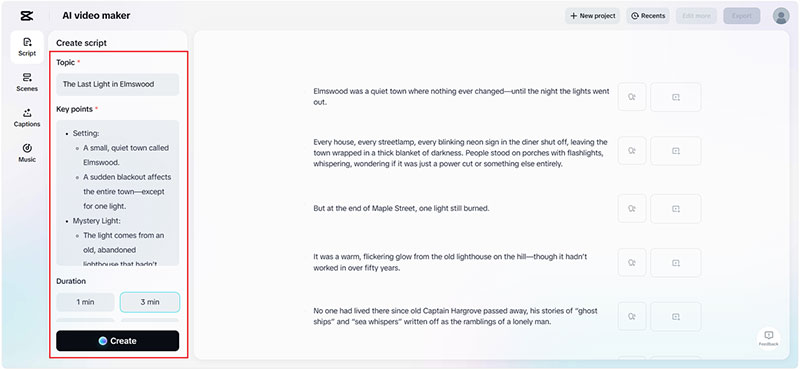
Open the “Script” feature, type your “Topic” and “Key points”, then click “Create”. The AI generates a script aligned with your promotional goal. Review it and refine the draft so it captures your brand’s voice before you move on.
Edit your video

Select the “Scenes” button to add a voiceover to each part of the script. You can generate an AI avatar or choose a ready-made one. If you only want a voiceover, switch to the “Voice” page and pick a voice that suits your brand, then click “Apply for all scenes” to set it across the whole video. Use the “Captions” button to add subtitles with the AI caption generator, and choose a background track from the “Music” library.
Export or edit more

Preview the video. If it is ready, click “Export” and save it in the format you need. If you want to refine it, click “Edit more” to open the full video editor, where you can add graphics, adjust filters and use stock elements. For editing longer videos on a computer, the guide to editing YouTube videos faster with CapCut Desktop is a good companion.
How do AI avatars and voiceovers help a promo?
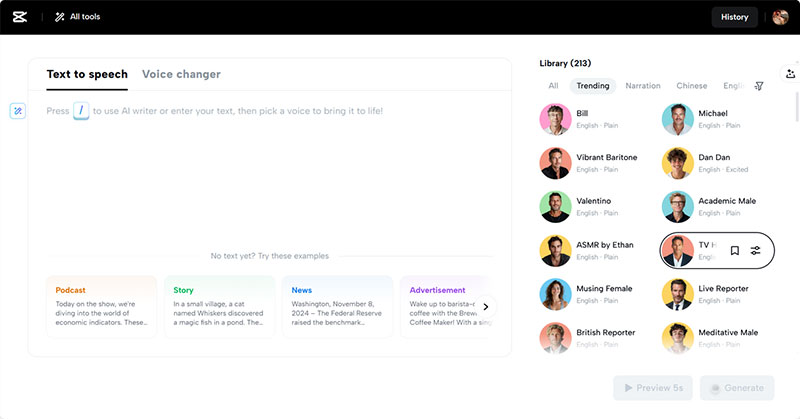
A presenter on screen gives viewers a face to connect with, and a voiceover gives the message a tone. CapCut Web lets you create avatar characters that fit your brand’s personality, and they act as virtual presenters so the promo feels more personal than text over stock footage.
The voice carries as much weight as the picture. CapCut Web offers a library of voices through its text to speech free feature. Choose one that matches how your brand would actually speak, and keep it the same across every promo so people recognise it.
How do music, captions and effects improve a promo?
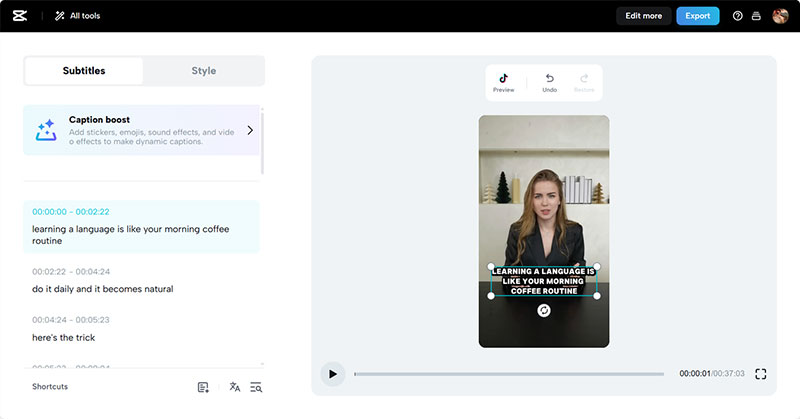
Music sets the emotional base, captions make the video usable without sound, and graphics add finish. The music library has tracks for different moods, whether energetic, inspiring or heartfelt, so pick the one that fits the offer you are promoting.
Captions created with the AI caption generator reinforce key points and make the promo accessible to a wider audience. Many people watch with the sound off, so captions often decide whether the message lands. If you need to compare options, this roundup of auto caption tools covers the alternatives. Creative graphics, animations and visual effects then complete the look.
What mistakes should you avoid with AI video promos?
The two most common problems are clutter and inconsistency.
- Too much on screen. A promo crowded with text and extra visuals buries the message. A clean, focused video has a far stronger impact.
- Mismatched fonts, colors or voice styles. Brand consistency matters, because switching styles between scenes confuses viewers and weakens the promo.
- Publishing the first draft script unchanged. Generated copy often sounds generic until you adapt it.
For more on what keeps viewers watching until the end, read these tips on creating videos that convert.
Frequently asked questions
Do I need editing experience to use an AI video maker?
No. The script, voice, avatar and captions are generated for you, so the work is mostly reviewing and choosing. You can still open the full editor if you want finer control.
Can I change the script after it is generated?
Yes. The generated script is a draft. Review and refine it so it fits your brand voice before you add voiceovers to the scenes.
How do I add the same voiceover to every scene?
Choose a voice on the “Voice” page and click “Apply for all scenes”. This sets the voiceover across the entire video in one step.
Are there other AI video tools worth comparing?
Yes, and the right pick depends on your budget and the style you want. This list of AI video generators is a useful place to compare.
How do you start your first AI video promo?
Pick one product or offer, write down the topic and three key points, and run them through the script step. Add a voice, captions and a music track, export a first version and watch it with the sound off. If the message still lands, you have a promo you can publish and refine from there.

Renowned for his expertise in logo design and visual branding, Bogdan has developed a multitude of logos for various clients.
His skills extend to creating posters, vector illustrations, business cards, and brochures. Additionally, Bogdan's UI kits were featured on marketplaces like Visual Hierarchy and UI8.
He also wrote in the past years on sites like Design Your Way, WebDesignerDepot, WPDean, Designmodo, Speckyboy, Slider Revolution, and more.

Bogdan Sandu is a seasoned designer who has been designing websites since 2008. Renowned for his expertise in logo design and visual branding, Bogdan has developed a multitude of logos for various clients. His skills extend to creating posters, vector illustrations, business cards, and brochures. Additionally, Bogdan's UI kits were featured on marketplaces like Visual Hierarchy and UI8. He also wrote in the past years on sites like Design Your Way, WebDesignerDepot, WPDean, Designmodo, Speckyboy, Slider Revolution, and more.
You Might Also Like