


Your book cover is the first thing a reader sees, and 79% of them decide whether to click or buy based on that alone (The Book Smugglers, 2025).
Learning how to make a book cover in Canva gives you a practical path to a print-ready or digital cover without hiring a designer or buying expensive software.
This guide covers everything from setting the right ebook cover dimensions and customizing templates to exporting a KDP-ready PDF for self-publishing on Amazon or IngramSpark.
Whether you need a front-only ebook cover or a full wrap print cover with spine and back, the steps here get you to a finished file.
What Is a Book Cover in Canva?

Book cover design in Canva is the process of building a front cover, back cover, and spine using Canva’s browser-based or mobile design tool, then exporting the result as a print-ready or digital file.
Canva has a dedicated book cover category with pre-sized templates and a drag-and-drop editor that works without any prior design experience. As of December 2024, users create an average of 38.5 million designs on Canva per day, and the platform has surpassed 220 million monthly active users (Backlinko, 2024).
The tool covers 3 main output scenarios:
- Digital ebook covers for platforms like Amazon Kindle Direct Publishing, Kobo, and Wattpad
- Print-ready covers for KDP paperbacks or hardcovers (full wrap: front + spine + back)
- Promotional covers for social media, landing pages, and book mockups
Canva offers both a free plan and Canva Pro ($14.99/month for 1 to 5 members). The free plan covers most design tasks. Pro unlocks the Background Remover, premium stock photos, and brand kit access, all of which come in useful for more polished cover work.
79% of readers say cover design influences whether they click or buy a book (The Book Smugglers survey, via Carma Spence, 2025). That number alone makes the quality of your cover a real business decision.
Lower-earning indie authors commonly rely on free or low-cost tools like Canva or pre-made templates to keep costs down, while higher-earning authors spend $500 or more on custom covers (Written Word Media Indie Author Survey, 2024). Canva sits squarely in the affordable tier but can produce results that compete with mid-range freelance work if used correctly.
—
What Are the Canva Book Cover Dimensions You Need Before Starting?

Starting with the wrong canvas size forces a full redesign. Set the correct dimensions before placing a single element.
Ebook Cover Dimensions
Amazon KDP’s recommended ebook cover size is 2560 x 1600 pixels with a 1:1.6 ratio (Canva, official sizing guide). The file must be JPG or PNG, and the size must stay under 50 MB.
Other platform requirements differ:
- Kobo: 1448 x 1072 pixels
- Wattpad: 512 x 800 pixels
- General cross-platform safe zone: 1500 to 1800 pixels wide at a 1:1.6 ratio
If you plan to distribute across multiple platforms, 2560 x 1600 pixels covers KDP and scales down cleanly for everything else.
Print Cover Dimensions
Print covers are more complex. KDP requires a single PDF file combining front cover, spine, and back cover.
| Platform | Format | Minimum Resolution | Bleed Required |
|---|---|---|---|
| KDP Paperback | PDF Print | 300 DPI | 0.125 inch on all sides |
| IngramSpark | PDF/X-1a | 300 DPI | 0.125 inch on all sides |
| KDP Ebook | JPG or PNG | 72 DPI minimum | None |
Spine width depends on page count and paper type. KDP’s formula for white paper: page count x 0.002252 inches. Cream paper uses a slightly different multiplier. Use KDP’s cover calculator before setting your Canva canvas width, not after.
To enter a custom size in Canva, go to File > Custom size and input your calculated dimensions in inches or pixels. Converting pixels to inches is straightforward: at 300 DPI, 1 inch equals 300 pixels.
—
How Do You Set Up a New Book Cover Project in Canva?

There are 2 ways to start: through Canva’s template library or from a blank custom-size canvas. The right choice depends on whether you’re making an ebook cover or a full print wrap.
Using Canva’s Template Search
Type “book cover” into Canva’s search bar. The results pull from the book cover template category, which includes both ebook and print-oriented layouts.
A few things worth knowing here:
- Templates marked with a crown icon require Canva Pro
- The default template size is 1410 x 2250 pixels, which is Canva’s standard book cover canvas
- This size works for general ebook use but does not meet KDP’s 2560 x 1600 pixel spec exactly
For KDP, start from a custom canvas rather than the default template size.
Setting Up a Custom Canvas for KDP or IngramSpark
Select “Custom size” on Canva’s home screen and enter your full wrap dimensions (front + spine + back + bleed on all edges). Name your project clearly before designing. Something like “BookTitleKDPWrap5×8318pages” prevents version confusion when you’re on your fourth round of edits.
Set the color profile to RGB. Canva works in RGB by default. Print services convert to CMYK during processing, but KDP handles this conversion internally. Some self-published authors who print proofs in RGB report clean, accurate results on KDP, so the RGB-to-print workflow is generally reliable on that platform.
Organizing Your Project
Use Canva’s folder system to keep design versions organized. Create a separate folder per book title and save versions by date or iteration number.
Grouping elements early (Cmd/Ctrl + G) saves significant time later. Group each design zone (title area, author name, background layer) separately so you can reposition sections without losing alignment between elements.
—
How Do You Choose and Customize a Canva Book Cover Template?
85% of Fortune 500 companies use Canva (DemandSage, 2025). That popularity also means certain templates get used constantly. Picking a heavily-used layout and changing only the text produces a cover that looks generic.
The goal is to use templates as structural scaffolding, not finished designs.
How to Filter Templates by Genre
Canva’s style tags let you filter book cover templates by genre. Search for terms like “thriller book cover,” “romance ebook cover,” or “business book cover” to narrow results.
Genre conventions in book cover design are real and reader expectations are specific:
- Thrillers: dark backgrounds, high contrast, angular fonts
- Romance: warm tones, script or serif typefaces, close-up photography
- Business/self-help: clean layouts, bold sans-serif type, minimal imagery
- Children’s books: bright colors, illustrated characters, rounded fonts
Readers use these visual cues to identify genre before they read a word. Designing against genre conventions without a clear reason tends to hurt discoverability, not help it.
How to Replace Template Images and Text
Double-click any image in a Canva template to open the crop and reposition tool. Use the “Replace” button in the toolbar to swap the stock image for one from Canva’s library or from your own uploads.
Replacing placeholder text: click any text block and type directly. Set the title in the largest text size, the subtitle smaller, and the author name at roughly half the title size. This three-tier typographic hierarchy is standard across most published covers because it guides the reader’s eye in a clear sequence.
Adjust the template’s color palette last. Swapping colors before you’ve finalized the image selection often leads to mismatches. Lock in the main image first, then adjust background and text colors to complement it.
—
What Fonts Work Best for Book Covers in Canva?

57% of people buy books based solely on their covers (Pandamonium Publishing House, 2024). Typography is one of the 2 elements (alongside the main image) that most directly drives that decision.
Title Typography
The title font must be legible at thumbnail size. Test every cover design at roughly 120 x 180 pixels before finalizing. If the title becomes unreadable at that scale, the cover will underperform in online marketplaces where most purchasing decisions happen at thumbnail view.
Practical rules:
- Minimum effective title size: 60pt equivalent in Canva
- Serif fonts signal literary fiction, historical, and professional nonfiction
- Sans-serif fonts suit business, self-help, and tech genres
- Script fonts work as accent typefaces in romance, but rarely as the primary title font at small sizes
Free fonts available in Canva that perform well for titles: Playfair Display, Bebas Neue, Libre Baskerville, and Oswald. Pro-exclusive options like Freight Display add weight when budget allows.
Author Name and Subtitle Typography
The author name typically sits at the bottom third of the cover. Keep it small relative to the title unless the author is the main selling point (established names sometimes flip this hierarchy intentionally).
Tracking and kerning matter more on covers than in body text because every letter is large enough to show spacing flaws. Add 50 to 100 units of letter spacing (tracking) to author name text set in all caps. It reads more cleanly and avoids the cramped look that condensed cap settings often produce.
Use Canva’s font pairing suggestions under the text panel as a starting point, but always check pairings at the actual sizes you’re using. A pairing that looks balanced in the preview window sometimes falls apart at cover scale. You can also use a font pairing generator to test combinations before committing.
—
How Do You Add and Edit Images on a Canva Book Cover?
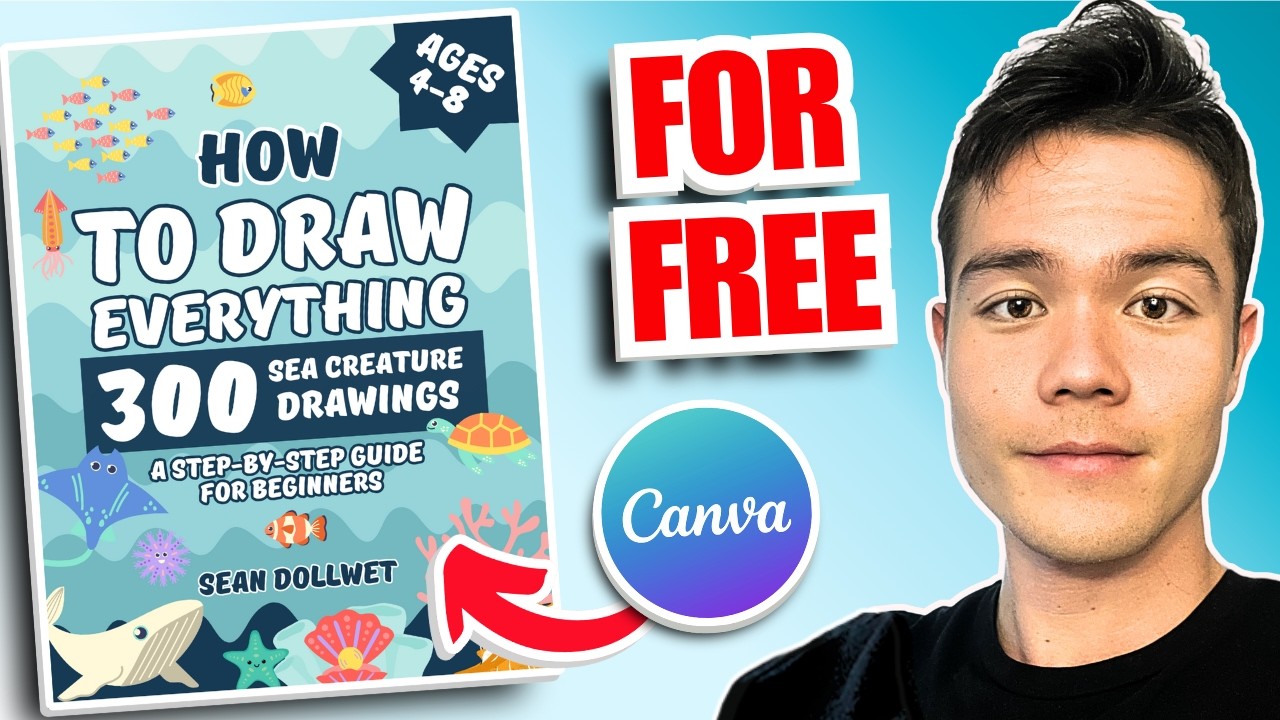
The main cover image does most of the visual work. Everything else — typography, color, layout — reinforces the message the image sets up. Getting the image right comes before anything else in the design process.
Sourcing Images for Your Cover
Canva’s built-in stock library includes both free and Pro-licensed photos. Free images are marked clearly in the search results. Pro images show a crown icon and require a Canva Pro subscription to use without watermark on export.
For images not available in Canva’s library, 3 reliable external sources work well:
- Unsplash: free, high resolution, commercially licensed
- Adobe Stock: paid, large inventory, genre-specific options
- Commissioned illustrations: relevant for fantasy, sci-fi, and children’s books where stock photography rarely fits
Upload external images via the “Uploads” panel on the left sidebar. Canva accepts JPG, PNG, SVG, and most standard formats. For print covers, upload source files at 300 DPI or higher. Low-resolution uploads that look sharp on screen often print with visible pixelation. This is one of the most common reasons KDP covers get rejected or look poor in print proofs.
Placing and Adjusting Images
Drag an image onto the canvas and use the layer panel to position it behind or in front of other elements. Double-click to enter the crop view, then drag to reposition the image within its frame.
Canva’s image editing toolbar (appears when an image is selected) gives direct control over brightness, contrast, saturation, and sharpness. Adjust these before adding text overlays. A slightly desaturated or darkened background makes white or light title text much more readable.
The Background Remover tool (Canva Pro) isolates subjects from their backgrounds in one click. It works well for clean product-style images and portrait photos. It produces messier results on complex backgrounds or illustrations with fine detail. Check the edges at 100% zoom before relying on it for a print-ready file.
Color and Image Consistency
Canva works in RGB color mode. Colors will appear differently in CMYK print output. Reds and oranges tend to shift the most. If printing with KDP, download a proof copy before finalizing the cover file. Authors who print proofs in RGB on KDP generally report accurate results, but bright saturated colors are worth checking specifically.
Social media platforms like Instagram and TikTok now drive up to 30% of book sales (NPD Group, 2025). Your cover image needs to hold up not just in online bookstore listings but as a standalone visual in social media contexts where no title text accompanies it.
—
How Do You Use Canva’s Design Elements on a Book Cover?

Design elements in Canva include shapes, lines, frames, borders, textures, and decorative graphics. Used well, they build visual hierarchy and strengthen genre signals. Used poorly, they add noise.
Shapes and Text Backgrounds
A semi-transparent shape behind title text solves most readability problems without hiding the background image.
The workflow: add a rectangle from the Elements panel, position it behind the text layer, reduce opacity to 40-70%, and set the fill color to black, white, or a color from the cover palette. This approach is common in thriller and business book covers where high-contrast text is required but the background image needs to stay visible.
Contrast between text and background is the most important factor in cover readability. A beautiful font on a complex background that makes the title hard to read is a worse outcome than a simple font on a clear background.
Decorative Elements and Genre Signals
Filter Canva’s Elements panel by style keywords like “vintage,” “minimal,” “grunge,” or “watercolor” to find elements that match your genre.
| Genre | Effective Element Types | Elements to Avoid |
|---|---|---|
| Literary fiction | Minimal frames, single texture overlays | Busy borders, multiple decorative layers |
| Fantasy / Sci-fi | Illustrated borders, star/space textures | Generic stock photo frames |
| Romance | Floral accents, soft texture overlays | Angular geometric shapes |
| Business / Self-help | Clean lines, minimal icons | Decorative flourishes, heavy texture |
Layering and Grouping
Use the Position panel (right-click any element and select “Position”) to manage stacking order. Group all text elements together (Cmd/Ctrl + G) once placement is finalized. This prevents accidental repositioning when you adjust background layers.
Alignment tools in Canva (available in the toolbar when multiple elements are selected) center and distribute elements with precision. Manual placement by eye almost always produces slightly off-center results that become obvious in print. Use the alignment tools every time.
White space on a book cover is not empty space. It gives the title room to breathe and stops the design from looking cluttered. The covers that tend to fail on Canva are the ones that try to fill every area. Less is usually more, especially for genres like literary fiction, business, and self-help.
How Do You Handle the Book Spine and Back Cover in Canva?

A full wrap print cover is a single wide canvas containing 3 zones: back cover on the left, spine in the center, and front cover on the right. Canva does not generate this automatically. You build it manually from a custom-sized canvas.
The spine width is not a guess. On white paper, KDP calculates spine width as page count x 0.002252 inches. Cream paper uses 0.0025 inches per page. A 300-page book on white paper needs a spine of 0.6756 inches (Bookshelfie, 2025). Incorrect spine width is the most common reason KDP rejects full-wrap cover files.
Spine Width Calculation
Always finalize your page count before calculating spine width. Adding or removing even one chapter changes the spine width and invalidates the entire canvas dimension.
The process:
- Run your page count through KDP’s cover calculator (available at kdp.amazon.com)
- Note the spine width in inches
- Full canvas width = (2 x trim width) + spine width + (2 x 0.125 inch bleed)
- Full canvas height = trim height + (2 x 0.125 inch bleed)
Enter these calculated dimensions into Canva via File > Custom size. Do not resize the canvas after design work begins. Resizing after elements are placed shifts layers unpredictably.
Back Cover Layout
80% of readers say a poor cover makes them avoid buying a book (Parker Publishers, 2024). The back cover is the second thing they see after the front.
Standard back cover structure:
- Book blurb: top half of the back panel
- Author bio and photo: lower third
- Barcode placeholder: bottom right, minimum 2 x 1.2 inches, clear of edge by at least 0.25 inches
KDP and IngramSpark both generate a barcode automatically during upload if you leave the barcode zone blank. You do not need to create one in Canva. Just leave the space clear.
Use Canva’s Rulers and Guides (View menu) to mark the spine boundaries as vertical guides before placing any text. Spine text that drifts outside its zone gets cut or wraps awkwardly in print. Rotate spine text 90 degrees using Canva’s rotation handle. Text should read from bottom to top when the book lies face-up.
Canva vs. IngramSpark Color Requirements
Canva exports in RGB by default. KDP handles the RGB-to-CMYK conversion internally and generally produces accurate results. IngramSpark prefers CMYK and will flag an RGB upload with a warning, though the file is still accepted (Vania Margene Rheault, updated June 2025).
Canva Pro users can now choose between RGB and CMYK at export. For IngramSpark, select CMYK in the export dialog. For KDP, RGB works fine. If you notice colors look darker than expected in CMYK, lighten the cover slightly before exporting the IngramSpark version.
—
How Do You Review a Book Cover Design Before Exporting?
Exporting without reviewing costs time. KDP’s upload-to-feedback cycle can take hours. One review pass in Canva before export catches most rejection triggers.
| Check | What to Look For | Tool in Canva |
|---|---|---|
| Text safety margin | All text 0.25 inch inside trim edge | Rulers and Guides |
| Thumbnail readability | Title legible at 120 × 180 px | Zoom out or resize browser |
| Image resolution | No pixelation at 100% zoom | Zoom to 100% |
| Pro element watermarks | No unpurchased Pro assets | Check crown icons before export |
Thumbnail and Full-Screen Review
Most book purchases happen in online marketplaces where covers display at thumbnail size. A cover that looks great at full canvas size can become unreadable at 120 x 180 pixels.
Test thumbnail readability before exporting. Zoom the browser out to roughly 50% of full size, or use Canva’s “Present” mode (Share > Present) to preview the cover full-screen.
The title must be legible. The author name does not need to be legible at thumbnail size but should be readable at medium size (roughly 300 x 450 pixels). Background detail matters much less than text contrast at this scale.
Checking for Free-Plan Watermarks
Canva’s free plan marks Pro elements with a crown icon in the editor. Those crown elements generate a watermark on export unless you purchase the element individually or upgrade to Canva Pro before downloading.
Scroll through every layer before exporting. Any crown-marked element that you have not purchased will appear as a watermark in the final file. Either replace it with a free element or purchase it. Uploading a watermarked cover to KDP leads to immediate rejection.
Bleed Area Check for Print Covers
Enable bleed marks in Canva’s export dialog (PDF Print > check “Crop marks and bleed”). This makes the bleed area visible in the exported file so you can confirm background images extend fully to all edges.
Any white edge visible between your background and the bleed boundary in the export preview will appear as a white stripe on the printed book. Extend all background images and color fills at least 0.125 inches past the trim edge on every side. This is the most common source of KDP print rejection for covers designed in Canva.
—
How Do You Export a Book Cover from Canva for KDP or IngramSpark?

Export settings differ by platform and cover type. Using the wrong settings produces files that either get rejected outright or print with color or resolution problems.
Exporting for KDP
KDP ebook cover: export as JPG or PNG. File size must stay under 50 MB. Resolution of 72 DPI is the technical minimum, but exporting from a 2560 x 1600 pixel Canva canvas produces a file that exceeds KDP’s quality threshold regardless of the DPI label.
KDP print cover (full wrap PDF):
- Download as PDF Print
- Check “Crop marks and bleed” in the export dialog
- Check “Flatten PDF” to embed fonts and prevent layer shift issues during printing
- Do NOT select “Include crop marks and bleed” if your canvas dimensions already include the bleed area
Flattening the PDF converts all layers into a single image layer. This prevents the white line artifacts that sometimes appear across Canva covers when transparencies are not merged before upload (The Home Boss, 2024).
Exporting for IngramSpark
IngramSpark requires PDF/X-1a format. Canva does not export PDF/X-1a natively. The standard PDF Print export from Canva is accepted by IngramSpark but may trigger a color profile warning.
2 options for IngramSpark:
- Export as PDF Print (CMYK, Canva Pro required) and accept the color profile warning
- Convert Canva’s PDF output to PDF/X-1a using Adobe Acrobat Pro or an online converter like PDF2CMYK before uploading
IngramSpark also requires the cover as a standalone file, front-only, for ebook distribution. Never upload the full-wrap print PDF as an ebook cover. It will be rejected. Export a separate front-cover-only version at the correct ebook dimensions for digital distribution (ebook covers must be RGB, per IngramSpark’s official specs).
File Naming Before Upload
Name files clearly before uploading to either platform. Something like BookTitleKDPPrintCoverv3.pdf or BookTitleEbookCover_2560x1600.jpg prevents uploading the wrong version, which is a more common error than it sounds, especially when you have multiple revised versions saved in the same folder.
—
What Are the Common Canva Book Cover Mistakes and How Are They Fixed?
Most Canva cover problems fall into 2 categories: technical errors that cause platform rejection, and design errors that hurt sales. Both are avoidable.
80% of readers say they avoid buying a book with a poor cover (Forbes, cited in Parker Publishers 2024). Technical rejection means the book never appears at all. Design errors mean it appears but does not convert.
Technical Errors That Cause KDP Rejection
Wrong spine width is the single most frequent rejection cause. If you add or remove pages after calculating spine width, your entire canvas is the wrong size. Rebuild the canvas from the new page count before redesigning.
Other common technical errors:
- Text too close to the edge (KDP requires 0.25 inch inside trim on all text)
- Background does not extend to bleed (leaves white edges in print)
- Low-resolution uploaded images that print pixelated (source files must be 300 DPI or higher)
- Watermarked Pro elements from the free plan
- Unflatted PDF with transparency layers (causes white stripes in print)
Design Errors That Hurt Sales
Using a heavily-used default Canva template without customization produces a cover that looks identical to dozens of others in the same genre. Authors who sell well in Canva generally use templates as structure only, replacing all images, fonts, and colors (Whimsy Studios, 2025).
Genre mismatch is more costly than poor execution. A well-executed cover that signals the wrong genre confuses readers and produces low click-through rates regardless of technical quality.
The biggest design mistakes:
- Mismatched genre signals (wrong font psychology or color conventions for the genre)
- Title unreadable at thumbnail size
- Too many design elements competing for attention, no clear focal point
- Poor contrast between text and background image
Color Shift Between Screen and Print
Colors appear differently in RGB (screen) and CMYK (print). Reds and oranges shift most noticeably. Neon or highly saturated colors are the riskiest choices for print covers because they tend to print darker and flatter than they appear in Canva.
Order a proof copy before approving a print run. KDP offers author proof copies at cost price. This is the only reliable way to check how your specific color choices translate to print. Adjusting hex values by 10-15% brighter before the CMYK export compensates for darkening in most cases. Use an RGB to CMYK converter to preview approximate shifts before exporting.
Canva also offers cover mockups that let you preview how your design looks on a physical book before exporting. It is worth spending 5 minutes on this step. Seeing the cover on a 3D book surface reveals spacing and proportion issues that are invisible in the flat canvas view.
FAQ on How To Make A Book Cover In Canva
Can you make a book cover in Canva for free?
Yes. Canva’s free plan includes book cover templates, stock photos, and basic design elements. You can export as JPG or PNG at no cost. Pro elements marked with a crown icon require a paid subscription or individual purchase before downloading without a watermark.
What size should a book cover be in Canva for KDP?
For a KDP ebook cover, use 2560 x 1600 pixels at a 1:1.6 ratio. For a print cover, calculate your full wrap dimensions using KDP’s cover calculator, which factors in trim size, page count, paper type, and the required 0.125-inch bleed on all sides.
How do you make a full wrap print cover in Canva?
Use Canva’s Custom Size option to set a canvas that includes front cover, spine, and back cover as one wide file. Calculate spine width first using KDP’s formula. Add guides via Rulers and Guides to mark spine boundaries before placing any text or images.
Can Canva export a print-ready PDF for KDP?
Yes. Download as PDF Print and check “Crop marks and bleed” and “Flatten PDF” in the export dialog. Canva Pro users can also select CMYK color profile. This produces a file that meets KDP’s submission requirements for paperback print covers.
Does Canva work for IngramSpark book covers?
Canva works for IngramSpark, with one limitation. IngramSpark prefers PDF/X-1a format, which Canva does not export natively. Export as PDF Print using CMYK (Canva Pro), then convert to PDF/X-1a via Adobe Acrobat or an online converter before uploading.
What fonts work best for book covers in Canva?
It depends on genre. Serif fonts suit literary fiction and nonfiction. Sans-serif works for business and self-help. Free options like Playfair Display, Bebas Neue, and Libre Baskerville perform well. Always test title legibility at thumbnail size before finalizing any font choice.
How do you add spine text in Canva?
Add a text box, type your spine content, then rotate it 90 degrees using Canva’s rotation handle. Text should read bottom to top when the book lies face-up. Use Rulers and Guides to keep spine text centered within the calculated spine width zone.
What is the difference between an ebook cover and a print cover in Canva?
An ebook cover is a single front-cover image exported as JPG or PNG. A print cover is a full wrap PDF that includes the back cover, spine, and front cover as one file. Print covers require bleed, safety margins, and precise spine width calculations that ebook covers do not.
Can you remove a background from a book cover image in Canva?
Yes, with Canva Pro. The Background Remover tool isolates subjects in one click. It works cleanly on portraits and simple product images. Check results at 100% zoom before using in a print-ready file, as complex backgrounds sometimes leave rough or uneven edges after removal.
How do you export a Canva book cover without a watermark?
Any element marked with a crown icon in the editor requires purchase before export. Either replace crown-marked elements with free alternatives, buy them individually, or upgrade to Canva Pro. Exporting with unpurchased Pro elements embeds a visible watermark that will cause platform rejection.
Conclusion
This conclusion is for an article presenting a complete workflow for Canva book cover design, from setting correct canvas dimensions to exporting a print-ready PDF for Kindle Direct Publishing or IngramSpark.
Getting the spine width right, extending your background image to the bleed edge, and testing thumbnail readability are the 3 steps that separate rejected uploads from published covers.
Typography choices, genre-specific color palettes, and proper layer grouping all feed into a cover that converts browsers into buyers.
Canva handles the full process, front cover, spine text, back cover layout, and final export, without requiring professional design software.
Apply the specs, review before exporting, and order a proof copy. That workflow works every time.

Renowned for his expertise in logo design and visual branding, Bogdan has developed a multitude of logos for various clients.
His skills extend to creating posters, vector illustrations, business cards, and brochures. Additionally, Bogdan's UI kits were featured on marketplaces like Visual Hierarchy and UI8.
He also wrote in the past years on sites like Design Your Way, WebDesignerDepot, WPDean, Designmodo, Speckyboy, Slider Revolution, and more.
- Canva vs PowerPoint: Which Is Better for Presentations? - 22 September 2026
- How to Install Fonts on Mac (Step-by-Step Guide) - 20 September 2026
- From Mockup to Code: How AI-Augmented Development Speeds Up the Design Handoff - 19 September 2026

Bogdan Sandu is a seasoned designer who has been designing websites since 2008. Renowned for his expertise in logo design and visual branding, Bogdan has developed a multitude of logos for various clients. His skills extend to creating posters, vector illustrations, business cards, and brochures. Additionally, Bogdan's UI kits were featured on marketplaces like Visual Hierarchy and UI8. He also wrote in the past years on sites like Design Your Way, WebDesignerDepot, WPDean, Designmodo, Speckyboy, Slider Revolution, and more.
You Might Also Like


