Imagine this: you’re about to sail the vast ocean of digital art, your canvas sprawling before you like an untouched beach at dawn.
But wait-what about your tools? In the realm of Adobe Photoshop, where your creativity runs as wild as the sea, Photoshop drawing brushes are your trusty vessels, guiding each stroke to uncharted territories of artistry.
Dive in, and you’ll discover the secret coves where custom brush presets dance and the cliffs where texture brushes carve out masterpieces.
Whether you’re a novice explorer or a seasoned captain of design, the right brushes can elevate your artwork from basic sketches to awe-inspiring visuals that tell a story.
By the end of this voyage, you’ll have charted a course through the essentials of brush settings in Photoshop, unlocking the potential of tools like pressure-sensitive brushes and airbrushing techniques.
Prepare to anchor in the harbor of knowledge, where tips and tricks on using digital painting brushes await to transform your visions into incredible digital realities.
Photoshop drawing brushes
Pencil Photoshop brush – Don’t litter your canvas
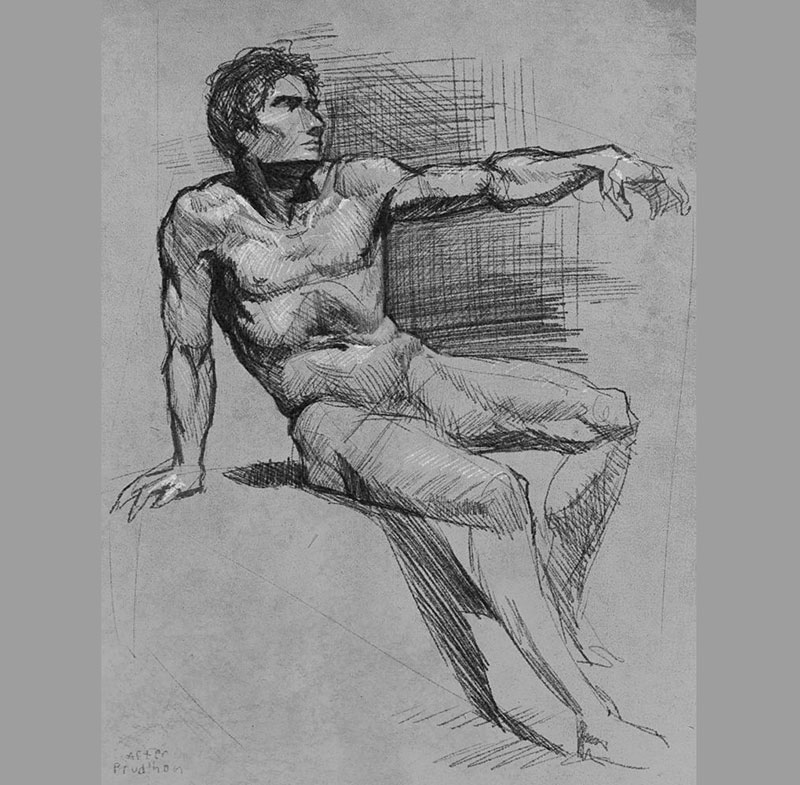
The problem with traditional art is that it is often difficult to keep the canvas clean, especially when using pencils. You don’t have to worry about this in digital projects, but it is also difficult for you to get a pencil-like line. If you want to make thick strokes similar to those of a soft pencil, this brush will help you.
Sakimichan Pack – A functional classic
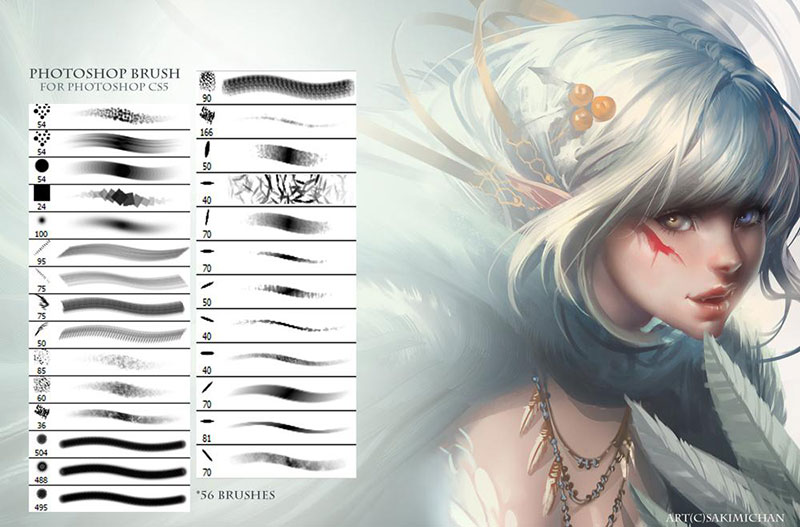
No matter how much time passes, the Sakimichan package never loses relevance in digital design. This consists of 56 Photoshop painting brushes that cover a wide variety of options. It doesn’t matter if you are doing a traditional pencil drawing or a colorful Renaissance painting, the package will allow you to stand out with ease.
Photoshop Art Brush Set – So you don’t run out of options
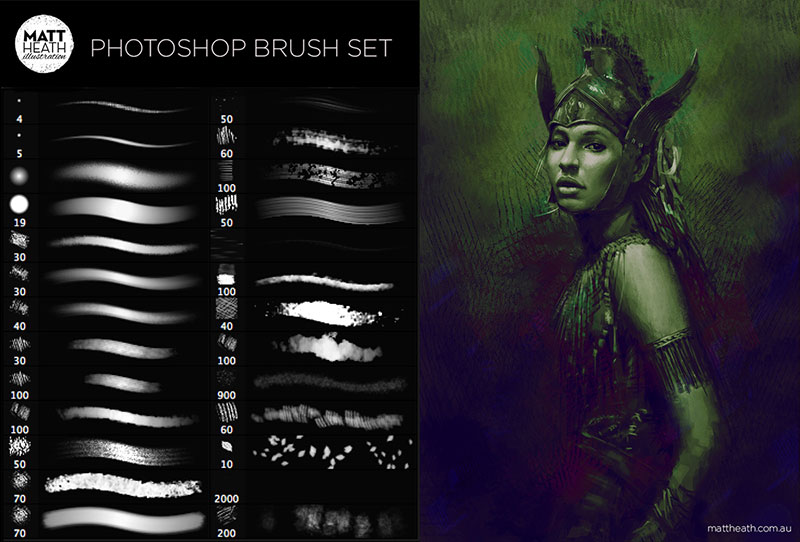
You may not use all of the brushes in this set, but that’s no reason not to give them a chance in your traditional media collection. After all, you never know when any of the 110 brushes will be useful to you. Additionally, not all the time you find this quality in such a large set.
Realistic charcoal Photoshop brush – The beauty of charcoal
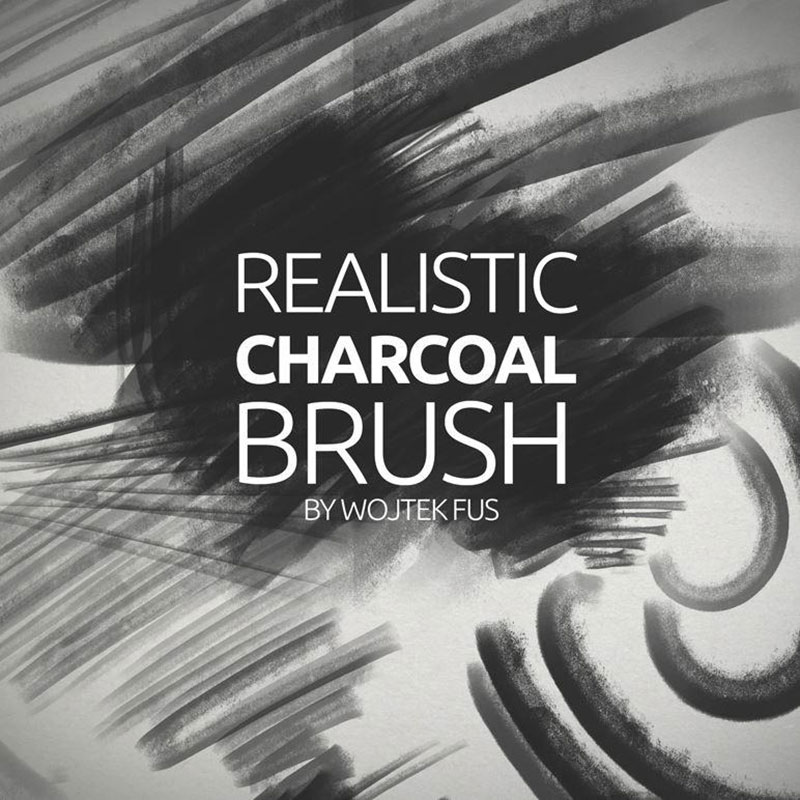
If you need a Photoshop sketch brush, your best option may be to use charcoal. As they are digital pencils, you do not suffer the inconvenience of getting your hands dirty and damaging the rest of your canvas.
Pencil Brushes – Pencils of different caliber
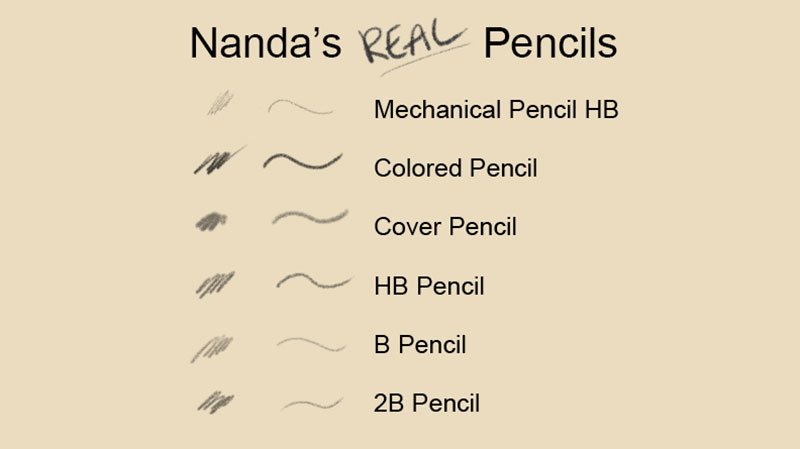
Artists know how to take advantage of each of the different pencils available. These have mines of different thicknesses and hardnesses that allow creating smooth or strong lines. If you are in favor of using all the pencils you can in the same project, then you will be fascinated by this small set with six alternatives.
The set includes an HB, 2B, B pencil, HB mechanical pencil, a masking pencil, and a perfect texture for coloring.
24 Solid Ink Brush Photoshop – Let the ink be marked
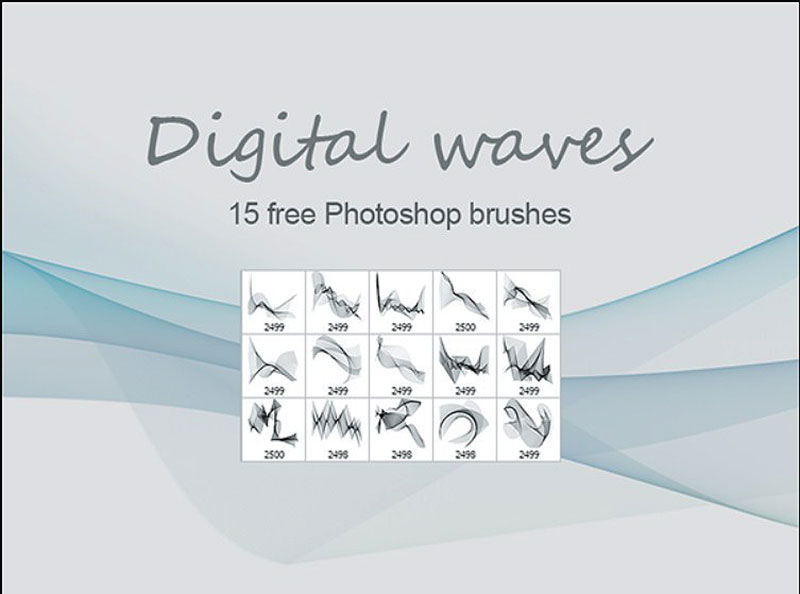
If you’re looking for Photoshop inking brushes, you may want to start with this set of 24 alternatives. You won’t have to worry about getting a solid finish with the paint, as these brushes include multiple options with which you can create wet, dry or worn strokes, and much more.
Free Photoshop illustration brush set – Natural thicknesses
For a realistic look, this set was created by scanning true strokes of an 8B Staedtler pencil. The result can be seen in the multiple customizable brushes. You can donate to support the author’s work, or you can put an amount of $0 to download them free.
Charcoal Photoshop Brushes – Resolution makes the difference
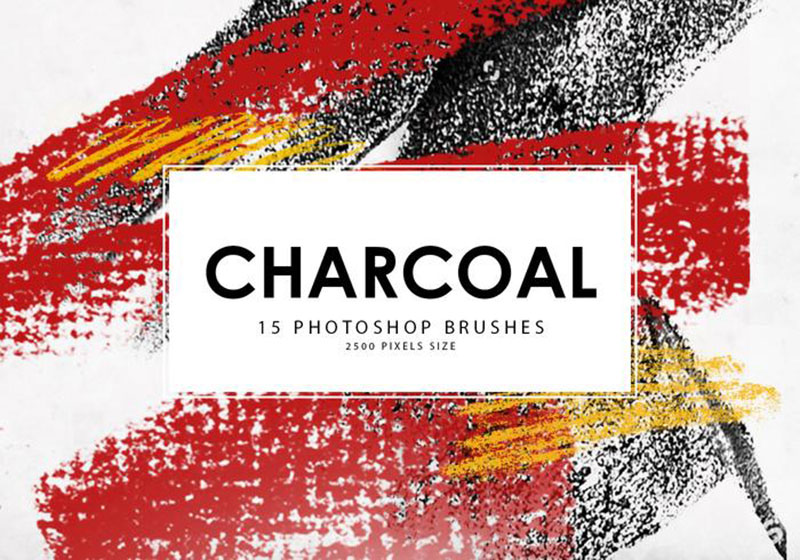
When the resolution of a brush is not good, this will be noticed when making large drawings. To avoid creating sharp edges, you need something of immense size, like the 15 charcoal brushes in this set. Each one has a 2,500px resolution, so you can appreciate all the details when drawing.
Pearlpencil Winter Brushes – So you have complete control
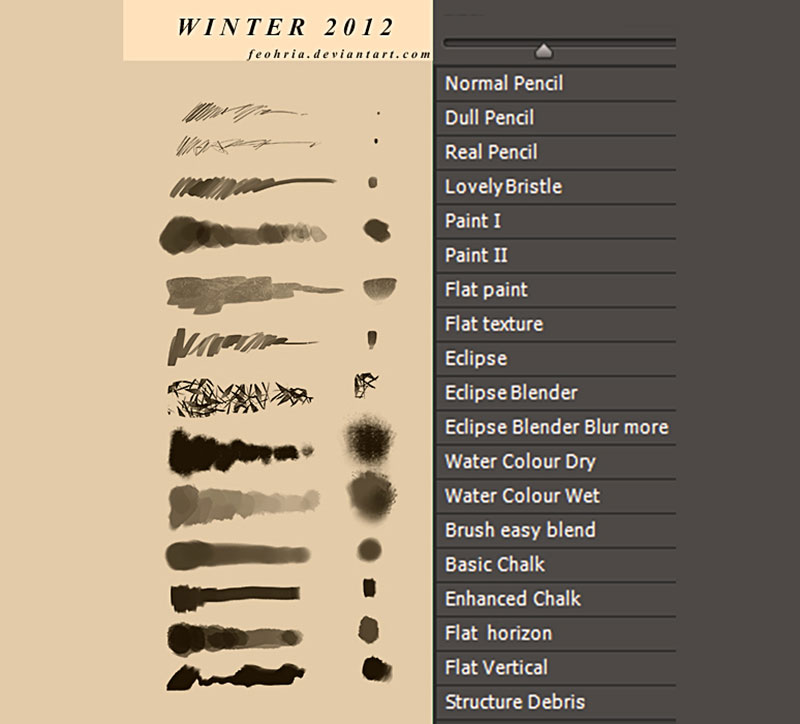
Some Photoshop drawing brushes offer you a basic finish that you can later modify as you wish. That is the main proposal of this set that is compatible with Photoshop CS3 and higher. You can also use them in their basic state without problems.
Photoshop Tool Preset Brushes Set #1 – A different setting
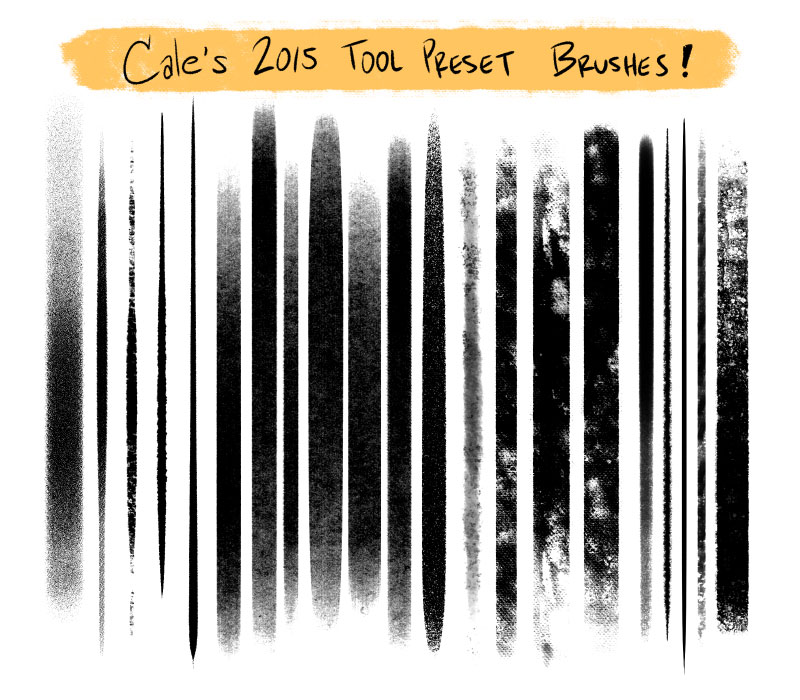
Most Photoshop brushes for drawing are not found in the Tool Preset format, but that does not change the usefulness of this package. It is a fact that you must take into account when you install them to find them. Also, consider that the brushes on this link can be used for both commercial and personal projects, so it’s worth checking them out.
Pencil Brush Photoshop – Solves compatibility problems
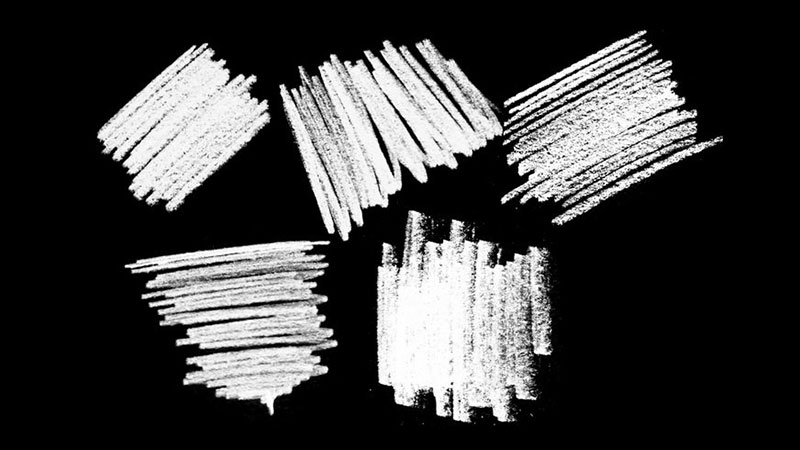
In case you have trouble getting a brush compatible with your Photoshop version, you can try this set. Don’t worry about its quality, as it has brushes in high definition for monochrome strokes and complex textures.
7 Charcoal Brushes – Partners for the entire project
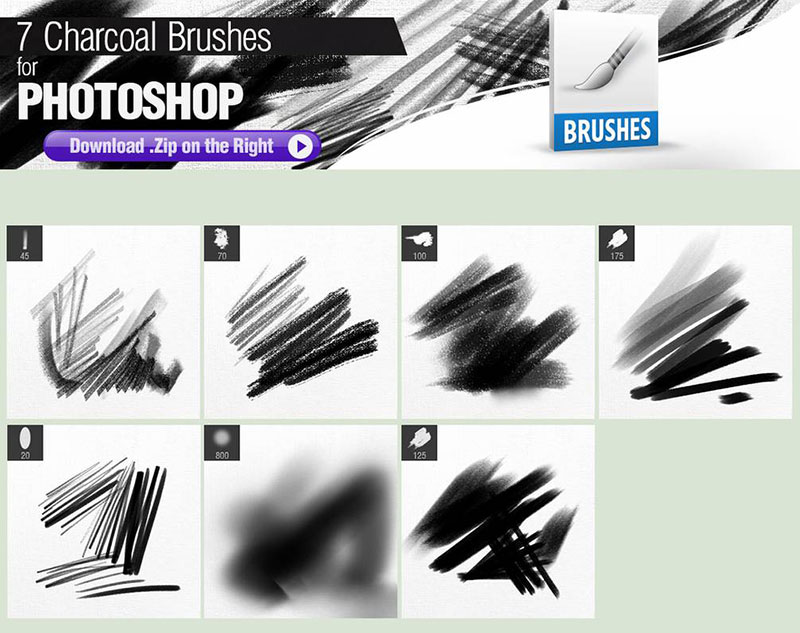
Achieving a traditional design requires a combination of the right tools and techniques. This set will try to solve both problems by offering you traditional brushes for each of the project phases.
This way, you can download a brush for preliminary drawings, a pressure-sensitive brush for larger strokes, a brush for fine details, three brushes for shading, and a brush for strong shadows.
Flat And Dry Photoshop Brushes – Beautiful panoramas
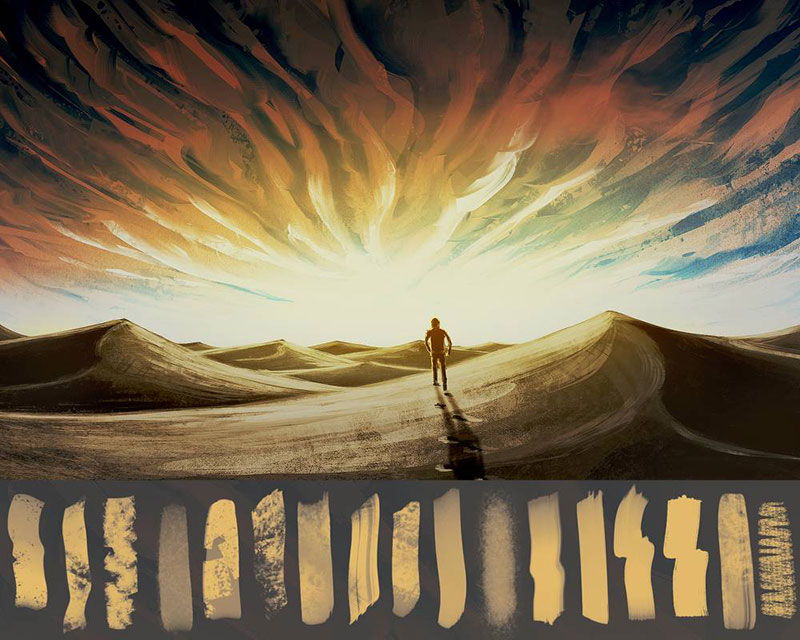
These Deviant Art Photoshop brushes offered by the glassthroughskin user include a variety of dry and simple options with which you can create beautiful scenes of any type. With a few strokes, you will be able to recreate an oil painting effect.
New Brushes Pack – All possible options
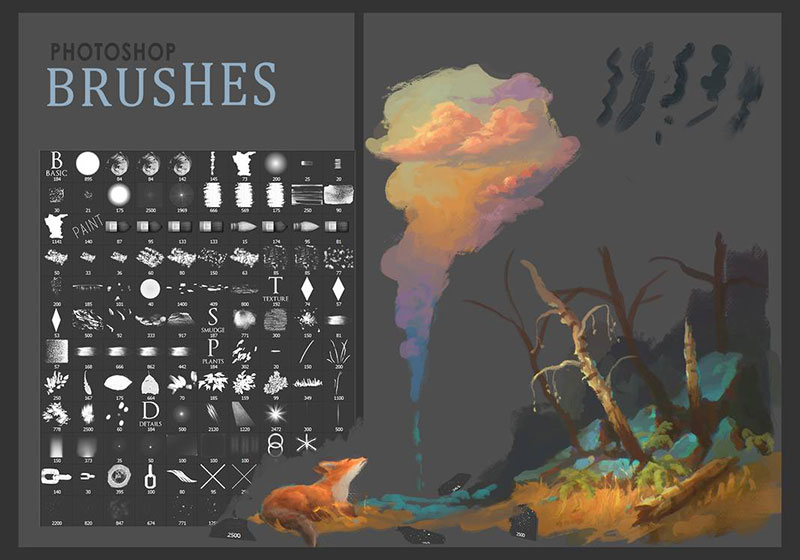
For large collectors, you cannot miss one of the most complete Photoshop drawing brushes packages that you can find on the internet. When you don’t know if you want to draw something stylized or with a traditional style, it is best to have 70 options available to decide.
Free Technical PS Brushes – Engineering projects
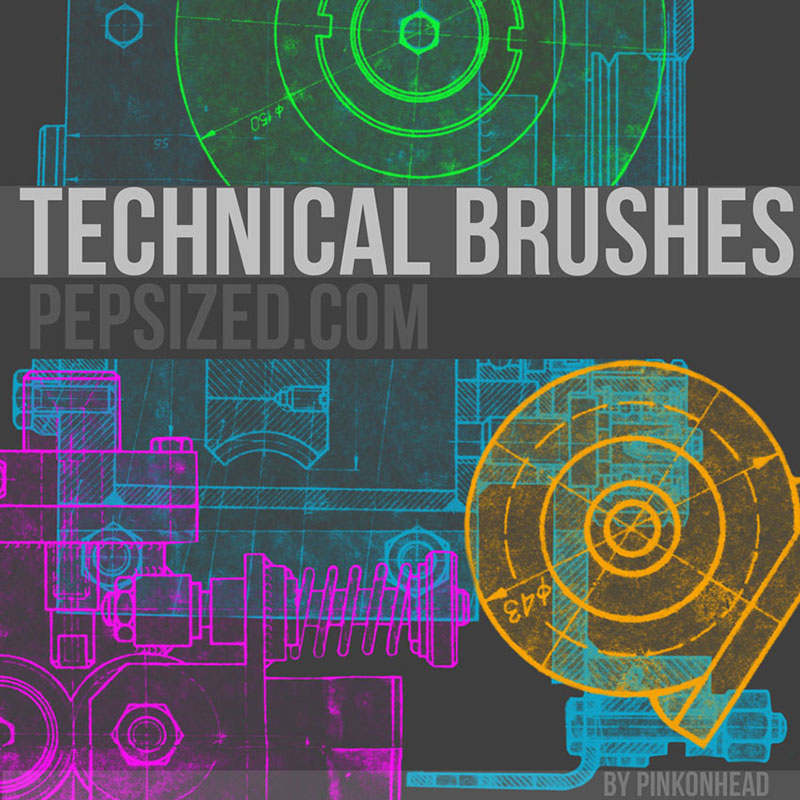
Although Photoshop is great for drawings, some people may need more technical options. You don’t need to go to another program if you download the right brushes.
Free Ink Brushes for Photoshop – The definitive collection
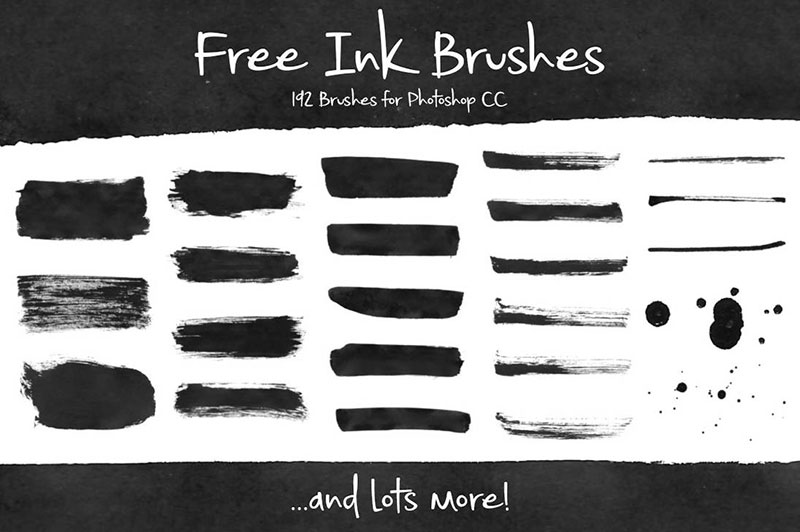
If you really don’t know what to use for your project, then you should start by downloading this set. You will find 192 brushes of different styles, all available for commercial and personal use. If you felt you didn’t have enough Photoshop painting brushes, that will be fixed with this link.
Colored Pencil Brush Set – A life full of color
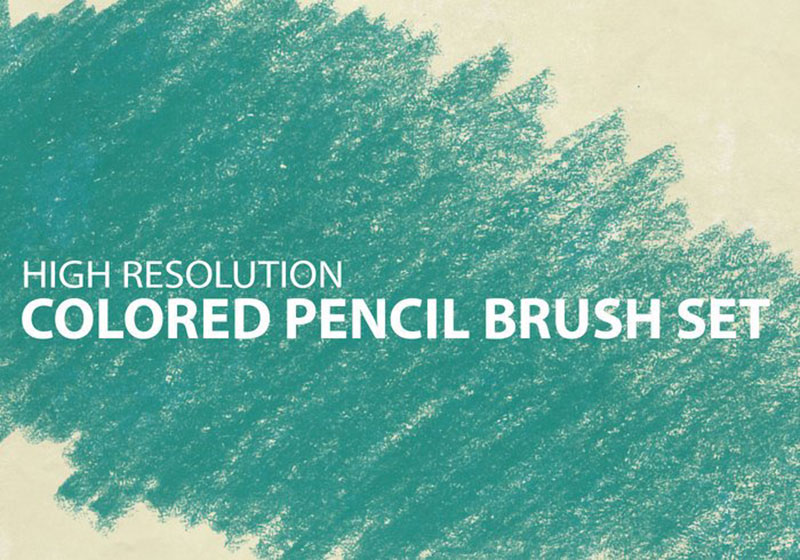
The unique texture of colored crayons is something that always catches your eye. They have a rough appearance that tends to leave white streaks in the drawings, which softens the final color.
Real Markers for Photoshop Free Brushes – Premium quality
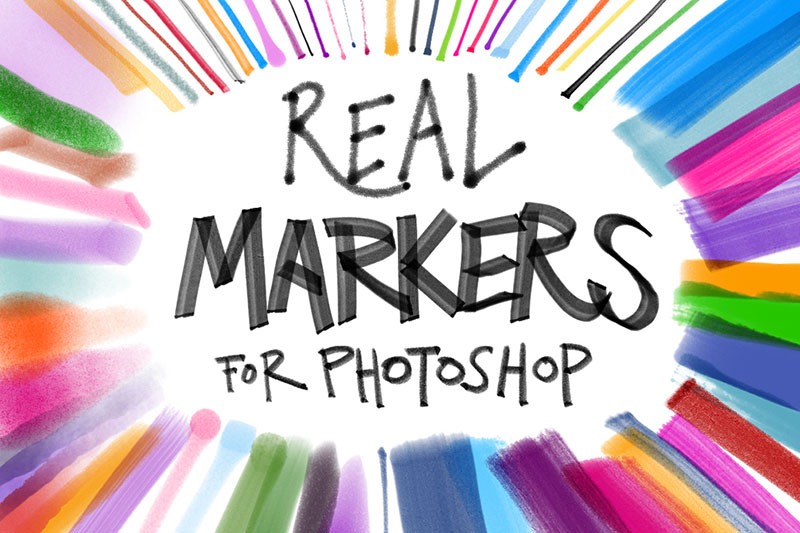
This set may seem small, but it is a free sample of a much larger set. However, they will be enough to make high-quality strokes.
Free Photoshop Environment Brushes – For realistic landscapes
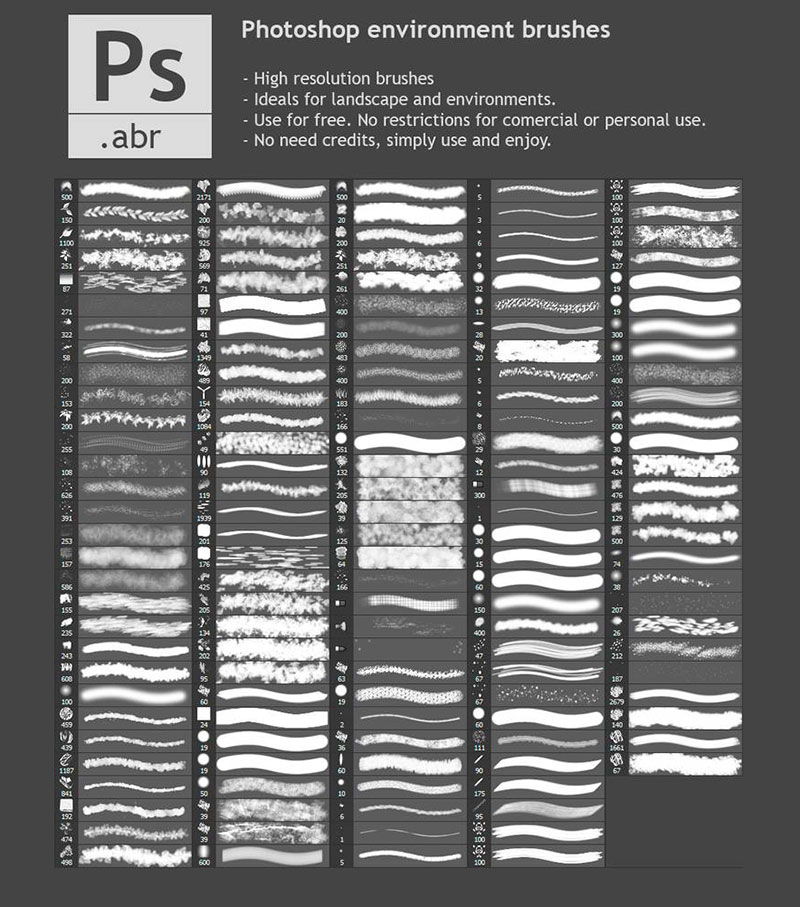
Recreating all the existing textures in nature is very difficult, but it is possible to facilitate the work thanks to the appropriate digital painting brushes. Photoshop CS5 users and beyond will find this free set useful.
Black & White Photoshop Brush Strokes – Create contrast
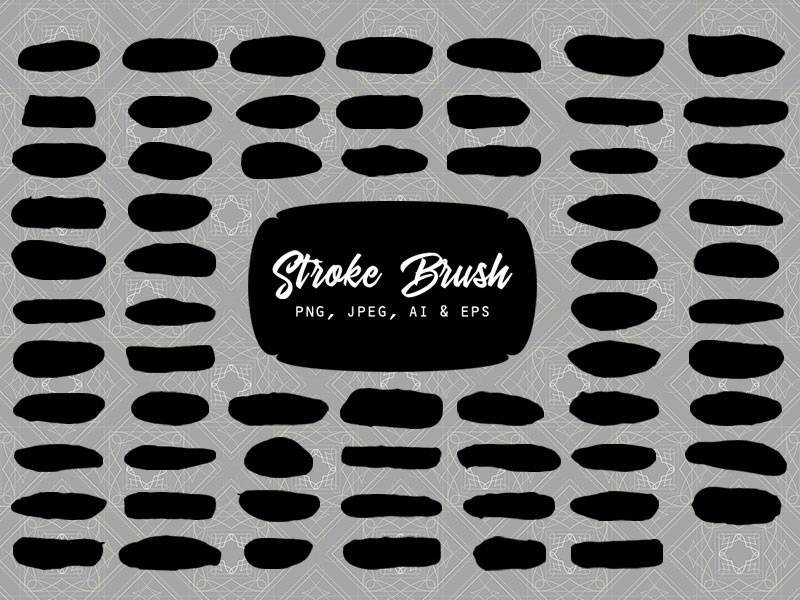
The black and white brushes will allow you to create drawings with high contrast. Of course, that doesn’t mean you can’t use the 65 brushes included in the pack to add color, but they will stand out a lot more in monochrome designs.
Sketchy Cartography Brushes – For Map Fans
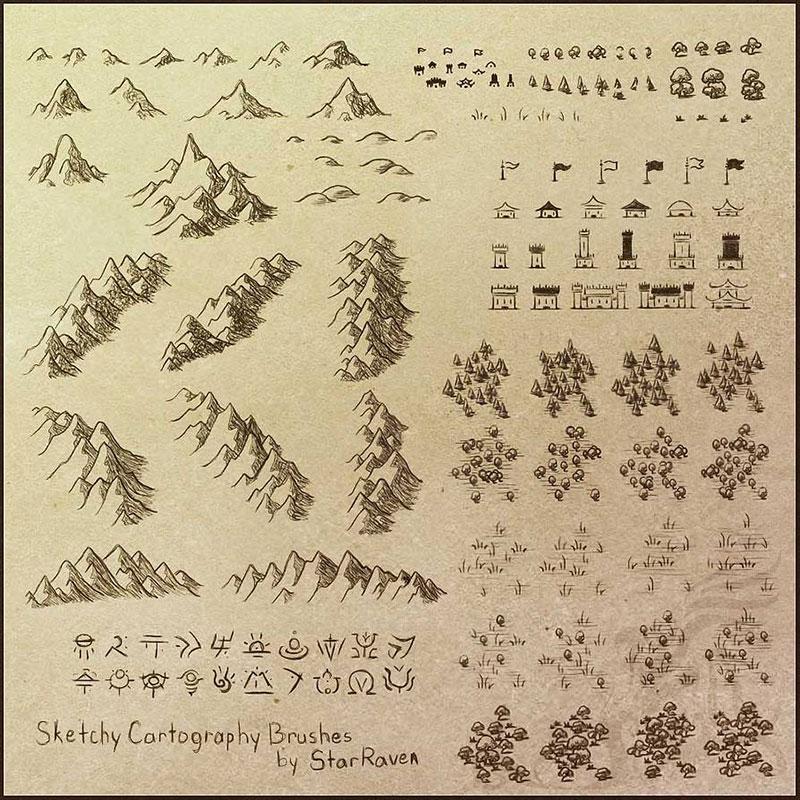
With this final set of Photoshop drawing brushes, you can create any type of map, from real to fantastic. It includes multiple symbols used in cartography to demarcate landmarks, such as grass, trees, mountains, and roads.
FAQ about Photoshop drawing brushes
How do I find and install new Photoshop drawing brushes?
Let’s get those creative tools loaded! Head over to the Brush Preset Panel in Photoshop. Hit that ‘gear’ icon, and click ‘Import Brushes.’ Now, find the brush pack you downloaded-usually a ‘.abr’ file-and load it. Voilà, you’ve got a whole new set of brushes ready to rock.
Can I create my own custom brush in Photoshop?
Absolutely. Dive into the Brush Settings Panel, play with the settings until you find the magic you want for your stroke. Once you’ve got it, save that beauty by creating a new preset. Bam! Your own Photoshop brush, unique as your artistic fingerprint.
What’s the difference between a brush and a preset in Photoshop?
Alright, brush is the tool, right? Like your digital paintbrush. But a preset? That’s your customized setting for that tool. It remembers the size, texture, and all the tweaks you’ve made. Suppose you’ve got a favorite setting; you save it as a preset for next time. Easy.
Are Photoshop brushes compatible across all versions of Photoshop?
Not all heroes wear capes, folks. Some just get compatibility issues sorted. Most newer brushes play nice with recent versions, but if you’re rocking a classic Photoshop edition, you might hit some snags. Always check the brush requirements before you download.
How can I organize my Photoshop brushes effectively?
Organization is key, friends. Right there in Photoshop’s Brush Preset Panel, you can sort your masterpieces into groups. Think of it like your art studio’s shelves. Label each group by style or project-say, “Ink Brushes” or “Watercolor”-and watch your workflow soar.
What are the best settings for pressure-sensitive brushes in Photoshop for tablet users?
You want those lines to flow like a river, right? Crank up the Shape Dynamics and Transfer settings. Ensure you’ve got ‘Pen Pressure’ turned on in there. This lets your tablet’s touch guide the weight and opacity of your strokes-like wielding the brush with your very own fingertips.
How do I use the smudge tool with drawing brushes for blending colors?
Mix those colors like a Photoshop DJ. Select the Smudge Tool, choose your desired brush from the presets, and play with Strength in the options bar for control. Smudge away at those edges. Seamless blends, here you come!
Can I share my custom Photoshop brushes with other users?
Of course-it’s like giving art supplies to a friend! Package those babies as ‘.abr’ files. Zip ’em up, and they’re ready to journey across emails, drives, or clouds. Share the love, spread the inspiration.
What’s the best way to mimic natural media, like watercolors or oils, with Photoshop brushes?
That digital art can feel as real as the canvas! Harness those texture brushes and get familiar with dual brush settings to layer on that textured goodness. Adjusting scatter and opacity can breathe life into your strokes, making your screen feel as organic as your imagination.
How do I adjust the angle and direction of a Photoshop brush stroke?
Tailor that angle like it’s a bespoke suit. In the Brush Settings under Shape Dynamics, you’ll find angle controls. If you’re looking to recreate the movement of a traditional brush or pen, tinker with those settings and watch your strokes dance to the rhythm you set.
Conclusion
Alright, so we’ve journeyed through the digital woods, armed with Photoshop drawing brushes like they’re our Swiss army knives of creativity. Along this path, we’ve uncovered the secrets of installing these dynamic tools, crafting tailor-made ones that are just right, and organizing them like our sock drawers, but way more fun.
- We played with pressure sensitivity until our digital lines sang with emotion.
- We learned the smudge tool isn’t just for messy accidents but a way to blend colors like morning skies.
- And we figured out that yes, you can pass on the magic, sharing custom brushes like they’re recipes for grandma’s secret sauce.
With your new arsenal, go forth and paint your pixels-lay down strokes of genius using brush settings in Photoshop as your wand, turning blank digital canvases into worlds of possibility. Remember, in the grand tapestry of pixels, each brush is like a thread weaving your masterpiece. Keep creating!
If you enjoyed reading this article about Photoshop drawing brushes, you should read these as well:
- Photoshop smoke brushes you can download right now
- Lightning Photoshop brushes that you could use in your projects
- Cool Photoshop splatter brushes to use in your designs

Renowned for his expertise in logo design and visual branding, Bogdan has developed a multitude of logos for various clients.
His skills extend to creating posters, vector illustrations, business cards, and brochures. Additionally, Bogdan's UI kits were featured on marketplaces like Visual Hierarchy and UI8.
He also wrote in the past years on sites like Design Your Way, WebDesignerDepot, WPDean, Designmodo, Speckyboy, Slider Revolution, and more.
- How to Install Fonts on Mac (Step-by-Step Guide) - 20 September 2026
- From Mockup to Code: How AI-Augmented Development Speeds Up the Design Handoff - 19 September 2026
- The Beehiiv Logo History, Colors, Font, And Meaning - 18 September 2026

Bogdan Sandu is a seasoned designer who has been designing websites since 2008. Renowned for his expertise in logo design and visual branding, Bogdan has developed a multitude of logos for various clients. His skills extend to creating posters, vector illustrations, business cards, and brochures. Additionally, Bogdan's UI kits were featured on marketplaces like Visual Hierarchy and UI8. He also wrote in the past years on sites like Design Your Way, WebDesignerDepot, WPDean, Designmodo, Speckyboy, Slider Revolution, and more.
You Might Also Like