You can build a brand narrative with AI by changing the background behind your product instead of staging new photos. The setting around a product tells people what the brand is like: a rustic wood counter suggests handmade calm, a bright white wall suggests clean precision. Pippit offers an AI background generator that removes the original background from a product shot and places the product in a new scene, so one photo can carry several different stories.
Why do backgrounds matter for brand storytelling?
Your brand already has a voice, maybe warm and handmade, maybe sleek and futuristic. In content, that voice often gets lost behind cluttered desks, plain walls and overused stock settings. On a fast-scrolling feed, the background often says more than the product itself.
Audiences pick up more than you expect from what surrounds a product. A subway-tiled café counter reads as urban minimalist, a velvet curtain as luxury vintage and a foggy forest floor as mysterious. The question is which message you want, which the next section maps out.
What does each type of background communicate?
| Background | What it tends to say |
| Urban loft | Creative, youthful, fast-moving |
| Warm living room | Family-first, cozy, lifestyle-driven |
| Natural textures | Organic, sustainable, slow-made |
| Neon cityscape | Tech-savvy, futuristic, bold |
You do not need to rent sets or scout locations to create these worlds. You need a clear visual intention and a tool that can produce the scenes without a studio.
How can the same product tell different stories?
Take handmade soap. Photographed on a bathroom shelf, it is just soap. On a rustic wood counter with a leafy plant behind it, it suggests earthy calm. Against a bright white tiled wall it reads as clinical purity, and on a sandy beach it feels like relaxed indulgence.
- Minimal white studio: trustworthy and premium
- Botanical garden: natural and eco-conscious
- Messy bathroom counter: real life, authentic
A single backdrop change shifts how the brand is seen without retaking the photo. These moods can also be grouped into repeatable looks.
- Soft and sacred: neutral gradients, cozy fabric folds or morning sunlight.
- Loud and luxe: jewel-toned walls, chandeliers and marble surfaces.
- Tech edge: chromatic lighting, gridded architecture or abstract renders.
- Outdoorsy vibe: hiking paths, wooden decks or wide-open skies.
How do backgrounds affect emotion and results?
Aesthetics trigger emotion, and mood helps memory. An AI-generated background works like a supporting character: it sets the tone, creates contrast and lets the product play its part. People are more likely to stop on a post when the look matches their taste or curiosity.
Track the effect rather than assuming it. Useful signals to watch include:
- How quickly people recognize your brand when backgrounds stay consistent.
- Shares, saves and bookmarks on mood-matched posts.
- Conversion on posts that persuade through atmosphere instead of aggressive calls to action.
How do you fix lighting problems without losing the look?
A great setting cannot rescue a badly lit shot. The Pippit image enhancer is meant for that stage, with gentle edits instead of heavy processing. Use it to:
- Clear blur and noise with just enough retouching.
- Adjust color balance to match your brand palette.
- Boost contrast so the product stands out from the background.
- Brighten shadows to show key textures or features.
Think of it like makeup: it should highlight what already works, not mask it. If you are still choosing that palette, choosing brand colors that sell is a useful starting point.
How do you create a backdrop with Pippit step by step?
The process needs no editing experience, only a clear idea of the mood you want.
Step 1: Upload your product images
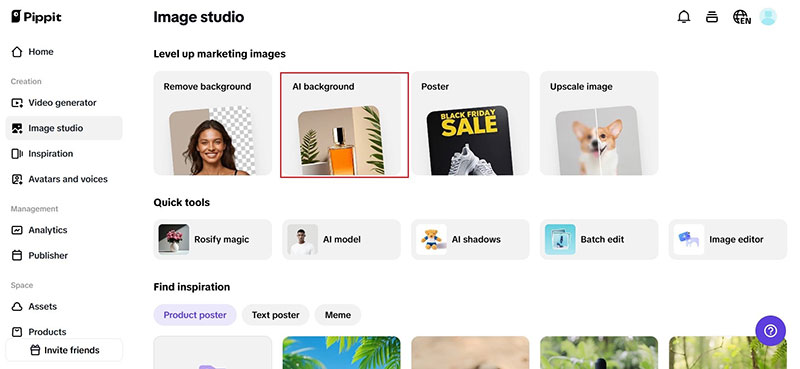
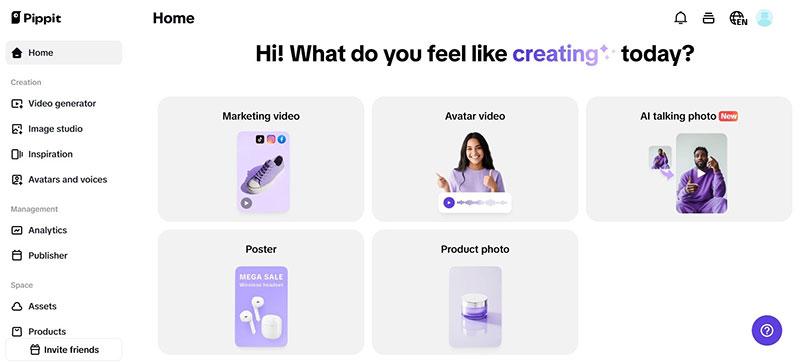
Register on Pippit and open “Image Studio” in the left sidebar. Under “Quick Tools” choose “AI Background”. Drag and drop your product images, or choose “Device” to upload from your computer.
Step 2: Customize the background and content
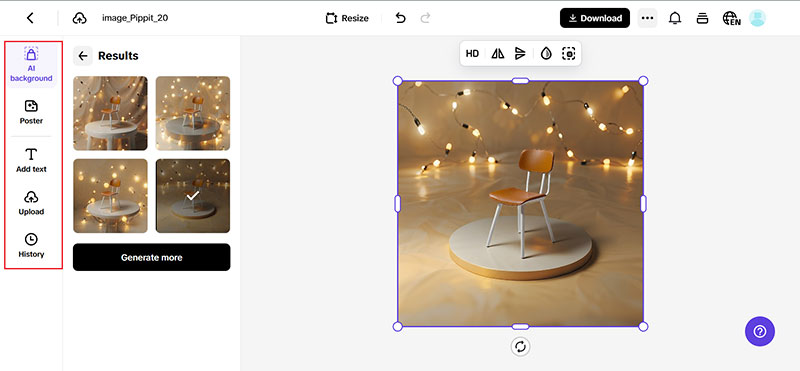
The AI automatically takes away the original background, which is the same task covered in the guide to removing backgrounds from product photos. You can then pick a preset background from Pippit’s library, upload your own under “Reference” or write a descriptive phrase under “Prompt” to generate one. Overlays such as text or sales badges can be added as well.
Step 3: Export your images
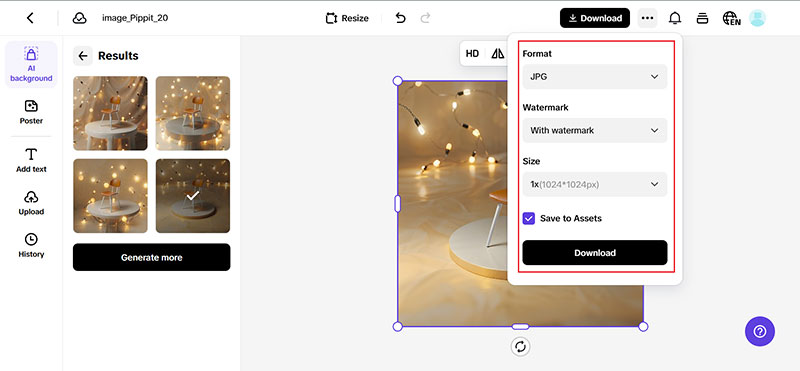
Select “Download” at the top right of the editor, choose a file format and size, and save. You can export with or without a watermark depending on where the image will be used.
How do you keep a consistent look across posts?
When every photo in a feed feels like it belongs to the same universe, trust builds. Consistency does not mean identical images. It means they look as if they came from the same brand. With Pippit you can:
- Reuse the same color palette across different backgrounds.
- Match light direction and shadow tone.
- Echo one visual motif, such as plants, lines or stones, in several images.
This helps most in carousel posts, where continuity creates flow, and in story highlights, where the brand mood should stay stable over time. Brand voice is not only text. Each background shows what the brand sells and what it believes.
Frequently asked questions
Do I need photo editing experience?
No. The workflow is upload, choose a background and export, and you can start from a preset.
Can I use my own background image?
Yes. Pippit lets you upload a reference background or describe one with a prompt.
Will the exported image have a watermark?
You can choose to export with or without one, depending on your use.
How do you tell your first visual story?
Pick one product and decide on a single mood from the list above. Create three backgrounds in that mood, compare them in a mock feed and publish the one that fits your palette best, then repeat the same motif for your next posts.

Renowned for his expertise in logo design and visual branding, Bogdan has developed a multitude of logos for various clients.
His skills extend to creating posters, vector illustrations, business cards, and brochures. Additionally, Bogdan's UI kits were featured on marketplaces like Visual Hierarchy and UI8.
He also wrote in the past years on sites like Design Your Way, WebDesignerDepot, WPDean, Designmodo, Speckyboy, Slider Revolution, and more.

Bogdan Sandu is a seasoned designer who has been designing websites since 2008. Renowned for his expertise in logo design and visual branding, Bogdan has developed a multitude of logos for various clients. His skills extend to creating posters, vector illustrations, business cards, and brochures. Additionally, Bogdan's UI kits were featured on marketplaces like Visual Hierarchy and UI8. He also wrote in the past years on sites like Design Your Way, WebDesignerDepot, WPDean, Designmodo, Speckyboy, Slider Revolution, and more.
You Might Also Like