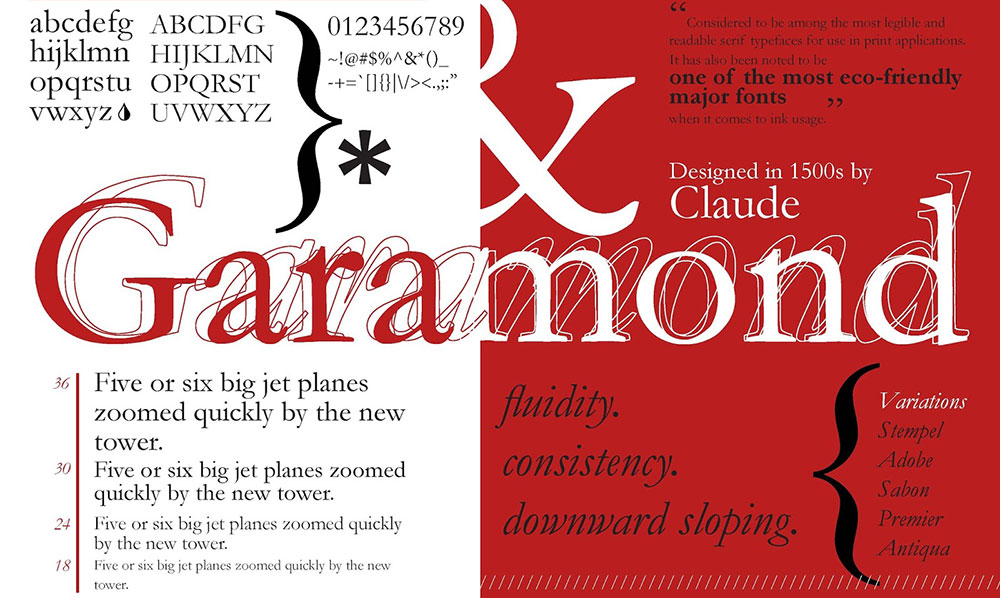
Every Paint.NET user hits the same wall eventually: the font you want just isn’t showing up in the dropdown.
Learning how to add fonts to Paint.NET is the fix, and it takes less effort than most people expect.
That’s because Paint.NET, unlike Photoshop or Adobe Creative Cloud, has no built-in font manager, so Windows ends up handling the actual installation.
This guide walks through the entire process, from download to Text tool, covering:
- Supported file formats like TrueType and OpenType
- Installing fonts on Windows 10 and Windows 11
- Fixing a font that won’t show up
- Choosing fonts that work well in Paint.NET projects
By the end, you’ll have a font library that just works, every time you open the app.
How to add fonts to Paint.NET: Quick workflow
How to add fonts to Paint.NET comes down to four steps, all handled through Windows rather than Paint.NET itself.
- Download the font (usually a .zip file)
- Extract the .ttf or .otf file inside
- Right-click it and select Install, or use Windows Settings > Fonts
- Restart Paint.NET completely
The font then appears in the Text tool’s dropdown, ready to use.
What Font File Formats Does Paint.NET Support
Paint.NET supports TrueType (.ttf) and OpenType (.otf) files, the same two formats Windows recognizes at the system level.
There’s no third option hiding in a menu somewhere. If Windows can install it, Paint.NET’s Text tool can display it.
| Format | Extension | Supported Since | Embeds in Office |
|---|---|---|---|
| TrueType | .ttf | Windows 3.1 | Yes |
| OpenType (CFF) | .otf | Windows 2000 | No |
Microsoft’s own documentation confirms that split. .ttf compatibility goes back to Windows 3.1, while .otf support arrived later with Windows 2000.
That embedding difference rarely matters for Paint.NET work, since you’re editing images rather than sharing .pdn files with someone who lacks the font. It does explain why some downloads only come as .ttf.
Variable fonts install fine too, but Paint.NET’s Text tool only shows the default weight. There’s no slider for adjusting weight or width the way a page layout app might offer.
Most people pull fonts from three places: Google Fonts, DaFont, or Adobe Fonts through a Creative Cloud subscription. Photutorial’s May 2025 count put the Google Fonts library at 1,826 font families, with roughly a quarter of those (468 families) built as variable fonts.
Choosing between the first two and the third comes down to budget more than anything else. The tradeoffs between Google Fonts and Adobe Fonts get more detailed once foundry access and weight variety enter the picture.
Licensing is where people get tripped up. A font can be free for personal use only, or cleared for full commercial use, and the zip file rarely makes that obvious at a glance.
Extensis surveyed more than 2,250 creative professionals and found close to a third of designers source fonts without checking the license first. That habit isn’t free: Linearity’s research puts the average small business’s annual bill at $300, often for licenses nobody budgeted for.
Reading up on how font licensing actually works before building out a font library saves that headache entirely.
How to Download a Font for Paint.NET
Downloading a font almost never hands you a font file directly. It hands you a .zip archive, with the actual .ttf or .otf buried inside.
DaFont alone hosts fonts with download counts in the tens of millions. Bebas Neue, one of the platform’s most popular sans-serif picks, has been downloaded more than 26 million times and ships as a compact 2-file archive (DaFont).
Extract the archive next. Windows’ built-in File Explorer handles most .zip files without anything extra installed. 7-Zip works too, especially for older or password-protected archives.
Once it’s unzipped, look inside before doing anything else:
- A readme.txt or license.txt file (read it, don’t skip it)
- One or more .ttf or .otf files, the ones you’ll actually install
- Occasionally a .woff or .woff2 file bundled in by mistake
That last one trips people up. WOFF2 now accounts for roughly 75% of web fonts loaded across the internet (HTTP Archive), which is exactly why so many archives include it out of habit. Windows won’t install a .woff file directly, so if that’s the only format in the folder, track down the same font in .ttf or .otf instead.
One small shortcut worth knowing: double-clicking any .ttf or .otf file opens a font preview window before you commit to installing it.
How to Install a Font on Windows for Paint.NET
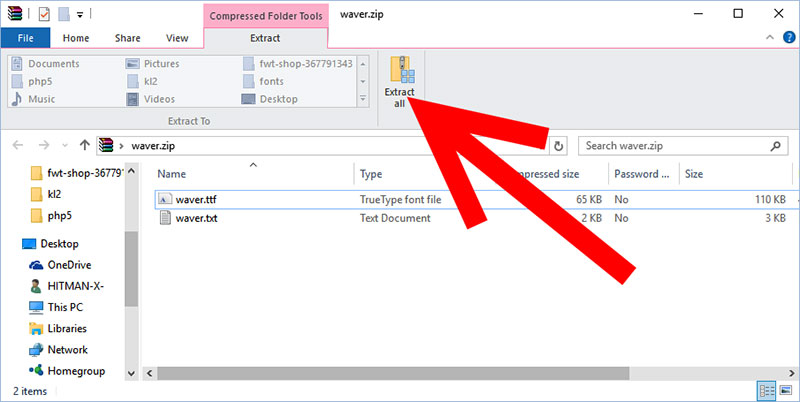
Installing a font on Windows works one of two ways: right-click and install, or drop it into Settings manually. Either method makes the font available system-wide, including inside Paint.NET’s Text tool.
Windows 10 and Windows 11 handle this through different menus, and that difference matters more than people expect. Microsoft ended free support for Windows 10 on October 14, 2025.
By February 2026, Windows 11 already accounted for roughly 73% of all Windows installations worldwide, up from about 51% just two months earlier (StatCounter, cited by Licendi).
Not everyone has made the jump, though. An estimated 500 million eligible PCs still hadn’t upgraded to Windows 11 by late 2025 despite meeting the hardware requirements (XtendedView), so both install paths below are worth knowing.
Install by Right-Clicking the Font File
This is the fastest method on any Windows version.
Right-click the .ttf or .otf file in File Explorer and select Install.
Windows copies the font into the system Fonts folder automatically, no manual folder navigation required.
For a font you want available to every account on a shared PC, right-click and choose Install for all users instead. That option requires admin rights.
Install Through Windows Settings or Control Panel
The menu path looks different depending on your Windows version, even though the result is identical.
| Windows Version | Path | Interface |
|---|---|---|
| Windows 11 | Settings > Personalization > Fonts | Drag-and-drop panel |
| Windows 10 | Control Panel > Appearance and Personalization > Fonts | Classic folder view |
Both paths land in the same underlying Fonts folder. Windows 11 just wraps it in a friendlier drag-and-drop interface than the older Control Panel window.
Install for One User Only Without Admin Rights
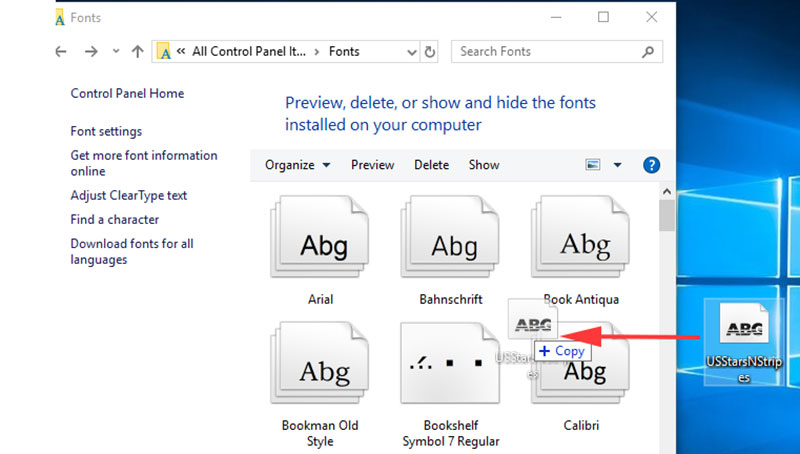
Company-managed or locked-down Windows PCs often block admin-level font installs entirely.
There’s a workaround. Copying the font file into %localappdata%\Microsoft\Windows\Fonts installs it for the current user only, no administrator permission needed.
Paint.NET picks it up the same way it picks up any other installed font, through the system font list, once the app restarts.
This method won’t add the font for other accounts on the same machine. That’s the tradeoff for skipping the admin prompt.
How to Use a New Font in Paint.NET’s Text Tool
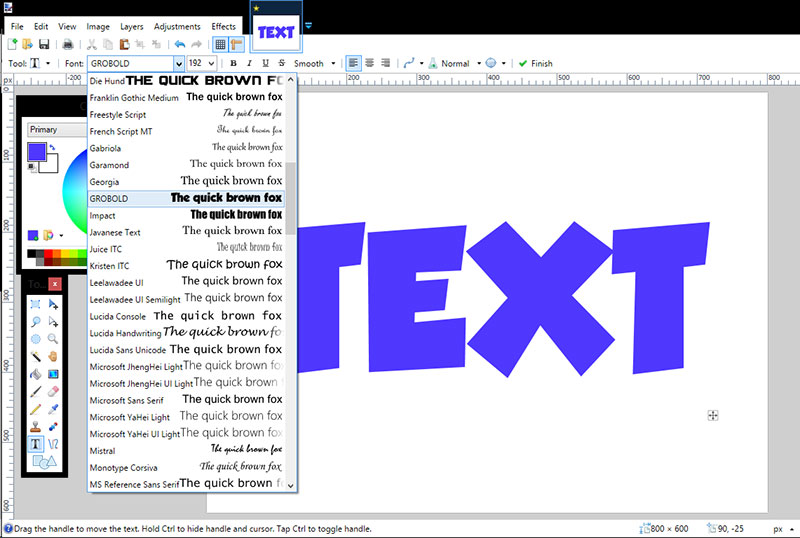
Once a font is installed on Windows, using it inside Paint.NET takes three moves.
- Click the Text tool, usually shown as an “A” icon in the main toolbar
- Open the font dropdown menu that appears in the toolbar row, alongside the size field and style buttons
- Scroll or type to find the font, select it, then click the canvas and start typing
The active text layer renders in that font immediately once you start typing.
Here’s where people get stuck. If Paint.NET was already open when you installed the font, it won’t show up in the dropdown. Paint.NET reads the system font list once, at launch, not continuously. Close the app fully and reopen it, and the font appears.
This isn’t new behavior. Paint.NET’s font manager for the Text tool was rewritten specifically to improve reliability, and on Windows 7 and later, the app renders text through DirectWrite rather than the older GDI text engine. That’s part of why font rendering quality looks noticeably cleaner than it did in early Paint.NET versions.
Why Is a Newly Installed Font Not Showing Up in Paint.NET
A font that doesn’t appear in Paint.NET’s Text tool almost always comes down to timing, not a broken installation.
Windows keeps a font cache in memory. Installing a font while Paint.NET, or any other program, is already running doesn’t refresh that cache for the open session.
Four things cause this specific problem:
- Session timing: the font installed after Paint.NET launched, so restart the app
- Silent install failure: the file looked installed but Windows rejected it without an error message
- Name conflicts: two versions of the same font family are installed under slightly different internal names
- Corrupted file: the .ttf or .otf downloaded incompletely and Windows can’t parse it
| Symptom | Likely Cause | Fix |
|---|---|---|
| Font missing after install | Paint.NET was already open | Fully close and reopen the app |
| Font missing from Windows Settings too | Install didn’t actually complete | Reinstall, check for an error dialog |
| Wrong version of the font appears | Duplicate font family names | Remove the older copy first |
Checking Windows Settings > Fonts directly, rather than assuming the install worked, catches most of these before they turn into a wasted afternoon. If the font isn’t listed there, Paint.NET was never going to see it either.
How to Remove or Replace a Font Used in a Paint.NET Project
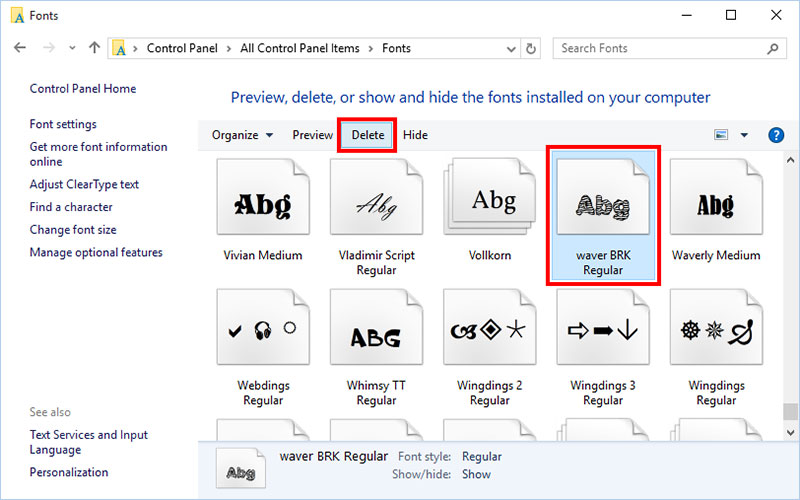
Removing a font is simple. Keeping your Paint.NET project intact afterward is the part people forget to check.
Uninstalling a font on Windows works through the same Settings > Fonts menu used to install it. Select the font, click Remove, confirm.
Paint.NET doesn’t stop you from uninstalling a font mid-project, but it performs a quiet font substitution the next time you open a .pdn file that references the missing one. The text layer stays editable, but the fallback rarely matches the original font’s spacing or character width.
Swapping the font on an existing text layer takes four steps:
- Open the .pdn file and select the affected text layer
- Reopen the Text tool and highlight the existing text
- Choose the replacement font from the dropdown
- Re-check line spacing and letter width, since most fonts don’t share identical metrics
Font management tools like Extensis FontAgent or RightFont automate this kind of check across an entire device, not just one Paint.NET file. That matters more once you’re juggling a font library instead of two or three downloads.
Which Fonts Work Best for Paint.NET Projects
The best fonts for Paint.NET projects are free, commercial-safe picks with clean vector outlines, since the Text tool has no built-in filter for shaky licenses or broken glyph sets.
Montserrat is the safest default for body text and clean headlines. It’s used on more than 19 million websites and sits as the fourth most viewed font on Google Fonts, behind Roboto, Open Sans, and Noto Sans JP, with 2.7 trillion cumulative views as of September 2023 (Wikipedia).
Fiverr named Montserrat its 2024 “Font of the Year,” a small but telling sign of how far a single open-source typeface can travel.
Montserrat: clean, geometric, holds up at small sizes, works for body copy and UI-style text inside a Paint.NET project.
Bebas Neue: a bold display font, public domain and free for commercial use, built for headers and poster-style lettering rather than paragraphs.
Both count as sans-serif fonts, which is exactly why they’re such a common starting pair.
A Montserrat font pairing guide can help match it against a serif or script partner for a title, and a font pairing generator speeds that decision up if you’d rather not eyeball it.
Adobe Fonts is worth considering if you already pay for Creative Cloud. The library now spans more than 30,000 fonts from over 150 type foundries, activated through the desktop app rather than a manual download.
One thing to avoid: fonts that render as bitmap-only or ship without a proper vector outline. Paint.NET’s Text tool needs a real .ttf or .otf structure to scale cleanly, and a bitmap font looks jagged the moment you resize the text layer.
Does a Font Installed for Paint.NET Work in Other Programs Too
Yes. A font installed through Windows Settings becomes available to every program that reads the system font list, not just Paint.NET.
Microsoft Word alone has more than 1.2 billion users worldwide (UMA Technology, 2025), and every one of them pulls fonts from that same Windows Fonts folder.
| Program | Reads Fonts From | Approximate User Base |
|---|---|---|
| Adobe Photoshop | Windows Fonts folder + Adobe Fonts sync | 12 million+ professionals |
| GIMP | Windows Fonts folder | 10 million+ users |
| Microsoft Word | Windows Fonts folder | 1.2 billion+ users |
GIMP’s own numbers lean heavily toward Windows too. At least two-thirds of GIMP’s user base runs it on Windows rather than Mac or Linux (Creative Bloq).
No separate installation step exists per application.
If you’ve already worked out the steps for adding fonts to Photoshop, or need the exact menu path for adding fonts to GIMP or adding fonts to Krita, the underlying font file is identical. Only the menu layout changes.
One install action covers your entire design workflow, not just the one program you happened to open first.
Conclusion
How to add fonts to Paint.NET really comes down to one habit: install through Windows first, then let Paint.NET catch up.
Once a .ttf or .otf file sits inside the Windows Fonts folder, everything else, from a fresh .pdn file to the next project, just works.
Three habits keep it that way:
- Restart Paint.NET after every install, since the font cache only refreshes at launch
- Choose fonts cleared for commercial use, not just free downloads
- The same font works across Photoshop, GIMP, and Word without reinstalling
Fonts are a small detail, until the wrong one turns up in a finished piece.
Get the install right once, and custom fonts stop being a bottleneck in every project after this one.

Renowned for his expertise in logo design and visual branding, Bogdan has developed a multitude of logos for various clients.
His skills extend to creating posters, vector illustrations, business cards, and brochures. Additionally, Bogdan's UI kits were featured on marketplaces like Visual Hierarchy and UI8.
He also wrote in the past years on sites like Design Your Way, WebDesignerDepot, WPDean, Designmodo, Speckyboy, Slider Revolution, and more.
- The Windsurf Logo History, Colors, Font, And Meaning - 10 October 2026
- How to Remove Background From Product Photos (No Photoshop) - 10 October 2026
- How Designers can Build a Stronger Online Creative Identity - 9 October 2026

Bogdan Sandu is a seasoned designer who has been designing websites since 2008. Renowned for his expertise in logo design and visual branding, Bogdan has developed a multitude of logos for various clients. His skills extend to creating posters, vector illustrations, business cards, and brochures. Additionally, Bogdan's UI kits were featured on marketplaces like Visual Hierarchy and UI8. He also wrote in the past years on sites like Design Your Way, WebDesignerDepot, WPDean, Designmodo, Speckyboy, Slider Revolution, and more.
You Might Also Like