The design process used to take weeks. Now, the right AI tools for UI/UX design can take you from a rough idea to a working prototype in hours.
Product teams are generating full UI screens from text prompts, exporting production-ready code, and cutting asset creation time by over 60%. The shift is real and it’s already in most serious design workflows.
This article covers the best AI design tools available right now, from prompt-based UI generators to AI-assisted prototyping and developer handoff, so you know exactly what each tool does and where it fits.
What Are AI Tools for UI/UX Design
AI tools for UI/UX design are software platforms that use machine learning or generative AI to assist with one or more stages of the design process.
That includes wireframing, UI screen generation, prototyping, visual asset creation, user research, and design handoff to developers. The category is broader than most people think.
There’s a useful distinction worth keeping in mind: fully AI-generated design output (you type a prompt, a complete UI appears) versus AI-assisted design workflows (AI helps inside tools you’re already using, like Figma). Both qualify. They just serve different moments in the process.
| Type | What it does | Best for |
|---|---|---|
| AI-native generators | Full UI from prompt | Early ideation, speed |
| AI-assisted platforms | AI inside existing tools | Production workflows |
| AI research tools | Automates testing insights | UX research teams |
| AI asset tools | Generates visuals, palettes | Brand, visual design |
According to UXness’s 2024 Annual UX Tools Survey, 71% of designers named AI and machine learning as the top future trend shaping UX. That’s not a small number.
What’s actually driving adoption is practical. These tools handle the parts of design that slow teams down: blank canvases, repetitive layout decisions, manual asset creation, and slow handoff cycles.
Adobe research shows AI-driven design tools can reduce design time by up to 30%. That’s the kind of stat that gets product teams to pay attention.
Flowstep
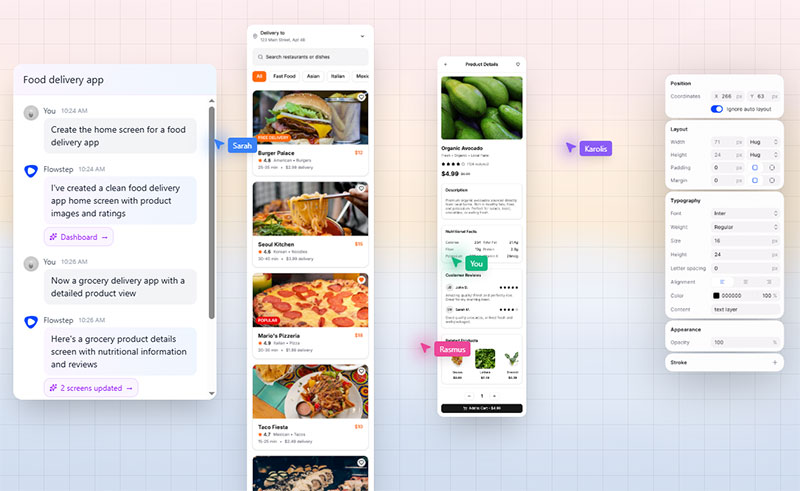
Flowstep is an AI design assistant that generates real, fully editable UI directly on an infinite canvas.
You describe what you want, and it builds it. Not a wireframe, not a rough concept. Actual UI you can copy straight into Figma.
That’s the thing that separates it from most tools in this space. The output is production-adjacent, not a starting sketch you have to rebuild from scratch.
How Flowstep Generates UI
Flowstep runs on its Imagination Algorithm, which interprets natural language prompts and turns them into structured, editable screens.
You’re not limited to one screen at a time either. Generate login flows, dashboards, profile pages, and onboarding sequences in a single session.
Key generation capabilities:
- Multi-screen generation in one go (full user flows, not just single screens)
- AI editing and manual editing both available, side by side
- Accepts references: PRDs, uploaded images, or URLs for design context
- Real-time collaboration with live cursors and instant sync
OneSignal’s design team noted that Figma’s layer-naming AI alone saved their team meaningful time on tedious tasks. Flowstep eliminates more friction than that, at the generation stage.
If you want a broader look at how it compares to other options, Flowstep’s own breakdown of the best AI tools for designers is worth a read.
Figma Integration and Code Export
Copy-paste from Flowstep to Figma works with Cmd+C and Cmd+V. No plugin. No Chrome extension. Just the clipboard.
That’s the kind of workflow detail that actually matters day-to-day. Most tools with “Figma integration” require some setup ritual. Flowstep skips it.
Export options:
- React components
- TypeScript
- Tailwind CSS
Production-ready code. Not starter boilerplate that needs rebuilding. Flowstep is free to start, with no credit card required.
AI Tools for Wireframing and UI Generation
The prompt-to-UI space moved fast in 2024 and 2025.
Figma’s 2025 AI Report found that one in three product builders is launching AI-powered products this year, up 50% from the year before. Design tools had to keep pace.
| Tool | Output | Figma export | Free tier |
|---|---|---|---|
| Figma Make | Interactive prototypes | Native | Yes (credits) |
| Google Stitch | UI screens + code | Yes | Yes (350/mo) |
| Framer | Full websites | Via import | Yes |
| Lovable | Full web apps | No | Yes |
Figma Make

Figma Make is Figma’s AI-native prototyping layer, and it’s genuinely different from the basic layout generation Figma shipped earlier.
You start with a design, describe what you want it to do, and Figma Make builds a working interactive prototype around it.
What it handles:
- Full UI mockups from text prompts
- Interactive behavior, not just static layouts
- Stays aligned with your existing Figma design system
- Embeds into Figma Design, FigJam, and Figma Slides
Product managers at ServiceNow, Ticketmaster, and Affirm are actively using Figma Make to prototype and pressure-test ideas before committing to development cycles.
The catch: Figma Make requires a paid plan. Costs more than Google Stitch for teams with variable usage.
Google Stitch
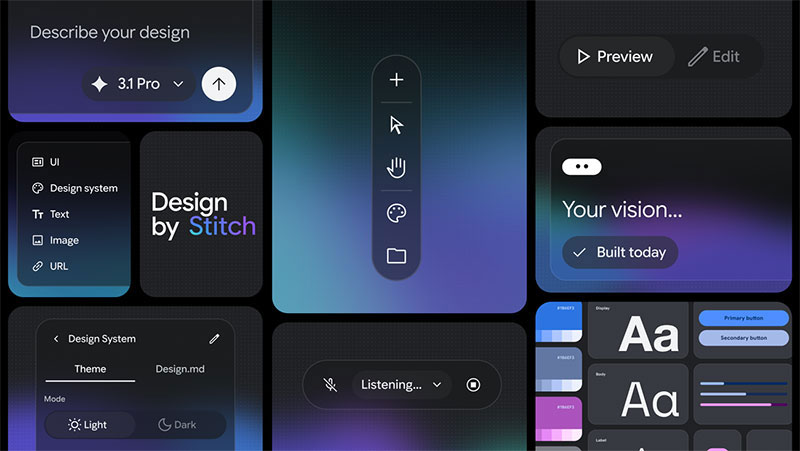
Google Stitch started as Galileo AI, a startup that hit 100,000+ design generations in days during public beta. Google acquired it in May 2025 and rebranded it under Google Labs.
It’s now powered by Gemini 2.5 models and completely free, with up to 350 generations per month in Standard mode and 50 in Experimental mode.
Standard workflow:
- Type a prompt describing your UI
- Get multi-screen mockups instantly
- Export to Figma or grab HTML/CSS directly
The honest assessment: Stitch is great for the first 80% of ideation. It tends to forget components between sessions and accessibility output (color contrast, touch targets) still needs manual review. But for solo founders and early-stage teams, free is a strong argument.
Framer
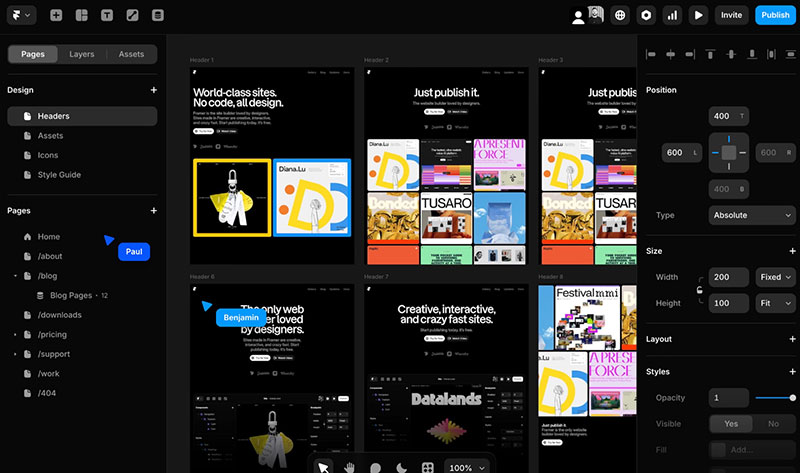
Framer started as a prototyping tool for UX designers. It’s now a full AI-powered website builder with over 171,000 live sites built on the platform (BuiltWith, 2025).
The Wireframer feature, part of Framer’s spring 2025 update, generates responsive layouts from simple prompts. You describe the page, and it builds a structured, animated starting point in seconds.
Where Framer fits:
- Marketing sites and landing pages (strong)
- Design-first teams who want to publish without developers
- Projects that need built-in CMS, hosting, and A/B testing in one place
Not the right choice for complex web apps with deep backend requirements. But for a startup that needs a polished public-facing site shipped fast, Framer is hard to argue with.
Lovable

Lovable sits further along the spectrum toward full-app generation. You’re not just generating screens. You’re generating working web applications from prompts.
It targets non-designers and early-stage founders who need something functional to show stakeholders or test with users, without a design or dev team.
Best for: early product validation, solo founders, non-technical product managers building MVPs.
Skip it if you need fine-grained control over visual output or design system consistency.
AI Tools for Visual and Brand Asset Creation
Design teams spend a surprising amount of time on assets that aren’t the core UI: illustrations, icons, color palettes, background images, and product visuals.
UX Planet reported in 2025 that design teams are cutting asset creation time by 60-70% using AI tools with brand consistency controls, versus generic AI art generators.
Adobe Firefly
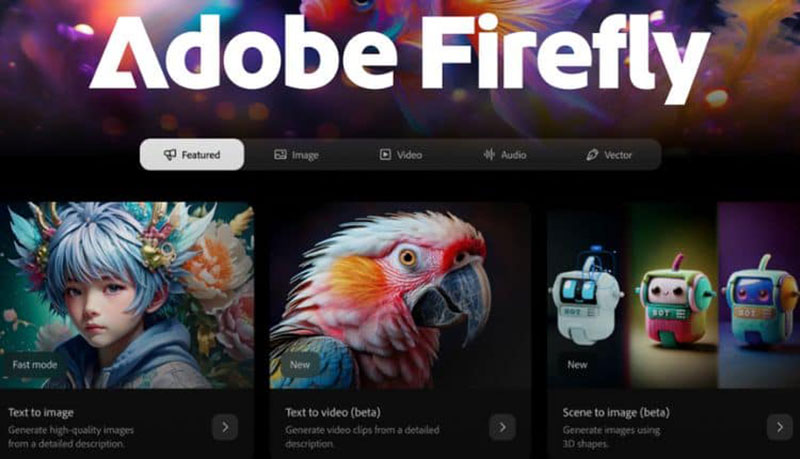
Enterprise-grade, trained on licensed content – that last part matters more than people realize.
Most generative image tools raise questions about copyright when the output goes into commercial products. Firefly sidesteps that problem because it’s trained on Adobe Stock and other licensed sources.
Firefly integrates directly into Photoshop and Illustrator, which means designers aren’t switching apps to generate assets. They stay in the tools they already know.
Figma’s new AI Grid feature also generates responsive layouts with clean CSS output, which pairs well with Firefly-generated visuals when building component libraries.
Freepik AI Suite

A practical choice for teams that need both generation and a stock library in the same place.
What the suite covers:
- AI image generation from text prompts
- Access to Freepik’s existing stock library
- Mood board asset sourcing
- Vector and illustration generation
Good for mood boards, early creative direction, and filling UI screens with placeholder visuals that actually match the design intent.
Khroma
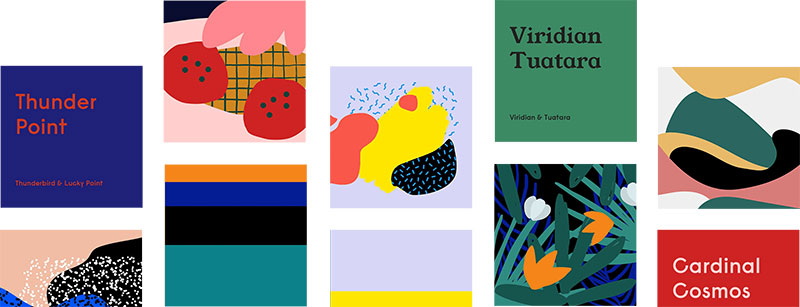
Khroma does one thing: AI color palette generation trained on designer-curated color combinations.
You train it with your preferred colors upfront, and it learns your taste. The palettes it generates after that feel intentional, not random.
Khroma vs. generic palette tools:
- Generic tools: mathematically derived contrast ratios
- Khroma: palettes that reflect actual design sensibility
Took me a while to figure out that the training step is what makes it useful. Skip the training and you’re just getting random colors with good contrast scores. Actually go through it, and the suggestions start feeling like something a designer picked.
AI Tools for Prototyping and Developer Handoff
The handoff phase is where a lot of AI design workflows either prove their value or fall apart.
Figma’s 2025 AI Report noted that 52% of AI product builders say design is more important for AI-powered products than traditional ones. Which means the pressure to get handoff right is actually increasing, not decreasing.
Cursor
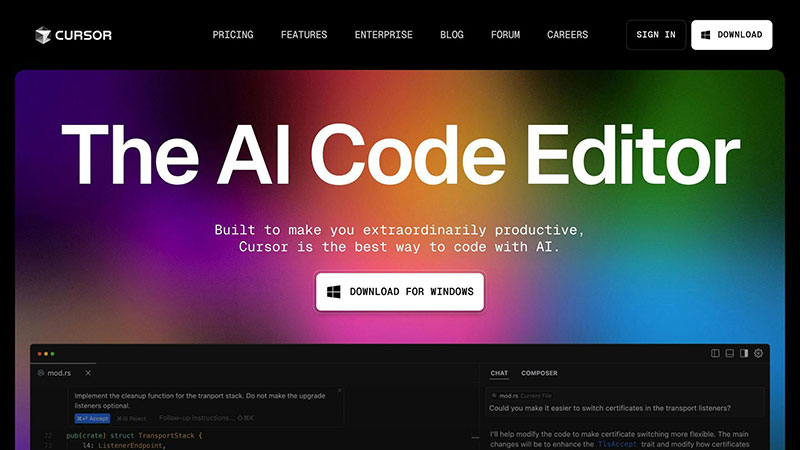
Cursor is an AI code editor, not a design tool. But it shows up constantly in design-to-dev workflows because it’s where the implementation happens.
When designers export specs or Figma tokens, developers use Cursor to interpret and implement them accurately. The AI assists with component generation, styling interpretation, and catching layout inconsistencies before they become bugs.
Cursor’s role in the design workflow:
- Implementing Figma designs with AI code suggestions
- Generating React/Tailwind components from design specs
- Debugging UI inconsistencies between design and output
- Connecting to Figma MCP server for two-way design-code sync
The Figma MCP server now supports Cursor directly, meaning rendered UI can be pushed to the Figma canvas as editable frames, and design context can be pulled back into Cursor for implementation.
AI Tools for User Research and Testing
User research demand is climbing fast. Maze’s 2026 Future of User Research Report found that 66% of participants experienced increased demand for research in their organizations, up from 55% the year before.
That’s not just more studies. It’s research being pulled earlier into product decisions, used by product managers and marketers, not just dedicated researchers.
AI’s role in this shift is practical. It handles the operational weight so teams can focus on interpretation, not transcription.
Maze’s 2025 report found that 58% of teams now use AI in their research, a 32% increase from 2024. The top benefits: improved team efficiency (58%), faster turnaround (57%), and better workflow organization (49%).
Maze
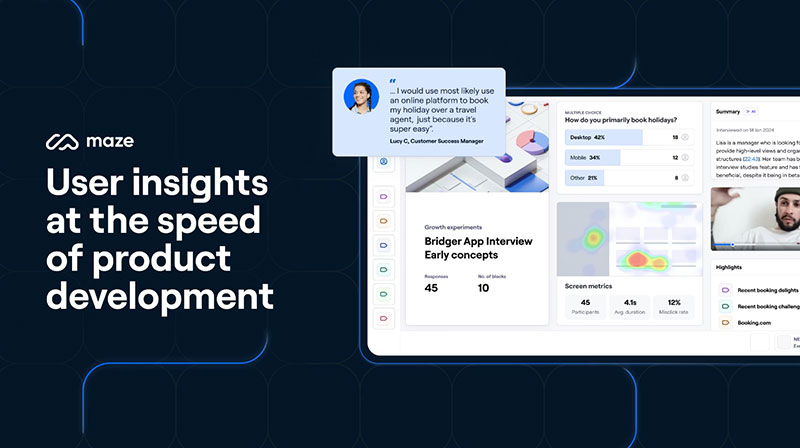
AI-assisted usability testing is Maze’s core value proposition.
You import a prototype from Figma, Sketch, or Adobe XD, set up a task flow, and send participants a link. Maze captures completion rates, misclick patterns, and time-on-task automatically.
The AI layer summarizes findings across sessions. Instead of spending a day reading individual test recordings, you get a structured report with identified patterns in hours.
- Prototype testing directly from Figma, with up to five design variants simultaneously
- AI analysis surfaces themes across open-ended responses
- Over 3 million panel participants with 400+ targeting attributes
D360 Bank’s design team uses Maze to run both qualitative and quantitative research across their product cycle, citing how the platform handles the full spectrum from prototype testing to participant recruiting in one place.
What AI Can and Can’t Do in UX Research
What it handles well:
- Synthesizing large volumes of open-ended survey text
- Identifying drop-off patterns in task flows
- Summarizing session recordings into key themes
Where human judgment is still needed:
- Contextual nuance in qualitative interviews
- Deciding what questions to ask in the first place
- Interpreting conflicting signals from different user segments
Maze’s CEO put it plainly: AI handles the operational lift. The researcher’s role is becoming more strategic, not smaller.
85% of teams using regular user research reported improved product usability (Smashing Magazine, 2024). That’s the outcome AI research tools are trying to make more accessible without a full research team behind every decision.
AI Tools for Writing and Documentation in Design Workflows
Every design project generates writing: briefs, specs, annotations, UX copy, meeting notes, research summaries.
Most of that writing happens in the gaps between design work, usually typed fast, often half-finished. AI tools are shortening that gap considerably.
Notion, which reached over 100 million users by September 2024, reports that AI-powered features have increased user productivity by up to 35% on average across knowledge-work tasks.
Wispr Flow

Dictation that actually works in every app. That’s the short version.
Wispr Flow converts natural speech into formatted, polished text across any application on Mac, Windows, and iOS, without switching to a dictation window or interrupting workflow.
Independent testing shows users achieve 170-179 words per minute with Wispr Flow, versus average typing speeds of 40-90 WPM. That’s a genuine 3-4x speed increase for output-heavy professionals.
The transcription accuracy sits at 97.2%, outperforming Apple Dictation (85-90%) and Google Docs Voice Typing (89-92%).
After six months of use, the average Wispr Flow user writes 72% of their characters by voice across nearly 70 apps. For designers writing Jira tickets, Notion docs, Slack messages, and brief annotations all day, that adds up fast.
Wispr has raised $81 million in total funding, including a $30 million Series A led by Menlo Ventures, signaling serious long-term investment in the platform.
Notion AI

Notion AI sits inside the workspace where design teams already keep their documentation.
That context awareness is what separates it from a standalone writing assistant. It understands your page structure, your project history, your database relationships.
What design teams use it for:
- Meeting notes with automated action item extraction across Zoom, Google Meet, and Teams
- Design briefs and product specs drafted from bullet outlines
- Research documentation summarized from raw interview notes
- Cross-workspace search to surface past decisions and precedents
Notion 3.0, launched in September 2025, introduced autonomous AI Agents that can execute multi-step tasks for up to 20 minutes, not just suggest text. For a design team managing a product launch, that means the AI can compile user feedback, update status docs, and draft stakeholder summaries without manual coordination.
Enterprise clients include Amazon, Nike, Uber, Pixar, and Toyota, per Contrary Research, which gives a sense of how seriously large product teams are treating Notion as infrastructure.
Claude in Design Writing Workflows
Claude fits where the writing requires reasoning, not just speed.
Wispr Flow handles the volume problem. Notion AI handles the documentation and organization problem. Claude handles the judgment problem: when the output needs to be nuanced, on-brand, or accessibility-aware.
Concrete uses:
- Reviewing UX microcopy for clarity, tone, and accessibility
- Drafting content hierarchies for complex information architecture
- Analyzing user interview transcripts and generating structured insight summaries
- Writing detailed design rationale for stakeholder presentations
The practical workflow most teams land on: dictate rough notes with Wispr Flow, organize them in Notion, refine the output that needs the most care with Claude.
How to Choose the Right AI Design Tool
The biggest mistake is picking a tool before knowing what stage of the workflow it serves.
Most AI design tools are excellent at one or two things and mediocre at everything else. A prompt-to-UI generator that’s good for ideation is not the same thing as a handoff tool that outputs production React. Treating them interchangeably wastes time.
According to Figma’s 2025 AI Report, 78% of designers and developers believe AI boosts their work efficiency, but the gains depend heavily on matching the right tool to the right task.
| Decision factor | What to ask |
|---|---|
| Workflow stage | Ideation, production, or handoff? |
| Role | Designer, PM, developer, or non-designer founder? |
| Output fidelity | Rough concept or production-ready? |
| Figma dependency | Does your team live in Figma already? |
| Budget | Free tier vs. paid team plan? |
Matching Tools to Roles
Solo designer: Google Stitch for AI screen generation, Khroma for color palette decisions, Wispr Flow for writing documentation faster.
Product team: Flowstep is the one you need here. Maze for user testing. Notion AI for keeping documentation synced across the team. Claude for copy review and research synthesis.
Non-designer founder: Flowstep or Google Stitch for early concept screens. Lovable for full app generation when you need something functional to validate with users. Neither replaces a designer when the product matures, but they buy time and reduce cost at the ideation stage.
Developer-led team: Cursor for implementation. Framer for shipping marketing sites without a designer. Figma’s MCP server for pulling design context directly into code environments like VS Code, Cursor, and Warp.
Output Fidelity vs. Speed
This is the tradeoff that trips people up most often.
High-speed tools (Google Stitch, Lovable) get you to a concept fast. The output needs polishing before it’s production-ready.
Higher-fidelity tools (Flowstep, Figma Make) take slightly longer per iteration but export code and designs that are closer to usable without a rebuild.
A realistic production workflow for most teams:
- Ideate in Flowstep or Google Stitch
- Refine and formalize in Figma (with Figma Make for interactive prototyping)
- Test with Maze
- Implement with Cursor, referencing Figma’s MCP for design-to-code sync
- Document in Notion, write faster with Wispr Flow
That’s not six subscriptions you need from day one. Start with the stage that’s slowing you down most, and layer in tools from there.
Free Tiers Worth Knowing
Most of these tools have usable free tiers. The ones that stand out:
- Google Stitch: 350 generations per month in Standard mode, completely free
- Flowstep: Free to start, no credit card required
- Wispr Flow: 2,000 words per week on the free plan, sufficient for testing the workflow
- Notion: Core workspace free; AI add-on requires Business plan ($15/user/month)
- Figma Make: Included in Professional plan with AI credits; limited credits on Starter
Teams using AI UI tools are shipping features 40-60% faster than those still wireframing manually, per Toools Design’s 2026 analysis. That productivity gap widens as the tools improve. Starting with a free tier and running one real project through it is a better evaluation method than any comparison article.
Conclusion
The best AI tools for UI/UX design aren’t replacements for good design judgment. They’re the part of your workflow that handles the slow, repetitive work so you can focus on the decisions that actually matter.
Flowstep handles UI generation and Figma handoff. Google Stitch is solid for free, fast ideation. Figma Make and Framer cover interactive prototyping and web publishing. Khroma, Adobe Firefly, and Freepik AI Suite take care of the visual asset layer. Cursor and Claude close the gap between design files and working code.
No single tool covers everything. The strongest design workflows right now combine two or three of these, each doing what it does best.
Pick the ones that fit your process and start there.

Renowned for his expertise in logo design and visual branding, Bogdan has developed a multitude of logos for various clients.
His skills extend to creating posters, vector illustrations, business cards, and brochures. Additionally, Bogdan's UI kits were featured on marketplaces like Visual Hierarchy and UI8.
He also wrote in the past years on sites like Design Your Way, WebDesignerDepot, WPDean, Designmodo, Speckyboy, Slider Revolution, and more.
- The Windsurf Logo History, Colors, Font, And Meaning - 10 October 2026
- How to Remove Background From Product Photos (No Photoshop) - 10 October 2026
- How Designers can Build a Stronger Online Creative Identity - 9 October 2026

Bogdan Sandu is a seasoned designer who has been designing websites since 2008. Renowned for his expertise in logo design and visual branding, Bogdan has developed a multitude of logos for various clients. His skills extend to creating posters, vector illustrations, business cards, and brochures. Additionally, Bogdan's UI kits were featured on marketplaces like Visual Hierarchy and UI8. He also wrote in the past years on sites like Design Your Way, WebDesignerDepot, WPDean, Designmodo, Speckyboy, Slider Revolution, and more.
You Might Also Like