Motion tracking is an essential method in videos to identify object movement inside footage. This provides limitless creative opportunities. Once you’ve tracked the item, you can apply various visual effects. You can add motion blur, text, overlay pictures, shot stabilization, or even delete what you’re tracking.
A variety of programs are available for motion tracking. These tools will assist in shifting time-consuming techniques into simple ones that can significantly improve the quality of your film. We will introduce numerous great tools for AI motion tracking that will move your entire video editing process.
This article will also show you how to use the best motion-tracking program for making outstanding videos.
Tool 1: Wondershare Filmora
If you want an all-in-one video editor with motion tracking and don’t want to deal with stability and performance concerns when editing extended films, Wondershare Filmora is an excellent choice. Filmora’s motion tracking was first introduced in Filmora X (in 2020) and has improved significantly since then. It merely takes a few single steps to monitor moving things.
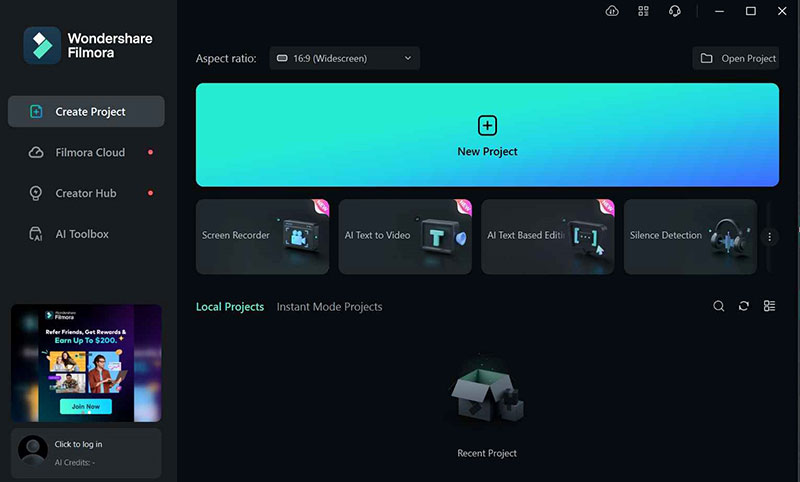
Filmora’s motion tracking tool allows you to connect text to follow the motion of a moving item or blur faces without adding the effect frame by frame. Images, emojis, and visual effects that follow the movement, such as the wings of an angel or neon lights, are now simple to add, making creating magic in films more straightforward than ever.
Simply choose the items you wish to track in Filmora, modify the tracking box’s size, and begin motion tracking. Filmora will intelligently analyze movement. In addition, you can use Filmora’s AI motion tracking tool to add titles that follow the motion of the tracked. Filmora allows you to add mosaics to moving objects and turn emojis, videos, etc, into visual effects to tell a tale with magic.
How to Use Filmora Motion Tracking
Here is the step-by-step method for using AI motion tracking in Filmora.
- Step 1: Start a new project in Filmora first. After that, add the video to the timeline by importing it. Next, place the playhead to the Start.
- Step 2: Double-click the video and select the Motion tracking option from the timeline toolbar icon.

- Step 3: Now, click Start Tracking to begin the analysis after moving and adjusting the tracker box over the moving item.
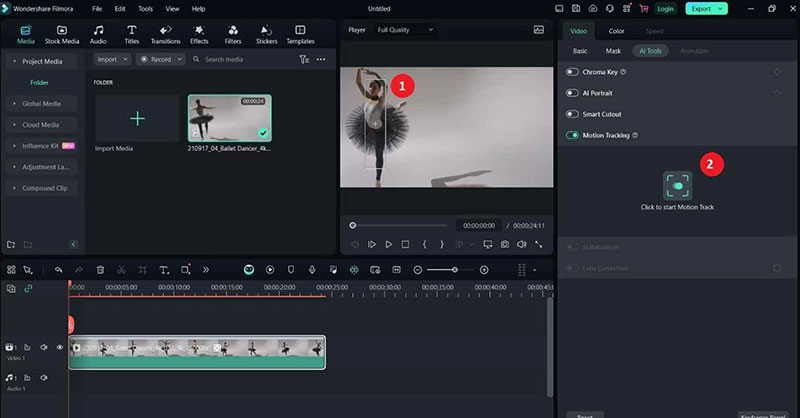
- Step 4: You can apply elements or effects to the video that will track your moving item. After selecting it, drag them to the track above the video and arrange them to line up with the moving item.

- Step 5: Double-click the motion tracking video now, and select the item to follow the tracked movement from the selection menu under Motion tracking.

- Step 6: Finally, play back your video and edit it as necessary. Then, export it.
Tool 2: Shotcut
Shortcut’s motion tracking feature is a fantastic tool for automatically adding features or effects to moving objects in your films. Before using additional filters without directly adding effects, you need to check the motion without applying any effects.
Other filters like Corner Pin, Crop, Rectangle, GPS Text, Size, Position & Rotate, Timer, and many more are driven by this Shotcut function. This application can help you create a dynamic film with a professional appearance in a few easy steps, saving you significant time.

Tool 3: Davinci Resolve
Motion tracking is the technique of following an object’s movement inside a video, which is essential for jobs ranging from inserting dynamic text in a moving scene to changing static photos with animated features.
DaVinci Resolve stands out for its powerful motion-tracking tools, which appeal to experienced editors and ambitious newbies. Familiarizing yourself with the various forms of motion tracking-such as point tracking for single points, planar tracking, and camera tracking for 3D movements-will enable you to choose the most effective solution for your project’s specific requirements.

Tool 4: VSDC
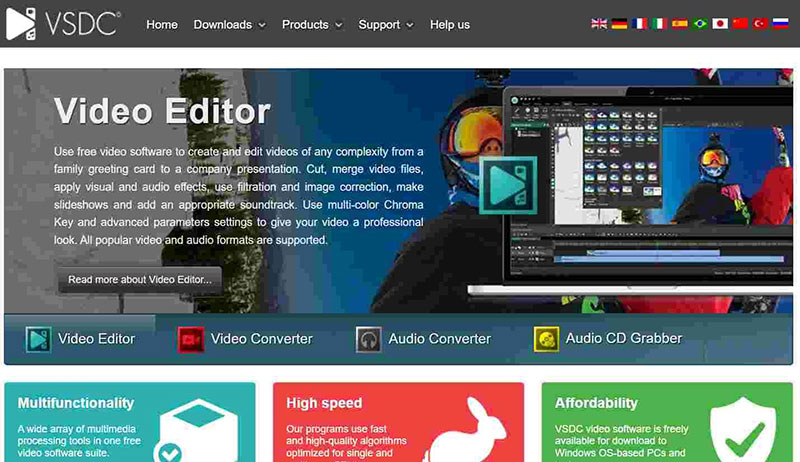
VSDC Video Editor is a free video editing program with motion tracking that includes a variety of capabilities for making and editing videos. It accepts a variety of video and audio formats and includes tools for cutting, combining, and dividing videos, as well as adding transitions, effects, and text overlays.
For example, you may have a text title move in sync with the item to which it belongs. Alternatively, you may construct an image following a specified item in a movie. VSDC Video Editor also provides additional capabilities such as color correction, audio waveform visualization, and blending modes for greater creative flexibility.
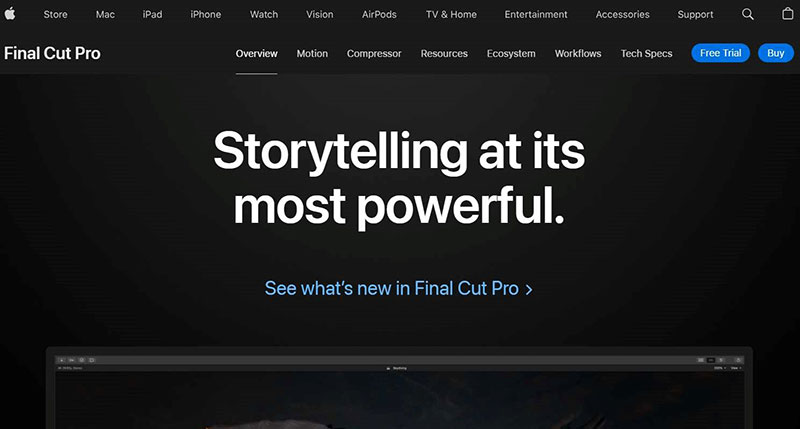
Tool 5: Final Cut Pro
Several factors influence the success of object tracking, including camera movement, object movement, framing, lighting, and contrast. It all depends on the clip and how your material is captured. Because Final Cut Pro handles motion tracking, evaluating your clip can take some time, depending on its length.
All tracking entailed selecting a point in your video, such as a person’s face, and establishing markers for the software to follow. In Final Cut Pro, you can add your components to the clip for tracking, or you can start the tracking first and then add your element.
Conclusion
Video editors can now add amazing visual effects, text, and pictures that follow moving objects thanks to motion tracking software, which has completely changed the video editing process. We looked at the top 5 motion-tracking tools to improve your video editing abilities.
For every type of editor, there is a motion tracking program available. With the help of these tools, you can elevate your movies to a new level and enthrall your viewers with captivating visual effects. But Filmora saves you time and work with its AI Motion Tracking, which guarantees precise monitoring of moving objects. Explore the countless creative possibilities of motion tracking by getting started now.

Renowned for his expertise in logo design and visual branding, Bogdan has developed a multitude of logos for various clients.
His skills extend to creating posters, vector illustrations, business cards, and brochures. Additionally, Bogdan's UI kits were featured on marketplaces like Visual Hierarchy and UI8.
He also wrote in the past years on sites like Design Your Way, WebDesignerDepot, WPDean, Designmodo, Speckyboy, Slider Revolution, and more.
- The Windsurf Logo History, Colors, Font, And Meaning - 10 October 2026
- How to Remove Background From Product Photos (No Photoshop) - 10 October 2026
- How Designers can Build a Stronger Online Creative Identity - 9 October 2026

Bogdan Sandu is a seasoned designer who has been designing websites since 2008. Renowned for his expertise in logo design and visual branding, Bogdan has developed a multitude of logos for various clients. His skills extend to creating posters, vector illustrations, business cards, and brochures. Additionally, Bogdan's UI kits were featured on marketplaces like Visual Hierarchy and UI8. He also wrote in the past years on sites like Design Your Way, WebDesignerDepot, WPDean, Designmodo, Speckyboy, Slider Revolution, and more.
You Might Also Like