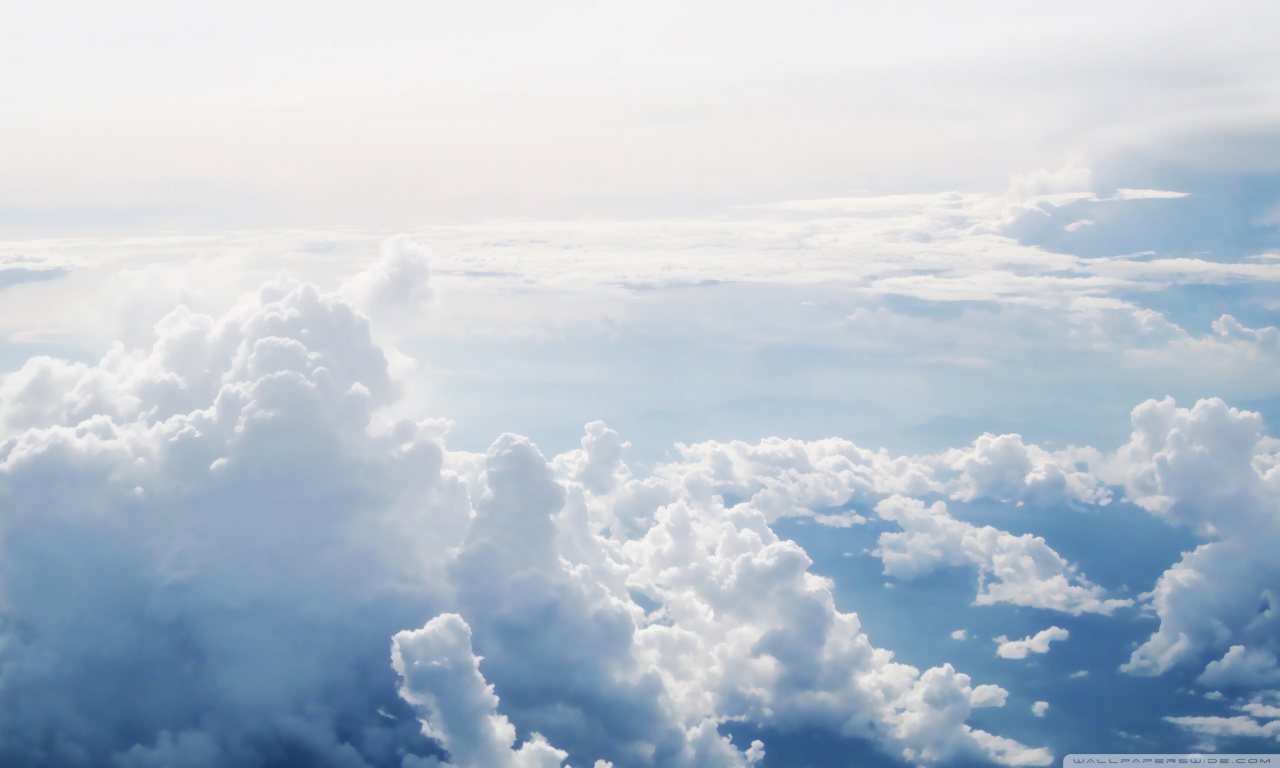
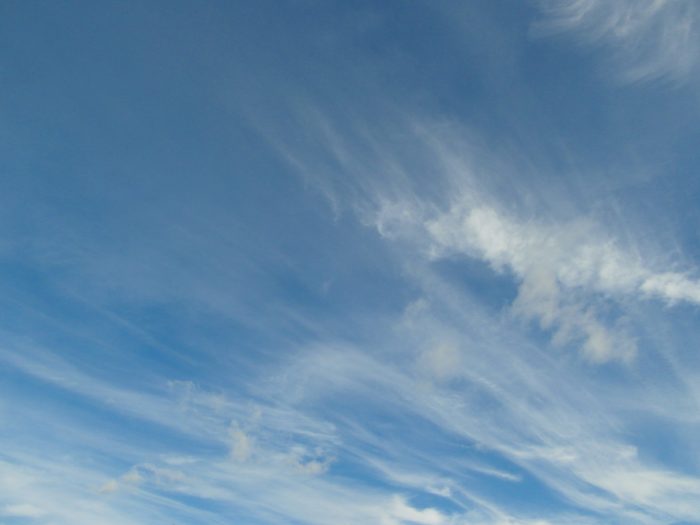
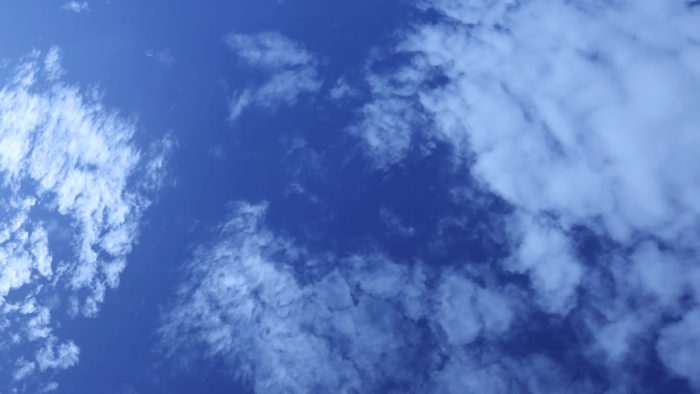
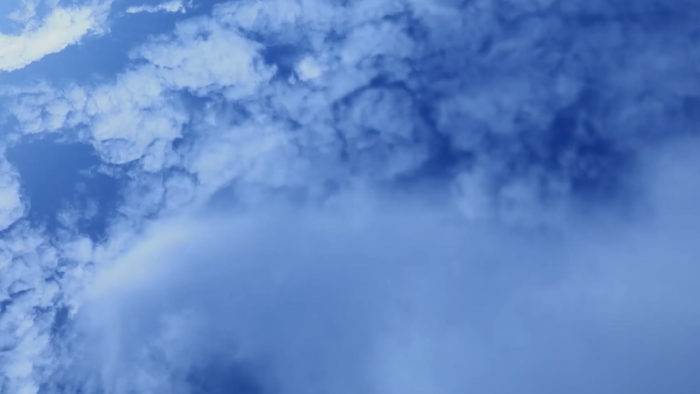
Capturing the mesmerizing beauty of clouds against the backdrop of the sky can transform any visual project, offering a serene and captivating aesthetic.
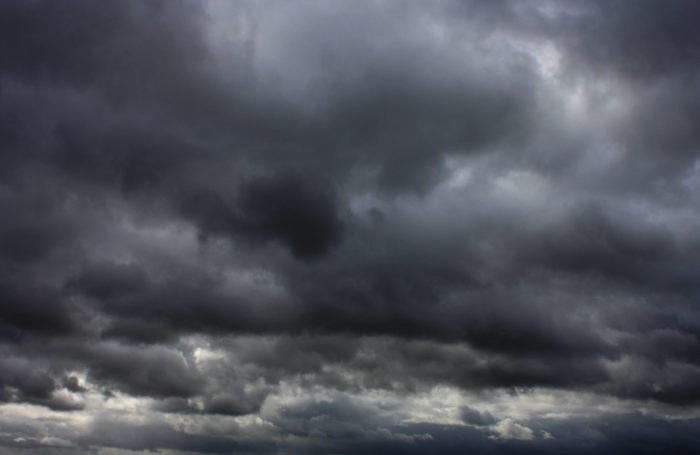
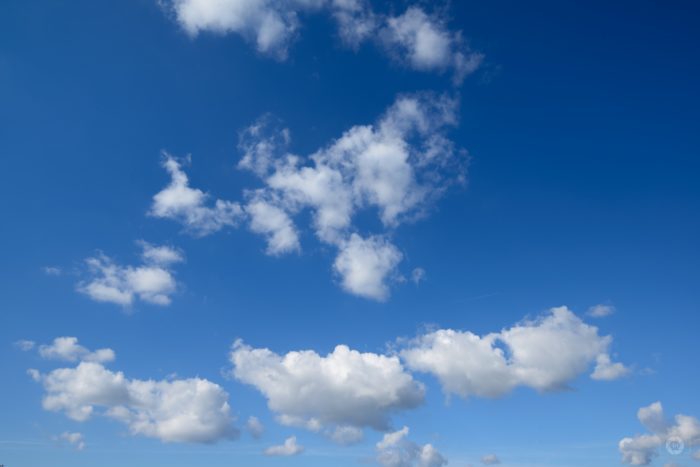
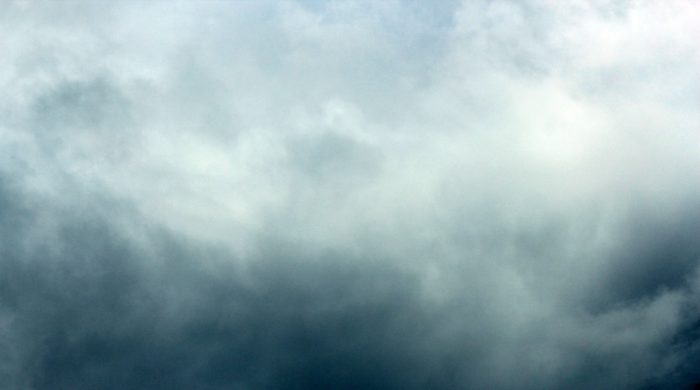
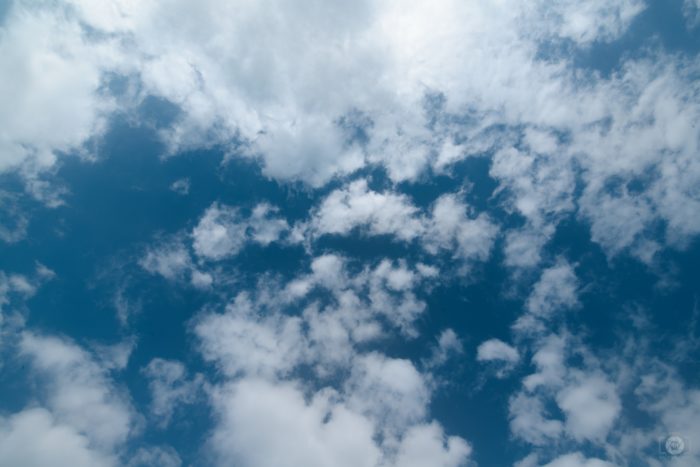
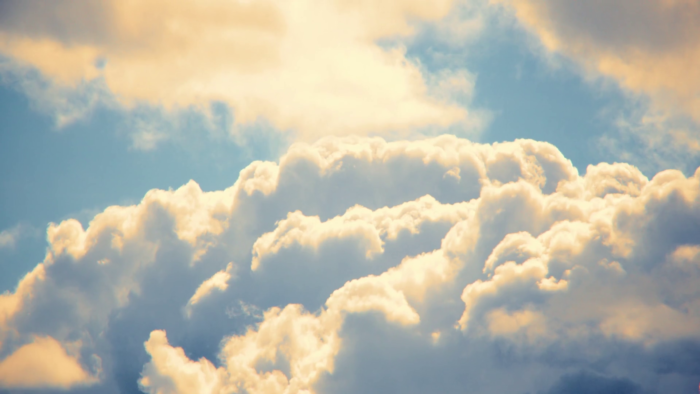
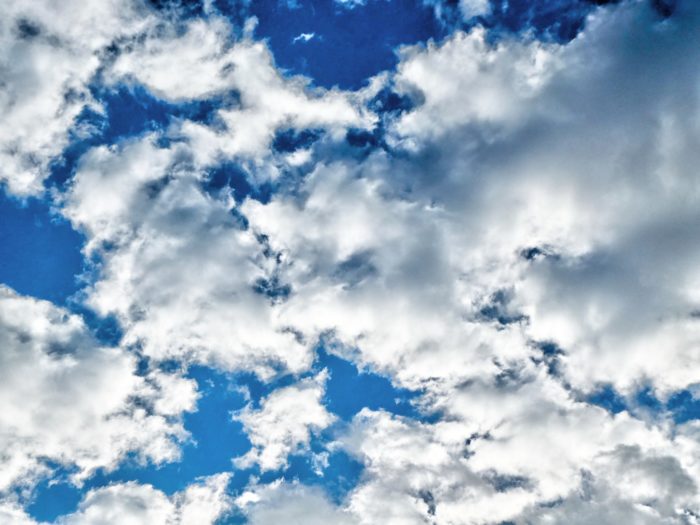
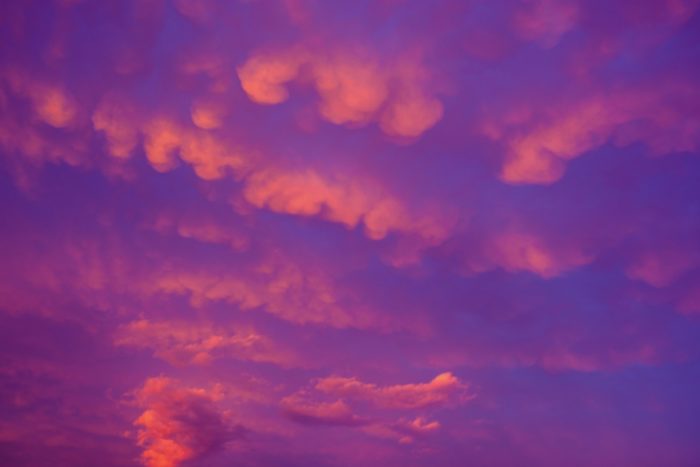
Imagine a scene where cumulus clouds float effortlessly in a clear sky background, or a dramatic portrayal of storm clouds gathering at dusk. This article dives deep into the art of utilizing examples of clouds background images to elevate your designs.
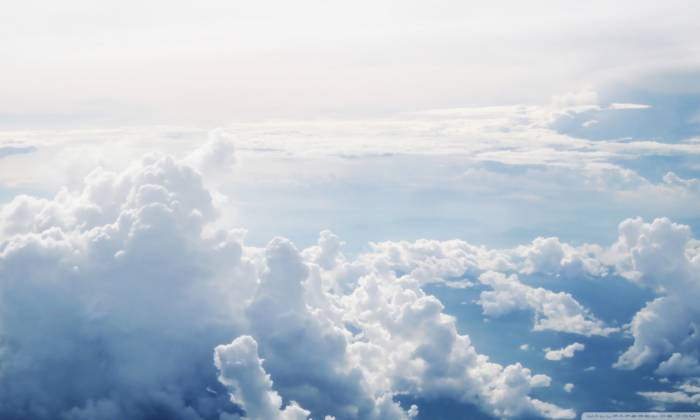
As you explore, you’ll uncover the different cloud types like stratus and cirrus clouds, and how each can add a unique element to your work.
With the rise of nature photography and sky backgrounds in digital art, understanding the nuances of cloud formations is essential.
By the end of this read, you’ll master the use of high-resolution cloud images and learn to choose the perfect cloud textures for any project, enhancing both visual appeal and storytelling.
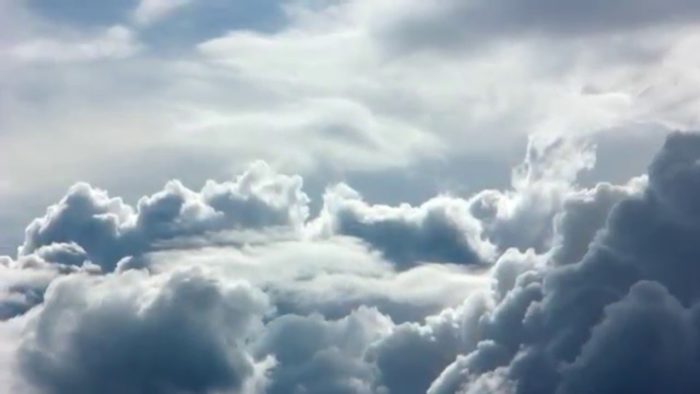
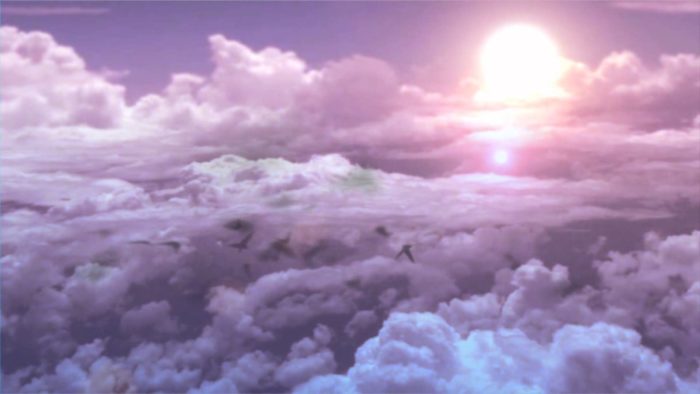
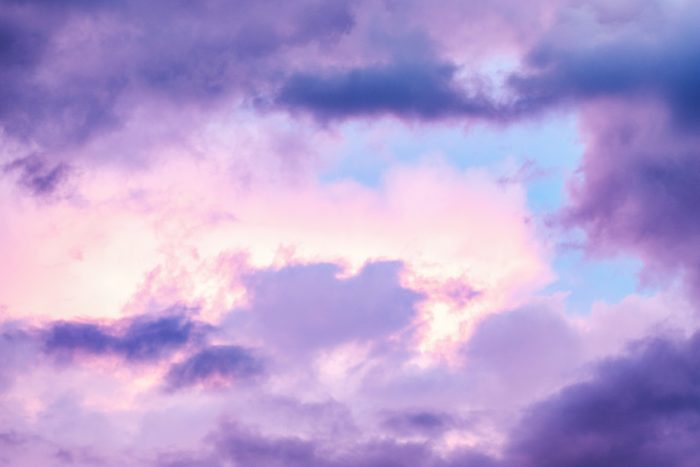
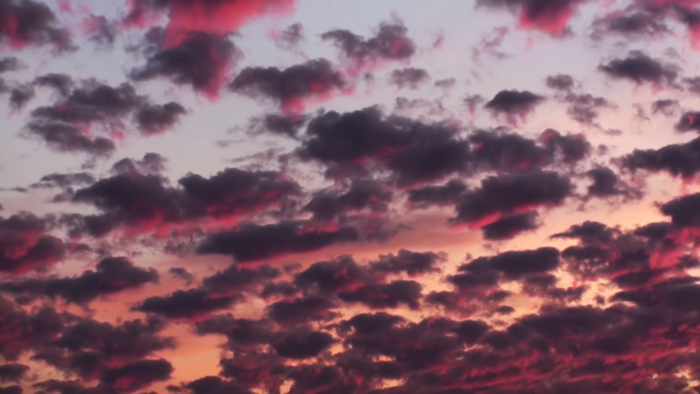
Clouds background images


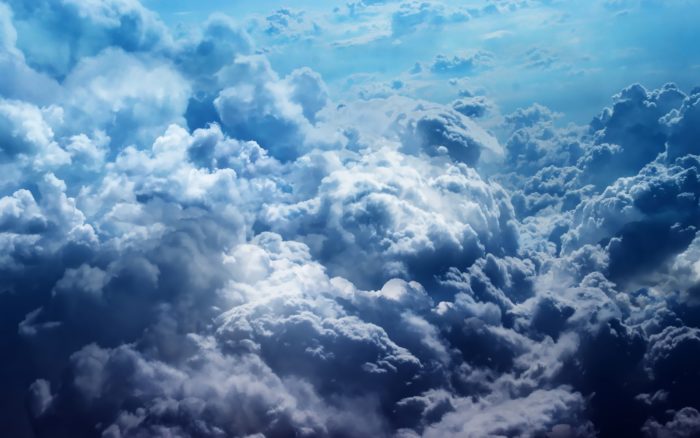











How to create a quick and easy clouds background in Adobe Illustrator
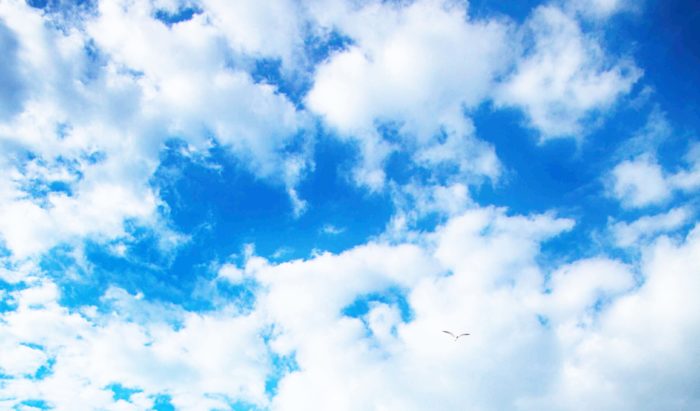
With the help of the Scatter Brush and the Blending Mode Screen, you can create a tranquil (or not so tranquil) cloudy sky background in Adobe Illustrator. We also included instructions for drawing a bird silhouette in this tutorial to help you add a bit of life to your clouds background if the situation calls for it.
1. Create the Background
Use the Rectangle Tool (M) to draw a rectangle with the same dimensions as the Artboard. Fill it in using the Gradient Tool. You can use standard Swatch Libraries of Adobe Illustrator to accomplish this step if you like. Go to Window > Swatch Libraries > Gradients > Sky. Select any sample you want. Set the angle of 90 degrees in the Gradient panel.
2. Create a Scatter Brush
In order to create a Scatter Brush, you will need to draw a circle. Use the Ellipse Tool (L) to do this. Then drag and drop your circle into the Brushes panel. Create a Scatter Brush. Use random settings.
3. Draw the Shape of the Clouds
- Step 1
Use the Paintbrush Tool (B) and select your newly made Scatter Brush. Draw few different lines in shapes of the clouds. Flow with it. Clouds have organic shapes, and it’s easy to fix mistakes.
- Step 2
Select all of the cloud shapes you have drawn and go to Object > Expand Appearance to transform brushes into objects. Do not forget to Ungroup (Control + Shift + G) these cloud shapes.
4. Add a Fluffy Effect by Using Gradients
- Step 1
Time to change the size of the clouds. You can make them smaller or larger as you desire. When done, select all circles and fill them. Use the black and white Radial Gradient.
- Step 2
Next, you need to go to the Transparency panel and set the Blending Mode to Screen. Group (Control + G) the shapes of each of your clouds. When you use a black fill with Blending Mode Screen, it will become completely transparent. This means that this process will only show the white of the gradients. When used with a group of white gradients, it will make for a fluffy, blurred effect which you usually have to create by using the many raster Blur effects. However, since these are gradients within your vector clouds, the fluffy, blurred effect is entirely vector.
5. Create a Cloudy Sky
- Step 1
Create a few copies of your clouds. To make it faster, use the hotkeys Control + C and Control + V.
- Step 2
Create more copies. Select some of them and go to the Transparency panel. Set their Opacity between 60% and 80%. This will give make some of the clouds seem more distant than others.
6. Draw a Bird (A Bonus!)
- Step 1
Create the framework of the bird:
- The body and the head will be drawn with the Ellipse Tool (L)
- The beak will be drawn with Pen Tool (P)
- The tail and wings will be drawn with the Pencil Tool (N)
- Step 2
Use the Width Tool (Shift + W) to add some more thickness to the left wing. Pull the path in the middle and the Width Tool will thicken the shape.
- Step 3
Next, add some thickness closer to the tip of the wing. Use the Width Tool (Shift + W) again in the same way.
- Step 4
Lastly, add extra thickness to the bottom portion of the wing.
- Step 5
Create the second wing and the tail with the same technique.
- Step 6
Make a number of copies of the tail.
- Step 7
Select all shapes of the bird and go Object > Expand Appearance. Bring all the shapes together with the help of the Pathfinder panel.
7. Add the Birds to the Clouds Background
- Step 1
Create three copies of the bird and fill them in with white.
- Step 2
Select the bird illustrations then go Effect > Stylize > Feather. The Feather Radius should be set to 2px.
8. Create the Sun
Select the Flare Tool. Click and drag it to any place in your cloud illustration. Then left click anywhere else in the cloud design. This should produce a bright flare that looks like the sun in the sky.
9. Finishing Touches
Use the Clipping Mask to hide any protruding parts. Draw the square on the top of all objects that are the same size as the artboard. Select all and go Object > Clipping Mask > Make (Control + 7).
FAQ On Examples Of Clouds Background Images
What are the best sources for high-resolution cloud images?
When searching for high-resolution cloud images, stock photography websites like Unsplash, Pexels, and Shutterstock offer a vast selection.
These platforms provide cloud formations in stunning detail, perfect for any design project. Look for cloudy skies, storm clouds, and sunrise clouds to enhance your visuals.
How can I use cloud images in digital art?
Integrate cloud imagery into your digital art by blending it with other nature backgrounds or scenic landscapes.
Use photo editing tools to adjust colors and contrast, creating a seamless and captivating effect. Cloud textures can add depth and mood to your artwork, making it stand out.
What types of clouds are best for different moods?
For a calm and serene mood, opt for cumulus clouds against a clear sky. For drama and intensity, storm clouds and thunderstorm clouds are ideal.
Cirrus clouds and stratus clouds can add subtlety and elegance to your design, enhancing the overall aesthetic.
How do I ensure my cloud images are relevant to my content?
To maintain relevance, choose cloud backgrounds that align with the theme of your project. For instance, cloudy weather images suit a somber topic, while sunset clouds can evoke warmth and tranquility.
Ensure your natural backgrounds complement the content’s tone and message.
Can I use cloud images for commercial purposes?
Yes, many stock photography websites offer high-resolution images with licenses for commercial use. Always check the usage rights before incorporating cloud imagery into your commercial projects.
Platforms like Shutterstock and Adobe Stock provide clear guidelines on how their cloud photography can be used.
What are some tips for capturing cloud images?
To capture stunning cloud images, use a camera with a wide-angle lens and shoot during the golden hours-early morning or late afternoon.
Experiment with different angles to highlight cloud formations and cloud patterns. Adjust settings for high-resolution shots to ensure clarity and detail.
How do I choose the right cloud images for my desktop wallpaper?
When selecting cloud backgrounds for desktop, consider the resolution and aspect ratio of your screen. Look for cloud wallpaper that fits perfectly without stretching.
High-resolution cloud images with puffy clouds or fluffy clouds can provide a refreshing and calming effect for your workspace.
How do cloud backgrounds affect user engagement?
Cloud backgrounds can significantly impact user engagement by creating a visually appealing and calming atmosphere.
Natural backgrounds like sky textures and cloud formations enhance the user experience, making content more enjoyable and reducing bounce rates. Choose cloudy skies to keep your audience captivated.
Are there specific cloud images better for mobile backgrounds?
For mobile backgrounds, select cloud images with a vertical orientation and high resolution. Blue sky images with cloud patterns or overcast skies work well.
Ensure the image maintains clarity on smaller screens and complements app icons without overwhelming the interface.
How do I use cloud images to enhance my weather-related content?
Incorporate weather images and cloud photography to visually represent weather conditions in your content.
Use thunderstorm clouds for storm forecasts, overcast skies for cloudy days, and sunrise clouds for morning weather updates. This adds visual context and improves content engagement.
Conclusion
Exploring examples of clouds background images opens a gateway to endless creative possibilities. These high-resolution images offer unique cloud formations and natural backgrounds that can transform any project. From serene cumulus clouds to dramatic storm clouds, each image adds a distinct flavor and depth. Whether you’re designing for digital art, websites, or desktop wallpapers, choosing the right cloud imagery enhances visual appeal and user engagement.
By understanding different cloud types and utilizing photo editing tools, you can craft compelling visuals that captivate audiences. These scenic backgrounds not only beautify your work but also convey a story, making your designs more impactful. Leveraging cloud textures and sky photography ensures your content is relevant and resonates with viewers.
Embrace the versatility of cloud backgrounds to elevate your projects. The right choice of cloud images can make all the difference, creating a professional and captivating visual experience.
If you enjoyed reading this article about clouds background images, you should read these as well:
- Red background images and textures
- Purple background images and textures
- Space background images and textures
- Free wooden background images and textures
- Neat stars background images
- Rustic background images
- Metal background images and textures
- Marble background images and textures
- Free autumn background images

Renowned for his expertise in logo design and visual branding, Bogdan has developed a multitude of logos for various clients.
His skills extend to creating posters, vector illustrations, business cards, and brochures. Additionally, Bogdan's UI kits were featured on marketplaces like Visual Hierarchy and UI8.
He also wrote in the past years on sites like Design Your Way, WebDesignerDepot, WPDean, Designmodo, Speckyboy, Slider Revolution, and more.
- Canva vs PowerPoint: Which Is Better for Presentations? - 22 September 2026
- How to Install Fonts on Mac (Step-by-Step Guide) - 20 September 2026
- From Mockup to Code: How AI-Augmented Development Speeds Up the Design Handoff - 19 September 2026

Bogdan Sandu is a seasoned designer who has been designing websites since 2008. Renowned for his expertise in logo design and visual branding, Bogdan has developed a multitude of logos for various clients. His skills extend to creating posters, vector illustrations, business cards, and brochures. Additionally, Bogdan's UI kits were featured on marketplaces like Visual Hierarchy and UI8. He also wrote in the past years on sites like Design Your Way, WebDesignerDepot, WPDean, Designmodo, Speckyboy, Slider Revolution, and more.
You Might Also Like