A strong video can lose its effect when a random distraction appears. A passerby enters the frame, a power line cuts through the view, or an old logo stays visible in reused footage. In the past, fixing such issues took advanced skills and too much time. Now, AI makes it easier to remove objects from video clips with less manual effort.
With modern tools like Filmora, beginners can clean scenes that once required complex masking and tracking. It helps remove unwanted objects from video while preserving natural backgrounds, better quality, and smoother results in both static and moving shots.
Part 1. Video Object Remover: What You Can Erase and Why It Matters
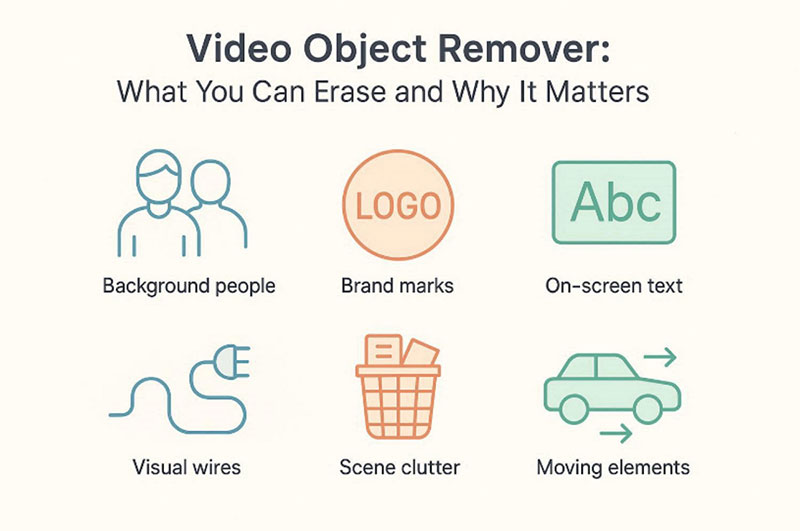
Before using a video object remover, it helps to know its strengths. This explains what it can erase and why cleaner footage improves results.
- Background People: Unplanned passersby can weaken the composition and reduce visual control. Thus, removing them helps the subject stand out more clearly.
- Brand Marks: Old logos can make repurposed footage feel dated or inconsistent. Erasing them supports cleaner branding and a more updated final look.
- On-Screen Text: Unwanted text layers may cover key details within the shot. Their removal restores balance and improves the scene’s visual readability.
- Visual Wires: Power lines often interrupt scenic views and outdoor compositions. Taking them out creates a neater frame with a stronger visual appeal.
- Scene Clutter: Minor objects in the background can make footage feel less refined. So, cleaning them improves shot quality without changing the original framing.
- Moving Elements: Passing distractions can pull attention away from the intended focal point. A reliable video object remover helps maintain a smooth viewing experience.
Part 2. How to Erase an Object From a Video in Filmora
Cleaning a video becomes much easier when the right tool handles the hard work. To see how to erase an object from a video in Filmora, follow the steps below:
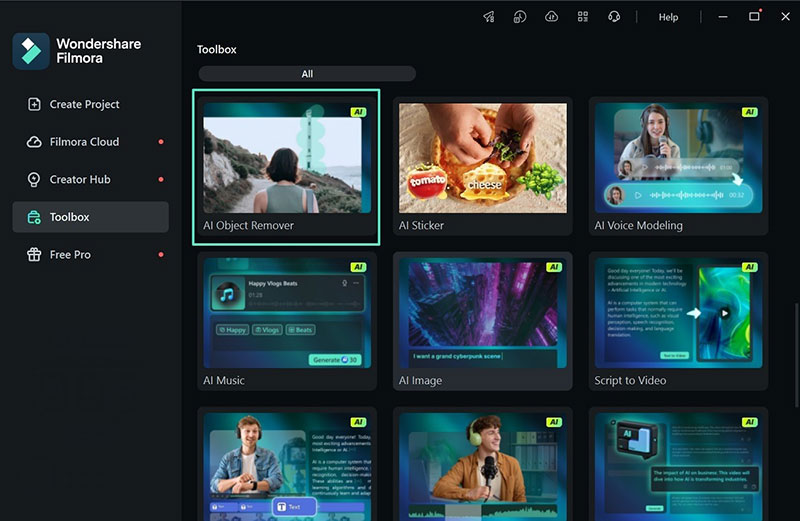
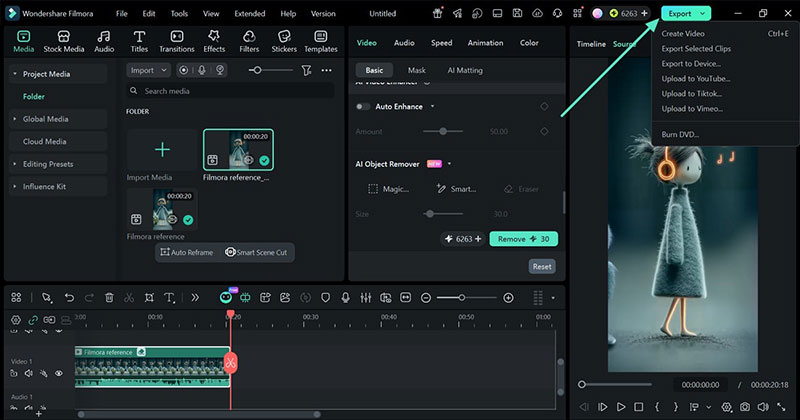
Step 1. Access the AI Object Remover Tool
Launch Filmora and open the “Toolbox” panel from the main screen. Then, select “AI Object Remover,” import your video file, and place the clip onto the timeline for editing.
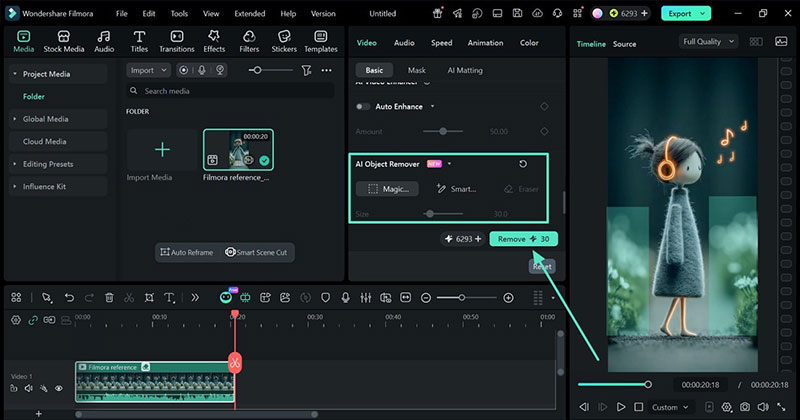
Step 2. Mark and Remove the Unwanted Object
Next, choose the selection mode, mark the unwanted element, adjust the brush size if required, and press “Remove” to process the video.
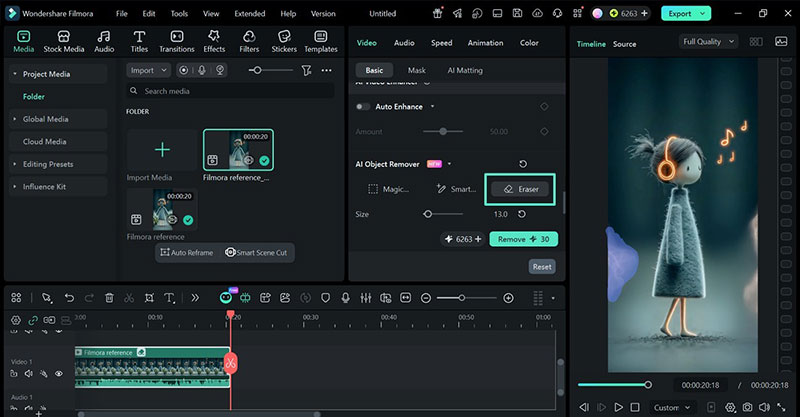
Step 3. Correct the Selection if Needed
If you mark the wrong area by mistake, choose the “Eraser” option inside the AI Object Remover panel. Then, brush over the incorrectly selected part to remove that mask area before applying the final object removal.
Step 4. Export the Cleaned Video
After the object removal process is complete, move to the top-right corner and click “Export.” Then, choose “Create Video” to save the edited file in your preferred format and output settings.
Part 3. Why Filmora Stands Out for AI-based Object Removal
To better understand its value, it helps to explore remove object from a video in action. The points below explain why Filmora stands out and why many creators prefer it:
- Motion Tracking: Filmora follows moving objects across frames with strong precision and steady consistency. This reduces manual effort and helps remove the person from the video more smoothly.
- Smart Recognition: Its AI detects selected objects without disturbing nearby or overlapping visual details. This allows difficult scenes to look cleaner and more natural after editing.
- Simple Workflow: The interface feels clear, manageable, and easy for beginners to understand quickly. Users can begin editing sooner without learning advanced or confusing technical steps.
- All-in-One: Filmora offers object removal inside a broader and more complete editing system. You can clean, refine, enhance, and export videos without changing platforms.
- Better Output: Desktop editing provides more privacy, stronger control, and higher visual quality. This gives Filmora an advantage over many free tools for removing objects from videos.
Part 4. Best AI Video Object Removers to Consider in 2026
A good AI video object remover should save time without lowering quality. To make the choice easier, review the comparison below to choose the best for you:
| Tool | Best For | Main Strength | Main Limitation | Privacy | Output Quality |
| Filmora | Beginners, creators, and regular editing projects | Combines AI object removal with full desktop editing features | Requires software installation | Stronger local control | High-quality HD/4K export |
| Online Tools | Quick one-time fixes and short clips | Fast access without installing software | Often limited by file size, speed, or weak tracking | Lower due to file uploads | Quality may drop after processing |
| Mobile Apps | Social media edits on the go | Convenient for fast edits from phones | Smaller workspace and less precise control | Moderate | Good for short content |
Why Desktop Tools Often Work Better
Desktop editing often gives users a more reliable and complete experience. Below are the reasons that show why the desktop video object remover often works better in practice:
- Better Privacy: Desktop tools reduce the need to upload sensitive footage through browsers. This helps protect personal files and client content more effectively.
- Stronger Quality: They usually preserve more detail during editing and final export stages. This makes high-resolution videos look sharper, cleaner, and more professional.
- More Control: Users can review, adjust, and refine edits with greater visual precision. This becomes especially useful during longer scenes with moving distractions.
- Faster Workflow: Desktop software often handles larger files and longer projects more smoothly. Thus, a desktop AI video object remover can speed up complex editing tasks.
Conclusion
To conclude, removing distractions no longer requires advanced editing skills or time-heavy manual work. With the right video object remover, creators can clean footage, preserve quality, and keep every scene visually focused. With powerful video editing software and easy AI tools, Filmora feels like a smart choice for polished, modern video cleanup.
Frequently Asked Questions
- What is the easiest way to remove an object from a video?
The easiest method is to use an AI-powered editor that lets you mark the target and automates the cleanup. A good video object eraser saves time by tracking movement and blending the background for you.
- Can I remove a person from a video without advanced editing skills?
Yes. Many modern tools are built for beginners. If you are wondering how to remove a person from a video, AI-based editors can often do the heavy lifting after you select the subject.
- Is there a way to remove objects from a video online for free?
Yes, some browser tools offer that option. But online free solutions that remove objects from video may limit file size, slow processing, or reduce output quality compared with desktop software.
- What can an AI video object remover erase?
A strong person remover from a video tool can often erase people, logos, text, wires, watermarks, and small background distractions. The best results usually come from footage with enough clean surrounding detail for the AI to rebuild naturally.

Renowned for his expertise in logo design and visual branding, Bogdan has developed a multitude of logos for various clients.
His skills extend to creating posters, vector illustrations, business cards, and brochures. Additionally, Bogdan's UI kits were featured on marketplaces like Visual Hierarchy and UI8.
He also wrote in the past years on sites like Design Your Way, WebDesignerDepot, WPDean, Designmodo, Speckyboy, Slider Revolution, and more.
- The Windsurf Logo History, Colors, Font, And Meaning - 10 October 2026
- How to Remove Background From Product Photos (No Photoshop) - 10 October 2026
- How Designers can Build a Stronger Online Creative Identity - 9 October 2026

Bogdan Sandu is a seasoned designer who has been designing websites since 2008. Renowned for his expertise in logo design and visual branding, Bogdan has developed a multitude of logos for various clients. His skills extend to creating posters, vector illustrations, business cards, and brochures. Additionally, Bogdan's UI kits were featured on marketplaces like Visual Hierarchy and UI8. He also wrote in the past years on sites like Design Your Way, WebDesignerDepot, WPDean, Designmodo, Speckyboy, Slider Revolution, and more.
You Might Also Like