Imagine trying to proofread a podcast or interview. You’re rewinding, fast-forwarding, and hitting play so often that your thumb develops muscle memory. That’s where the sound to text superhero sweeps in. It can magically turn audio recordings into editable text, saving you time, effort, and a lot of “what did they say” moments. And did we mention time? The so “not enough time”!
And they’re not just a thing nice to have. They’re the nifty sauce of content repurposing, accessibility, and SEO. So whether you’re a business, content creator, or professional, we all have to become budding geniuses in the art of turning sound into editable text.
The why behind it!
1. Proofreading without the pain
If audio is a conversation, then the text is clarity. A transcript allows you to polish the rough edges of spoken words, remove those “uhs” and “ums’, correct grammar, and tighten the narrative because speech does not always look so polished on paper.
People read faster than they listen, so why torture them? Reviewing a 60-minute class, meeting, or presentation just to take key points feels like being caught in a bind. A transcription, on the other hand, is like climbing a steep hill but with killer climbing skills.
2. Repurpose content like a Pro
A good recording is just the beginning. A good transcript can turn that podcast or webinar into a how-to guide and that interview into bite-sized social media posts. Your audio should not be just one-and-done. It should spawn blog posts, eBooks, email campaigns, Facebook Ads, teasers and so on. Why let great content collect digital dust? Just transcribe audio to text and get more content.
3. The SEO jackpot
Your audio is just a silent film in Google’s eyes! So give it subtitles because Google just loves text. While it can’t listen to your audio(yet), it can devour your transcript. So, adding searchable text alongside your audio recordings will boost your rankings, helping you make your content more discoverable.
Videos and audio content with transcriptions have higher engagement because viewers stay longer to skim text while listening, and that makes them more likely to share your content, too.
4. Offer accessibility
Transcripts aren’t just for your SEO dreams; they’re for ALL of your audience. For those with hearing impairments or difficulty listening, so providing a transcript shows you care. Not to mention that, at times, everyone would rather read than listen. Ever tried listening to a podcast in a crowded cafe?
How to make sound to text work for you
1. Master the art of recording
Even the best transcription software can’t decipher mumbling, or can it? We’ll get to that later! But it’s plain simple: poor audio quality will leave your transcript riddled with all sorts of errors. Using a decent microphone, minimizing background noise, and articulating clearly is a must. Still, if you end up with lousy background AC noise, don’t panic, and please don’t re-record it. There are tools like this AI audio enhancer that magically silence your AC or any kind of background noise. Just upload your recording and enhance audio quality in no time.
2. Choose the right tools
I bet you’ve done your research, and at first glance, you realized that the market is buzzing with transcription tools. Some are free, others are premium, but it all helps turn hours of audio into text in minutes. Probably the best we’ve tested is Flixier’s audio to text converter online. Don’t worry; it’s free to try to transcribe audio to text. It also features an AI audio enhancer that you can use to tweak your audio quality before transcribing.
3. Repurpose and optimize
Now that you’ve got your text, let’s make it work for you. First things first: add timestamps for easy navigation. But if you are transcribing with Flixier, you can download your transcripts with Timestamps, so you can skip this step. Highlight quotes for quick pullouts. Use auto-subtitle generators to add captions and post them with your videos for better reach.
4. Overcoming challenges
Of course, converting audio to text isn’t all smooth sailing. Accents, jargon, background noise, or even different languages can set your transcript adventure to straight failure. But don’t let it discourage you. A little sound enhancement here, transcript translating there, and editing audio can go a long way in perfecting your transcript. And tools like Flixier can do it all, from start to finish, in one intuitive dashboard. And before you even ask, yes, you can even use it to record audio, edit it, add it to your video, and generate transcripts in dozens of languages and formats.
Transcription templates- The road map to clarity
- Start with a clean, legible font like Arial or Times New Roman-nothing too fancy, just a font that maximizes readability. The length of your paragraph should strike a balance: too long, and it feels daunting; too short, and it disrupts the flow.
- Mark-up tags like [inaudible] or [crosstalk] show integrity, which shows that even technology knows its limits.
- Consistency in formatting- using line breaks, timestamps, and speaker labels helps build trust.
And remember that a good transcription template doesn’t just document words; it makes sure that your message is received loud and clear.
How to convert audio to text with Flixier
Flixier’s browser-based audio-to-text converter is a powerhouse of efficiency that integrates AI text editing features, which allows you to transcribe and edit transcripts for free online. You could spend hours typing the dialogue, or you could leverage AI to analyze the audio in your recordings or video content, detect spoken words, and instantly convert them to text. Luckily, Flixier can also automatically sync text as subtitles with your audio or video and allows you to make changes to the text.
Here’s how you can do it:
Step 1: Power up Flixier
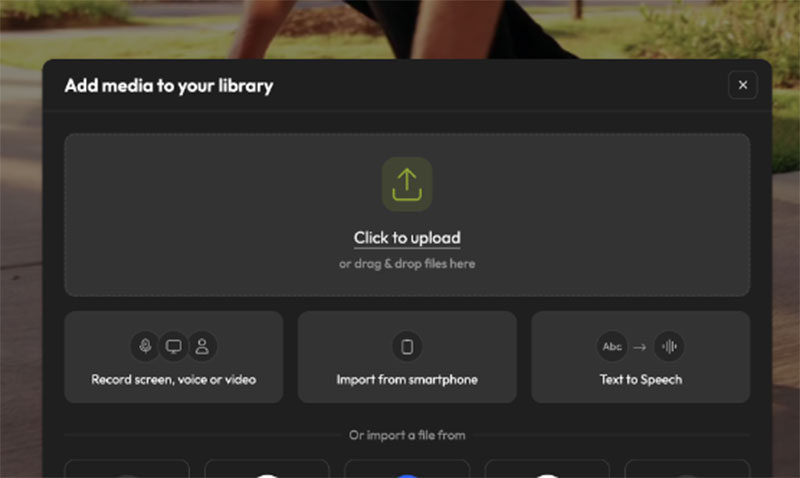
Open Flixier in your browser and import your audio or video files from your device or cloud storage services like Google Drive, OneDrive, or Dropbox. You can even paste a link to your video, and Flixier will automatically pull it into your library. The best part is that no downloads or installs are needed!
Step 2: Generate subtitles
To transcribe audio to text, drag your media file to the timeline, right-click on it, and select Generate Subtitles. Thanks to cloud computing technology, your subtitles will be ready in no time, and you can add them to your timeline. You can modify text, delete unwanted words or hums, and change font style, text color, size, and position.
Step 3: Translate your transcript (Optional)
With Flixier’s audio-to-text converter online, you can convert audio to text and translate your transcript to other languages and dialects at the click of a button. After generating your transcript, go to the Translate tab and click on Add New Language. Choose your desired language from the drop-down list, and then click on the Translate button to translate from one language to another.
You can also turn your translated transcript into multilingual subtitles or use it to get voiceovers in other languages with Flixier’s AI voiceover generator. Yeah, that’s quite impressive, and it’s all happening online.
Step 3: Download the transcript
To download the transcription after it has been generated, click on the subtitle media file in your timeline to select it, go to the Properties menu on your right, select the Subtitle tab, choose the format you’d like your transcription to be and just press on the download button. You can save it as .TXT, .TXT No Timestamps, .SRT, .VTT, .STL, .SBV, .SUB, .ASS, .DXFP, .TTML., and others.
Key features:
- converts audio recordings into editable text for free
- offers text customization options(fonts, size, color, position, timing)
- can translate transcripts into over 130 languages
- supports almost all audio, video, and text formats
- generate multilingual voiceovers based on transcripts
- features various text effects
- AI-powered audio and video editing tools
Benefits:
- Accuracy: Flixier doesn’t just listen, it can understand. Using cutting-edge tech, it captures every “hmm,” “aha,” or “meow”(yep, that’s a cat ruining your recording) and everything in between, getting you accurate audio transcriptions.
- Speed: As a cloud-based app, Flixier works faster than you can say “artificial intelligence”(we could have said “AI,” but we know our limits). Whether you’re on your Mac, PC, tablet, or even your Android phone, it delivers accurate transcripts in seconds.
- Easy to use: With Flixier, you don’t need a PhD in tech. It has a dashboard that is so intuitive that even your technophobic grandma can transcribe like a pro.
- Cost: And now, the cherry on top-the cost. Or should we say the lack of one? Here’s the kicker: you can try Flixier completely free and see if it’s the right tool for you before you decide to purchase anything.
So, turning your words into text isn’t just a convenience; it’s a game-changing strategy. It saves you time, skyrockets your SEO, makes your content reach everyone from everywhere, and opens doors to fresh creative opportunities.
No more rewinding. Just start transcribing like a Pro because the digital world waits for NO ONE, but it sure loves those who can KEEP UP!

Renowned for his expertise in logo design and visual branding, Bogdan has developed a multitude of logos for various clients.
His skills extend to creating posters, vector illustrations, business cards, and brochures. Additionally, Bogdan's UI kits were featured on marketplaces like Visual Hierarchy and UI8.
He also wrote in the past years on sites like Design Your Way, WebDesignerDepot, WPDean, Designmodo, Speckyboy, Slider Revolution, and more.
- Canva vs PowerPoint: Which Is Better for Presentations? - 22 September 2026
- How to Install Fonts on Mac (Step-by-Step Guide) - 20 September 2026
- From Mockup to Code: How AI-Augmented Development Speeds Up the Design Handoff - 19 September 2026

Bogdan Sandu is a seasoned designer who has been designing websites since 2008. Renowned for his expertise in logo design and visual branding, Bogdan has developed a multitude of logos for various clients. His skills extend to creating posters, vector illustrations, business cards, and brochures. Additionally, Bogdan's UI kits were featured on marketplaces like Visual Hierarchy and UI8. He also wrote in the past years on sites like Design Your Way, WebDesignerDepot, WPDean, Designmodo, Speckyboy, Slider Revolution, and more.
You Might Also Like