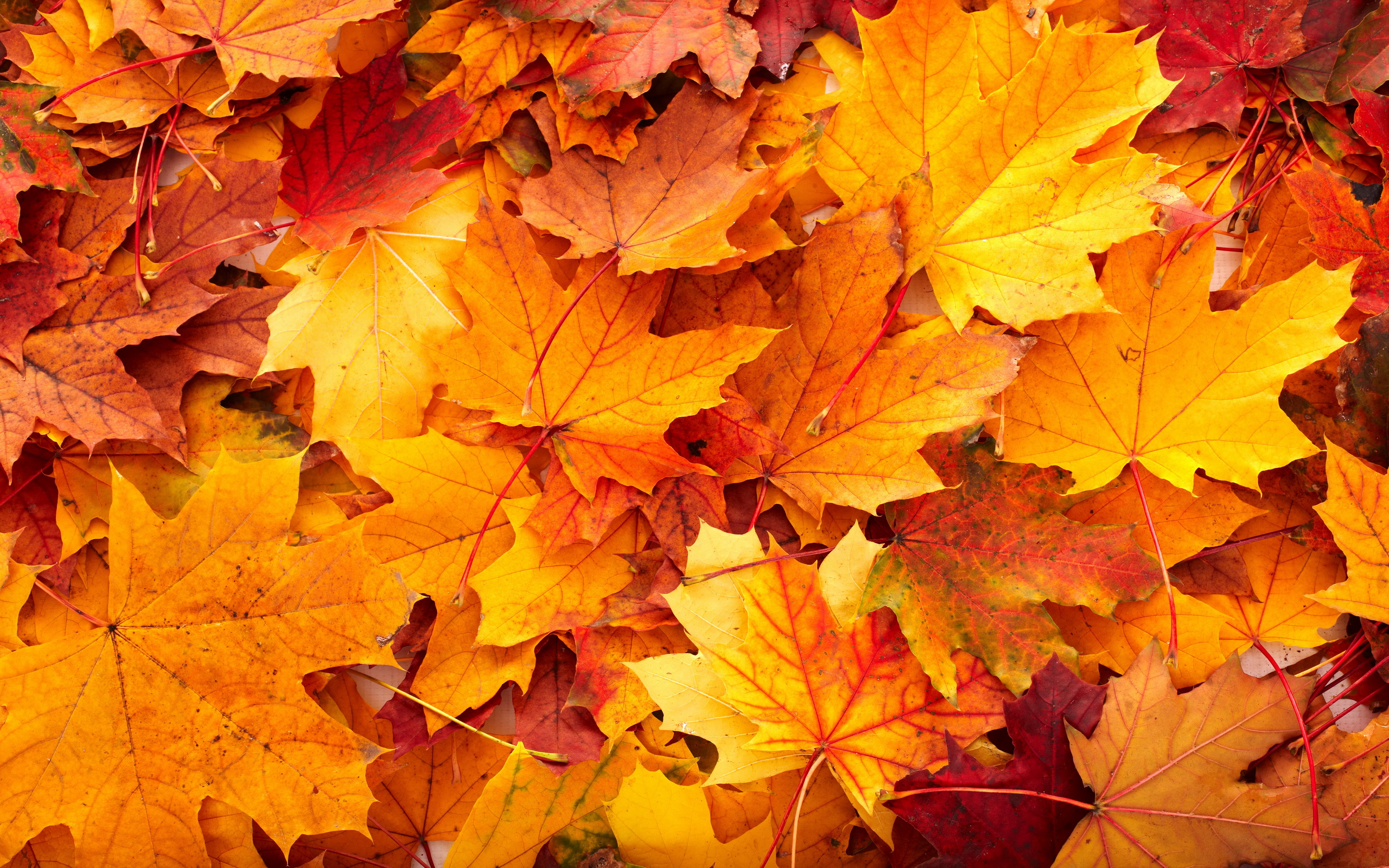
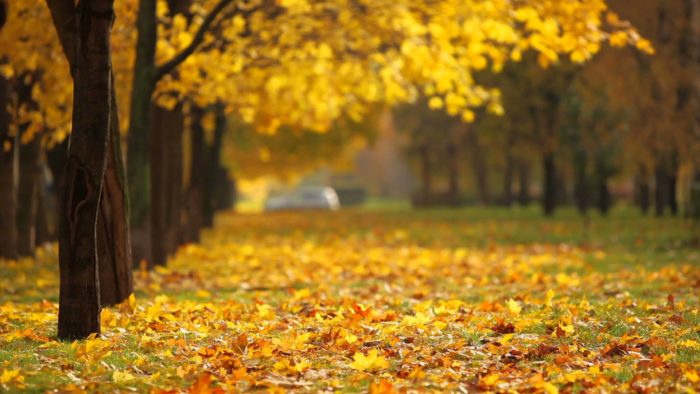
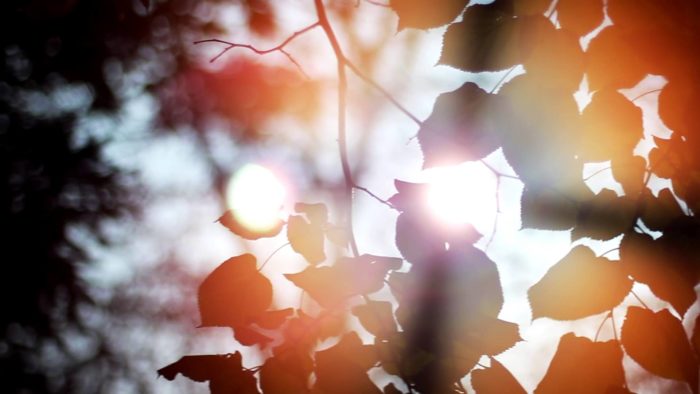
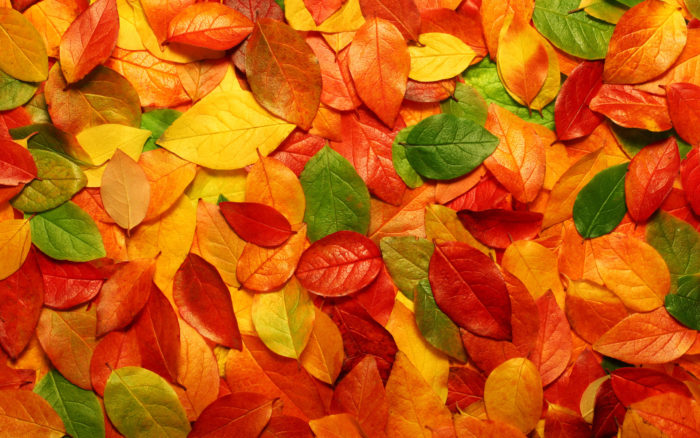
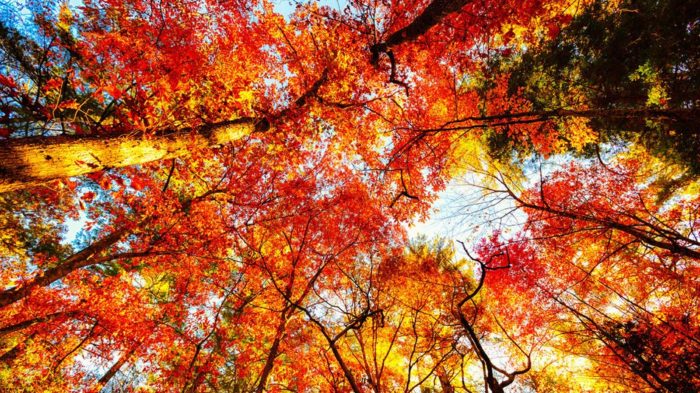
The golden hues of autumn leaves, the crisp air, and the enchanting landscapes-there’s something truly magical about fall that captivates the soul. As the season transforms, so does the canvas of our surroundings, painting it with the vibrant palette of fall foliage and warm tones.
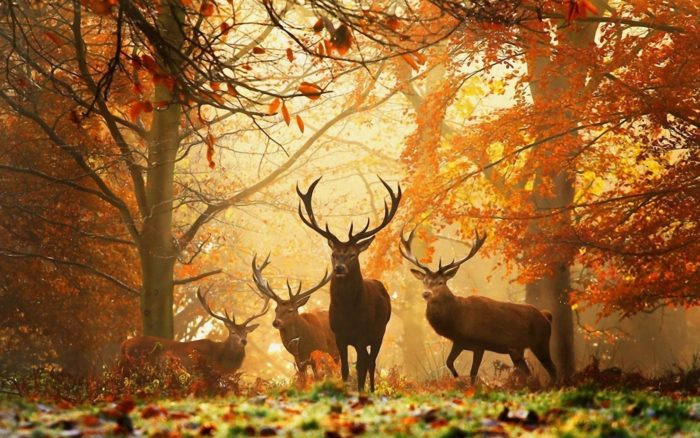
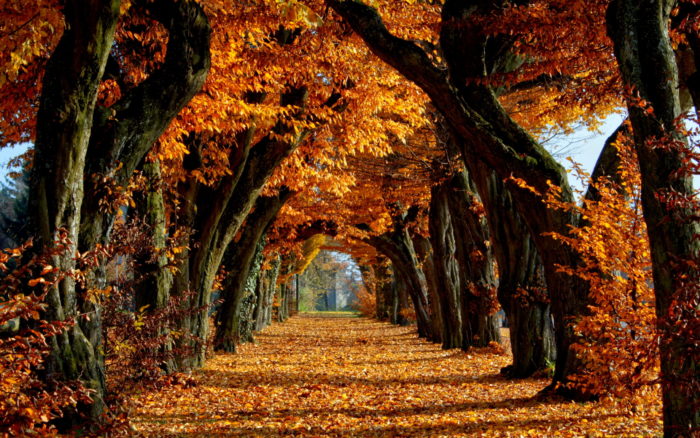
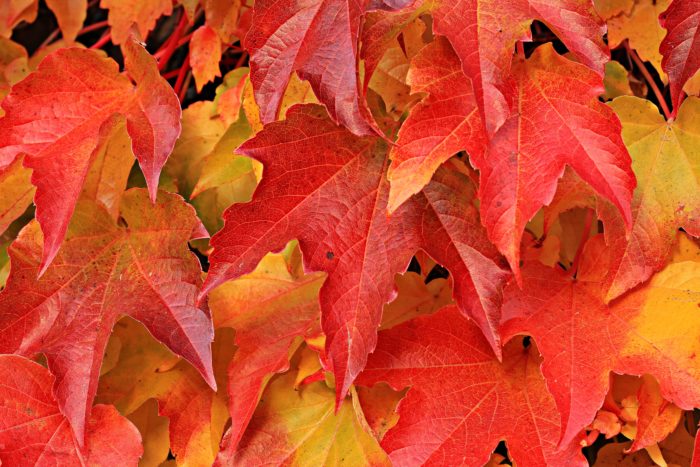
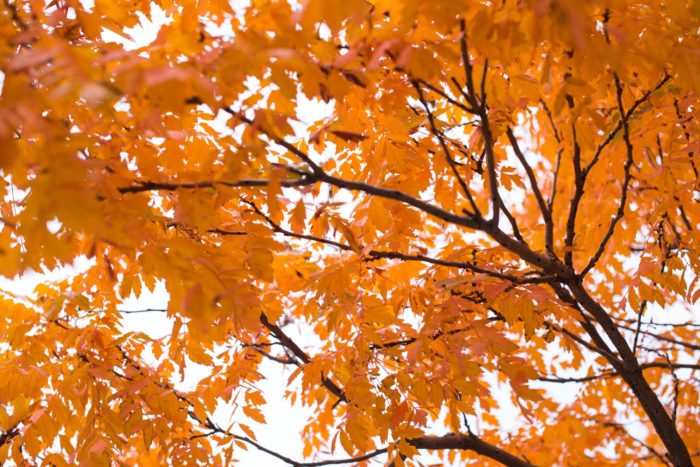
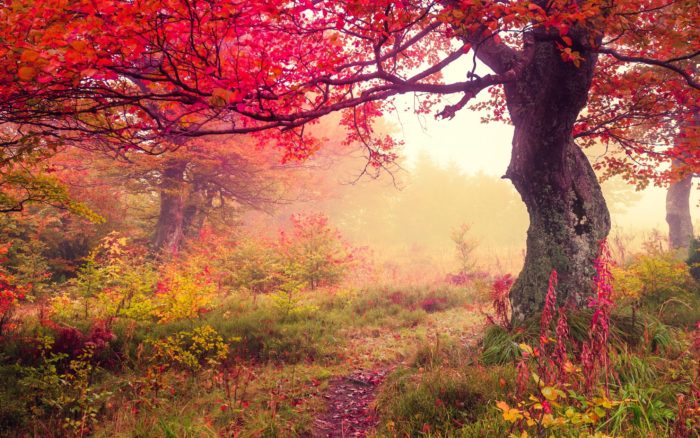
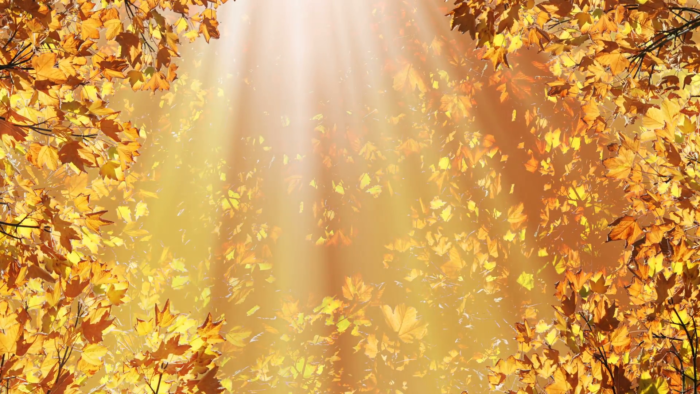
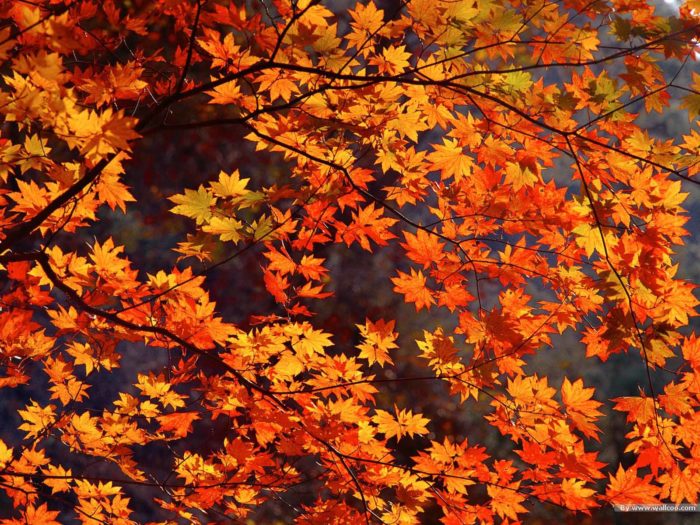
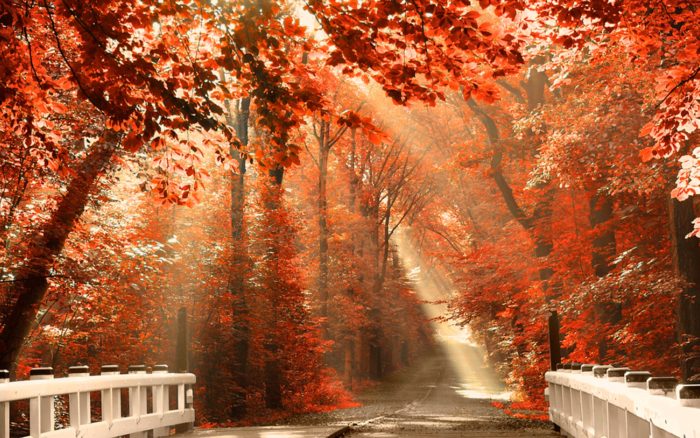
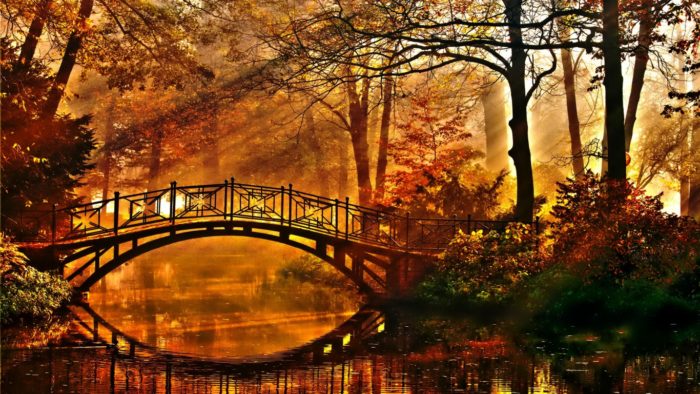
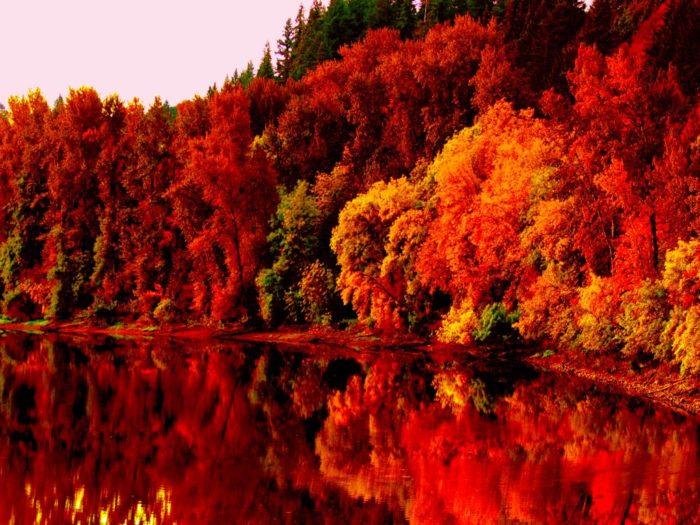
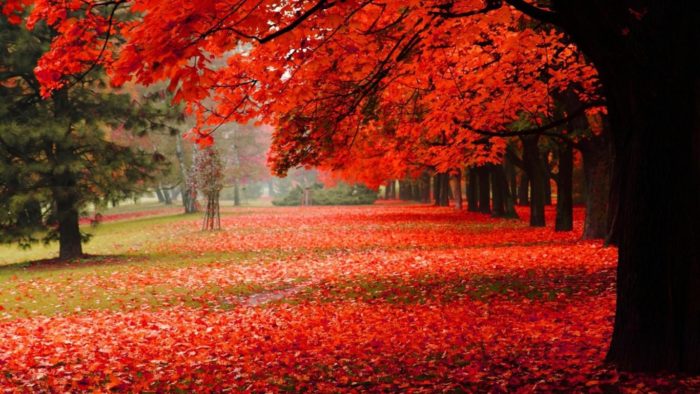
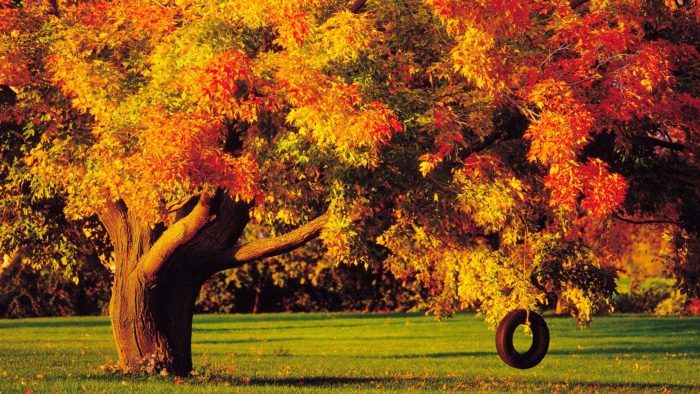
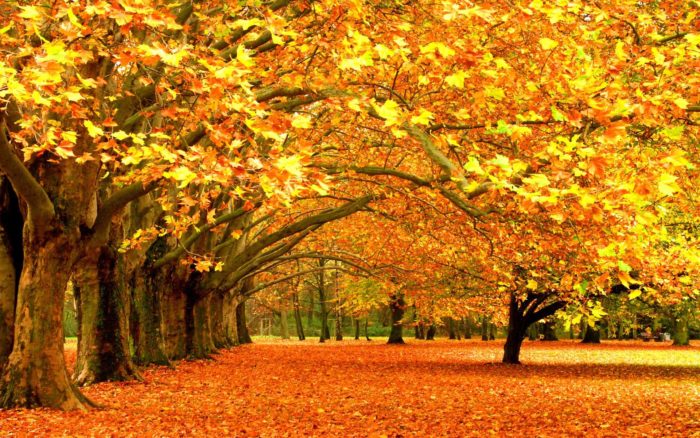
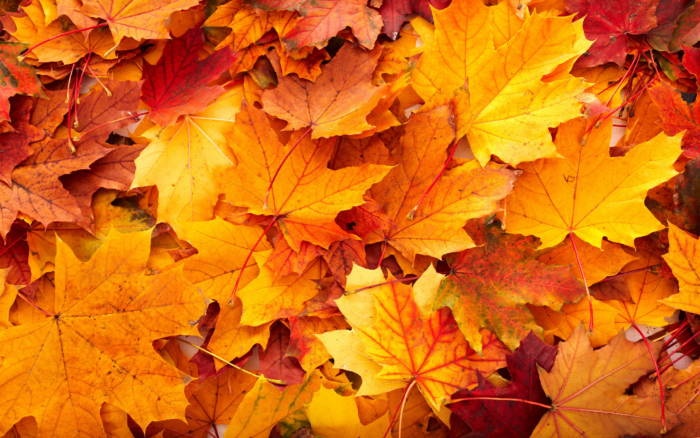
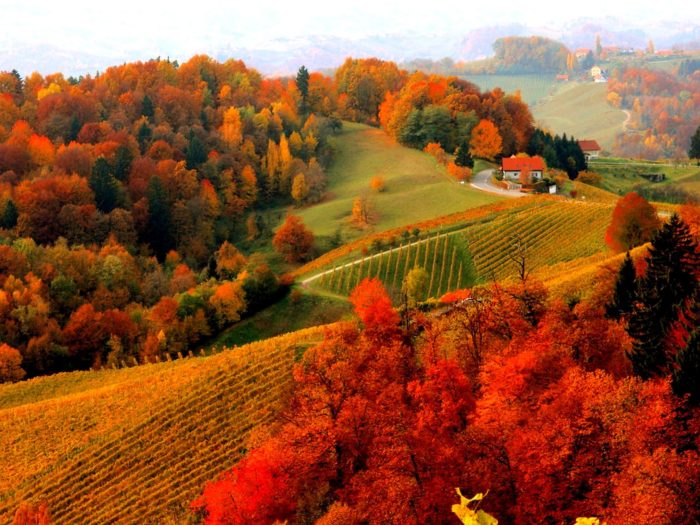
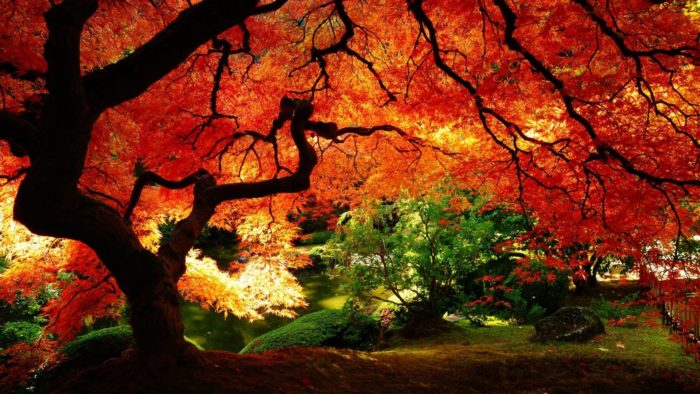
When it comes to fall background images, the allure of autumn scenery is unmatched. These images not only capture the essence of the season but also bring the rustic charm of fall into your digital space.
Whether you’re looking to enhance your desktop with scenic fall vistas or searching for the perfect backdrop for your next project, this guide is your ultimate resource.
By the end of this article, you’ll discover a curated collection of high-quality images featuring autumn landscapes, learn the secrets behind capturing the perfect fall shot, and explore tips on selecting the best seasonal backgrounds for your needs.
Let’s dive into the mesmerizing world of autumn and embrace the beauty of fall background images.
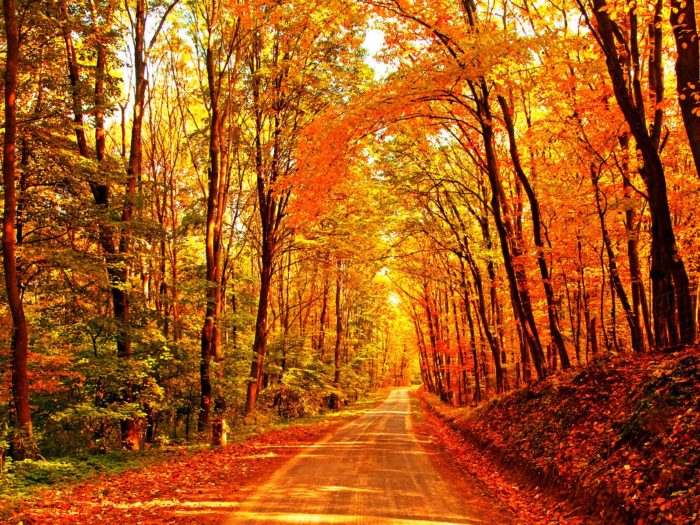
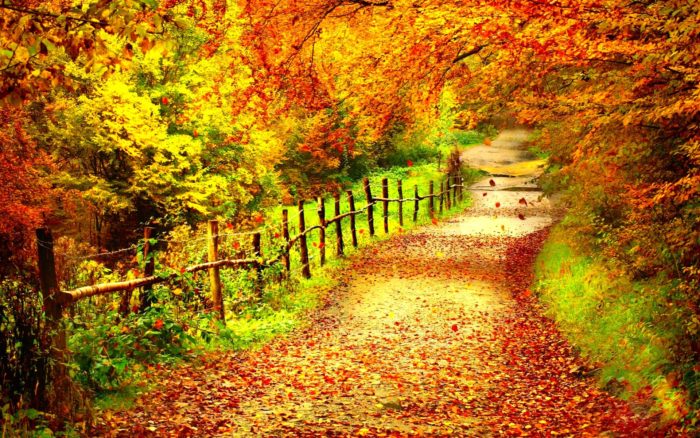
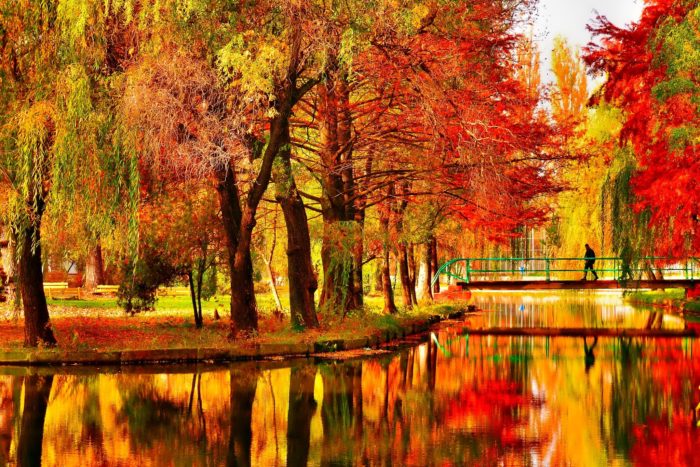
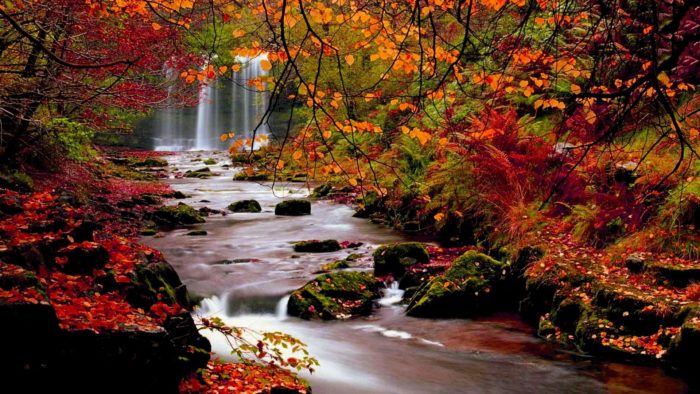
Fall background images
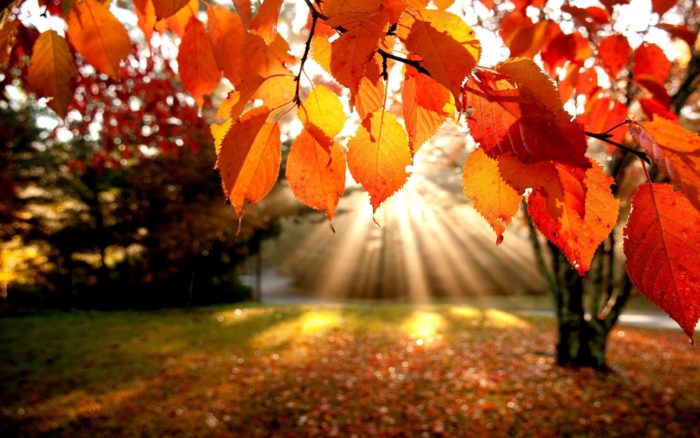


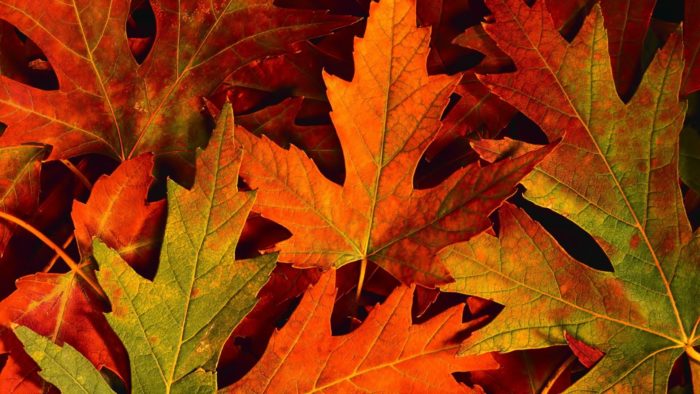
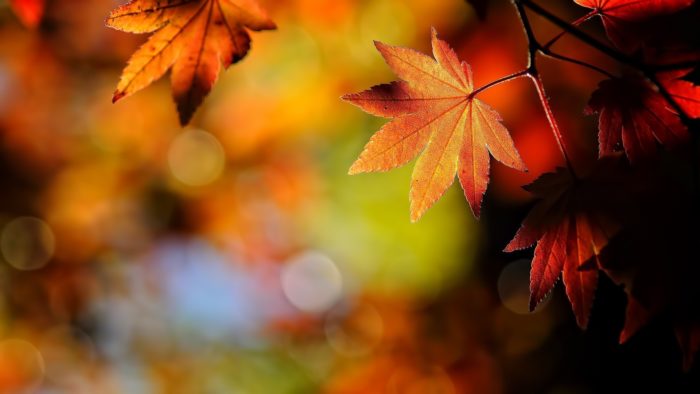
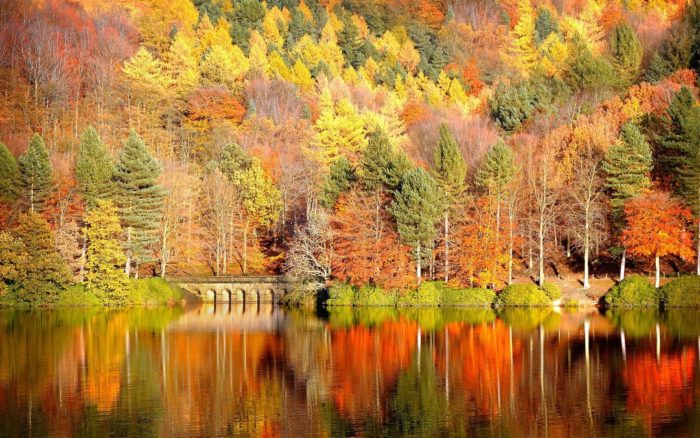
How to Create a Realistic Fall Background in Adobe Photoshop
Follow along with this tutorial to learn how to use a few leaf images, textures, adjustment layers, and lighting effect to create an amazing autumn leaf effect for a fall leaves background.
Assets Used For Creating a Fall Desktop Background
- Asphalt 02 by Limited-Vision-Stock.
- SoilMud0041 Image 1 – Medium.
- Grunge texture 4 by darkrose42-stock.
- You can choose any of the Leaf Images available on the web. The ones used here are from the Leaves0060, Leaves0132, and Leaves0233 sets from Textures.com.
- Water 02 by DH-Textures.
- Free Pack 6000 photoshop gradients by Supertuts007 (load the CSP True Sky Gradients.grd file).
1. Create the Background of the Fall Background
- Step 1
For your initial fall leaves desktop background, make a new 1600 x 1031 px document. Add the Asphalt 02 image on top of the Background layer, then rename the layer to Background Texture. Resize it as needed.
- Step 2
Double-click on the Background Texture layer to apply a Color Overlay effect with these settings:
- Color: #5f4f31
- Blend Mode: Multiply
- Opacity: 50%
This will darken the texture and help enhance its coloration.
- Step 3
Place the SoilMud0041 image on top of your Background Texture layer. Resize it as needed and then rename its layer to Background Texture Overlay. Change the Blend Mode to Multiply and adjust the Opacity to around 30%.
This is also the point where you would add in any text you want if you are interested in having an autumn leaf overlay. The same techniques generally apply with just a few extra adjustments needed. We’ll mention any further steps for turning your fall background into a fall leaves text effect throughout the tutorial.
3. Add the Leaves to the Fall Background
- Step 1
After you choose the leaf images you will be using for the fall desktop background, you need to add them to the Photoshop file.
Be sure to place the leaves (File > Place) rather than duplicating them. After you have placed them in the file, resize each leaf as you like. Feel free to have fun with the size and placement of the leaves. The leaves can be as cluttered or as loosely grouped as you like.
- Step 2
Double-click on a leaf layer to apply a Drop Shadow effect using these settings:
- Color: #3d2d0b
- Opacity: 35%
- Distance: 6
- Size: 3
This effect will apply a simple shadow to the leaf, helping to make it more realistic.
- Step 3
Right-click the leaf layer with the Drop Shadow effect and choose Copy Layer Style.
- Step 4
Right-click the layers of the other leaves, then select Paste Layer Style in order to apply the Drop Shadow effect to every one of the leaf layers.
4. Duplicate the Leaves on the Fall Background
- Step 1
Choose the Move Tool and check the Auto-Select box in the Options bar.
Press and hold the Option key, then click and drag the leaf you want to duplicate and release.
After you have duplicated every leaf, press Command-T to enter the Free Transform Mode. You can now resize, rotate, and position the duplicated leaf.
Alternatively, you can use the Edit > Transform > Flip options to create even more variations on the leaves.
Repeat this process until you cover the whole fall background with a number of different leaves. For a fall leaf text effect, just cover the text area over with leaves. This whole process can be very time consuming, but it gets faster the more leaves you have on the fall background.
- Step 2
When you are happy with the look of your fall background as far as leaf placement goes, group all of your leaf layers in a group (probably named ‘Leaves). If you are trying to create a fall leaf text effect, make your text layer invisible by clicking the eye icon next to it.
- Step 3
Feel free to change the order of the leaf layers in order to get a more dynamic look.
5. Add the Leaves Texture
- Step 1
Duplicate your Background Texture Overlay layer. Place the resulting copy on top of the Leaves group. Then change the layer’s Blend Mode to Linear Burn and adjust its Opacity to around 5%. This will create some subtle texturing to the fall leaves.
- Step 2
Click the Create new fill or the adjustment layer icon at the bottom of the Layers panel. Select Hue/Saturation.
- Step 3
Adjust the Saturation value to -10.
6. Add the Vignette Texture and the Gradient Map
- Step 1
Place the Grunge texture 4 on top of all layers. Rename the Grunge texture 4 layer to Vignette Texture, resize it as you need, then change its Blend Mode to Multiply.
- Step 2
Create another Hue/Saturation adjustment layer. Click on the Clip to layer icon, then adjust the Hue value to -37.
- Step 3
Create a Gradient Map adjustment layer. Use a gradient, click the Dither box, and then change the layer’s Blend Mode to Soft Light and adjust its Opacity to around 50%.
7. Create the Smart Object
- Step 1
Go to Select > All, then Edit > Copy Merged, and Edit > Paste.
- Step 2
Place this pasted image on top of all layers. Rename the layer to Lighting Effects, then go to Filter > Convert for Smart Filters.
8. Apply the Lighting Effects Filter
- Step 1
Go to Filter > Render > Lighting Effects, then add a Spot Light.
Adjust the ellipses. You want to have the light come from the top left corner to the bottom right one.
- Step 2
Use the settings below in the Properties panel to the right:
- Color: RGB (255, 251, 235)
- Intensity: 23
- Hotspot: 60
- Colorize: RGB (255, 249, 231)
- Exposure: 0
- Gloss: -17
- Metallic: -50
- Ambiance: 19
- Texture Height (for each channel): 1
These settings will add some pleasant lighting and a nice piece of detailing to the effect.
9. Add the Water Overlay Texture
- Step 1
Place the Water 02 image on top of all layers. Rename this layer to Water Texture. Change its Blend Mode to Soft Light and its Opacity to 50%.
- Step 2
Add a Hue/Saturation adjustment layer on top of all layers. Click on the Clip to layer icon and change the Saturation value to -31.
This will create a nice rainy or wet feel to the final fall background, really capturing an autumn feel and creating a naturistic look. Feel free to play around with the different textures and settings to get different final results.
FAQ On Fall Background Images
What makes a good fall background image?
A good fall background image captures the essence of autumn with vibrant colors and detailed textures. Look for images featuring autumn landscapes, fall foliage, and rustic backgrounds.
The best images evoke the feeling of crisp air and the warmth of golden leaves falling in a picturesque setting.
Where can I find high-quality fall background images?
You can find high-quality fall background images on stock photo websites like Unsplash, Pexels, and Shutterstock.
These platforms offer a wide range of autumn scenery and seasonal wallpapers. For even more options, explore photography websites and seasonal decor blogs that feature curated collections.
How can I use fall background images for my projects?
Fall background images are versatile and can be used for various projects, from enhancing your desktop to creating marketing materials.
Incorporate them into presentations, social media posts, and websites. They add a touch of fall aesthetics and warm tones to your designs, making them visually appealing.
What are some popular themes for fall background images?
Popular themes for fall background images include pumpkin patches, autumn leaves, cozy scenes, and Thanksgiving themes.
These images often feature nature backgrounds with scenic views of forests, lakes, and countryside. Halloween backgrounds are also a favorite, adding a festive touch to the season.
How do I choose the right fall background image for my needs?
When choosing the right fall background image, consider the context of your project. Look for images that match your theme and evoke the desired mood.
Pay attention to color schemes and composition. High-quality images with clear details and warm tones often work best for various applications.
Can I use fall background images for commercial purposes?
Many fall background images are available for commercial use, but it’s essential to check the licensing terms. Stock photo websites usually provide licensing options.
Ensure that you have the appropriate rights to use the images for your specific project to avoid any legal issues.
What resolution should fall background images be?
The resolution of fall background images depends on their intended use. For digital use, such as websites and social media, a resolution of 1920×1080 pixels is typically sufficient. For print projects, higher resolutions, like 300 DPI, ensure the images remain sharp and clear.
How can I edit fall background images?
Editing fall background images can enhance their appeal. Use software like Adobe Photoshop or Lightroom to adjust colors, contrast, and brightness. Add filters to emphasize fall aesthetics. Cropping and resizing can also help fit the images perfectly into your project.
What are some creative ways to use fall background images in design?
Get creative with fall background images by using them in greeting cards, event invitations, and social media graphics.
Incorporate autumn vibes into website banners and email newsletters. These images can also be used in slideshows, posters, and as backdrops for photoshoots.
Are there any copyright considerations with fall background images?
Always be mindful of copyright when using fall background images. Use images from reputable sources that offer clear licensing terms.
Avoid using images without permission or proper attribution. Respecting copyright ensures you stay compliant and avoid potential legal issues.
Conclusion
The world of fall background images is a treasure trove of vibrant colors and enchanting scenes that capture the essence of the autumn season. From the mesmerizing fall foliage to the serene autumn landscapes, these images offer a plethora of possibilities for creative projects and seasonal decor.
By exploring high-quality images and leveraging semantically relevant keywords like autumn vibes and nature scenes, you can enhance your designs and bring the warmth of fall aesthetics into any space. Whether it’s for digital use or print, the right seasonal backgrounds can transform your work and evoke the cozy, crisp feeling of autumn.
Dive into the beauty of fall background images and let the rich autumn colors and textures inspire your next project. Remember, the perfect image can set the tone and create a captivating visual experience that resonates with your audience, embracing the full charm of the season.
If you enjoyed reading this article about fall background images, you should read these as well:
- Clouds background images to use in your designs
- Brick texture examples to download and use for design projects
- Background pattern examples that you should check out
- Free grunge texture examples to download for your designs

Renowned for his expertise in logo design and visual branding, Bogdan has developed a multitude of logos for various clients.
His skills extend to creating posters, vector illustrations, business cards, and brochures. Additionally, Bogdan's UI kits were featured on marketplaces like Visual Hierarchy and UI8.
He also wrote in the past years on sites like Design Your Way, WebDesignerDepot, WPDean, Designmodo, Speckyboy, Slider Revolution, and more.
- Black Metal Font Generator - 2 November 2026
- Best Cursor AI skills for web designers building responsive websites - 2 November 2026
- Designing One Flutter App for Phones, Tablets, Mac and Vision Pro - 30 October 2026

Bogdan Sandu is a seasoned designer who has been designing websites since 2008. Renowned for his expertise in logo design and visual branding, Bogdan has developed a multitude of logos for various clients. His skills extend to creating posters, vector illustrations, business cards, and brochures. Additionally, Bogdan's UI kits were featured on marketplaces like Visual Hierarchy and UI8. He also wrote in the past years on sites like Design Your Way, WebDesignerDepot, WPDean, Designmodo, Speckyboy, Slider Revolution, and more.
You Might Also Like