Image-to-text applications use machine learning and computer vision to read the text inside a picture or to describe what the picture shows, and they give designers that content as editable, searchable words. For designers the payoff is practical: accessible alt text, copy pulled from logos, posters and infographics, and data lifted from charts without retyping it. The technology is accurate on clean, high-resolution images and weaker on stylized lettering, so the output still needs a human check.
What is image-to-text technology?

It is software that turns the content of an image into text. Two different jobs usually sit under that name. The first is text extraction, often called OCR (optical character recognition), which reads letters that already exist in the image, such as a sign, a screenshot or a scanned page. The second is image description, where a model looks at a photo or illustration and writes a caption for it, even when no letters appear anywhere.
Both rely on computer vision, the field that teaches software to interpret visual data. Knowing which of the two jobs you need makes it much easier to pick a tool, and the next section shows how the process runs.
How does image-to-text conversion work?
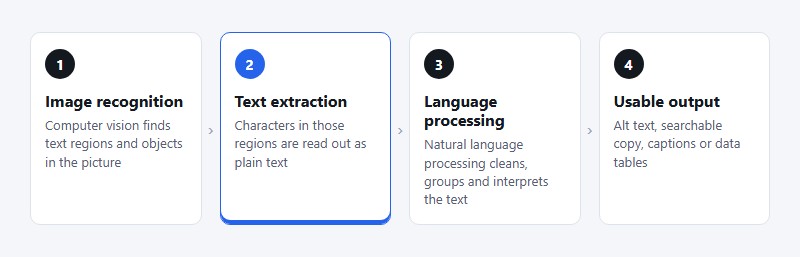
The process runs in phases. Image recognition finds the regions that contain text or objects. Text extraction then reads the characters in those regions. Natural language processing cleans up the result, groups it into lines or sentences and, for descriptions, builds readable phrases. The final output is plain text that you can search, edit, translate or feed into another tool.
Image quality drives the result more than anything else. Sharp, well-lit, high-contrast images with common fonts convert well. Curved text, decorative scripts, handwriting, low resolution and busy backgrounds cause errors. When a result looks odd, a better source file often fixes it faster than a different tool.
What are the benefits of image-to-text tools for designers?
Three benefits matter most in daily design work.
Better accessibility
People who use screen readers cannot see an image, so the page needs a text alternative that describes it. Image-to-text tools can draft that alt text, which you then edit so it says what matters in context. A caption such as “chart” helps nobody, while “bar chart showing sales growing each quarter” does.
Better searchability
Text locked inside images cannot be searched or indexed. Extracting it lets you build keyword lists, tag assets in a library and make infographic content findable on a website. This supports SEO because search engines read real text more reliably than pixels.
Faster workflows
Retyping text from a screenshot or a client’s scanned brief is slow and invites typos. Extraction does the first pass in seconds, and you only proofread. That cuts repetitive work and leaves more time for layout decisions.
These benefits show up differently depending on the kind of project, which is where use cases come in.
Where do designers use image-to-text in real projects?
| Use case | What the tool does | Typical result |
| Graphic design | Reads text from logos, infographics and illustrations | Editable copy for redesigns and audits of existing designs |
| Content creation | Pulls keywords, ideas and descriptions from visual references | A starting point for blog posts, captions and product descriptions |
| Data analysis | Extracts numbers and labels from charts and graphs | Data you can sort, organize and analyze in other tools |
Graphic design
Designers work with logos, infographics and illustrations all day. When a client sends a flattened PNG of an old flyer and the source file is lost, extraction gets the wording back so you can rebuild the layout. It also helps when you audit existing materials for wording consistency.
Content generation
Visual references can seed written content. Keywords and descriptions pulled from an image give you raw material for blog posts, social captions or product descriptions. Treat the output as notes to rewrite, not as finished copy.
Data analysis
Charts and graphs often reach designers as images. Converting the visible numbers and labels to text lets you organize them in a spreadsheet and look for trends before you redraw the graphic. For a related case, see how teams handle editing charts and graphs in financial PDFs.
How do you check the quality of extracted text?
Treat every extraction as a draft. Compare it with the original image, paying special attention to numbers, names, punctuation and characters that look alike, such as the letter O and the digit 0. Run a spell check, and have a second person review anything that goes to print or into a legal document.
If part of the text you publish was produced or reworked with AI help, an AI detector can show how likely it is to read as machine-written, which is useful when a client asks. Keep in mind that detectors judge writing style, not whether the text matches the source image, so they cannot confirm extraction accuracy. Only your own comparison does that.
Privacy is the other check. Scans of contracts, IDs or unreleased designs should not go to a tool whose data handling you have not read.
Audio has a similar workflow, as explained in this piece on turning recordings into editable documents.
FAQ
Is image-to-text the same as OCR?
OCR is one form of it. It reads existing letters in an image. Image captioning is the other form, and it describes pictures that contain no text.
Can these tools read handwriting?
Some can, but accuracy is lower than for printed text and varies with the writing. Always proofread handwritten results.
Does extracted text help SEO?
Yes, when you publish it as real page text or as accurate alt text. Search engines cannot reliably read words that exist only inside an image.
Are there ready-made services for this?
Yes. A hosted image-to-text service is one option when you do not want to set up software yourself.
How can you start using image-to-text in your workflow?
Take one image-heavy asset you already own, such as an infographic or an old flyer, and run it through a tool. Compare the output line by line, fix the errors, and note how long it took. That small test tells you whether the tool earns a place in your routine.

Renowned for his expertise in logo design and visual branding, Bogdan has developed a multitude of logos for various clients.
His skills extend to creating posters, vector illustrations, business cards, and brochures. Additionally, Bogdan's UI kits were featured on marketplaces like Visual Hierarchy and UI8.
He also wrote in the past years on sites like Design Your Way, WebDesignerDepot, WPDean, Designmodo, Speckyboy, Slider Revolution, and more.

Bogdan Sandu is a seasoned designer who has been designing websites since 2008. Renowned for his expertise in logo design and visual branding, Bogdan has developed a multitude of logos for various clients. His skills extend to creating posters, vector illustrations, business cards, and brochures. Additionally, Bogdan's UI kits were featured on marketplaces like Visual Hierarchy and UI8. He also wrote in the past years on sites like Design Your Way, WebDesignerDepot, WPDean, Designmodo, Speckyboy, Slider Revolution, and more.
You Might Also Like